How to Pin Computer to the Windows 7 Taskbar
Information
This will show you how to pin Computer to the Windows 7 taskbar as a separate icon instead of it being pinned as a Jump list item in the default pinned Window Explorer taskbar icon.

Note
When you have both the default Windows Explorer icon to the left and this Computer icon to the right of it, then each time you click on the Computer icon on the taskbar it will open another separate new window of Computer. Clicking on the Windows Explorer icon will only open the one window instance.
Warning
To avoid issues with other pinned "explorer" type shortcuts from displaying their opened windows in the thumbnail previews of whatever pinned "explorer" type shortcut is on the farthest left of the taskbar, be sure that the default pinned Windows Explorer taskbar icon is dragged to the left of this pinned Computer icon on the taskbar, and that any other pinned "explorer" type icon is dragged to the right of this Computer icon.
EXAMPLE: Computer Unpinned and Pinned from the Taskbar
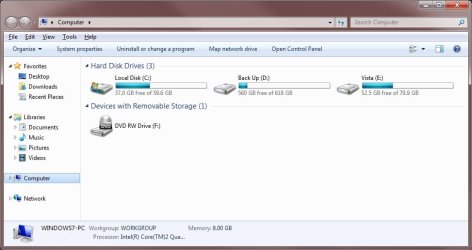
EXAMPLE: Computer window
OPTION ONE
To Download the "Computer" Shortcut
1. If you have not already, then uncheck the default Computer shortcut from the Desktop Icon Settings window.
2. Click on the Download button below to download the Computer.zip file below.
Download
3. Click on Save, and save the .zip file to the desktop.
4. Open the .zip file and extract the Computer shortcut to the desktop.
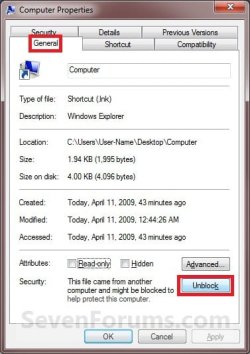
5. Right click on the Computer shortcut and click on Properties, General tab, and the Unblock button. (see screenshot below)
NOTE: If the unblock button is not there, then the shortcut is already set to be unblocked. Continue on to step 6.
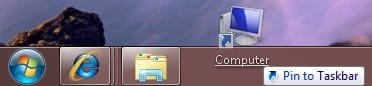
6. Drag the Computer shortcut onto the taskbar until you see the Pin to Taskbar pop-up and drop it. (see screenshot below)
7. Computer is now pinned to the taskbar. (see screenshot below)
NOTE: If you ever wish to remove the pinned Computer icon from the taskbar, right click on it and click on Unpin this program from the Taskbar.

8. When done, you can delete the downloaded Computer shortcut and .zip files on the desktop if you like.
OPTION TWO
To Manually Create the "Computer" Shortcut
1. If you have not already, then uncheck the default Computer shortcut from the Desktop Icon Settings window.
2. Right click on a empty space on the desktop and click on New and Shortcut.
3. Copy and past either location below into the location area and click on the Next button. (see screenshot below)
explorer.exe ,0
OR
%SystemRoot%\explorer.exe shell:MyComputerFolder
OR
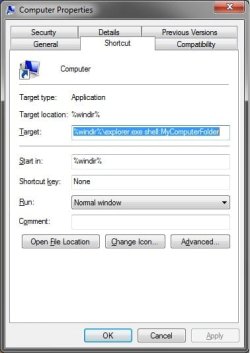
%windir%\explorer.exe shell:MyComputerFolder
OR
%windir%\explorer.exe /e,::{20D04FE0-3AEA-1069-A2D8-08002B30309D}
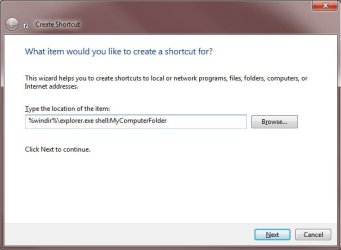
4. For the name, type Computer and click on the Finish button. (see screenshot below)

5. Right click on the new Computer shortcut on the desktop and click on Properties.
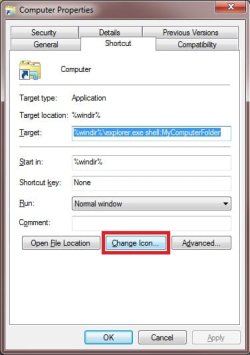
6. Under the Shortcut tab, click on the Change Icon button. (see screenshot below)
7. In the "Look for icons..." line, copy and paste the path below and press enter. (see screenshot below)
%SystemRoot%\system32\imageres.dll
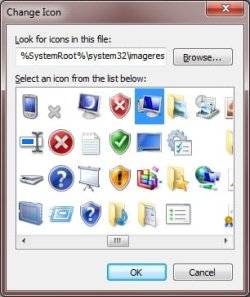
8. Select the Computer icon and click on OK. (see screenshot above)
9. Click on OK. (see screenshot below)
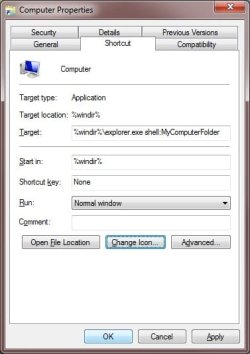
10. Drag the new Computer shortcut onto the taskbar until you see the Pin to Taskbar pop-up and drop it. (see screenshot below)
11. Computer is now pinned to the taskbar. (see screenshot below)
NOTE: If you ever wish to remove the pinned Computer icon from the taskbar, right click on it and click on Unpin this program from the Taskbar.
12. You can now delete the Computer shortcut on the desktop.
That's it,
Shawn
Related Tutorials
- How to Pin or Unpin a Program to the Windows 7 Taskbar
- How to Enable or Disable Windows 7 Taskbar Pinned Programs
- How to Add or Remove a Default Desktop Icon in Windows 7
- How to Pin the Recycle Bin to the Windows 7 Taskbar
- How to Pin the Control Panel to the Windows 7 Taskbar
- How to Change the Windows 7 Pinned Windows Explorer Taskbar Icon Open To Target
- How to Pin Your User Files Folder to the Windows 7 Taskbar
- How to Add or Remove Computer from the Windows 7 Navigation Pane
- How to Add or Remove "Computer" from Desktop Context Menu
Attachments

Last edited: