
Disable Explorer Folder View of Cab and Zip Files in Vista, Windows 7, and Windows 8
Information
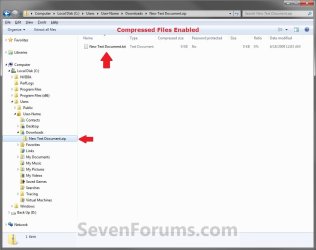
By default, Windows handles ZIP files just like folders. ZIP files will show in the navigation pane of Windows Explorer, and if selected in the navigation pane, you will see the ZIP file's contents in Windows Explorer just like a folder.
If you have a 3rd party ZIP program (ex: 7-Zip, etc.) installed, then this can be an annoyance to you and you may want to turn this feature off so ZIP files will only open in the program instead of Windows Explorer.
This tutorial will show you how to enable or disable ZIP folders (compressed and cab folders) from having their contents expand and show in Windows Explorer like folders for all users.
If you have a 3rd party ZIP program (ex: 7-Zip, etc.) installed, then this can be an annoyance to you and you may want to turn this feature off so ZIP files will only open in the program instead of Windows Explorer.
This tutorial will show you how to enable or disable ZIP folders (compressed and cab folders) from having their contents expand and show in Windows Explorer like folders for all users.
Note
Compressed (ZIP) folders and Cab folders are enabled by default to have their content expand and display in Windows Explorer folder view like normal folders.
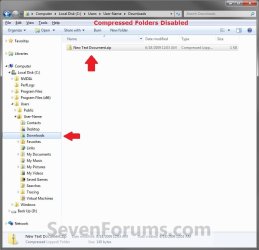
If disabled, you will only be able to open ZIP and CAB files and extract/view their contents with a 3rd party program (ex: 7-Zip, etc.). You will only see the ZIP and CAB files in Windows Explorer.
If disabled, you will only be able to open ZIP and CAB files and extract/view their contents with a 3rd party program (ex: 7-Zip, etc.). You will only see the ZIP and CAB files in Windows Explorer.
Warning
This can only be done while logged on to an administrator account.
EXAMPLE: Zip Folders (compressed and cab folders) Enabled and Disabled
Here's How:
1. Do step 2 and/or 3 or step 4 and/or 5 below for what you would like to do.
2. To Enable ZIP Compressed Folders
NOTE: This is the default setting.
A) Click/tap on the Download button below to download the file below, and go to step 6 below.
Enable_ZIP_Compressed_Folders.reg
Download
3. To Enable CAB Folders
NOTE: This is the default setting.
A) Click/tap on the Download button below to download the file below, and go to step 6 below.
Enable_CAB_Files.reg
Download
4. To Disable ZIP Compressed Folders
A) Click/tap on the Download button below to download the file below, and go to step 6 below.
Disable_ZIP_Compressed_Folders.reg
Download
5. To Disable CAB Folders
A) Click/tap on the Download button below to download the file below, and go to step 6 below.
Disable_CAB_Files.reg
Download
6. Save the .reg file to your desktop.
7. Double click/tap on the downloaded .reg file to merge it.
8. If prompted, click on Run, Yes (UAC Windows 7/8) or Continue (UAC Vista), Yes, and OK when prompted.
9. Log out and in, or restart the PC to apply.
That's it,
Shawn
Attachments
Last edited:


