
Maximize and Restore Down a Window by Drag and Drop

How to Use Aero Snap to Maximize and Restore Down a Window in Windows 7

   Information
This will show you how to use Aero Snap to Maximize and Restore Down a Window by using Drag and Drop in Windows 7.
   Tip
Of course you can still double click on the Title Bar, or click on the Maximize/Restore Down button, to maximize or restore down a window.

329d1225957523-maximize-restore-down-window-drag-drop-title_bar.jpg


KEYBOARD SHORTCUTS:
NOTE: On multiple monitors, continually pressing a keyboard shortcut combination below will have the active window snap to the side and scroll in the direction of the arrow key through multiple monitor screens.

(
orb.png
= Windows-key, RA = Right Arrow, LA = Left Arrow, UA = Up Arrow, DA = Down Arrow)


On a Single Display
  • orb.png
    + LA = Snap the current active window to the left side of the screen, or unsnap a window that is snapped to the right side of the screen.
  • orb.png
    + RA = Snap the current active window to the right side of the screen, or unsnap a window that is snapped to the left side of the screen.
  • orb.png
    + UA = Maximize the current active window to full screen.
  • orb.png
    + DA = Minimize the current active window to the taskbar.
On a Dual Display
  • Active window on right display:
    • orb.png
      + RA = Snap to the right on the right display
    • orb.png
      + LA = Snap to the left on the right display
    • orb.png
      + LA + LA (LA two times) = Snap to the right on the left display (change display)
  • Active window on left display:
    • orb.png
      + LA = Snap to the left on the left display
    • orb.png
      + RA = Snap to the right o the left display
    • orb.png
      + RA + RA (RA two times) = Snap to the left on the right display (change display)
   Warning
Aero Requirements to be Enabled in Windows 7
NOTE: If Aero is not enabled, then Aero Snap will not work even when turned on.
  • Aero is not included in Windows 7 Home Basic or Windows 7 Starter editions.
  • 1 GHz 32-bit or 64-bit processor
  • 1 GB of system memory
  • A graphics card with support for DirectX 9 graphics with at least 128 MB of memory.
  • The graphics card must support Pixel Shader 2.0 and the Windows Display Driver Model (WDDM).
  • The computer display color depth must be set to 32 bits per pixel.
  • Desktop composition and Animate controls and elements inside windows options needs to be enabled (checked) in Visual Effects.
  • The Desktop Window Manager Session Manager and Themes Services need to be set as Started and Automatic.
  • Refresh or update your WEI score. You will need an WEI score minimum of 2.0 in both Graphics & Gaming graphics in order for Aero to be activated.


Here's How:
1. To Maximize a Window
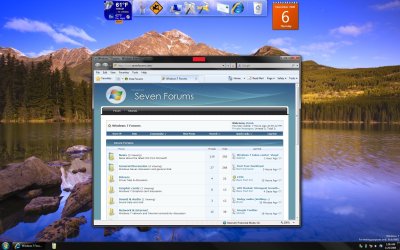
A) Left click and hold on the Title Bar of the window you want to maximize. (See screenshot below)
Restore_Down.jpg
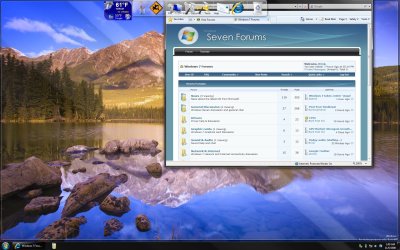
B) Drag the window to the top edge of the screen and drop (release left click) it. (See screenshot below)
NOTE: You will notice a border pop-up around the borders of the desktop when you drag the window to the top edge of the screen. This is when you should drop the window.
Drag_to_Top.jpg
C) The window is now maximized. (See screenshot below step 2B)

OR

D) Double click on the unmaximized window's title bar to maximize the window.
2. To Restore Down a Window
A) Left click and hold on the Title Bar of the window you want to restore down. (See screenshot below)
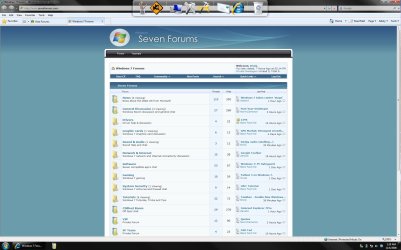
B) Drag the window down to where you like it and drop (release left click) it.
Maximized.jpg
C) The window is now restored down. (See screenshot below step 1A)

OR

D) Double click on the maximized window's title bar from step1 to restore it back to it's default position.
That's it,
Shawn


Attachments

  • Title_Bar.jpg
    Title_Bar.jpg
    25.6 KB · Views: 25,666
Last edited:
That is cool now I don't have to click on the button anymore. Thanks
 

My Computer

Computer Manufacturer/Model Number
HP Compaq Presario/SR5113WM
OS
Windows 7 Ultimate x64/ Windows Vista Ultimate x64
CPU
AMD Athlon 64 X2 3600+ 1.9Ghz
Motherboard
Asus M2N68-LA
Memory
PNY Optima Memory DDR2 2GB 2x1 kit
Graphics Card(s)
PNY Nvidia 8400 GS 256MB
Sound Card
On board RealTek
Monitor(s) Displays
Acer X163W LCD
Screen Resolution
1366x768
Hard Drives
Western Digital 160 GB SATA 3G (3.0Gb/sec)
7200 rpm
Western Digital 160 GB IDE
PSU
Dynex 400w
Case
Nothin Special
Cooling
Stock
Keyboard
Standard 102 key with volume and sleep buttons
Mouse
Wireless Logitech LX7
Internet Speed
Comcrap 10mb cable
Other Info
Insignia 2.1 speakers, wireless Xbox 360 controller w/plug n play charger, Belkin wireless G + mimo usb network adapter.
You're welcome Mansrm81. I do like these new user friendly features that Microsoft has added to Windows 7.
 

My Computer

Computer type
PC/Desktop
Computer Manufacturer/Model Number
Self built custom
OS
64-bit Windows 11 Pro for Workstations
CPU
Intel i7-8700K OC'd to 5 GHz
Motherboard
ASUS ROG Maximus XI Formula Z390
Memory
64 GB (4x16GB) G.SKILL TridentZ RGB DDR4 3600 MHz
Graphics Card(s)
ASUS ROG-STRIX-GTX1080TI-O11G-GAMING
Sound Card
Integrated
Monitor(s) Displays
2 x Samsung Odyssey G7 27"
Screen Resolution
2560x1440
Hard Drives
1TB Samsung 990 PRO M.2,
4TB Samsung 990 PRO PRO M.2,
TerraMaster F8 SSD Plus NAS
PSU
Seasonic Prime Titanium 850W
Case
Thermaltake Core P3
Cooling
Corsair Hydro H115i
Keyboard
Logitech wireless K800
Mouse
Logitech MX Master 4
Internet Speed
2 Gb/s Download and 100 Mb/s Upload
Antivirus
Malwarebyte Anti-Malware Premium
Browser
Google Chrome
Other Info
Logitech Z625 speaker system,
Logitech BRIO 4K Pro webcam,
HP Color LaserJet Pro MFP M477fdn,
APC SMART-UPS RT 1000 XL - SURT1000XLI,
Galaxy S23 Plus phone
Is there a way to disable this feature?

I have a lot of RDP windows that I run "Maximized" at lower resolutions like 1152x864. Whenever I drag them around the screen, they restore down, and once I can't really position them the way I want, since I have to maximize them to get them back (dragging the window to full size pops them back into the corner of my display as well).
 

My Computer

Computer Manufacturer/Model Number
Compal ODM Laptop
OS
Windows 7 x86
CPU
Intel Pentium M 1.80Ghz
Motherboard
Dunno, some sorta Intel laptop board
Memory
1.5GB
Graphics Card(s)
Radio Mobility 9700Pro
Sound Card
Realtek AC'97 Audio
Monitor(s) Displays
15" display, occasionally a 22" widescreen extended display
Screen Resolution
1400x1050 + 1600x1080
Hard Drives
80GB Fujitsu
Sorry Sean, none that I know of. :(
 

My Computer

Computer type
PC/Desktop
Computer Manufacturer/Model Number
Self built custom
OS
64-bit Windows 11 Pro for Workstations
CPU
Intel i7-8700K OC'd to 5 GHz
Motherboard
ASUS ROG Maximus XI Formula Z390
Memory
64 GB (4x16GB) G.SKILL TridentZ RGB DDR4 3600 MHz
Graphics Card(s)
ASUS ROG-STRIX-GTX1080TI-O11G-GAMING
Sound Card
Integrated
Monitor(s) Displays
2 x Samsung Odyssey G7 27"
Screen Resolution
2560x1440
Hard Drives
1TB Samsung 990 PRO M.2,
4TB Samsung 990 PRO PRO M.2,
TerraMaster F8 SSD Plus NAS
PSU
Seasonic Prime Titanium 850W
Case
Thermaltake Core P3
Cooling
Corsair Hydro H115i
Keyboard
Logitech wireless K800
Mouse
Logitech MX Master 4
Internet Speed
2 Gb/s Download and 100 Mb/s Upload
Antivirus
Malwarebyte Anti-Malware Premium
Browser
Google Chrome
Other Info
Logitech Z625 speaker system,
Logitech BRIO 4K Pro webcam,
HP Color LaserJet Pro MFP M477fdn,
APC SMART-UPS RT 1000 XL - SURT1000XLI,
Galaxy S23 Plus phone
Woooo thanks Brink. This is an awesome feature.
 

My Computer

OS
Windows 7 Ultimate x64 - Beta1 7000 Build
CPU
E2200
Memory
4GB DDR2 @ 800MHz
Graphics Card(s)
7600GT
Sound Card
Realtek HD ALC888
Monitor(s) Displays
Dell 19"
Screen Resolution
1152 x 864
PSU
300W
Mouse
Laser
Internet Speed
7mb download/800 kbps upload
You're welcome JumboWumbo.
 

My Computer

Computer type
PC/Desktop
Computer Manufacturer/Model Number
Self built custom
OS
64-bit Windows 11 Pro for Workstations
CPU
Intel i7-8700K OC'd to 5 GHz
Motherboard
ASUS ROG Maximus XI Formula Z390
Memory
64 GB (4x16GB) G.SKILL TridentZ RGB DDR4 3600 MHz
Graphics Card(s)
ASUS ROG-STRIX-GTX1080TI-O11G-GAMING
Sound Card
Integrated
Monitor(s) Displays
2 x Samsung Odyssey G7 27"
Screen Resolution
2560x1440
Hard Drives
1TB Samsung 990 PRO M.2,
4TB Samsung 990 PRO PRO M.2,
TerraMaster F8 SSD Plus NAS
PSU
Seasonic Prime Titanium 850W
Case
Thermaltake Core P3
Cooling
Corsair Hydro H115i
Keyboard
Logitech wireless K800
Mouse
Logitech MX Master 4
Internet Speed
2 Gb/s Download and 100 Mb/s Upload
Antivirus
Malwarebyte Anti-Malware Premium
Browser
Google Chrome
Other Info
Logitech Z625 speaker system,
Logitech BRIO 4K Pro webcam,
HP Color LaserJet Pro MFP M477fdn,
APC SMART-UPS RT 1000 XL - SURT1000XLI,
Galaxy S23 Plus phone
Back
Top