Windows Easy Transfer - Transfer To & From Computers

How to Transfer Files from One Computer to Another Computer with Windows Easy Transfer

   Information
This tutorial will show you how to transfer your user files and settings from one computer to another using the Windows Easy Transfer tool.
   Note
This feature is available in Vista and Windows 7. It can also be used as a handy backup if you are thinking about installing a new build of Windows 7 on your current machine.
   Tip
This process can also be used between accounts if, for example, your old account has been acting up and you do not want to re-install and transfer your old data.
   Tip


To do this you will need to follow the steps outlined in Step 1 below, then create a new user account. Next, log into the new User account and proceed to follow Step 2 below to invoke the copy process.

Many thanks to Ztruker for testing & highlighting the above possibility.


STEP ONE

Save Transfer File from Old Computer


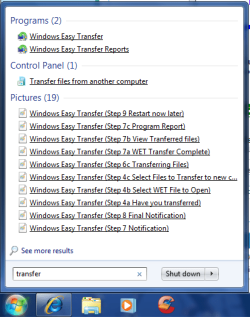
1. Open the start menu and type transfer in the search line, or navigate to All Programs, Accessories, System Tools, and click on Windows Easy Transfer.​
start menu 2.png

start menu 1.png
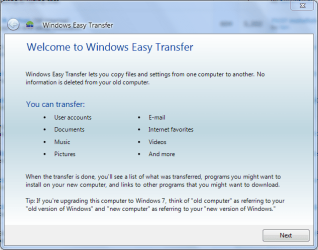
2. Click on Next when the application opens.
Windows Easy Transfer (Step 1).PNG
3. Choose destination to save the Transfer file and click on Next.
NOTE: Please note for the purpose of this tutorial I have selected the external hard disk or USB flash drive.
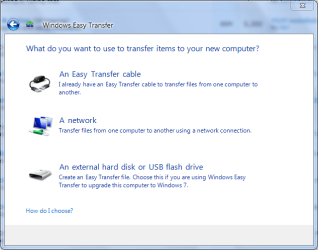
Windows Easy Transfer (Step 2 Choose Destination).PNG
4. Select This is my old computer from the list.
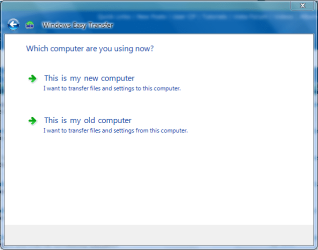
Windows Easy Transfer (Step 3 Choose Computer).PNG
5. Windows Easy Transfer will scan for files that can be transferred.
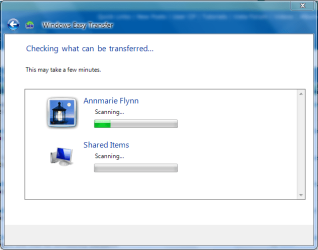
Windows Easy Transfer (Step 3a Scanning User Files).PNG
6. Select which files you wish saved suring the transfer process, then click on Next.
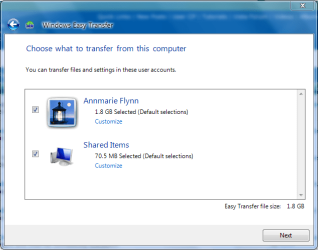
Windows Easy Transfer (Step 4 Select Files to Transfer).PNG


7. You will be prompted for a password in the next screen, but this is optional.
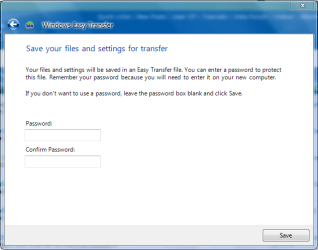
Windows Easy Transfer (Step 5 Choose a Password).PNG


8. Choose where to save your Transfer file and what to name it, then click Save.

Windows Easy Transfer (Step 6 Save WET file).PNG


9. Windows will begin the saving process.
WARNING: This can take some time depending on the overall size of the data being saved.
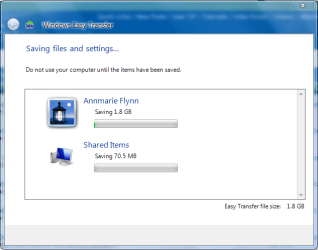
Windows Easy Transfer (Step 6a Saving WET file).PNG


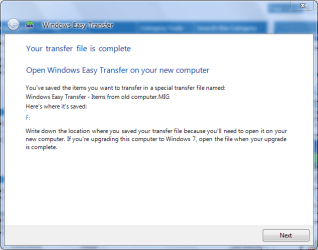
10. Windows will prompt when saving has finished.
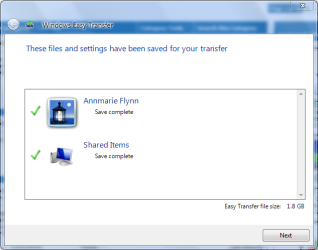
Windows Easy Transfer (Step 6b WET Save Complete).PNG


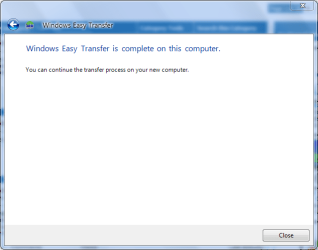
Windows Easy Transfer (Step 7 Notification).PNG

Windows Easy Transfer (Step 8 Final Notification).PNG


STEP TWO

Transfer Files to New Computer


1. Follow steps 1, 2 & 3 in the STEP ONE section above.​


2. Select This is my new computer from the list.​
Windows Easy Transfer (Step 3 Choose Computer).PNG
3. Windows will display a notification asking if you have already saved files from your old computer, select Yes.
Windows Easy Transfer (Step 4a Have you transferred).PNG
4. Select the Transfer file previously saved in the STEP ONE (step 6) section and click on Open.
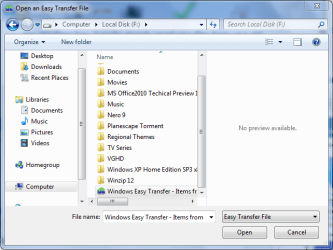
Windows Easy Transfer (Step 4b Select WET File to Open).PNG
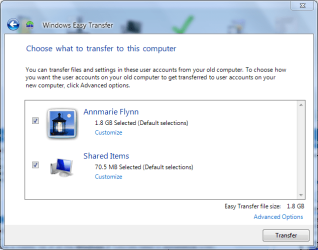
5. You will be shown a selection of options that can be transferred. Choose which the options you want and click on Transfer.
Windows Easy Transfer (Step 4c Select Files to Transfer to new computer).PNG
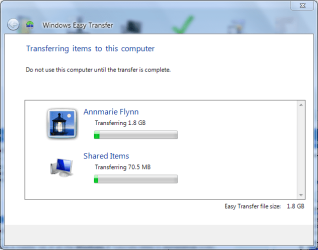
6. Windows will start transferring user files and settings to your new computer.
Windows Easy Transfer (Step 6c Transferring Files).PNG
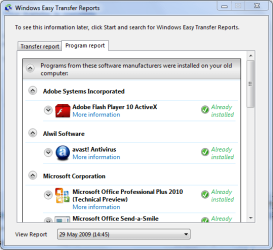
7. Once finished, Windows will give the option to view which files have been transfered....
Windows Easy Transfer (Step 7b View Tranferred files).PNG
and which programs you will need to install for some settings to work correctly.
Windows Easy Transfer (Step 7c Program Report).PNG
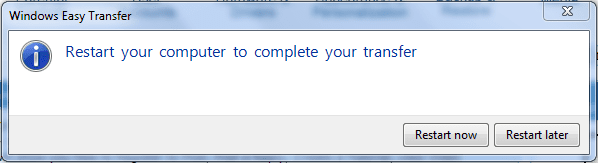
8. You will recieve a final completion notification and asked if you wish to restart your computer.
Windows Easy Transfer (Step 8 Final Notification).PNG

Windows Easy Transfer (Step 9 Restart now later).PNG
   Note
Once Windows restarts, you can now access all the files and folders that have been transferred.


Attachments

  • Windows Easy Transfer (Step 7a WET Transfer Complete).PNG
    Windows Easy Transfer (Step 7a WET Transfer Complete).PNG
    90 KB · Views: 47
Last edited by a moderator:
Nice tut, Orbital Shark. +Rep to you
 

My Computer

Computer type
Laptop
Computer Manufacturer/Model Number
Samsung
OS
Windows 8 x64
CPU
Intel Core i7 3630QM
Motherboard
Intel HM76
Memory
Samsung 8 GB DDR3 800 Mhz
Graphics Card(s)
ATI Radeon HD Graphics 7670M + Intel HD Graphics 4000
Screen Resolution
1366x768
Hard Drives
SAMSUNG Spinpoint M8 1TB
Internet Speed
4 Mb/sDownload Speed, 2 Mb/s Upload Speed
Antivirus
avast!
You're welcome & welcome to the forums :D
 

My Computer

Computer Manufacturer/Model Number
Compaq Desktop
OS
Windows 7 Ultimate x64
CPU
AMD Sempron Dual Core
Memory
3GB
Graphics Card(s)
NVIDIA GeForce 6150SE nForce 430
Screen Resolution
1024x768
Hard Drives
150GB Sata
Need help in migrating from XP-pro to Windows 7 Ultimate. This tutorial is for computers with window Vista. Help, Help, Help!!!!

Thanks,

Old Guy
 

My Computer

Computer Manufacturer/Model Number
Custom
OS
windows 7 ultimate
CPU
AMD Athlon 64X2 5200 Brisbane 2.7GHz Socket AM2 Dual-Core Pr
Motherboard
Jetway JXBLUEN78V-LF
Memory
Kingston HyperX 2GB 240 pin DDR2 SDRAM DDR2 (2)
Graphics Card(s)
NVIDIA GeForce 8100 HDMI MicroATX AMD
Monitor(s) Displays
Acer H213H
Hard Drives
SAMSUNG HD502HI 500GB 5400 RPM SATA 3.0Gb/ 3.5" internal
Case
Rosewill R909SL
Cooling
IPCQUEEN IPC-12025 120mm Case Fan
Hi Old Guy, welcome to the forums.

There is an XP version of the same software available for DOWNLOAD from Microsoft.

Hope that helps :)


Jeff
 

My Computer

Computer Manufacturer/Model Number
Compaq Desktop
OS
Windows 7 Ultimate x64
CPU
AMD Sempron Dual Core
Memory
3GB
Graphics Card(s)
NVIDIA GeForce 6150SE nForce 430
Screen Resolution
1024x768
Hard Drives
150GB Sata
Just a question regarding this, can you tell me which directories this will save?
 

My Computer

OS
Windows 7
CPU
Intel Core 2 Duo E6750
Motherboard
ASUS P5K-E
Memory
4GB Crucial Ballistix 1066mhz
Graphics Card(s)
nVidia GEForce 8800 GTS 640MB
Sound Card
N/A
Monitor(s) Displays
N/A
Screen Resolution
1280x1024
PSU
OCZ GamerXStream 800w
Internet Speed
24Mb
It should save all files in the Users folder

Capture.PNG
 

My Computer

Computer Manufacturer/Model Number
Compaq Desktop
OS
Windows 7 Ultimate x64
CPU
AMD Sempron Dual Core
Memory
3GB
Graphics Card(s)
NVIDIA GeForce 6150SE nForce 430
Screen Resolution
1024x768
Hard Drives
150GB Sata
Would it transfer the installed files too? Or would I need to reinstall them manually by going to the manufacturer's website, etc.
 

My Computer

OS
Windows 7 32bit(main) and Windows XP
CPU
AMD Athlon X2 Dual Core 6000+
Motherboard
ASUS M2A-MVP
Memory
2048 MB
Graphics Card(s)
ATI Radeon HD 2600 Pro
Monitor(s) Displays
LG Flatron W2242
Sorry for the late reply :o

It will only transfer user files & settings. Drivers and applications will still need to be re-installed.
 

My Computer

Computer Manufacturer/Model Number
Compaq Desktop
OS
Windows 7 Ultimate x64
CPU
AMD Sempron Dual Core
Memory
3GB
Graphics Card(s)
NVIDIA GeForce 6150SE nForce 430
Screen Resolution
1024x768
Hard Drives
150GB Sata
Has anyone else noticed the firefox profile not being included in the transfer? I had to manually transfer said profiles (no problem, unless you delete it and don't save it) or manually select that folder during Step 5. :rolleyes:

Robert
 

My Computer

OS
...
It could be due to the location of the files and the fact that it's FireFox ;)

You never know, MS may have a lookout app to exclude certain software from backups :p
 

My Computer

Computer Manufacturer/Model Number
Compaq Desktop
OS
Windows 7 Ultimate x64
CPU
AMD Sempron Dual Core
Memory
3GB
Graphics Card(s)
NVIDIA GeForce 6150SE nForce 430
Screen Resolution
1024x768
Hard Drives
150GB Sata
how do you make this work when you save the easy transfer in windows 7 beta and then save it to my network hard drive and then you reinstall vista and try to open up the easy transfer file? it keeps telling me to look for the correct file?
 

My Computer

OS
windows 7 rc
Hi Tim, sorry for the late reply & welcome o the forum.

I'm not overly sure about Se7en to Vista but i'll try and look into it for you ;)
 

My Computer

Computer Manufacturer/Model Number
Compaq Desktop
OS
Windows 7 Ultimate x64
CPU
AMD Sempron Dual Core
Memory
3GB
Graphics Card(s)
NVIDIA GeForce 6150SE nForce 430
Screen Resolution
1024x768
Hard Drives
150GB Sata
x64 to x86 just wont go....

I have been using Windows 7 x64 for a while now and was very happy with it, but I have had to go back to x86 for the TV card I wanted to use. So I have used the transfer wizard to save all my files onto a spare drive, lovely; 35GB of stuff all safe and secure I thought.

Now 32bit is installed Windows tells me it is unable to migrate files from 64bit windows to 32bit , so now my files are locked in this secure file and I have no access to them.

Does anybody know how I can veiw the contents of the saved files without the transfer wizard.

Thanks in advance.
 

My Computer

OS
7
Hi Stern67, welcome to the forums.

I wasn't aware of the 64/32 migration thing :o

You could try duel booting 32 & 64 bit, then move the files over from 1 partition to the other. Sorry but this is the only way I can think of getting round this.
 

My Computer

Computer Manufacturer/Model Number
Compaq Desktop
OS
Windows 7 Ultimate x64
CPU
AMD Sempron Dual Core
Memory
3GB
Graphics Card(s)
NVIDIA GeForce 6150SE nForce 430
Screen Resolution
1024x768
Hard Drives
150GB Sata
will this delete the old files or will it just copy them?
 

My Computer

Computer Manufacturer/Model Number
HP
OS
XP
CPU
AMD Athlon 3500+ Venice Socket 939
Motherboard
MSI Albacore RS480
Memory
3 GB PC3200 DDR SDRAM
Graphics Card(s)
nVIDIA GeForce 9600GT 512MB
Sound Card
Realtek AC97
Monitor(s) Displays
HP vs17
Screen Resolution
1280x1024
Hard Drives
Seagate ST3250823AS 250 GB 7200 RPM SATA 8MB Cache
Samsung HD103SJ Spinpoint F3 1 TB 7200 RPM SATA 32MB Cache
PSU
Antec TruePower 500W
Keyboard
Standard HP Keyboard
Mouse
Logitech MX518
The files are kept when the 1st stage of the transfer process is complete, they will only be deleted if you manually choose to do so..:)
 

My Computer

Computer Manufacturer/Model Number
Compaq Desktop
OS
Windows 7 Ultimate x64
CPU
AMD Sempron Dual Core
Memory
3GB
Graphics Card(s)
NVIDIA GeForce 6150SE nForce 430
Screen Resolution
1024x768
Hard Drives
150GB Sata
I'm aware of the 64bit to 32bit issue, but will this also be a problem going from 32bit to 64 bit? I want to upgrade, but I don't want to manually get all the user settings back.
 

My Computer

Computer Manufacturer/Model Number
Home Built
OS
Win 7 Ultimate x64 & x86
CPU
AMD Anthalon 64 XT 6000+ 3.0Ghz
Motherboard
Asus M2N-eE
Memory
4 GB
Graphics Card(s)
Nvidia GeForce 8500 GT
If you're concerned about particular settings then you can just run the Transfer for user files only (pics, vids, music, documents).

You will need to 'clean' install a new (bit) OS anyway so it will be just the user files that you can transfer.

Hope this helps :)


OS
 

My Computer

Computer Manufacturer/Model Number
Compaq Desktop
OS
Windows 7 Ultimate x64
CPU
AMD Sempron Dual Core
Memory
3GB
Graphics Card(s)
NVIDIA GeForce 6150SE nForce 430
Screen Resolution
1024x768
Hard Drives
150GB Sata
Back
Top