
Internet Troubleshooting Guide

Dinesh's Complete Internet Troubleshooting Guide

   Information
This is your one-stop internet related issues guide. Here I will show you some ways to fix your high speed or dial up internet connection issues with Windows 7.
   Note
I will show you some very useful and basic steps that you can follow without having much technical expertise. All you have to do is identify your issue and follow the troubleshooting according to it.
   Warning
I do not guarantee that it will 100% work for you. However, these methods have been tried and tested and has worked 8/10 times. So try your luck.


Here's How:

Step 1: Identify your internet connection:

A: Do you have a high speed connection or a dial-up connection?
  • If you use a telephone line and connect it to your computer and dial the connection, you have a dial-up connection.
  • If you have a router or a cable/DSL modem with an ethernet cable connected to your computer, its a high speed connection.
Step 2: Troubleshoot the issue.
   Note
To fix internet issues related to high-speed connection, follow these steps:


When you Cannot Connect to internet using a high-speed or broadband cable connection.

Check your IP Address.
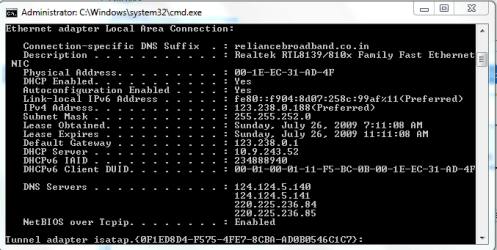
Click Start and in the Start Search box, type cmd and press Ctrl+Shift+Enter.
Now in the black command prompt window, type ipconfig /all
(See the screen-shots below).
1.PNG

Look for Ethernet Adapter Local Area Connection.
Look for IPV4 Address. If its anything other than 169.254.xxx.xxx, you have a valid IP address.
For any other ip address other than 169.254.xxx.xxx, follow these steps:
   Information
Now that you've diagnosed that you have a valid IP address, its time to diagnose the issue.

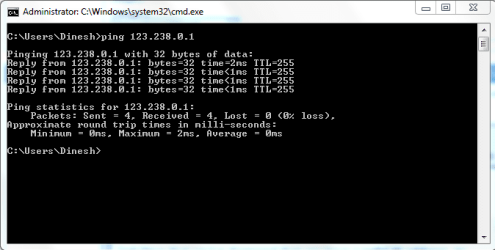
A: In the same black command prompt window, type
ping <Default Gateway> and press Enter.
(See the screenshot below).
2.PNG
Now look at the ping statistics, it should send 4 packets and receive 4 packets. Sent=4, Received=4, Lost=0.

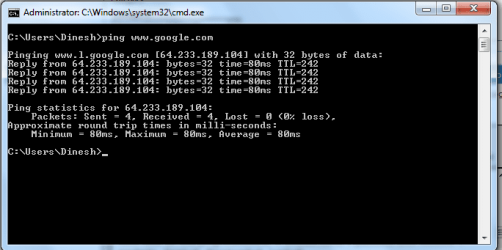
B: If the ping is successful, type
ping Google and press Enter.
(You can type the address of any website like Yahoo! to check the connectivity).
(See the screenshot below).
3.PNG
If the ping is again successful, your Anti virus or firewall program is blocking your internet connection. By pinging Default Gateway and websites, we check the internet connectivity of the computer with ISP and websites respectively.

   Information
Now that you've diagnosed that the ping is successful, its time to troubleshoot the issue.


  • If ping to Default Gateway and website is successful but you cannot browse any websites:
Temporarily disable/remove your antivirus program and your internet will start working.
Note: You can also boot to safe mode with networking to check the internet connectivity. (Press F8 when you turn on your computer and select Safe mode with networking option to boot the computer to safe mode with networking).


  • If ping to Default Gateway is successful but pinging websites returns an error and you cannot browse any websites:
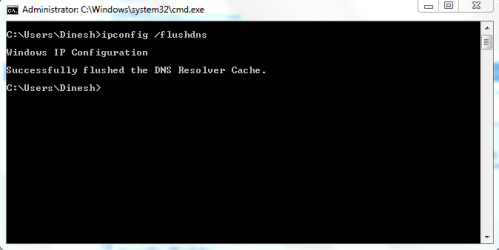
In the same black command prompt window, type the following commands and press Enter after each command:
Ipconfig /flushdns
Ipconfig /release
Ipconfig /renew
Now restart your computer and try to browse to some websites like yahoo,google, etc.
4.PNG

  • If ping to Default Gateway and pinging websites returns an error and you cannot browse any websites:
   Note
If you ping the default gateway or any website, you may get an error saying “Media State Media Disconnected” and ping will not return you any statistics

A: Check whether your internet cable is properly plugged in to the computer.

B: Remove the internet cable from computer, restart your cable modem and computer and plug the internet cable back to the computer.

C: Verify whether all the lights on the cable modem are lit.

D: Enter BIOS, make sure that the Integrated NIC is Not Disabled.

E: In the black command prompt window, type
Ipconfig /release and press Enter. Then type ipconfig /renew to obtain a new ip address from the DHCP server.

F: Click Start and in the Start Search box, type services.msc and press Enter. Then double-click DHCP client service and make sure the Startup type is Automatic and Status is Started.
5.PNG
If ping to Default Gateway is successful but pinging any website is unsuccessful and you cannot browse any websites:
(Ping Statistics: Sent=4, Received=0, Lost=4. )
A: Temporarily disable/remove your antivirus or firewall program.

B: Try a system restore.

C: Delete all temp files and cookies and restart your computer and cable modem.

D: If you have connected your computer to a router, bypass the router and connect the computer directly to the cable/DSL modem.
For ip address 169.254.xxx.xxx, follow these steps:
A: In the command prompt window, type
netsh winsock reset catalog and press Enter. Now restart your computer.(See the screenshot below).
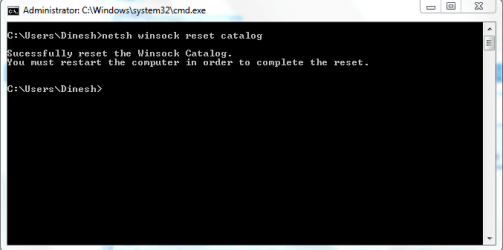
6.PNG


B: Try a system restore.

C: Click Start and in the Start Search box, type services.msc and press Enter. Then double-click DHCP client service and make sure the Startup type is Automatic and Status is Enabled.

D: Remove the internet cable from computer, restart your cable modem and computer and plug the internet cable back to the computer.

E: Reinstall Windows 7.

   Note
To fix internet issues related to dial-up connection, follow these steps:


When you Cannot Connect to internet or cannot dial a connection using a dial-up connection.
A: Check your telephone line and make sure its connected properly to the modem port at the back of the computer.

B: Lift the telephone receiver and listen to the dial tone to make sure that the telephone line is working.

C: Check the connection properties by clicking on Start>Control Panel\All Control Panel Items>Phone and Modem.
Under Phone and Modem>Dialing Rules>My Location>Edit make sure that the Country/Region and the Area Code is matching with yours.
(See the screen-shots below)


D: Click Start and in the Start Search box, type msconfig and press Enter.
In the system configuration utility, click Startup and click Disable All.
Click Apply and Click on Ok and Click Restart now.
(See the screen-shots below)
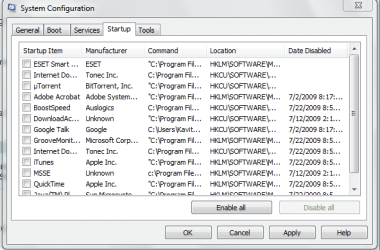
Capture.PNG

E: Delete temp files and cookies by using this tutorial.

F: Call your ISP to reset your account.

G: Open the computer and Reseat the modem card or put it in a different slot.
(See the screen-shots below)

H: Reinstall Windows 7.

I: Replace the modem card (Hardly costs US$20).

   Note
If your internet stopped working after a thunderstorm or lightening, directly proceed to Step G.


Note: Make sure you install the latest NIC driver for high speed internet connection.
Hope this helps you getting online once again,
Dinesh.


Last edited by a moderator:
nice tutorial dinesh.

a few months ago i had intermittent connection problems after a particularly bad thunderstorm, and it took me a few days to track the fault to my DSL filter. i replaced it, and everything has been groovy since then. :)
 

My Computer

Computer Manufacturer/Model Number
mickey megabyte 1234
OS
ultimate 64 sp1
CPU
i5 2500K [email protected]
Motherboard
MSI P67A-GD53
Memory
8 gigs GSkill Ripjaws 1600
Graphics Card(s)
amd hd6950
Sound Card
creative x-fi gamer
Monitor(s) Displays
samsung 24"
Screen Resolution
1920x1080
Hard Drives
ocz vertex 2e 60 gig, samsung f3 1tb, buffalo 2tb ext
PSU
antec 550
Case
antec three hundred
Cooling
i'm a cooling fan
Keyboard
saitek eclipse ii
Mouse
logitech g3
Internet Speed
about 4 Mbps
Other Info
i love win7
nice tutorial dinesh.

a few months ago i had intermittent connection problems after a particularly bad thunderstorm, and it took me a few days to track the fault to my DSL filter. i replaced it, and everything has been groovy since then. :)
Thanks mate. I m glad to hear that you sorted it out by replacing the faulty hardware. :)
 

My Computer

Computer Manufacturer/Model Number
Samsung NP530U4B-S02IN
OS
Windows® 8 Pro (64-bit)
CPU
Intel® Core™ i5 Processor 2467M (1.60GHz, 3MB L3 Cache)
Motherboard
Samsung Electronics
Memory
6GB DDR3 System Memory at 1,333MHz (on BD 4GB + 2GB x 1)
Graphics Card(s)
AMD Radeon™ HD7550M 1GB DDR3 (Ext. Graphic)
Sound Card
Realtek High Definition Audio
Monitor(s) Displays
35.56cm (14.0) SuperBright 300nit HD LED Display
Screen Resolution
1366x768
Hard Drives
1TB S-ATA II Hard Drive (5400RPM) with ExpressCache 16GB SSD
Internet Speed
sucks
Antivirus
Microsoft Security Essentials
Browser
Google Chrome (Sync enabled)
Internet connection problems

Hallo everybody.

I am using Windows 7 64 bit version connected to an High speed connection.
The sytem did install 2 differend programm directories, one 32 bit and one 64 bit.
Also two IE8 versions.

The IE 8 64 bit version works fine.( and fast like H....ll )

The IE 8 32 bit does not connect to the internet.( Not at all)
I did check all settings and as far as I can see they are all the same.

Non of my 32 bit programms can enter internet and the system does not allow me to copy all the 64 bit files over the 32 bit files.

If I use this sample which system are I looking.
The 32 bit or the 64 bit ??

Regards Cees
 

My Computer

Computer Manufacturer/Model Number
self made
OS
windows 7
CPU
I7 940
Motherboard
Intel DX58SO
Memory
Corsair Dominator 6GB
Graphics Card(s)
EVGA 01G P3 1285 AR GeForce GTX 285 SC Edition 1 GB 512bit
Sound Card
build in
Monitor(s) Displays
Vieuwsonic VX2233wm 21.5"
Hard Drives
1 x WD VelociRaptor WD3000HLFS
2 x WD 1 Terra each
PSU
Corsair CMPSU 1000HX
Case
Cool master HAF 932
Cooling
Air
Keyboard
Logitech Games board G15
Mouse
Logitech
Internet Speed
High Speed
Hi cvk, this troubleshooting applies to both 64bit and 32bit. Well yours is a wierd problem as its happening will all 32bit programs.
Also, you wont be able to copy 32bit items to 64bit program files folder. Have you tried any other browser like firefox?
 

My Computer

Computer Manufacturer/Model Number
Samsung NP530U4B-S02IN
OS
Windows® 8 Pro (64-bit)
CPU
Intel® Core™ i5 Processor 2467M (1.60GHz, 3MB L3 Cache)
Motherboard
Samsung Electronics
Memory
6GB DDR3 System Memory at 1,333MHz (on BD 4GB + 2GB x 1)
Graphics Card(s)
AMD Radeon™ HD7550M 1GB DDR3 (Ext. Graphic)
Sound Card
Realtek High Definition Audio
Monitor(s) Displays
35.56cm (14.0) SuperBright 300nit HD LED Display
Screen Resolution
1366x768
Hard Drives
1TB S-ATA II Hard Drive (5400RPM) with ExpressCache 16GB SSD
Internet Speed
sucks
Antivirus
Microsoft Security Essentials
Browser
Google Chrome (Sync enabled)
Hi, dinesh.

I did try to copy my programm files to the 64bit area.
Same result. Somehow these 32 bit programms are directed to the 32bit browser.

I did try every combination with directories ect.
What I do not like in this --- is that I am not in controle of my programm.
It is not possible to delete EI 8 32bit. I do not have permission.
What ever I try the "SYSTEM" does not let me change/move or delete the IE 8 32bit system.

This 32bit strugel is maybe the case of HOMENETWORK not willing to work.
I do get an error but if I let W7 look for the cause it comes back with
Nothing wrong found.

I realy hope this is not a 64bit problem.
 

My Computer

Computer Manufacturer/Model Number
self made
OS
windows 7
CPU
I7 940
Motherboard
Intel DX58SO
Memory
Corsair Dominator 6GB
Graphics Card(s)
EVGA 01G P3 1285 AR GeForce GTX 285 SC Edition 1 GB 512bit
Sound Card
build in
Monitor(s) Displays
Vieuwsonic VX2233wm 21.5"
Hard Drives
1 x WD VelociRaptor WD3000HLFS
2 x WD 1 Terra each
PSU
Corsair CMPSU 1000HX
Case
Cool master HAF 932
Cooling
Air
Keyboard
Logitech Games board G15
Mouse
Logitech
Internet Speed
High Speed
i guess it is a problem with the OS. I dont think its an internet issue. did you do a clean install of win7?
 

My Computer

Computer Manufacturer/Model Number
Samsung NP530U4B-S02IN
OS
Windows® 8 Pro (64-bit)
CPU
Intel® Core™ i5 Processor 2467M (1.60GHz, 3MB L3 Cache)
Motherboard
Samsung Electronics
Memory
6GB DDR3 System Memory at 1,333MHz (on BD 4GB + 2GB x 1)
Graphics Card(s)
AMD Radeon™ HD7550M 1GB DDR3 (Ext. Graphic)
Sound Card
Realtek High Definition Audio
Monitor(s) Displays
35.56cm (14.0) SuperBright 300nit HD LED Display
Screen Resolution
1366x768
Hard Drives
1TB S-ATA II Hard Drive (5400RPM) with ExpressCache 16GB SSD
Internet Speed
sucks
Antivirus
Microsoft Security Essentials
Browser
Google Chrome (Sync enabled)
Hi, dinesh.

I did try to copy my programm files to the 64bit area.
Same result. Somehow these 32 bit programms are directed to the 32bit browser.

I did try every combination with directories ect.
What I do not like in this --- is that I am not in controle of my programm.
It is not possible to delete EI 8 32bit. I do not have permission.
What ever I try the "SYSTEM" does not let me change/move or delete the IE 8 32bit system.

This 32bit strugel is maybe the case of HOMENETWORK not willing to work.
I do get an error but if I let W7 look for the cause it comes back with
Nothing wrong found.

I realy hope this is not a 64bit problem.
try all the steps again but this time use the 32 bit cmd..
(its in %windir%\SySWOW64\cmd.exe)....
 

My Computer

Computer Manufacturer/Model Number
Tx2500z Tablet Pc/Homemade Server
OS
Windows 7 Ult x64(x2), HomePrem x32(x4), Server 08 (+VM), 08 R2 (VM) , SuSe 11.2 (VM), XP 32 (VM)
CPU
Turion X2 ultra (oh well came with laptop)/P4 @3.2 (yes P4)
Motherboard
IDK HP Motherboard / Intel DG965SS
Memory
OCZ Dual Channel 4GB kit/ 1gb Dual Channel
Graphics Card(s)
HD 3200 graphics /GMA x3100 (yay for intergrated!!)
Sound Card
Realtek HD Audio(mic working, well sort of)/Siig IC-70012
Monitor(s) Displays
built-in Hp 12" laptop screen/ Acer 19"
Screen Resolution
1280x800 /1440x900
Cooling
All Air Cooled
Mouse
Logi MX Rev. /MS Wheel Optical 1.1A /Logitech Optical Mouse
Internet Speed
College baby but its still routed through vpn to 1536k...
Other Info
love my wacom pen and pressure sensitivity...
wished it worked in 7, SUSE for that matter though
Hi Leslie what is not working for you?
 

My Computer

Computer Manufacturer/Model Number
Samsung NP530U4B-S02IN
OS
Windows® 8 Pro (64-bit)
CPU
Intel® Core™ i5 Processor 2467M (1.60GHz, 3MB L3 Cache)
Motherboard
Samsung Electronics
Memory
6GB DDR3 System Memory at 1,333MHz (on BD 4GB + 2GB x 1)
Graphics Card(s)
AMD Radeon™ HD7550M 1GB DDR3 (Ext. Graphic)
Sound Card
Realtek High Definition Audio
Monitor(s) Displays
35.56cm (14.0) SuperBright 300nit HD LED Display
Screen Resolution
1366x768
Hard Drives
1TB S-ATA II Hard Drive (5400RPM) with ExpressCache 16GB SSD
Internet Speed
sucks
Antivirus
Microsoft Security Essentials
Browser
Google Chrome (Sync enabled)
Hi Leslie what is not working for you?

Well I thought that the whole process didn't help me solve my problem, but now im not so sure cuz today my internet is working perfectly, but i don't know what i did to solve it.

anyway thanks for the help.
 

My Computer

OS
windows 7
Glad to hear that you got it sorted. :)
 

My Computer

Computer Manufacturer/Model Number
Samsung NP530U4B-S02IN
OS
Windows® 8 Pro (64-bit)
CPU
Intel® Core™ i5 Processor 2467M (1.60GHz, 3MB L3 Cache)
Motherboard
Samsung Electronics
Memory
6GB DDR3 System Memory at 1,333MHz (on BD 4GB + 2GB x 1)
Graphics Card(s)
AMD Radeon™ HD7550M 1GB DDR3 (Ext. Graphic)
Sound Card
Realtek High Definition Audio
Monitor(s) Displays
35.56cm (14.0) SuperBright 300nit HD LED Display
Screen Resolution
1366x768
Hard Drives
1TB S-ATA II Hard Drive (5400RPM) with ExpressCache 16GB SSD
Internet Speed
sucks
Antivirus
Microsoft Security Essentials
Browser
Google Chrome (Sync enabled)
Sorry for the bump

Hi
Really hope someone can help me:(

Windows 7 64bit.
Tested in Opera 10, Chrome, IE8, Firefox 3.5
I can ping any address on my workgroup
I can ping my router (default gateway) but the first packet always takes much longer than the other sent packets e.g first packet takes 48ms and the rest only take 2ms

I cannot ping my own IP address
Removing Avast, ZoneAlarm and disabling Windows Firewall make no difference
Flushed DNS doesn't work

Web browsers perform slow and often don't load, I have to refresh or come back later
Downloads time out after a few minutes
I have to use a download manager to get files larger than a few megs
My IP Address is manually configured and DNS settings were provided by my service provider.

Been at this for a few days without luck and really don't want to reformat. Any help will really be appreciated

Thanks
 

My Computer

OS
Windows 7
Vista 64 worked fine

*edit*
I've set my PC to use dual boot (Vista 64 & Windows 7 64) I used the upgrade option.
Internet on Vista OS works, downloads are usually stable.

Zonealarm was preventing me from pinging my own IP Address on the Windows 7 OS, however, uninstalling Zonealarm doesn't seem to improve my Internet stability or downloads.

Download speed with Free Download manager is acceptable. I will quite often be downloading something and while the download is running perfect, I can't browse the Internet....what?!:huh:
 

My Computer

OS
Windows 7
Hi there, uninstall all the security softwares and network related programs, for example: Download manager and firewalls. Then try browsing the internet and see if everything works the way it should. I guess in your case, the culprit is zone alarm....

Good Luck,
Dinesh.
 

My Computer

Computer Manufacturer/Model Number
Samsung NP530U4B-S02IN
OS
Windows® 8 Pro (64-bit)
CPU
Intel® Core™ i5 Processor 2467M (1.60GHz, 3MB L3 Cache)
Motherboard
Samsung Electronics
Memory
6GB DDR3 System Memory at 1,333MHz (on BD 4GB + 2GB x 1)
Graphics Card(s)
AMD Radeon™ HD7550M 1GB DDR3 (Ext. Graphic)
Sound Card
Realtek High Definition Audio
Monitor(s) Displays
35.56cm (14.0) SuperBright 300nit HD LED Display
Screen Resolution
1366x768
Hard Drives
1TB S-ATA II Hard Drive (5400RPM) with ExpressCache 16GB SSD
Internet Speed
sucks
Antivirus
Microsoft Security Essentials
Browser
Google Chrome (Sync enabled)
Already tried

Thanks for the reply

I did uninstall all security and disable Windows Firewall. My downloads still time out with any browser.

Under device manager I have an exclamation mark next to Teredo Tunneling Pseudo-Interface (It appears under network adapters) I've already updated my network drivers (mobo Asus P6T)
 

My Computer

OS
Windows 7
Yep that shows its a driver issue.Uninstall the ethernet driver from device mgr and restart your computer to see if that helps.
 

My Computer

Computer Manufacturer/Model Number
Samsung NP530U4B-S02IN
OS
Windows® 8 Pro (64-bit)
CPU
Intel® Core™ i5 Processor 2467M (1.60GHz, 3MB L3 Cache)
Motherboard
Samsung Electronics
Memory
6GB DDR3 System Memory at 1,333MHz (on BD 4GB + 2GB x 1)
Graphics Card(s)
AMD Radeon™ HD7550M 1GB DDR3 (Ext. Graphic)
Sound Card
Realtek High Definition Audio
Monitor(s) Displays
35.56cm (14.0) SuperBright 300nit HD LED Display
Screen Resolution
1366x768
Hard Drives
1TB S-ATA II Hard Drive (5400RPM) with ExpressCache 16GB SSD
Internet Speed
sucks
Antivirus
Microsoft Security Essentials
Browser
Google Chrome (Sync enabled)
Hi everyone, I have a question and I think I've found the right place.

I use Windows 7 64-bit and everything runs ok. But a few weeks ago I came up with this strange behavior. Internet works ok, I can access web sites from my browser and download files without any problems, and the speed is ok too. But the notificacion icon near the clock still shows the YELLOW TRIANGLE, saying NO INTERNET ACCESS!!

It's obvious that there is a problem. I did all the necessary diagnostics from Control Panel, but nothing is detected. I repeat, everything is OK except for that warning near the clock. The connection between my PC and the network is fine but there is a RED CROSS between the network and internet.

What can that be? Thanks for any help!
 

My Computer

OS
Windows 7 Ultimate 64-bit
Hi everyone, I have a question and I think I've found the right place.

I use Windows 7 64-bit and everything runs ok. But a few weeks ago I came up with this strange behavior. Internet works ok, I can access web sites from my browser and download files without any problems, and the speed is ok too. But the notificacion icon near the clock still shows the YELLOW TRIANGLE, saying NO INTERNET ACCESS!!

It's obvious that there is a problem. I did all the necessary diagnostics from Control Panel, but nothing is detected. I repeat, everything is OK except for that warning near the clock. The connection between my PC and the network is fine but there is a RED CROSS between the network and internet.

What can that be? Thanks for any help!
Go t odevice mgr and uninstall network adaptor and restart your computer.
Or set up a new internet connection.
 

My Computer

Computer Manufacturer/Model Number
Samsung NP530U4B-S02IN
OS
Windows® 8 Pro (64-bit)
CPU
Intel® Core™ i5 Processor 2467M (1.60GHz, 3MB L3 Cache)
Motherboard
Samsung Electronics
Memory
6GB DDR3 System Memory at 1,333MHz (on BD 4GB + 2GB x 1)
Graphics Card(s)
AMD Radeon™ HD7550M 1GB DDR3 (Ext. Graphic)
Sound Card
Realtek High Definition Audio
Monitor(s) Displays
35.56cm (14.0) SuperBright 300nit HD LED Display
Screen Resolution
1366x768
Hard Drives
1TB S-ATA II Hard Drive (5400RPM) with ExpressCache 16GB SSD
Internet Speed
sucks
Antivirus
Microsoft Security Essentials
Browser
Google Chrome (Sync enabled)
Uninstalled driver

I uninstalled the the network adapter that was giving an error and it hasn't reinstalled automatically so no errors in device manager.

I'll be downloading some stuff later and will let you know if there are any problems - I really hope it solves the problem.
 

My Computer

OS
Windows 7
Back
Top