View Single Post
08-05-2009   #2 (permalink)
Kari


Hello, jpgailey, and welcome to SevenForums, The Ultimate Windows 7 site.

Every virtual hard drive (vhd) created with Virtual PC consists of three files if it is turned off, or of four files if it is hibernated or running. The file extensions for these files are:
  • .vhd = Virtual Machine virtual hard drive image
  • .vmc = Virtual Machine settings file
  • .vsv = Virtual Machine saved state file
  • .vmcx = Virtual Machine description and registration settings
First three files are located in C:\Users\Your_Username\AppData\Local\Microsoft\Windows Virtual PC\Virtual Machines, the last one in C:\Users\Your_Username\Virtual Machines. The two latter files are created automatically; to make a copy of a Virtual Machine we only need .vhd and .vmc files. In this example we call the original virtual drive Windows XP Mode, and the copy we create Windows XP Mode- Copy. You can name all your virtual drives as you like, as long as you remember to modify the settings file as described here.

Copying Virtual XP or any other virtual hard disk created with Virtual PC is very easy and fast. Here's what you have to do:
  1. Turn off your Virtual XP, do not hibernate it
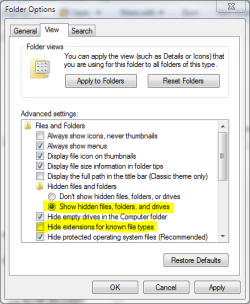
  2. Open Folder Options, choose Show hidden files, folders and drives. Uncheck Hide extensions for known file types
    How to Copy a Virtual XP machine-hide_extension.png
  3. Goto C:\Users\Your_Username\AppData\Local\Microsoft\Windows Virtual PC\Virtual Machines
  4. Copy Windows XP Mode.vhd and Windows XP Mode.vmc files. To be sure you copy the right files you can open Folder Options and uncheck "Hide extensions for known file types" and click OK
  5. Paste files to the same folder. Windows adds word Copy to both filenames, so now you have two new files: Windows XP Mode - Copy.vhd and Windows XP Mode - Copy.vmc
  6. Open Windows XP Mode - Copy.vmc with Notepad. It is a xml-file, so you can edit it normally with Notepad
  7. Find the following string containing virtual drives name: <drive_type type="integer">1</drive_type>
    How to Copy a Virtual XP machine-name_of_vhd.png
  8. Under the <drive_type...> change the vhd-file name to Windows XP Mode - Copy.vhd both in <absolute type="string"> and <relative type="string">
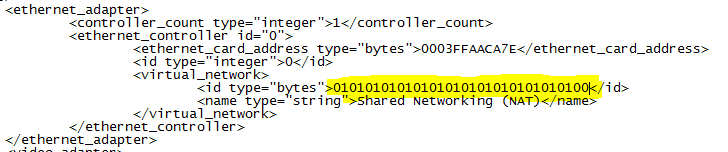
  9. Find the following place under <virtual_network> containing MAC-adress for Virtual XP's ethernet adapter: <id type="bytes">
    How to Copy a Virtual XP machine-ethernet.png
  10. To allow two copies of Virtual XP to connect to network simultaneously , we have to change the MAC-adress of the ethernet adapter to avoid MAC-adress conflict. Adress is given in hex, 0-9 and A-E. It is enough to change one bit. In this example we have changed the last bit from 1 to 0
  11. Save and close the file
  12. Go to C:\Users\Your_Username\Virtual Machines , copy Windows XP Mode.vmcx and paste it to same folder
  13. Open the file Windows XP Mode - Copy.vmcx with Notepad
  14. Change the vhd-file name to Windows XP Mode - Copy.vhd both in <primary_disk1 type="string"> and <vmc_path type="string">
    How to Copy a Virtual XP machine-name_vmcx.png
  15. Save and close the file
  16. Open Folder Options and choose Don't show hidden files, folders or drives. Check Hide extensions for known file types and click OK.
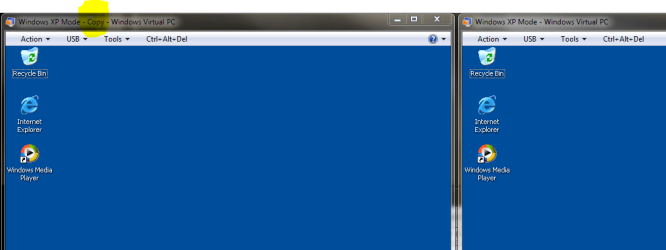
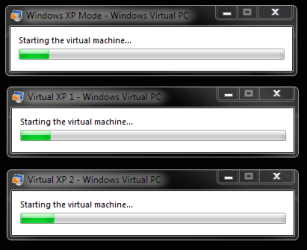
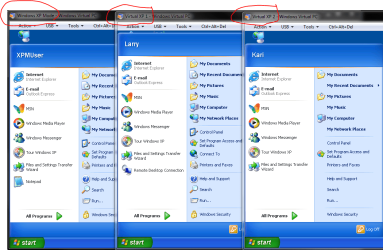
That's it. Now you can run two Virtual XP's simultaneously.

How to Copy a Virtual XP machine-virtualxp_copy.png

Have fun,

Kari

Last edited by Kari; 12-02-2009 at 11:37 AM.. Reason: posting back to back (double posting) is frowned upon
My System SpecsSystem Spec
 

1 2 3 4 5 6 7 8 9 10 11 12 13 14 15 16 17 18 19 20 21 22 23 24 25 26 27 28 29 30