
How to Add or Remove Desktop Gadgets in Windows 7
Information
This will show you how to add or remove Gadgets from the Windows 7 Desktop. Gadgets are mini-programs on the desktop which offer information at a glance and provide easy access to frequently used tools.
Note
Gadgets are no longer on Windows Sidebar like in Vista. Once a gadget is added to the desktop, you can move and leave it anywhere you like on the desktop.
Gadgets installed by a User are located in the hidden folder below:
(shell:gadgets)
C:\Users\(user-name)\AppData\Local\Microsoft\Windows Sidebar\Gadgets
The Gadgets and Shared Gadgets folders is located at:
For 64-bit Windows 7
C:\Program Files (x86)\Windows Sidebar\Gadgets
and
C:\Program Files (x86)\Windows Sidebar\Shared Gadgets
For 32-bit Windows 7
C:\Program Files\Windows Sidebar\Gadgets
and
C:\Program Files\Windows Sidebar\Shared Gadgets
Gadgets installed by a User are located in the hidden folder below:
(shell:gadgets)
C:\Users\(user-name)\AppData\Local\Microsoft\Windows Sidebar\Gadgets
The Gadgets and Shared Gadgets folders is located at:
For 64-bit Windows 7
C:\Program Files (x86)\Windows Sidebar\Gadgets
and
C:\Program Files (x86)\Windows Sidebar\Shared Gadgets
For 32-bit Windows 7
C:\Program Files\Windows Sidebar\Gadgets
and
C:\Program Files\Windows Sidebar\Shared Gadgets
Warning
- Have gadgets enabled. Gadgets are enabled by default in Windows 7.
- Show Desktop Items needs to be checked in order to see the gadgets.
OPTION ONE
To Add a Desktop Gadget

OR
2. Open the Control Panel (icons view), and click on the Desktop Gadgets icon.
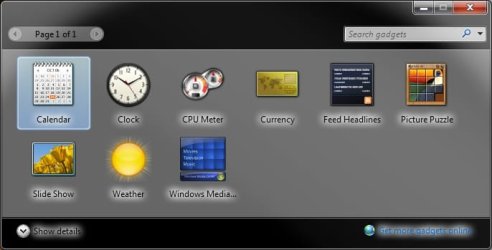
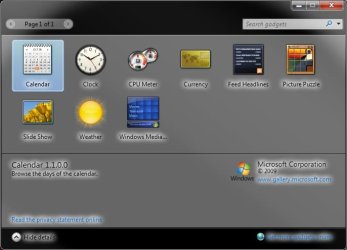
3. Double click on a gadget to add it to the desktop. (See screenshots below)
NOTE: For more information about the gadgets click on the Show details button.
4. When done close the Gadget Gallery window.
OPTION TWO
To Remove a Desktop Gadget
OR
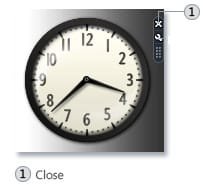
2. Click on the white X in the upper right corner of the gadget. (See screenshot below)

That's it,
Shawn
Related Tutorials
- How to Use Show Desktop in Windows 7
- How to Reinstate the Vista Sidebar on Windows 7
- How to Hide or Show Desktop Gadgets in Windows 7
- How to Enable or Disable Gadgets in Windows 7
- How to Turn Windows 7 Gadgets Feature On or Off
- How to Allow or Prevent User Installed Gadgets in Windows 7
- How to Allow or Prevent Installation of Unsigned Gadgets in Windows 7
- How to Restore the Default Windows 7 Gadgets
- Trick to Moving Gadgets in Windows 7 Closer Together
- How to Customize Existing Windows 7 Gadgets
- How to Create a Gadgets Shortcut in Windows 7
- How to Change the "Get more gadgets online" Link in Windows 7
- How to Fix Gadgets not Displaying Correctly in Windows 7
- How to Add or Remove "Gadgets" from Desktop Context Menu in Windows
Attachments
Last edited:
