
Device Installation Settings

How to Change Device Driver and Information Installation Settings in Windows 7 and Windows 8


   Information
This will show you how to allow or change how Windows is to automatically or not download recommended drivers and detailed information and icons for your devices through Windows Update.

   Note
Windows 7 and Windows 8 can find and download two kinds of updates for devices connected to your computer:

  • Drivers
    A driver is software that allows your computer to communicate with hardware devices. Without drivers, the devices you connect to your computer—for example, a mouse or external hard drive—won't work properly. Windows can automatically check if there are drivers available for new devices you connect to your computer.
    For hardware that you've connected to your computer in the past, updated drivers might become available at a later date; but those drivers aren't installed automatically. To install these optional updates, go to Windows Update in Control Panel, check for updates, and then view and install driver updates that are available for your computer.
  • Information
  • Windows can download high-resolution icons for many hardware devices that you connect to your computer, along with detailed information about them, such as product name, manufacturer, and model number—even detailed information about the sync capabilities of a device. This is much more detailed device information than was previously available in earlier versions of Windows. These details can make it easier for you to distinguish between similar devices that are connected to your computer, such as if you have several different portable music players and mobile phones. Additionally, they make it easier to check the capabilities of a device.
    • Updated icons are displayed in the Devices and Printers folder, making it easier to see all your devices at a glance and find the one you're looking for.
    • Windows can automatically download this detailed information about your devices if you turn on Recommended updates.


Here's How:

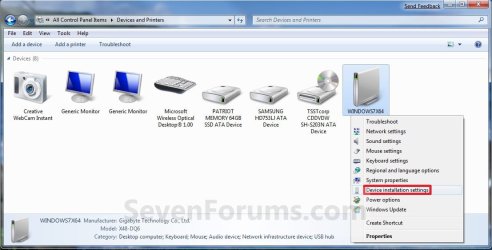
1. Open Devices and Printers, and right click or press and hold on the Computer icon with your computer name on it, then click/tap on Device installation settings. (see screenshot below) Devices_Printers.jpg2. Do step 3, 4, or 5 for how you would like to set the settings.

3. To Allow Device Drivers and Information to be Installed Automatically
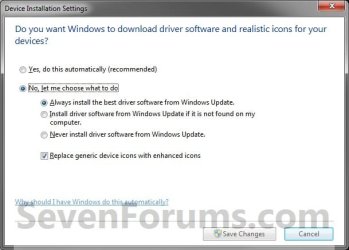
NOTE: This will allow both the device drivers and information to be installed automatically by Windows 7 through Windows Update. A) Select (dot) Yes, do this automatically. (see screenshot below step 6)

B) You will need to select Install updates automatically, and check the Give me recommended updates the same way I receive important updates in the Windows Update settings. (see screenshot below) WU_Settings-Devices.jpg
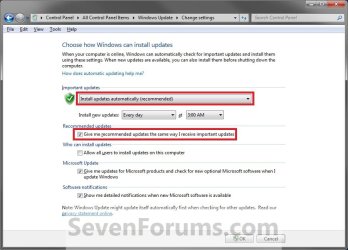
C) Click/tap on OK, and go to step 6 below.4. To Not Allow Device Drivers and Information to be Installed
NOTE: This will not allow both the device drivers and information to be installed automatically by Windows 7 through Windows Update. You can still choose to install the driver updates manually by reviewing available updates when you check for updates in Windows Update. A) Select (dot) No, let me choose what to do. (see screenshot below step 6)

B) Select (dot) Never install driver software from Windows Update. (see screenshot below step 6)

C) Uncheck the Replace generic device icons with enhanced icons box. (see screenshot below step 6)

D) Go to step 6 below.
5. To Choose What to Install Instead A) Select (dot) No, let me choose what to do. (see screenshot below step 6)

B) Select (dot) either the Always install the best driver software from Windows Update or Install driver software from Windows Update if it is not found on my computer settings. (see screenshot below step 6)
NOTE: If you want the device information and new icons downloaded for Devices and Printers.

C) Check the Replace generic device icons with enhanced icons box if you want high def icons for devices in Devices and Printers, or uncheck if not.

D) You will need to turn on Windows Updates and check Give me recommended updates the same way I receive important updates in the Windows Update settings. (see screenshot below) WU_Settings-Devices.jpg

E) Click/tap on OK, and go to step 6 below.
6. Click/tap on the Save Changes button. (see screenshot below) Settings.jpg
7. If prompted by UAC, then click/tap on Yes.

8. Close the Device and Printers window. (see screenshot below step 2)


That's it,
Shawn


Last edited:
You're welcome Swbchen.

Shawn
 

My Computer

Computer type
PC/Desktop
Computer Manufacturer/Model Number
Self built custom
OS
64-bit Windows 11 Pro for Workstations
CPU
Intel i7-8700K OC'd to 5 GHz
Motherboard
ASUS ROG Maximus XI Formula Z390
Memory
64 GB (4x16GB) G.SKILL TridentZ RGB DDR4 3600 MHz
Graphics Card(s)
ASUS ROG-STRIX-GTX1080TI-O11G-GAMING
Sound Card
Integrated
Monitor(s) Displays
2 x Samsung Odyssey G7 27"
Screen Resolution
2560x1440
Hard Drives
1TB Samsung 990 PRO M.2,
4TB Samsung 990 PRO PRO M.2,
TerraMaster F8 SSD Plus NAS
PSU
Seasonic Prime Titanium 850W
Case
Thermaltake Core P3
Cooling
Corsair Hydro H115i
Keyboard
Logitech wireless K800
Mouse
Logitech MX Master 4
Internet Speed
2 Gb/s Download and 100 Mb/s Upload
Antivirus
Malwarebyte Anti-Malware Premium
Browser
Google Chrome
Other Info
Logitech Z625 speaker system,
Logitech BRIO 4K Pro webcam,
HP Color LaserJet Pro MFP M477fdn,
APC SMART-UPS RT 1000 XL - SURT1000XLI,
Galaxy S23 Plus phone
Start
Run
CMD (Run As Admin)
bcdedit.exe -set loadoptions DDISABLE_INTEGRITY_CHECKS
bcdedit.exe -set TESTSIGNING ON
Boot


Turn driver signing ON

bcdedit.exe -set loadoptions ENABLE_INTEGRITY_CHECKS
bcdedit.exe -set TESTSIGNING OFF
 
Hi,
I've tried these commands
(bcdedit.exe -set loadoptions DDISABLE_INTEGRITY_CHECKS
bcdedit.exe -set TESTSIGNING ON
Boot )
but it didn't work.

My problem is with "Allow Device Drivers and Information to be Installed Automatically", it always took more than 5 minutes to try to get driver from windows update before I can install my driver manually when device is presented and it's too slow to accept, so I select "Never install driver software from Windows Update" to skip that and it worked.
Now I just need a way to do exactly the same thing but only by programmatically.

Does anyone know how to do that?


thanks
 

My Computer

OS
xp
May I add an alternative option Brink?

Control Panel - System - Advanced system settings - Click the Hardware Tab and select Device Installation Settings. From there chose the option.

Example.png
 

My Computer

Computer type
PC/Desktop
Computer Manufacturer/Model Number
Novatech iRush Pro
OS
Windows 7 Ultimate SP1 - 64 Bit
CPU
Intel Core i5 2500k
Motherboard
Foxconn H67M-S/H67M-V/H67
Memory
2x4GB DDR3 1333Hz
Graphics Card(s)
Ati Radeon 6770
Sound Card
None
Monitor(s) Displays
Samsung S22B150
Screen Resolution
1920x1080
Hard Drives
2x500GB
PSU
500W
Cooling
Fan
Keyboard
HP KU0316
Mouse
Wireless Logitech M185
Internet Speed
20MB/s
Antivirus
Avast Free
Browser
Google Chrome
Other Info
Logitech M185 Mouse
KU-M316 Keyboard
Sure thing Infinite. It's a bit of a longer way to open it, but another way none the less. :)
 

My Computer

Computer type
PC/Desktop
Computer Manufacturer/Model Number
Self built custom
OS
64-bit Windows 11 Pro for Workstations
CPU
Intel i7-8700K OC'd to 5 GHz
Motherboard
ASUS ROG Maximus XI Formula Z390
Memory
64 GB (4x16GB) G.SKILL TridentZ RGB DDR4 3600 MHz
Graphics Card(s)
ASUS ROG-STRIX-GTX1080TI-O11G-GAMING
Sound Card
Integrated
Monitor(s) Displays
2 x Samsung Odyssey G7 27"
Screen Resolution
2560x1440
Hard Drives
1TB Samsung 990 PRO M.2,
4TB Samsung 990 PRO PRO M.2,
TerraMaster F8 SSD Plus NAS
PSU
Seasonic Prime Titanium 850W
Case
Thermaltake Core P3
Cooling
Corsair Hydro H115i
Keyboard
Logitech wireless K800
Mouse
Logitech MX Master 4
Internet Speed
2 Gb/s Download and 100 Mb/s Upload
Antivirus
Malwarebyte Anti-Malware Premium
Browser
Google Chrome
Other Info
Logitech Z625 speaker system,
Logitech BRIO 4K Pro webcam,
HP Color LaserJet Pro MFP M477fdn,
APC SMART-UPS RT 1000 XL - SURT1000XLI,
Galaxy S23 Plus phone
Doesnt work. It searches thru its preconfigured driver folders and installs the driver anyway.
 

My Computer

OS
Windows 7 Ultimate 32bit
Hello Riahc,

I think you may have what this does confused. These settings are only for getting a custom icon (if available) for the device, and only getting driver updates through Windows Update.

This isn't related to the generic drivers for devices that come preinstalled in Windows and used (if available) when you don't install the drivers yourself or through Windows Updates. It also has nothing to do with Windows automatically installing drivers for a device when the drivers are already available or installed in Windows. For that, you would want to use the tutorial below instead.

http://www.sevenforums.com/tutorials/197561-found-new-hardware-balloons-enable-disable.html

Hope this helps,
Shawn
 

My Computer

Computer type
PC/Desktop
Computer Manufacturer/Model Number
Self built custom
OS
64-bit Windows 11 Pro for Workstations
CPU
Intel i7-8700K OC'd to 5 GHz
Motherboard
ASUS ROG Maximus XI Formula Z390
Memory
64 GB (4x16GB) G.SKILL TridentZ RGB DDR4 3600 MHz
Graphics Card(s)
ASUS ROG-STRIX-GTX1080TI-O11G-GAMING
Sound Card
Integrated
Monitor(s) Displays
2 x Samsung Odyssey G7 27"
Screen Resolution
2560x1440
Hard Drives
1TB Samsung 990 PRO M.2,
4TB Samsung 990 PRO PRO M.2,
TerraMaster F8 SSD Plus NAS
PSU
Seasonic Prime Titanium 850W
Case
Thermaltake Core P3
Cooling
Corsair Hydro H115i
Keyboard
Logitech wireless K800
Mouse
Logitech MX Master 4
Internet Speed
2 Gb/s Download and 100 Mb/s Upload
Antivirus
Malwarebyte Anti-Malware Premium
Browser
Google Chrome
Other Info
Logitech Z625 speaker system,
Logitech BRIO 4K Pro webcam,
HP Color LaserJet Pro MFP M477fdn,
APC SMART-UPS RT 1000 XL - SURT1000XLI,
Galaxy S23 Plus phone
Hey Brink,

I just read your tutorial, "How to Change Device Driver and Information Installation Settings in Windows 7 and Windows 8," and I have a question for you:

Which Driver Installation setting do you recommend right after a fresh, reinstallation of Windows?

I just did a clean reinstall of Windows 7 Pro and I'm getting ready to install Windows Updates, and then my system drivers. I changed the Windows Update setting to "Check for updates but let me choose to downlad and install them," but I'm not sure what the best setting is for drivers.

I'd like to see what Windows recommends for driver updates, but I want to choose which ones to install.

I'd appreciate your advice. Thanks.
 

My Computer

Computer type
PC/Desktop
Computer Manufacturer/Model Number
Dell
OS
Win7 Pro x64
CPU
Intel i7-4790
Motherboard
Dell
Memory
24GB
Graphics Card(s)
AMD Radeon R9 270
Hard Drives
256GB mSATA SSD
2TB Hard Drive
Antivirus
Norton
Browser
Firefox, Internet Explorer
Hello Toby,

I personally prefer "Check for updates, but let me choose to download and install them" as well.

You will still get any driver updates listed as available to install with this setting. :)
 

My Computer

Computer type
PC/Desktop
Computer Manufacturer/Model Number
Self built custom
OS
64-bit Windows 11 Pro for Workstations
CPU
Intel i7-8700K OC'd to 5 GHz
Motherboard
ASUS ROG Maximus XI Formula Z390
Memory
64 GB (4x16GB) G.SKILL TridentZ RGB DDR4 3600 MHz
Graphics Card(s)
ASUS ROG-STRIX-GTX1080TI-O11G-GAMING
Sound Card
Integrated
Monitor(s) Displays
2 x Samsung Odyssey G7 27"
Screen Resolution
2560x1440
Hard Drives
1TB Samsung 990 PRO M.2,
4TB Samsung 990 PRO PRO M.2,
TerraMaster F8 SSD Plus NAS
PSU
Seasonic Prime Titanium 850W
Case
Thermaltake Core P3
Cooling
Corsair Hydro H115i
Keyboard
Logitech wireless K800
Mouse
Logitech MX Master 4
Internet Speed
2 Gb/s Download and 100 Mb/s Upload
Antivirus
Malwarebyte Anti-Malware Premium
Browser
Google Chrome
Other Info
Logitech Z625 speaker system,
Logitech BRIO 4K Pro webcam,
HP Color LaserJet Pro MFP M477fdn,
APC SMART-UPS RT 1000 XL - SURT1000XLI,
Galaxy S23 Plus phone
On page 1 of this tutorial, you show the Device Installation Settings window (copy below).

Are these your recommended settings for it?


3533d1241331630-device-installation-settings-settings.jpg


What does "Yes, do this automatically (recommended)" do?

Does this override my master Windows Update setting of "Check for updates, but let me choose to download and install them?"

I'm confused by Microsoft's wording in the Device Installation Settings window.
 

My Computer

Computer type
PC/Desktop
Computer Manufacturer/Model Number
Dell
OS
Win7 Pro x64
CPU
Intel i7-4790
Motherboard
Dell
Memory
24GB
Graphics Card(s)
AMD Radeon R9 270
Hard Drives
256GB mSATA SSD
2TB Hard Drive
Antivirus
Norton
Browser
Firefox, Internet Explorer
Toby,

I like No, and "never install..." to be able to select and install the ones I want from Windows Update.

"Yes, do this automatically (recommended)" will have Windows automatically download and install any driver available in Windows Update. This setting will override your Windows Update settings.
 

My Computer

Computer type
PC/Desktop
Computer Manufacturer/Model Number
Self built custom
OS
64-bit Windows 11 Pro for Workstations
CPU
Intel i7-8700K OC'd to 5 GHz
Motherboard
ASUS ROG Maximus XI Formula Z390
Memory
64 GB (4x16GB) G.SKILL TridentZ RGB DDR4 3600 MHz
Graphics Card(s)
ASUS ROG-STRIX-GTX1080TI-O11G-GAMING
Sound Card
Integrated
Monitor(s) Displays
2 x Samsung Odyssey G7 27"
Screen Resolution
2560x1440
Hard Drives
1TB Samsung 990 PRO M.2,
4TB Samsung 990 PRO PRO M.2,
TerraMaster F8 SSD Plus NAS
PSU
Seasonic Prime Titanium 850W
Case
Thermaltake Core P3
Cooling
Corsair Hydro H115i
Keyboard
Logitech wireless K800
Mouse
Logitech MX Master 4
Internet Speed
2 Gb/s Download and 100 Mb/s Upload
Antivirus
Malwarebyte Anti-Malware Premium
Browser
Google Chrome
Other Info
Logitech Z625 speaker system,
Logitech BRIO 4K Pro webcam,
HP Color LaserJet Pro MFP M477fdn,
APC SMART-UPS RT 1000 XL - SURT1000XLI,
Galaxy S23 Plus phone
Thanks Brink. I understand now.
 

My Computer

Computer type
PC/Desktop
Computer Manufacturer/Model Number
Dell
OS
Win7 Pro x64
CPU
Intel i7-4790
Motherboard
Dell
Memory
24GB
Graphics Card(s)
AMD Radeon R9 270
Hard Drives
256GB mSATA SSD
2TB Hard Drive
Antivirus
Norton
Browser
Firefox, Internet Explorer
You're most welcome. :)
 

My Computer

Computer type
PC/Desktop
Computer Manufacturer/Model Number
Self built custom
OS
64-bit Windows 11 Pro for Workstations
CPU
Intel i7-8700K OC'd to 5 GHz
Motherboard
ASUS ROG Maximus XI Formula Z390
Memory
64 GB (4x16GB) G.SKILL TridentZ RGB DDR4 3600 MHz
Graphics Card(s)
ASUS ROG-STRIX-GTX1080TI-O11G-GAMING
Sound Card
Integrated
Monitor(s) Displays
2 x Samsung Odyssey G7 27"
Screen Resolution
2560x1440
Hard Drives
1TB Samsung 990 PRO M.2,
4TB Samsung 990 PRO PRO M.2,
TerraMaster F8 SSD Plus NAS
PSU
Seasonic Prime Titanium 850W
Case
Thermaltake Core P3
Cooling
Corsair Hydro H115i
Keyboard
Logitech wireless K800
Mouse
Logitech MX Master 4
Internet Speed
2 Gb/s Download and 100 Mb/s Upload
Antivirus
Malwarebyte Anti-Malware Premium
Browser
Google Chrome
Other Info
Logitech Z625 speaker system,
Logitech BRIO 4K Pro webcam,
HP Color LaserJet Pro MFP M477fdn,
APC SMART-UPS RT 1000 XL - SURT1000XLI,
Galaxy S23 Plus phone
Hey Brink,

I'm probably over-thinking the "Device Installation Settings" feature, because I'm confused again.

Do the "Device Installation Settings" apply to built-in devices (wireless card, bluetooth, video card, memory card reader, etc.), or to just plug-in devices (monitor, keyboard, mouse, external portable hard drive, etc.), or to both (as in all devices)?

If I select "No, let me choose what to do and Never install driver software from Windows Update" (in Device Installation Settings) and my master Windows Update choice is "Check for updates, but let me choose to download and install them"..... what should happen when I plug in a Western Digital MyPassport external hard drive (for example)? Should Windows install a generic driver to run it, or tell me to install a driver? And, will a Western Digital MyPassport driver (if a special one is available) be listed in Windows Updates?

Would it make sense to use one setting right after installing Windows 7, for the Windows Updates process, and then change the setting to "No, Never" before I install drivers from the OEM (Dell) website?

Bottom line... When I run Windows Updates for the first time after reinstalling Windows 7, I want to choose which updates to install, but I want Windows to recommend drivers for me to install if they're not already on my system (for my wireless card, bluetooth, card reader, etc.)

I guess I want Windows to always recommend drivers in Windows Updates, but I want to choose which ones to install.
Does this make sense?

Sorry for being dense, but this is confusing.
 

My Computer

Computer type
PC/Desktop
Computer Manufacturer/Model Number
Dell
OS
Win7 Pro x64
CPU
Intel i7-4790
Motherboard
Dell
Memory
24GB
Graphics Card(s)
AMD Radeon R9 270
Hard Drives
256GB mSATA SSD
2TB Hard Drive
Antivirus
Norton
Browser
Firefox, Internet Explorer
It's no bother at all. :)

This is for all devices that require a drive. However, there's no guarantee that there will be a driver update available for a device in Windows Update though. In that case, you would need to get the latest driver from the device manufacturer as usual.

To always select what you want to install, select the "Never install drivers software from Windows Update" in Device Installation Settings, and "Check for updates, but let me choose to download and install them" in your Windows Update settings.
 

My Computer

Computer type
PC/Desktop
Computer Manufacturer/Model Number
Self built custom
OS
64-bit Windows 11 Pro for Workstations
CPU
Intel i7-8700K OC'd to 5 GHz
Motherboard
ASUS ROG Maximus XI Formula Z390
Memory
64 GB (4x16GB) G.SKILL TridentZ RGB DDR4 3600 MHz
Graphics Card(s)
ASUS ROG-STRIX-GTX1080TI-O11G-GAMING
Sound Card
Integrated
Monitor(s) Displays
2 x Samsung Odyssey G7 27"
Screen Resolution
2560x1440
Hard Drives
1TB Samsung 990 PRO M.2,
4TB Samsung 990 PRO PRO M.2,
TerraMaster F8 SSD Plus NAS
PSU
Seasonic Prime Titanium 850W
Case
Thermaltake Core P3
Cooling
Corsair Hydro H115i
Keyboard
Logitech wireless K800
Mouse
Logitech MX Master 4
Internet Speed
2 Gb/s Download and 100 Mb/s Upload
Antivirus
Malwarebyte Anti-Malware Premium
Browser
Google Chrome
Other Info
Logitech Z625 speaker system,
Logitech BRIO 4K Pro webcam,
HP Color LaserJet Pro MFP M477fdn,
APC SMART-UPS RT 1000 XL - SURT1000XLI,
Galaxy S23 Plus phone
Thanks again. I appreciate your advice. Have a great weekend.
 

My Computer

Computer type
PC/Desktop
Computer Manufacturer/Model Number
Dell
OS
Win7 Pro x64
CPU
Intel i7-4790
Motherboard
Dell
Memory
24GB
Graphics Card(s)
AMD Radeon R9 270
Hard Drives
256GB mSATA SSD
2TB Hard Drive
Antivirus
Norton
Browser
Firefox, Internet Explorer
You're most welcome. Have a great weekend as well. :)
 

My Computer

Computer type
PC/Desktop
Computer Manufacturer/Model Number
Self built custom
OS
64-bit Windows 11 Pro for Workstations
CPU
Intel i7-8700K OC'd to 5 GHz
Motherboard
ASUS ROG Maximus XI Formula Z390
Memory
64 GB (4x16GB) G.SKILL TridentZ RGB DDR4 3600 MHz
Graphics Card(s)
ASUS ROG-STRIX-GTX1080TI-O11G-GAMING
Sound Card
Integrated
Monitor(s) Displays
2 x Samsung Odyssey G7 27"
Screen Resolution
2560x1440
Hard Drives
1TB Samsung 990 PRO M.2,
4TB Samsung 990 PRO PRO M.2,
TerraMaster F8 SSD Plus NAS
PSU
Seasonic Prime Titanium 850W
Case
Thermaltake Core P3
Cooling
Corsair Hydro H115i
Keyboard
Logitech wireless K800
Mouse
Logitech MX Master 4
Internet Speed
2 Gb/s Download and 100 Mb/s Upload
Antivirus
Malwarebyte Anti-Malware Premium
Browser
Google Chrome
Other Info
Logitech Z625 speaker system,
Logitech BRIO 4K Pro webcam,
HP Color LaserJet Pro MFP M477fdn,
APC SMART-UPS RT 1000 XL - SURT1000XLI,
Galaxy S23 Plus phone
Back
Top