
How to Turn Aero Snap and Aero Shake On or Off in Windows 7
Information
This will show you how to turn Aero Snap and Aero Shake feature on or off in Windows 7.
- Dragging a window by the title bar to the left and right edge of the screen will fill that half the screen with that window when the mouse pointer reaches the edge of the screen. Dragging the window down a bit will restore the window back to how it was before.
- Placing the mouse pointer on the top or bottom border of a window until the mouse pointer turns into an up-down double arrow and left click and hold, then drag the top or bottom window border to the top or bottom edge of the screen. This will fill the top and bottom of the screen within the left and right borders of the window. Dragging the window down a bit, or double clicking in the window's title bar, will restore the window back to how it was before.
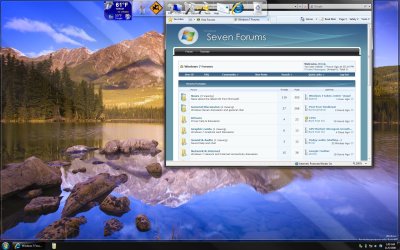
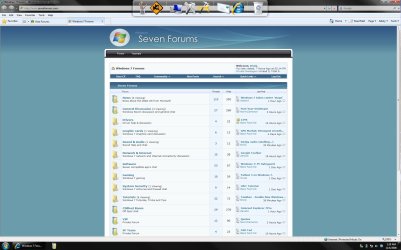
- Dragging a window by the title bar to the top edge of the screen will maximize the window to fill the desktop when the mouse pointer reaches the top edge of the screen. Dragging the window down a bit, or double clicking in the window's title bar, will restore the window back to how it was before.
Note
Aero Snap is turned on by default in Windows 7 if your system meets the Aero requirements below.
Warning
Aero Requirements to be Enabled in Windows 7
NOTE: While Aero Snap works in all available themes in Windows 7, if your system does need to meet the requirements for Aero for Aero Snap to be supported, then Aero Snap will not work even when turned on.
NOTE: While Aero Snap works in all available themes in Windows 7, if your system does need to meet the requirements for Aero for Aero Snap to be supported, then Aero Snap will not work even when turned on.
- Aero is not included in Windows 7 Home Basic or Windows 7 Starter editions.
- 1 GHz 32-bit or 64-bit processor
- 1 GB of system memory
- A graphics card with support for DirectX 9 graphics with at least 128 MB of memory.
- The graphics card must support Pixel Shader 2.0 and the Windows Display Driver Model (WDDM).
- The computer display color depth must be set to 32 bits per pixel.
- Desktop composition needs to be enabled (checked) in Visual Effects.
- The Desktop Window Manager Session Manager and Themes Services need to be set as Started and Automatic.
- Refresh or update your WEI score. You will need an WEI score minimum of 2.0 in both Graphics & Gaming graphics in order for Aero to be activated.
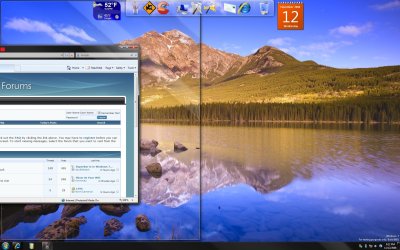
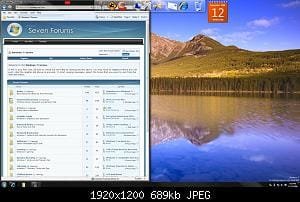
EXAMPLE: Aero Snap to Maximize a Window
OPTION ONE
Through the Ease Of Access Center
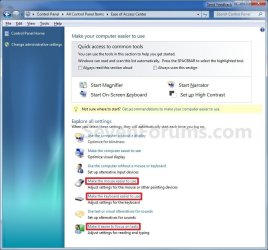
1. Open the Control Panel (All Items view), and click on the Ease of Access Center icon.
2. Click on either the Make the mouse easier to use, Make the Keyboard Easier To Use, or Make it easier to focus on tasks link. (See screenshot below)
3. To Turn On Aero Snap and Aero Shake
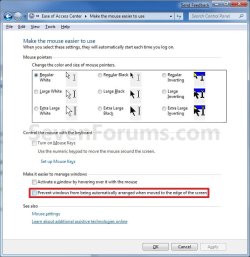
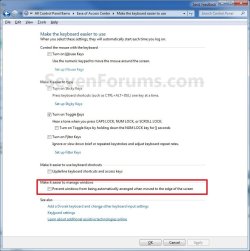
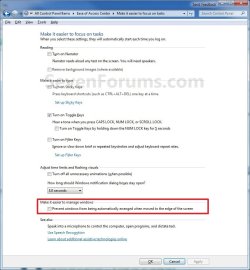
A) Uncheck the Prevent windows from being automatically arranged when moved to the edged of the screen box. (See screenshots below step 5)
B) Go to step 5.
4. To Turn Off Aero Snap and Aero Shake
A) Check the Prevent windows from being automatically arranged when moved to the edged of the screen box. (See screenshots below step 5)
5. Click on OK. (See screenshots below)
6. Close the Ease of Access Center window. (See screenshot below step 2)
OPTION TWO
Using a REG File Download
1. To Enable Aero Snap and Aero Shake
A) Click on the Download button below to download the file below.
Enabled_Aero_Snap.reg
Download
B) Go to step 3.
2. To Disable Aero Snap and Aero Shake
A) Click on the Download button below to download the file below.
Disabled_Aero_Snap.reg
Download
3. Save the .reg file to your desktop.
4. Right click on the downloaded .reg file, and click on Merge.
5. Click on Run, Yes (UAC), Yes, and OK when prompted.
6. Log off and log on, or restart the computer to apply.
7. When done, you can delete the downloaded .reg file if you like.
OPTION THREE
Manually in Registry Editor
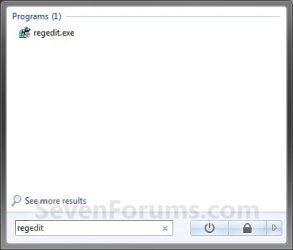
1. Open the Start Menu, then type regedit in the search boxand press Enter. (See screenshot below)
2. If prompted by UAC, then click on Yes.
3. In regedit, go to: (See screenshot below)
HKEY_CURRENT_USER\Control Panel\Desktop
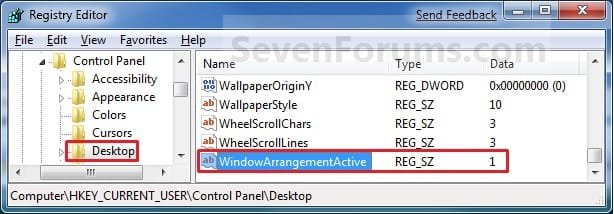
4. In the right pane, right click on WindowArrangementActive, click on Modify, and do step 5 or 6 below. (See screenshot above)
5. To Enable Aero Snap and Aero Shake
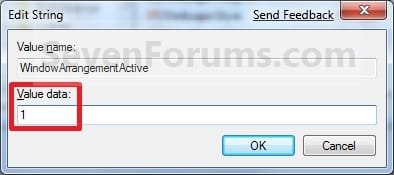
A) Type in 1, click on OK, and go to step 7 below. (See screenshot below step 6A)
6. To Disable Aero Snap and Aero Shake
A) Type in 0 (number), click on OK, and go to step 7 below. (See screenshot below)
7. In the right pane, right click on DockMoving, click on Modify, and repeat step 5 or 6 above. (see screenshot below step 3)
8. Close regedit.
9. Log off and log on, or restart the computer.
That's it,
Shawn
Related Tutorials
- How to Use Aero Snap to Snap a Window to Fill a Screen Side in Windows 7
- How to Use Aero Snap to Maximize and Restore Down a Window in Windows 7
- How to Clear the Desktop with Aero Shake in Windows 7 and Windows 8
- How to Turn Aero Peek On or Off in Windows 7
- How to Enable Aero in Unsupported Editions of Windows 7
- How to Enable or Disable Aero Shake in Windows 7 and Windows 8
Attachments
Last edited:

 LMAO
LMAO 


 Fantastic thread!!! I actually uninstalled an earlier version of 7 a few times because this feature dissabled its self.


