
Information
Hey all I think everybody knows how to change the logon screen background according to Brinks tutorial:
http://www.sevenforums.com/tutorials/5382-log-screen-change.html
Well, this tutorial will help show you how to change or remove the log on screen text branding in Windows 7.
http://www.sevenforums.com/tutorials/5382-log-screen-change.html
Well, this tutorial will help show you how to change or remove the log on screen text branding in Windows 7.
Note
You can remove after install, but I don't know if you can edit/replace it after installation. I did managed to replace it before installation modifying the install.wim file.
EXAMPLE: Log On Screen
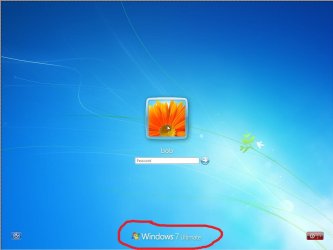
Here's How:
1. In Windows Explorer, go to C:\Windows\Branding\Basebrd and take ownership of the basebrd.dll file.
2. If you do not already have reshacker or restorator installed, then download and install one of them or a program like them.
3. In Windows Explorer, go to C:\Windows\Branding\Basebrd and open the basebrd.dll file with reshacker, restorator, or etc.
4. Navigate to the bitmap folder and delete it.
NOTE: You can also edit or replace this BMP file as well to change the log on screen text branding.
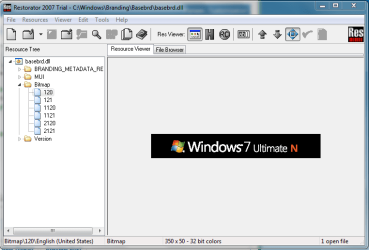
5. When you restart the computer next time, the text branding will be gone on the log on screen.
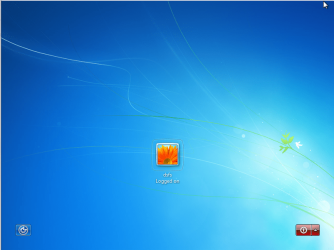
And DONE Hope you guys like it
Related Tutorials
- How to Change the Windows 7 Log On Screen Text Shadow
- How to Change the Windows 7 Log On Screen Background
- How to Make Windows 7 Require a User Name and Password at Log On
- How to Add or Remove Ease of Access Center from Windows 7 Log On Screen
- How to Display Information About Previous Logons During User Logon in Vista and Windows 7
- How to Fix Windows 7 Logon Screen Showing Only "Other User" and Last Logged On User Icon
- How to Change the Font on the Log On Screen in Windows 7
- How to Change the Logon Screen Text Color in Vista and Windows 7
Last edited by a moderator:


