
You are using an out of date browser. It may not display this or other websites correctly.
You should upgrade or use an alternative browser.
You should upgrade or use an alternative browser.
Solved How to remove "Favorites" from explorer
- Thread starter asdasd2
- Start date


- Local time
- 7:21 PM
- Messages
- 139
I agree it takes up valuable space in the tree list, no one knows how to remove this?
My Computer
- Computer Manufacturer/Model Number
- White Box
- OS
- Windows 7 RTM x64
- CPU
- Core 2 Quad 2.6GHz
- Motherboard
- Gigabyte Ga-x48-ds5
- Memory
- 4GB Ram
- Graphics Card(s)
- Asus nvidia 260
- Sound Card
- Built in, Using Optical Out with Logitech Z-5500 5.1
- Monitor(s) Displays
- Acer T230H & Samsung LCD TV FULL HD "LE46B530"
- Screen Resolution
- 1920x1080 + 1920x1080
- Hard Drives
- 8 of them, about 6.5TB
- PSU
- 750 watt
- Case
- Antec P180
- Cooling
- Default Intel stock
- Keyboard
- Logitech Dinovo edge
- Mouse
- wireless laser mouse
- Internet Speed
- 15mbit Cable
- Other Info
- Primary monitor is multitouch (yay)

- Local time
- 12:21 PM
- Messages
- 18,396
I haven't seen a way to remove it yet, but you can hide the navigation list completely if you never use that.
Just go to Organize-Layout-navigation pane. click on that and to get it back just click on it again. It will be like this without it.
Just go to Organize-Layout-navigation pane. click on that and to get it back just click on it again. It will be like this without it.
Last edited by a moderator:
My Computer
- Computer type
- PC/Desktop
- Computer Manufacturer/Model Number
- Airbot 2.0
- OS
- Windows 7 Ultimate x64 SP1
- CPU
- Core i7 920 (D0) @ 4Ghz, *26c idle *65c full load on air
- Motherboard
- Asus P6X58D Premium - Sata 6Gb/s - USB 3.0
- Memory
- 12GB DDR3 Corsair Dominator -CMD12GX3M6A1600C8 at 1600MHz
- Graphics Card(s)
- Zotac Geforce GTX 770
- Sound Card
- ASUS Xonar D2X
- Monitor(s) Displays
- 1 LG 24" Flatron W2453V-PF 1 Samsung 24" P2450H both 2ms RT
- Screen Resolution
- 1920x1080@60hz
- Hard Drives
- 1 Samsung 250GB 840 Evo SSD
1 OCZ Vertex2 180GB SSD
1 TB Samsung Spinpoint F1 7200RPM 32MB cache
2 500GB WD Caviar Blacks 7200RPM 32MB cache (WD5001AALS)
Pioneer DVD Burner DVR-S18M
- PSU
- Corsair HX1000W
- Case
- Cooler Master HAF 932
- Cooling
- Case Fans *3 230mm, *1 140mm/CPU - *Tuniq Tower 120 Extreme
- Keyboard
- Logitech Wireless MK700
- Mouse
- Logitech Wireless MK700
- Internet Speed
- DL 15 Mbps UL 0.98 Mbps
- Antivirus
- None
- Browser
- Firefox Nightly
- Other Info
- Processor-7.7 *RAM- 7.9 *Graphics-7.9 *Gaming Graphics- 7.9 *SSD- 7.8 W.E.I final score= 7.7
*Phone- LG Nexus 5
- Local time
- 7:21 PM
- Messages
- 139
oh no, the nav list is what makes explorer and I love explorer, one thing M$ has done excellent (appart from a few very annoying bugs in the Vista version)
My Computer
- Computer Manufacturer/Model Number
- White Box
- OS
- Windows 7 RTM x64
- CPU
- Core 2 Quad 2.6GHz
- Motherboard
- Gigabyte Ga-x48-ds5
- Memory
- 4GB Ram
- Graphics Card(s)
- Asus nvidia 260
- Sound Card
- Built in, Using Optical Out with Logitech Z-5500 5.1
- Monitor(s) Displays
- Acer T230H & Samsung LCD TV FULL HD "LE46B530"
- Screen Resolution
- 1920x1080 + 1920x1080
- Hard Drives
- 8 of them, about 6.5TB
- PSU
- 750 watt
- Case
- Antec P180
- Cooling
- Default Intel stock
- Keyboard
- Logitech Dinovo edge
- Mouse
- wireless laser mouse
- Internet Speed
- 15mbit Cable
- Other Info
- Primary monitor is multitouch (yay)
allforcarrie
Banned
- Local time
- 6:21 PM
- Messages
- 18
oh no, the nav list is what makes explorer and I love explorer, one thing M$ has done excellent (appart from a few very annoying bugs in the Vista version)
It looks like they are trying to copy nautalas.
My Computer
- OS
- 7
I think its a great improvement over vista's version.
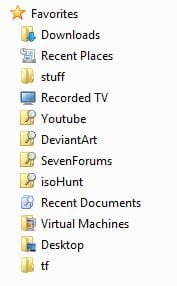
Anyway, try this How to add items to Favorites Windows 7 Explorer folder | Web Talk see if that helps.
Anyway, try this How to add items to Favorites Windows 7 Explorer folder | Web Talk see if that helps.
My Computer
- Computer Manufacturer/Model Number
- self built
- OS
- Windows 7 Professional 64-bit
- CPU
- Intel E8400 3GHz
- Motherboard
- Intel DX48BT2
- Memory
- Kingston PC3-10700H 4Gb
- Graphics Card(s)
- XFX Radeon HD 5850 BlackEd.
- Sound Card
- Asus Xonar DG
- Monitor(s) Displays
- 2x Samsung SM-T220HD 22"
- Screen Resolution
- 1680x1050 on two monitors
- Hard Drives
- OCZ Vertex 2 120gb 3.5" (OS)
Seagate Momentus XT 500gb
Samsung F3 1Tb (games)
2x Samsung F1 1Tb
- PSU
- Thermaltake ToughPower 850w
- Case
- Thermaltake Armor
- Cooling
- Scythe Mugen II
- Keyboard
- Microsoft Comfort Curve USB
- Mouse
- Razer Diamondback 3G
- Internet Speed
- 8128/443
DeathAngel
New member
- Local time
- 7:21 PM
- Messages
- 2
Solution: How to remove "Favorites" from explorer.
Hi, everyone.
Heres how to remove the "Favorites" folder in tree-view of Windows Explorer:
http://www.sevenforums.com/tutorials/38933-favorites-add-remove-navigation-pane.html

Heres proof: http://img211.imageshack.us/img211/846/w7nofav.jpg
Hi, everyone.
Heres how to remove the "Favorites" folder in tree-view of Windows Explorer:
http://www.sevenforums.com/tutorials/38933-favorites-add-remove-navigation-pane.html
Heres proof: http://img211.imageshack.us/img211/846/w7nofav.jpg
Last edited by a moderator:
My Computer
- OS
- Windows 7

Hi, everyone.
Heres how to remove the "Favorites" folder in tree-view of Windows Explorer:
1. Open regedit and go to [HKEY_CLASSES_ROOT\CLSID\{323CA680-C24D-4099-B94D-446DD2D7249E}\ShellFolder]
2. Right click and go to "Permissions" and allow your user/userclass full control of the folder.
3. In "ShellFolder" go to 'Attributes' and change the value from 0xa9000100 > 0xa9400100.
4. Leave regedit.
5. Reboot your machine. If everything is done correctly "Favorites" should now be disabled completely when your system is rebooted.
6. Enjoy life without the annoyance that was the "Favorite" folder.
Hope this helps
- Anders
In step 3. My attribute hex value data is a0900100

My Computer
- Computer Manufacturer/Model Number
- HP Touchsmart IQ771.uk
- OS
- Windows 7 Ultimate x64
- CPU
- AMD Turion(tm) 64 X2 Mobile Technology TL-56
- Motherboard
- ASUS Pheonix
- Memory
- 3GB Nanya PC2-6400 DDR2-SDRAM SO-DIM (400MHz)
- Graphics Card(s)
- NVIDIA GeForce Go 7600 256MB GDDR3 SDRAM
- Sound Card
- High Definition Intergrated NVIDIA MCP51
- Monitor(s) Displays
- 46" Sony Bravia HDTV
- Screen Resolution
- 1600x1200
- Hard Drives
- 1.5TB Samsug
320GB Seagate ST3320820AS - SATA 3Gb/s 8MB
500GB Maxtor Basics STM305003EHD301-RK
- Internet Speed
- ↓6.32 Mb/s ↑0.35 Mb/s ↔26ms
- Other Info
- BIOS - American Megatrends Inc. 5.07
Ethernet Port - NVIDIA nForce 10/100/1000 Mbps
DVD Drive - TSSTcorp DVDR/RW TS-T632L
DeathAngel
New member
- Local time
- 7:21 PM
- Messages
- 2
Hi, everyone.
Heres how to remove the "Favorites" folder in tree-view of Windows Explorer:
1. Open regedit and go to [HKEY_CLASSES_ROOT\CLSID\{323CA680-C24D-4099-B94D-446DD2D7249E}\ShellFolder]
2. Right click and go to "Permissions" and allow your user/userclass full control of the folder.
3. In "ShellFolder" go to 'Attributes' and change the value from 0xa9000100 > 0xa9400100.
4. Leave regedit.
5. Reboot your machine. If everything is done correctly "Favorites" should now be disabled completely when your system is rebooted.
6. Enjoy life without the annoyance that was the "Favorite" folder.
Hope this helps
- Anders
In step 3. My attribute hex value data is a0900100
Change it to a9400100 and reboot, and that should do it
Edit: Fixed the value. It is a0900100 and should be changed to a9400100. Thanks
- A -
Last edited:
My Computer
- OS
- Windows 7
NoobKillerSM
New member
- Local time
- 12:21 PM
- Messages
- 1
Hey,
I did as said but don't know why, my favourites are now stuck. How can I bring them back as it was at the beginning?
This is how it looks now, when I click on it nothing is happening :
:

I did as said but don't know why, my favourites are now stuck. How can I bring them back as it was at the beginning?
This is how it looks now, when I click on it nothing is happening
:
My Computer
- OS
- Windows 7

- Local time
- 6:21 PM
- Messages
- 748
Hey,
I did as said but don't know why, my favourites are now stuck. How can I bring them back as it was at the beginning?
So go back to HKEY_CLASSES_ROOT\CLSID\{323CA680-C24D-4099-B94D-446DD2D7249E}\ShellFolder find Attributes string and restore to a0900100 (in hex) +restart
My Computer
- Computer Manufacturer/Model Number
- Custom made
- OS
- Windows 7 Professional x64 PL
- CPU
- AMD Athlon 4450e
- Motherboard
- Giga-Byte GA-MA69G-S3H
- Memory
- GoodRam DDR2 2x2048MB (FSB 800MHz)
- Graphics Card(s)
- nVidia GeForce 9600GT (G94-300) 1024 MB
- Monitor(s) Displays
- SAMSUNG SyncMaster HS2P301688
- Hard Drives
- Seagate ST3750330AS 750GB
- PSU
- Corsair 550W
- Cooling
- AeroCool ExtremeEngine 3T
Hey,
I did as said but don't know why, my favourites are now stuck. How can I bring them back as it was at the beginning?
This is how it looks now, when I click on it nothing is happening
Hard to believe it didn't work :sarc:
I also did the change and am finally happy !

Here, open a Command Window, run this command and post the screenshot:
(everything in one line )
reg query HKEY_CLASSES_ROOT\CLSID\{323CA680-C24D-4099-B94D-446DD2D7249E}\ShellFolder
This will display the contents of the key. BTW, here is the output so you can check by yourself:
HKEY_CLASSES_ROOT\CLSID\{323CA680-C24D-4099-B94D-446DD2D7249E}\ShellFolder
Attributes REG_DWORD 0xa9400100
PinToNameSpaceTree REG_SZ No
Perhaps you mis-read the original post from DeathAngel and made a mistake by typing a0940100 instead of 09400100. Note how subtle it is but if you break in two words it becomes evident (remember, the value is a double 32-bit word):
a094 0100 <-- original
a940 0100 <-- modified
Yeah, you can use the command "reg" to check, delete etc registry keys... type "reg /?" to see the options. Just in case you dislike the graphical interface...

To modify that value, use it like this (first it deletes and then re-adds with the new value), so here's the full hack after all:
reg delete HKEY_CLASSES_ROOT\CLSID\{323CA680-C24D-4099-B94D-446DD2D7249E}\ShellFolder /v Attributes /f
reg add HKEY_CLASSES_ROOT\CLSID\{323CA680-C24D-4099-B94D-446DD2D7249E}\ShellFolder /v Attributes /t REG_DWORD /d 0xa9400100 /f
Reboot. Done.
[[ :tip: to revert to original, replace 0xa9400100 by 0xa0900100 and re-run]]
-Alex
My Computer
- Computer Manufacturer/Model Number
- Lenovo W500
- OS
- Windows 7, 64-Bits
- CPU
- Intel Core Duo T9400 @2.53 Ghz
- Motherboard
- Lenovo
- Memory
- 4 Gig
- Graphics Card(s)
- ATI Radeon HD 3650
- Sound Card
- Integrated
- Monitor(s) Displays
- 17 In Wide integrated, 17 Inch external
- Hard Drives
- WD 160 Gig, 7200 RPM
didn't work for me
i changed the value to 0xa9400100, like stated.
the favorites folder didn't go away, so i figured i had to delete it, and then it finally wouldn't come back.
however it did, and i took a screen shot of it, with proof that the value is 0xa9400100.
help?
also, i'd be very grateful if someone could direct me to a page or thread helping me remove the pesky "searches" folder as well. the only reason it's not in my screenshot is because i had just removed it, but it's guaranteed to come back.
EDIT:
yes, it is windows 7. it's just in classic view with an hour's worth (and still making changes) of customizations to make it run similarly to winXP(classic view)/win98.
i changed the value to 0xa9400100, like stated.
the favorites folder didn't go away, so i figured i had to delete it, and then it finally wouldn't come back.
however it did, and i took a screen shot of it, with proof that the value is 0xa9400100.
help?
also, i'd be very grateful if someone could direct me to a page or thread helping me remove the pesky "searches" folder as well. the only reason it's not in my screenshot is because i had just removed it, but it's guaranteed to come back.
EDIT:
yes, it is windows 7. it's just in classic view with an hour's worth (and still making changes) of customizations to make it run similarly to winXP(classic view)/win98.
My Computer
- OS
- Windows 7