
How to Burn a "ISO" or "IMG" Disc Image file to a CD/DVD in Windows 7 and Windows 8
Information
This tutorial will show you how to use the built-in Windows Disc Image Burning Tool to burn a ISO or IMG disc image file to a CD/DVD in Windows 7 and Windows 8.
Warning
Windows Disc Image Burner will need to be set as the default program with all of it associations (.iso & .img) set to it for this to work. It is by default in Windows 7 and 8.
Here's How:
1. Place a blank unformatted CD or DVD into your CD/DVD drive, and do step 2 or 3 below.
NOTE: If a AutoPlay window opens with the option to format the CD/DVD, then just close it.
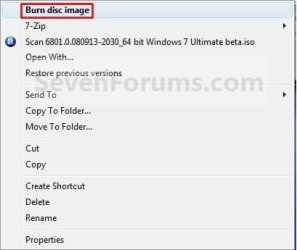
2. Right click or press and hold on the ISO or IMG file that you want to burn to CD/DVD, click/tap on Burn disc image, and go to step 4 below. (see screenshot below)
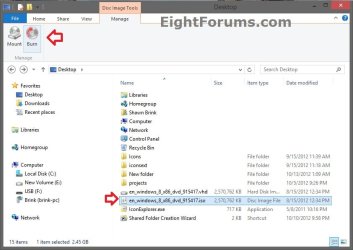
3. In Windows 8 File Explorer, select (highlight) the .iso or .img file that you want to burn to CD/DVD, click/tap on the Manage (Disc Image Tools) tab and on Burn button in the ribbon, and go to step 4 below. (see screenshot below)
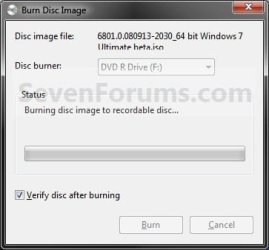
4. Next to Disc burner, click/tap on the drop down arrow and select the CD/DVD drive with the blank CD/DVD in it. (see screenshot below step 4)
5. Check the Verify disc after burning box if you want Windows 7 to verify the disc image afterwards, otherwise leave it unchecked. (see screenshot below)
NOTE: Verifying the disc will take a little bit longer for the disc image to be finished.

6. You will now see this. (see screenshots below)
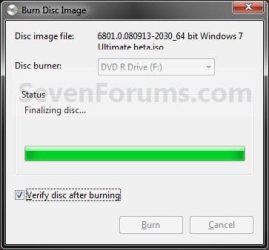
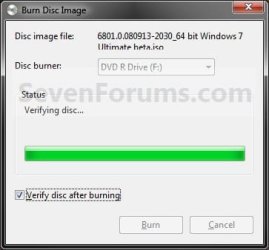
7. If you checked the Verify disc after burning box in step 5, then you will see this next. (see screenshot below)
NOTE: You will not see this if you did not check the box. Instead you will see step 8.
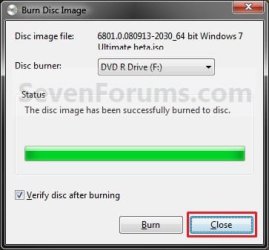
8. When it is finished burning the disc image, click/tap on the Close button. (see screenshot below)
9. Remove your new burned CD/DVD image from the CD/DVD drive.
That's it,
Shawn
Related Tutorials
- How to Mount or Unmount ISO images in Windows 8
- How to Create and Attach a Virtual Hard Disk in Windows 7
- How to Enable or Disable Built-in CD and DVD Burning Features in Windows 7 and Windows 8
- How to Convert a VHD File to a ISO File
- How to Create a Bootable ISO from Windows 7 Installation Files
- How to make Windows Boot Manager Boot an ISO from your Hard Drive
- How to Create a Bootable ISO from an Older ISO
- How to Slipstream Windows 7 SP1 and Updates to Create a Bootable USB, Installation DVD, or ISO File
- How to Create a Windows 7 Installation USB Key
- How to Get and Use the Windows 7 USB/DVD Download Tool
- How to Extract an ISO File to the Desktop
Last edited:


