How to Change or Restore Default Search Options in Windows 7 and Windows 8
Information
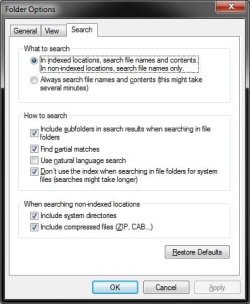
This will show you how to change or restore the default Search Options for the What to search, How to search, and When searching non-indexed locations settings in Windows 7 and Windows 8.
OPTION ONE
To Change or Restore Default Search Options in Folder Options
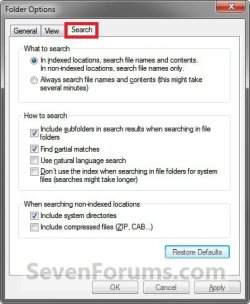

2. To Restore the Default Search OptionsA) Click/tap on the Restore Defaults button, and click/tap on OK.
3. To Change the Search OptionsA) Select or unselect the options for how you want to have your searches done in Explorer, and click/tap on OK when finished.
OPTION TWO
To Manually Change Search Options in Registry Editor
2. If prompted by UAC, then click/tap on Yes.
3. To Change the "What to search" OptionsA) In regedit, navigate to the location below. (see screenshot below)
Code:
HKEY_CURRENT_USER\Software\Microsoft\Windows\CurrentVersion\Explorer\Search\PrimaryProperties\UnindexedLocations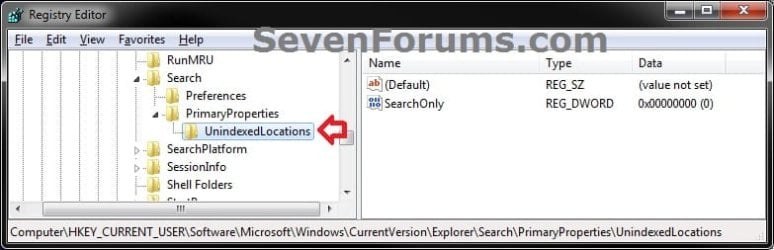
B) In the right pane of Preferences, double click/tap on the SearchOnly DWORD, then do step 3C or 3D below (see screenshot above)
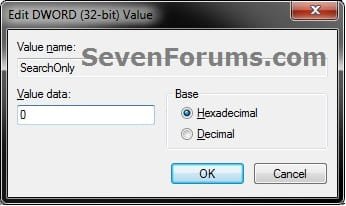
C) Type 1 and click/tap on OK, if you wanted to select: In indexed locations, serach file names and contents. In non-indexed locations, search file names only. (see screenshot below step 3D)
D) Type 0 (zero) and click/tap on OK, if you wanted to select: Always search file names and contents. (see screenshot below)
4. To Change "How to search" and "When searching non-indexed locations" OptionsA) In regedit, navigate to the location below. (see screenshot below)
Code:
HKEY_CURRENT_USER\Software\Microsoft\Windows\CurrentVersion\Explorer\Search\Preferences
B) In the right pane of Preferences, double click on the name of the DWORD in the table below for what "How to search" option you would like to change. (see screenshot above)
| DWORD Name | Option |
| SearchSubFolders | Include subfolders in search results when searching in file folders |
| AutoWildCard | Find partial matches |
| EnableNaturalQuerySyntax | User Natural language search |
| WholeFileSystem | Don't use the index when searching in file folders for system files |
| SystemFolders | Include system directories |
| ArchivedFiles | Include compressed files |
C) To Uncheck (turn off) the option, type 0 (zero), and click/tap on OK. (see screenshot below step 3D)
D) To Check (turn on) the option, type 1, and click/tap on OK. (see screenshot below step 3D)
5. When finished, close regedit.
That's it,
Shawn Brink
Related Tutorials
- How to Search in Windows 7
- How to Search for Apps, Settings, and Files in Windows 8 and Windows 8.1
- How to Open Folder Options in Windows 7
- How to Open Folder Options in Windows 8
- How to Create a Folder Options Shortcut in Vista, Windows 7, and Windows 8
- How to Add or Remove Index Locations in Windows 7 and Windows 8
- How to Add or Remove a File Type from the Index in Windows 7 and Windows 8
- How to Rebuild theIndex in Windows 7 and Windows 8
- How to Create a Search Shortcut in Windows 7
- How to Save a Search in Windows 7 and Windows 8
- How to Enable or Disable Windows 7 Explorer Recent Search Box Suggestions
- How to Change the Size of the Windows 7 Explorer Address and Search Bar
- How to Edit or Reset Windows 7 Explorer Recent Search Box Suggestions
- How to Create a Search and Indexing Troubleshoot Shortcut in Windows 7
- How to Enable or Disable the Search Index in Vista and Windows 7
- How to Have More Accurate Search Results in Windows 7 and Vista
- How to Configure and Fully Utilize Windows 7 Search
- How to Add "Search" to "My Computer" Context Menu in Vista and Windows 7
Last edited: