
Add "Run in Separate Memory Space" to Windows 7 Run Command
Information
All DOS and 16-bit programs run on Windows 7 in the Windows Virtual DOS Machine (VDM) program. VDM simulates a 16-bit environment, complete with the DLLs required by 16-bit programs.
By default 16-bit programs run in a single VDM with a shared memory space. They share the memory space allocated to the vdm process and therefore, they cannot run simultaneously.
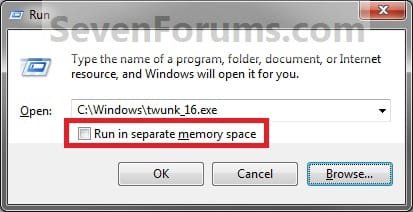
This will show you how to add the Run in Separate Memory Space check box to the Windows 7 Run command dialog box. When Run in Separate Memory Space is checked, a 16-bit program runs in a dedicated (not shared) (VDM) process with a separate memory space.
By default 16-bit programs run in a single VDM with a shared memory space. They share the memory space allocated to the vdm process and therefore, they cannot run simultaneously.
This will show you how to add the Run in Separate Memory Space check box to the Windows 7 Run command dialog box. When Run in Separate Memory Space is checked, a 16-bit program runs in a dedicated (not shared) (VDM) process with a separate memory space.
Warning
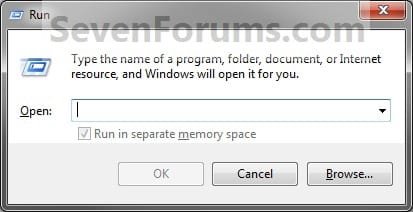
If added, the Run in Separate Memory Space check box option will be grayed out until a user enters a 16-bit program in the Run command dialog box.
EXAMPLE: Run Command with and without "Run in Separate Memory Space" Grayed Out
OPTION ONE
Using a REG File Download
1. To Add "Run in Separate Memory Space"
A) Click on the Download button below to download the file below.
Add_Run_Memory_Check_Box.zip
Download
B) Go to step 3.
2. To Remove "Run in Separate Memory Space"
A) Click on the Download button below to download the file below.
Remove_Run_Memory_Check_Box.zip
Download
3. Click on Save, and save the .zip file to the desktop.
4. Open the downloaded .zip file and extract the .reg file to the desktop.
5. Right click on the extracted .reg file and click on Merge.
6. Click on Run, Yes, Yes, and OK when prompted.
7. Log off and log on, or restart the computer to apply.
8. When done, you can delete the downloaded .reg and .zip files if you like.
OPTION TWO
Using Local Group Policy Editor
1. Open the all users, specific users or groups, or all users except administrators Local Group Policy Editor for how you want this policy applied.
2. In the left pane, click on the arrow to expand User Configuration, Administrative Templates, then click on Start Menu and Taskbar. (See screenshot below)

3. In the right pane, right click on Add "Run in Separate Memory Space" check box to Run dialog box and click on Edit. (See screenshot above)
4. To Remove "Run in Separate Memory Space"
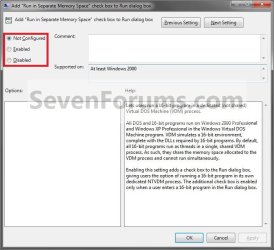
A) Select (dot) Not Configured or Disabled. (See screenshot below step 6)
B) Go to step 6.
5. To Add "Run in Separate Memory Space"
A) Select (dot) Enabled. (See screenshot below step 6)
6. Click on OK. (See screenshot below)
7. Close the Local Group Policy Editor. (See screenshot below step 2)
That's it,
Shawn
Related Tutorials
- How to Add or Remove Run Command from the Windows 7 Start Menu
- How to Open a Folder Window in a New Process in Windows 7
- How to Run a Program as a Different User in Windows 7
- How to Create a Shortcut to Run a Program as a Specified User
- How to Add or Remove "Run as Different User" in Windows 7 Context Menu
- How to Create a Windows 7 Run Command Shortcut
- How to Enable or Disable Run Command Box in Windows 7
- How to Turn Auto Suggest On or Off in Windows Explorer
- How to Turn Auto Complete On or Off in Windows Explorer
Attachments
Last edited:


