
System Image - Extracting Files from using Virtual PC

How to Extract Files from Windows 7 System Image using Virtual PC

   Information
When you create a system image using Windows 7 Backup and Restore, it creates a virtual hard drive vhd-file which contains all your files and folders, and some xml-files which contain the information needed to restore your system using this image. See the image:

Capture.PNG

Notice that in this case there are two vhd-files; If your OS is not located on the first partition of the first hard drive, System Image Backup needs to save the boot information on a separate vhd. This also occurs when making a system image of a virtual machine. If this happens, the bigger vhd is your actual system backup.

Installing this system image as a second hard drive makes it possible to pick up and extract a single file or folder. It is a very practical tool if you make a system image often enough; it allows you i.e. to restore a file or folder you accidentally deleted, without the need to do a complete restore. Please notice Virtual PC has a 127 GB sizr limit for virtual hard disks. If your system image vhd-file is bigger, use Disk Management to mount image and extract files as told here.


Here's how:

  1. Download and install Virtual PC here (You need Windows 7 Professional, Ultimate or Enterprise for Virtual PC to work)
  2. Open the Virtual Machines folder (C:\Your_Username\Virtual Machines)
  3. Choose the virtual machine you want to use to extract files from your system image and click settings
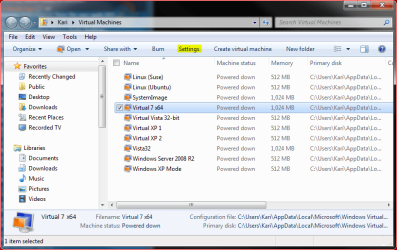
    Capture1.PNG
  4. From the left pane, choose Hard Disk 2, then Virtual hard disk in the right pane and click Browse
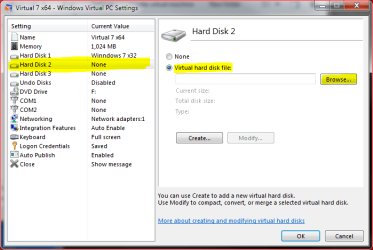
    Capture2.PNG
  5. Find the drive where you stored your system image and backups, open the folder WindowsImageBackup and open the system image you want to use, click OPEN
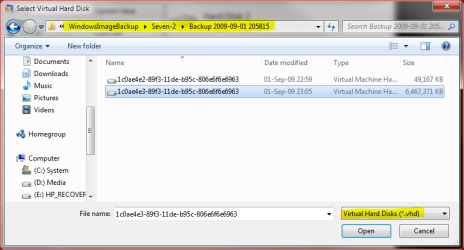
    Capture3.PNG
  6. Close the settings, boot your virtual machine. After boot, you'll notice there are now two hard drives on the virtual machine
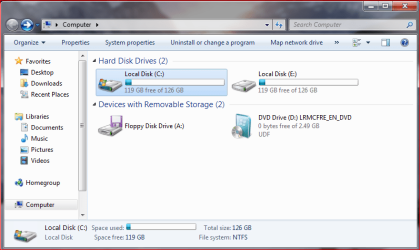
    Capture4.PNG
  7. Opening the second hard drive, you'll find all your files and folders. Choose what you need and transfer back to your host system
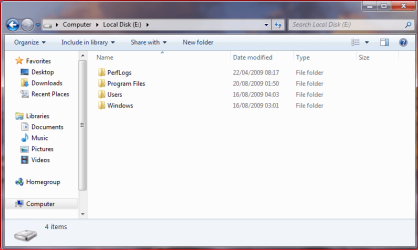
    Capture5.PNG
Easy and fast!

Please remember that a Virtual PC vhd can be max 127 GB. If you need to mount bigger vhd's, use Sun VirtualBox or Disk Management as told in this Brink's tutorial..

Kari

EDIT: Once again, thank you Brink for "polishing" this tutorial and making it look better.


Last edited by a moderator:
Nice Tut mate, good work :D
 

My Computer

Computer Manufacturer/Model Number
Compaq Desktop
OS
Windows 7 Ultimate x64
CPU
AMD Sempron Dual Core
Memory
3GB
Graphics Card(s)
NVIDIA GeForce 6150SE nForce 430
Screen Resolution
1024x768
Hard Drives
150GB Sata
Virtual PC and Windows 7 Home Premium

Virtual PC 2007 works fine with my Windows 7 Home Premium. I installed my XP OS there to run some programs that don't like Windows 7.
 

My Computer

OS
Windows 7 Home Premium
Hi. Everything seems to work... except I have one problem. I created a VM machine, went to my backup file... and it says the VHD is too large to fit over the IDE bus. There was a "compact" option that I'm trying now, to try reduce the size... but it's taking a long time. Is there some other way to have VM's read VHD's larger than (I think it was 127 GB?)

Thanx for the help! :)
 

My Computer

OS
Windows 7 x64 Ultimate
CPU
Core I7
Memory
12 GB
Graphics Card(s)
GTX 275

My Computer

Computer type
PC/Desktop
Computer Manufacturer/Model Number
Self built custom
OS
64-bit Windows 11 Pro for Workstations
CPU
Intel i7-8700K OC'd to 5 GHz
Motherboard
ASUS ROG Maximus XI Formula Z390
Memory
64 GB (4x16GB) G.SKILL TridentZ RGB DDR4 3600 MHz
Graphics Card(s)
ASUS ROG-STRIX-GTX1080TI-O11G-GAMING
Sound Card
Integrated
Monitor(s) Displays
2 x Samsung Odyssey G7 27"
Screen Resolution
2560x1440
Hard Drives
1TB Samsung 990 PRO M.2,
4TB Samsung 990 PRO PRO M.2,
TerraMaster F8 SSD Plus NAS
PSU
Seasonic Prime Titanium 850W
Case
Thermaltake Core P3
Cooling
Corsair Hydro H115i
Keyboard
Logitech wireless K800
Mouse
Logitech MX Master 4
Internet Speed
2 Gb/s Download and 100 Mb/s Upload
Antivirus
Malwarebyte Anti-Malware Premium
Browser
Google Chrome
Other Info
Logitech Z625 speaker system,
Logitech BRIO 4K Pro webcam,
HP Color LaserJet Pro MFP M477fdn,
APC SMART-UPS RT 1000 XL - SURT1000XLI,
Galaxy S23 Plus phone
Hi. Everything seems to work... except I have one problem. I created a VM machine, went to my backup file... and it says the VHD is too large to fit over the IDE bus. There was a "compact" option that I'm trying now, to try reduce the size... but it's taking a long time. Is there some other way to have VM's read VHD's larger than (I think it was 127 GB?)

Thanx for the help! :)
I am really sorry to forget that piece of information from the tutorial. I am going to add it now.

So, as you noticed, Virtual PC has a 127 gig maximum size for a vhd. Compacting works, but I have tried only vhd's about 150-160 gig. Even I like Virtual PC more than VMWare or Sun VirtualBox, I use VirtualBox to handle my own system image vhd's because of their size. In the attached image you can see a virtual 7 Enterprise x64 running in VirtualBox, with an extra HD (my host system image) mounted. It is over 200 gig but still working like a dream.

You can download Sun VirtualBox here.

Kari
 

Attachments

  • vbox.PNG
    vbox.PNG
    127.7 KB · Views: 859

My Computer

Computer type
Laptop
Computer Manufacturer/Model Number
HP ENVY 17-1150eg
OS
Windows 10 Pro x64 EN-GB
CPU
1.6 GHz Intel Core i7-720QM Processor
Memory
6 GB
Graphics Card(s)
ATI Mobility Radeon HD 5850 Graphics
Sound Card
Beats sound system with integrated subwoofer
Monitor(s) Displays
17" laptop display, 22" LED and 32" Full HD TV through HDMI
Screen Resolution
1600*900 (1), 1920*1080 (2&3)
Hard Drives
Internal: 2 x 500 GB SATA Hard Disk Drive 7200 rpm
External: 2TB for backups, 3TB USB3 network drive for media
Cooling
As Envy runs a bit warm, I have it on a Cooler Master pad
Keyboard
Logitech diNovo Media Desktop Laser (bluetooth)
Mouse
Logitech Performance Mouse MX
Internet Speed
50/10 Mbps VDSL
Antivirus
Windows Defender 4.3.9431.0
Browser
Maxthon 3.5.2., IE11

My Computer

OS
Windows 7 x64 Ultimate
CPU
Core I7
Memory
12 GB
Graphics Card(s)
GTX 275
Hi. Everything seems to work... except I have one problem. I created a VM machine, went to my backup file... and it says the VHD is too large to fit over the IDE bus. There was a "compact" option that I'm trying now, to try reduce the size... but it's taking a long time. Is there some other way to have VM's read VHD's larger than (I think it was 127 GB?)

Thanx for the help! :)
I am really sorry to forget that piece of information from the tutorial. I am going to add it now.

So, as you noticed, Virtual PC has a 127 gig maximum size for a vhd. Compacting works, but I have tried only vhd's about 150-160 gig. Even I like Virtual PC more than VMWare or Sun VirtualBox, I use VirtualBox to handle my own system image vhd's because of their size. In the attached image you can see a virtual 7 Enterprise x64 running in VirtualBox, with an extra HD (my host system image) mounted. It is over 200 gig but still working like a dream.

You can download Sun VirtualBox here.

Kari

Thanks for the quick reply. I saw Shawn's post too, so I tried it, and it worked. All I would ever want is to read individual files from a system image backup, so it's good enough for me. But your tutorial is good too - I now have the ability to create VM's on my box, if I ever need to. :)
 

My Computer

OS
Windows 7 x64 Ultimate
CPU
Core I7
Memory
12 GB
Graphics Card(s)
GTX 275
The main thing is you found a working solution. Using disk management is a very good method and the vhd's size is not limited.

Thank you for telling me about the missing piece of information in the tutorial. It is now added.

Kari
 

My Computer

Computer type
Laptop
Computer Manufacturer/Model Number
HP ENVY 17-1150eg
OS
Windows 10 Pro x64 EN-GB
CPU
1.6 GHz Intel Core i7-720QM Processor
Memory
6 GB
Graphics Card(s)
ATI Mobility Radeon HD 5850 Graphics
Sound Card
Beats sound system with integrated subwoofer
Monitor(s) Displays
17" laptop display, 22" LED and 32" Full HD TV through HDMI
Screen Resolution
1600*900 (1), 1920*1080 (2&3)
Hard Drives
Internal: 2 x 500 GB SATA Hard Disk Drive 7200 rpm
External: 2TB for backups, 3TB USB3 network drive for media
Cooling
As Envy runs a bit warm, I have it on a Cooler Master pad
Keyboard
Logitech diNovo Media Desktop Laser (bluetooth)
Mouse
Logitech Performance Mouse MX
Internet Speed
50/10 Mbps VDSL
Antivirus
Windows Defender 4.3.9431.0
Browser
Maxthon 3.5.2., IE11
I'm happy to hear that you got it sorted out Sabre. Thank you for posting back with your results. :)
 

My Computer

Computer type
PC/Desktop
Computer Manufacturer/Model Number
Self built custom
OS
64-bit Windows 11 Pro for Workstations
CPU
Intel i7-8700K OC'd to 5 GHz
Motherboard
ASUS ROG Maximus XI Formula Z390
Memory
64 GB (4x16GB) G.SKILL TridentZ RGB DDR4 3600 MHz
Graphics Card(s)
ASUS ROG-STRIX-GTX1080TI-O11G-GAMING
Sound Card
Integrated
Monitor(s) Displays
2 x Samsung Odyssey G7 27"
Screen Resolution
2560x1440
Hard Drives
1TB Samsung 990 PRO M.2,
4TB Samsung 990 PRO PRO M.2,
TerraMaster F8 SSD Plus NAS
PSU
Seasonic Prime Titanium 850W
Case
Thermaltake Core P3
Cooling
Corsair Hydro H115i
Keyboard
Logitech wireless K800
Mouse
Logitech MX Master 4
Internet Speed
2 Gb/s Download and 100 Mb/s Upload
Antivirus
Malwarebyte Anti-Malware Premium
Browser
Google Chrome
Other Info
Logitech Z625 speaker system,
Logitech BRIO 4K Pro webcam,
HP Color LaserJet Pro MFP M477fdn,
APC SMART-UPS RT 1000 XL - SURT1000XLI,
Galaxy S23 Plus phone
Back
Top