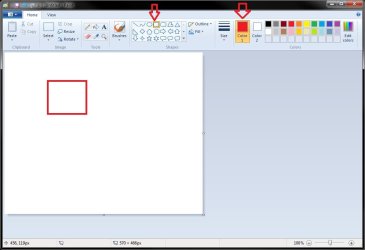
This tutorial will show you how to upload and attach a screenshot, image, or a file in your post here at Seven Forums.
You will need to turn off enhanced attachment uploading at the bottom of your account's Settings > General Settings page, and Save changes before having the options displayed in this tutorial.
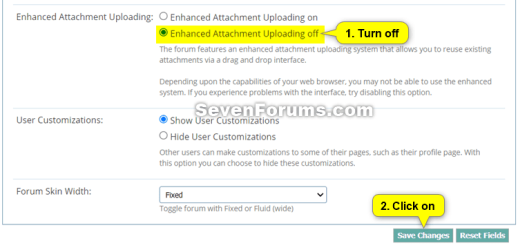
If you are intending to upload large log or diagnostic files then please upload them to a reputable file sharing service such as OneDrive, Google Drive, Dropbox or Amazon Cloud Drive (US) (UK) and post a share link rather then uploading to the forum
You can only upload the file types below up to the size limit per single file.
| File Type | Max File Size |
| 7z | 4.00 MB |
| bat | 600.0 KB |
| docx | 2.00 MB |
| gif | 1.00 MB |
| ico | 1.00 MB |
| jpeg | 2.00 MB |
| jpg | 2.00 MB |
| log | 2.00 MB |
| 2.00 MB | |
| png | 2.00 MB |
| psd | 2.00 MB |
| ps1 | 1.00 MB |
| rar | 4.00 MB |
| reg | 2.00 MB |
| txt | 2.00 MB |
| vbs | 2.00 MB |
| wav | 1.00 MB |
| xlsx | 1.00 MB |
| zip | 4.00 MB |
- Option One: To Insert a File or Image into a Post
- Option Two: To Upload and Insert a File or Image into a "Go Advanced" Post
To Insert a File or Image into a Post
If you wanted to create a screenshot to upload, you can create one with Paint (mspaint.exe) or Snipping Tool to upload.
1 While editing your post, place the cursor where you would like to insert the file or image at, and click/tap on the image icon on the toolbar. (see screenshot below)
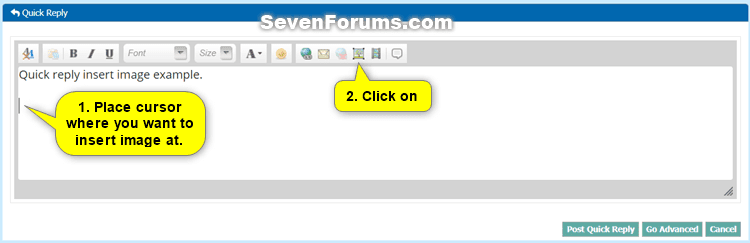
2 Do step 3 (computer) or step 4 (URL) below from where the image you want to upload is located.
A) Click/tap on the From Computer tab, and click/tap on the Choose Files button. (see screenshot below)
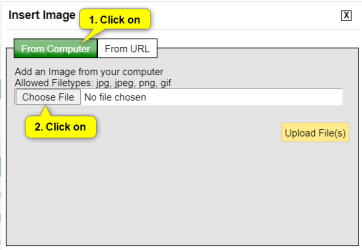
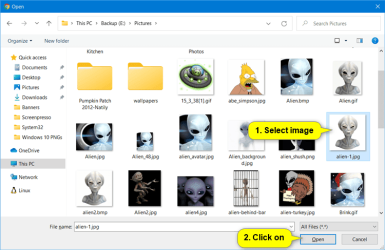
B) Navigate to and select one or more (limit 5 at once) file(s) and/or image(s) you want to insert into your post, and click/tap on the Open button. (see screenshot below)
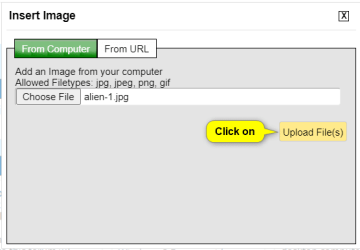
C) Click/tap on the Upload File(s) button, and go to step 5 below. (see screenshot below)
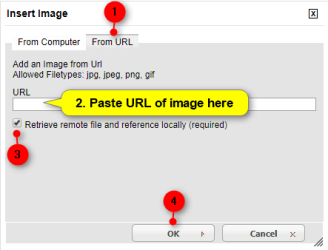
A) Click/tap on the From URL tab, and enter the URL address of the image. (see screenshot below)
B) Check the Retrieve remote file and reference locally box, click/tap on OK, and go to step 5 below. (see screenshot below)
5 Your file(s) and/or image(s) will now be uploaded and inserted into your post. (see screenshot below)
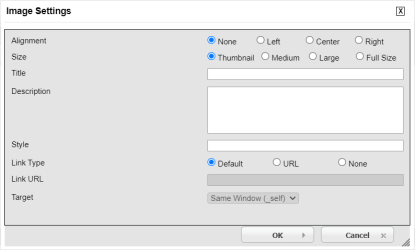
If you like, you could double click/tap on an inserted image to adjust the Image Settings for it below. When finished, click/tap on OK to apply.

6 When finished with your post, click/tap on either the Post Quick Reply or Submit Reply button to post it. (see screenshot above)
To Upload and Insert a File or Image into a "Go Advanced" Post
If you wanted to create a screenshot to upload, you can create one with direct screenshot, Paint (mspaint.exe) or Snipping Tool ready to upload.
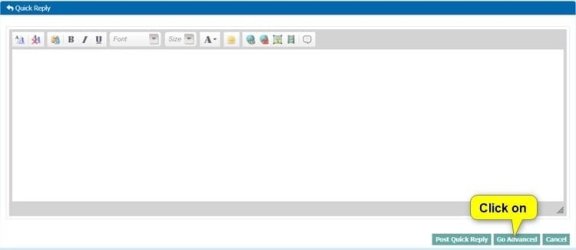
1 While editing your post, click/tap on the Go Advanced button. (see screenshot below)
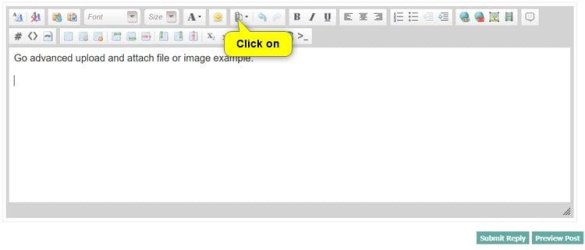
2 Click/tap on the paperclip icon on the toolbar. (see screenshot below)
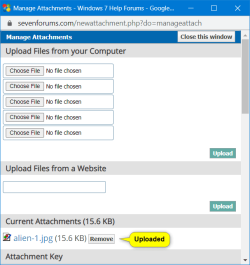
3 Click/tap on an empty Choose File button. (see screenshot below)
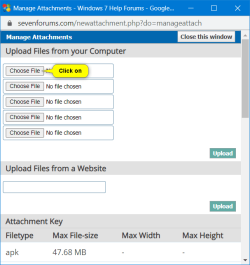
4 Navigate to and select the file or image you want to upload, and click/tap on the Open button. (see screenshot below)
5 When finished choosing files to upload, click/tap on the Upload button. (see screenshot below)
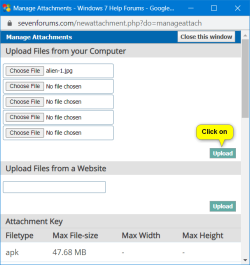
6 After your chosen files have been uploaded, you can close the Manage Attachments window. (see screenshot below)
If you would like to remove one of the uploaded Current Attachments, click/tap on the Remove button to the right of the file you would like to remove.
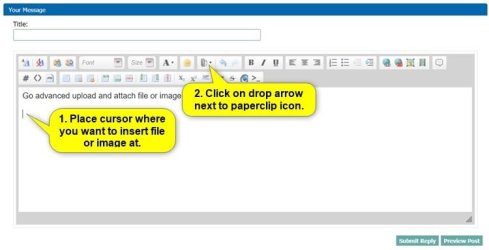
7 While back editing your post, place the cursor where you would like to insert the file or image at, and click/tap on the arrow to the right of the paperclip icon on the toolbar. (see screenshot below)
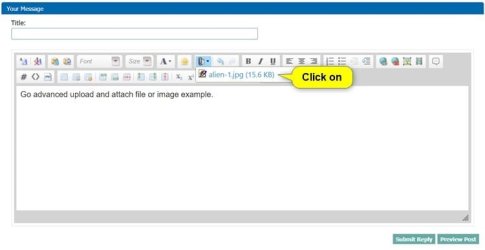
8 Click/tap on the uploaded file in the drop menu you want to insert at this location in your post. (see screenshot below)
9 Your file(s) and/or image(s) will now be inserted into your post. (see screenshot below)
If you like, you could double click/tap on an inserted image to adjust the Image Settings for it below. When finished, click/tap on OK to apply.
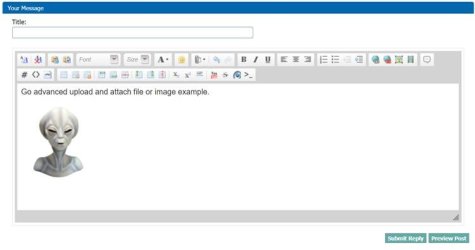
10 When finished with your post, click/tap on either the Submit Reply button to post it. (see screenshot above)
That's it,
Shawn Brink
- A Preferred Method of Uploading/Posting Screen Shots
- How to Take and Create a Screenshot with Windows 7 Paint
- How to post a proper screen capture image of your Disk Management screen
- How to Use the Snipping Tool in Vista and Windows 7
- How to Post a Question in a New Thread at Seven Forums
- How to See Your System Specs with "System Info"
- Post Template: Create at Seven Forums
- How to Create a Signature at Seven Forums with or without an Image