
How to Rename the Built-in Elevated "Administrator" Account in Windows 7 and Windows 8
Information
This will show you how to rename the built-in "Administrator" account name to any name you would like instead to be displayed on the Welcome screen, log on screen, Start menu, and C:\Users\Administrator folder in Windows 7and Windows 8.
You could have better security by not using the same default name of Administrator as everyone else does.
You could have better security by not using the same default name of Administrator as everyone else does.
Note
The built-in elevated "Administrator" account is not enabled by default in Windows 7. Instead you use a default normal administrator account that was created during installation. This normal administrator account is not the same as the built-in Administrator account.
Tip
When you change a name of a user account, the original name is still tied to that account even though the new name is displayed in the Start menu and at log on. So you will not be able to use both names to rename another account with without deleting the other account that already has the name.
EXAMPLE: Built-in Elevated "Administrator" Account at Log on
NOTE: Top screenshot is the default name, and bottom screenshot is renamed.

.

OPTION ONE
Manually in Registry Editor and User Accounts
NOTE: This option will allow you to also rename the C:\Users\Administrator folder if the built-in Administrator account has already been previously enabled. This option will also rename the built-in Administrator account's name displayed on the log on screen and Start Menu.
1. For how, see: http://www.sevenforums.com/tutorials/147545-user-profile-folder-change-user-account-folder-name.html
OPTION TWO
Through Local Security Policy
NOTE: This option will allow you to also rename the C:\Users\Administrator folder if the built-in Administrator account has not already been previously enabled. This option will also rename the built-in Administrator account's name displayed on the log on screen and Start Menu.
1. Open the Local Security Policy editor.
2. In the left pane, expand Local Policies, and click on Security Options. (See screenshot below)
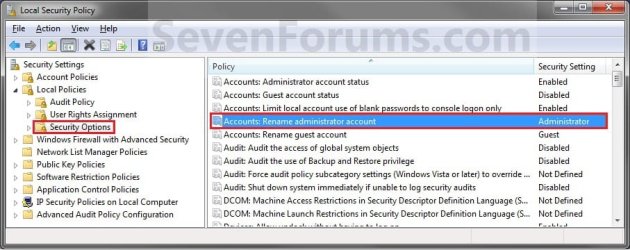
3. In the right pane, right click on Accounts: Rename administrator account and click on Properties. (See screenshot above)
4. Type in a name you want instead that has not ever been used by any other user account on the computer, and click on OK. (See screenshot below)
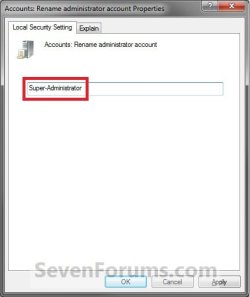
5. Close the Local Security Policy window. (See screenshot below step 2)
6. You can now enable the built-in Administrator account, and log off or switch users to see it's log on icon with the new name in the log on screen. (See screeenshot below)
OPTION THREE
Through Local Users and Groups
NOTE: This option will allow you to also rename the C:\Users\Administrator folder if the built-in Administrator account has not already been previously enabled. This option will also rename the built-in Administrator account's name displayed on the log on screen and Start Menu.
1. Open the Local Users and Groups manager.
2. In the left pane click on Users. (See screenshot below)
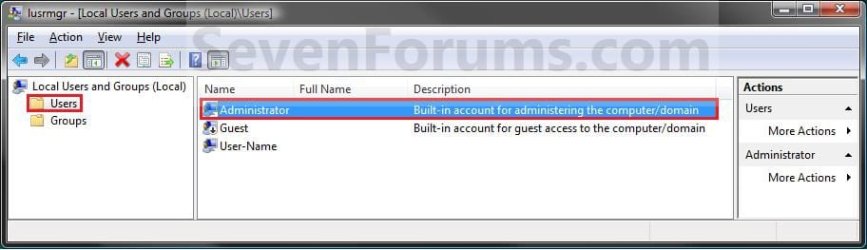
3. In the right pane, right click on Administrator and click on Properties. (See screenshot above)
4. In the General tab and to the right of Full name, type in a name you want instead that has not been used by any other user on the computer and click on OK. (See screenshot below)
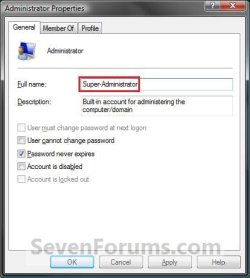
5. Close Local Users and Groups window. (See screenshot below step 2)
6. You can now enable the built-in Administrator account, and can now log off or switch users to see built-in Administrator account's log on icon with the new name in the log on screen. (See screeenshot below)
OPTION FOUR
Through User Accounts
NOTE: This option will only rename the built-in Administrator account's name displayed on the Welcome, log on screen, and Start Menu, and not for the C:\Users\Administrator folder. If you wanted to rename the folder, then you will need to use one of the other options above instead.
1. If you have not already, you will need to enable the built-in Administrator account.
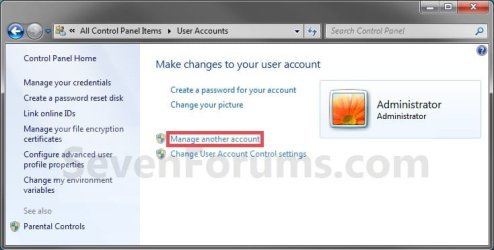
2. Open the Control Panel (icons view), and click on the User Accounts icon.
3. Click on the Manage another account link. (See screenshots below)
NOTE: The top screenshot is while logged in to the built-in Administrator account. The bottom screenshot is while logged in to a default administrator account.

4. If prompted by UAC, then click on Yes.
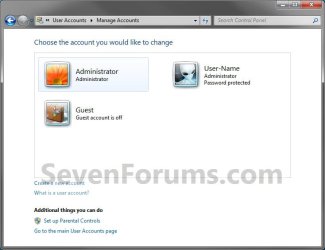
5. Click on the listed built-in Administrator account. (See screenshot below)
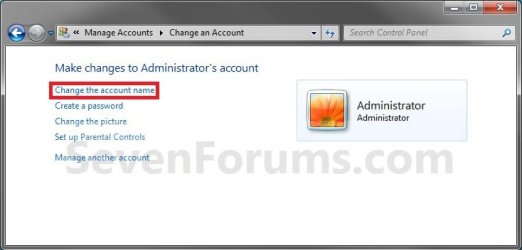
6. Click on the Change the account name link. (See screenshot below)
7. Type in a name you want instead that has not been used by any other user on the computer, and click on the Change Name. (See screenshot below)
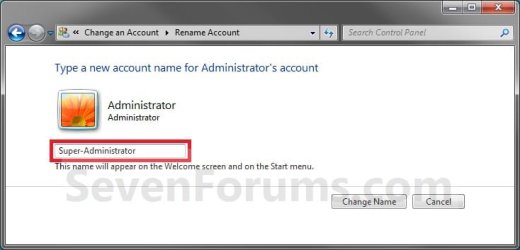
8. The built-in Administrator account is now renamed. Close the User Account window. (See screenshot below)
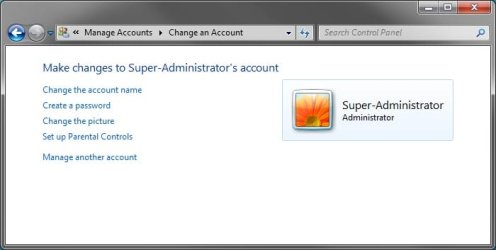
9. You can now log off or switch users to see built-in Administrator account's log on icon with the new name in the log on screen. (See screeenshot below)
That's it,
Shawn
Related Tutorials
- How to Enable or Disable the Windows 7 Built-in Administrator Account
- How to Enable or Disable the Built-in Elevated "Administrator" Account Windows 8
- How to Reset User Profile of Built-in Administrator Account to Default in Windows
- How to Enable the Built-in Administrator Account from WinRE
- How to Change Your User Account Picture in Windows 7
- How to Rename the Windows 7 Guest Account
- How to Change the User Folder Name of a User Profile in Windows 7
Last edited:


