
How to Speed up Menu Show Delay Time in XP, Vista, Windows 7, and Windows 8
Information
This will show you how to change the amount of time it takes for a menu to pop, fade, or slide open when you hover the mouse pointer over it in XP, Vista, Windows 7, and Windows 8.
This setting will only affect the user account that you are currently logged on to.
This setting will only affect the user account that you are currently logged on to.
Tip
The Fade or slide menus into view and Fade out menu items after clicking Visual Effects options will also affect how fast menus open and close. Unchecking these options will help speed it up in addition to doing the steps in this tutorial below.
Warning
If you set the MouseHoverTime setting, then it may override the MenuShowDelay setting in this tutorial.
OPTION ONE
To Change the Menu Show Delay Time using a REG File
1. Do step 2 or 3 below for what you would like to do.
2. To Have a Fast Menu Show Time
NOTE: This changes the menu show delay time to 20 milliseconds.
A) Click on the Download button below to download the file below, and go to step 4 below.
Fast_MenuShowDelay.reg
Download
3. To Restore the Default Menu Show Time
NOTE: This changes the menu show delay time back to 400 milliseconds.
A) Click on the Download button below to download the file below, and go to step 4 below.
Default_MenuShowDelay.reg
Download
4. Save the .reg file to your desktop.
5. Double click/tap on the downloaded .reg file to merge it.
5. If prompted, click/tap on Run, Yes (UAC-Windows 7/8) or Continue (UAC-Vista_, Yes, and OK to approve the merge.
6. Log off and log on, or restart the computer to apply the changes.
7. When finished, you can delete the downloaded .reg file if you like.
OPTION TWO
To Change the Menu Show Delay Time in Registry Editor
1. Press the Windows + R keys to open the Run dialog, type regedit, and press Enter.
2. In Registry Editor, navigate to the location below. (see screenshot below)
HKEY_CURRENT_USER\Control Panel\Desktop
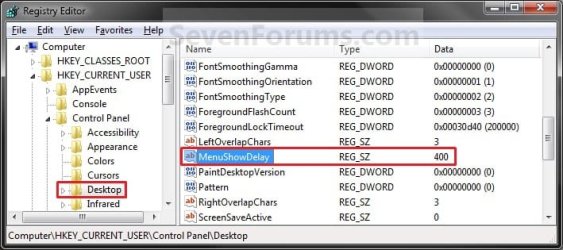
3. In the right pane of the Desktop key, double click/tap on the MenuShowDelay string value to modify it. (see screenshot above)
4. Type in a number between 0 to 4000 (400 is default) for how many milliseconds you want the Menu to wait before it opens. (see screenshot below)
NOTE: The lower the number, the faster the response time. If you use an entry of 0, there is no menu display delay. However it is not recommended to use 0 though since the menus may be hard to navigate through at that speed. 20 is a good number to use.
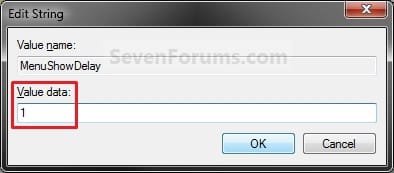
5. Click/tap on OK to apply. (See screenshot above)
6. Close regedit.
7. Log off and log on, or restart the computer to apply the changes.
That's it,
Shawn
Related Tutorials
- How to Turn the Menu Bar On or Off in Windows 7
- How to Set Windows 7 Menus to Open to the Left or Right Side
- How to Change the Mouse Hover Time before Pop-up Displays in Windows 7
- How to Enable or Disable Windows 7 Pop-up Descriptions
- How to Change the Windows 7 Aero Peek Mouse Hover Delay Time to Preview Desktop
- How to Change How Long Windows 7 Notifications Stay Open
- How to Change the Windows 7 Taskbar Thumbnail Live Preview Delay Time
- How to Change Windows 7 Taskbar Thumbnail Previews Display Delay Time
Attachments
Last edited:


