
How to Change "Time to Display List of Operating Systems" at Boot in Windows 7 and Vista
Information
This will show you how to change the amount of time in Windows 7 to display the Windows Boot Manager list of operating systems at boot and wait for you to select a OS to start before the default OS starts automatically.
You must be logged in as an administrator to be able to do the options in this tutorial.
You must be logged in as an administrator to be able to do the options in this tutorial.
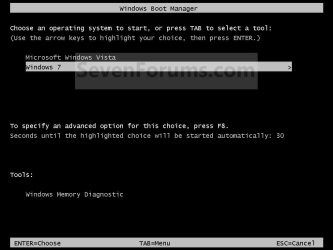
EXAMPLE: Windows Boot Manager
NOTE: This is the boot screen where you select what operating system that you would like to start. By default, you have 30 seconds to choose another operating system before the default operating system will start automatically.
OPTION ONE
Through Startup and Recovery
1. Open the Start Menu.
A) Right click on the Computer button on the dark right side and click on Properties.
B) Go to step 3.
OR
2. Open the Control Panel (Icons view) and click on the System icon.
3. In the left blue pane, click on the Advanced system settings link. (See screenshot below)
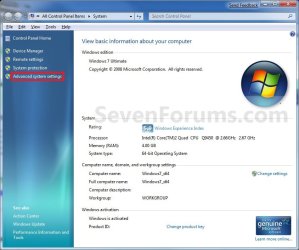
4. Close the System window. (See screenshot above)
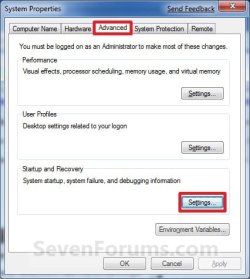
5. Under the Advanced tab, click on the Settings button under Startup and Recovery. (See screenshot below)
6. To Have No Wait Time
NOTE: This will give you 0 seconds to choose a OS at boot. This is a good option if you only have one OS installed, or do not want or need to select another OS to start with at boot.
A) Uncheck the Time to Display the List of Operating Systems at boot box. (See screenshot below step 9)
B) Go to step 9.
7. To Reset the Wait Time to Default
NOTE: This will reset the time back to the default 30 seconds.
A) Uncheck and check the Time to Display the List of Operating Systems at boot box. (See screenshot below step 9)
B) Go to step 9.
8. To Change the Wait Time
A) Check the Time to Display the List of Operating Systems at boot box, and type in how many seconds (0 to 999) you want to specify to wait before the boot manager selects the default OS. (See screenshot below step 9)
NOTE: Typing 0 will effectively remove the OS choice at boot. The default time is 30 seconds.
9. Click on OK. (See screenshot below)
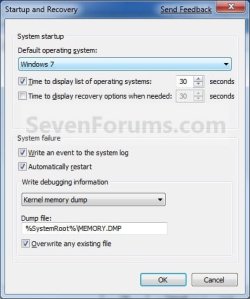
10. Click on OK. (See screenshot below step 5)
OPTION TWO
Through System Configuration
1. Open the Start Menu.
A) In the search line, type msconfig and press Enter. (See screenshot below)

B) Go to step 3.
OR
2. Open the Control Panel (Icons view) and click on the Administrative Tools icon and System Configration.
A) Close the Administrative Tools window.
3. Click on the Boot tab. (See screenshot below)
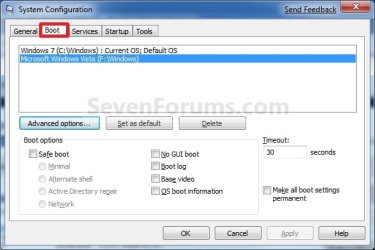
4. In the Timeout field to the right, enter a number between 3 and 999 seconds you want to specify to wait before the boot manager selects the default OS. (See screenshot below)
5. Check the Make all boot settings permanent box, and click on OK. (See screenshot above)
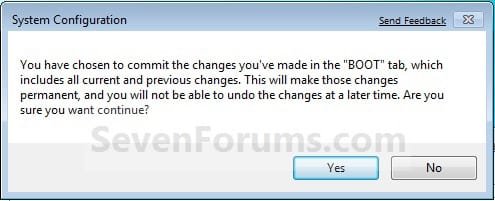
6. Click on Yes to confirm. (See screenshot below)
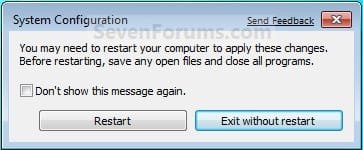
7. Click on the Restart button. (See screenshot below)
WARNING: This will restart the computer immediately. Make sure you save and close anything open that you do not want to lose first.
OPTION THREE
Using an Elevated Command Prompt
1. Open an elevated command prompt or a command prompt at boot.
2. In the elevated command prompt, type the command below and press Enter. (see screenshot below)
NOTE: Substitute ### in the command for how many seconds (0 to 999) you want to specify to wait before the boot manager selects the default OS.
bcdedit /timeout ###
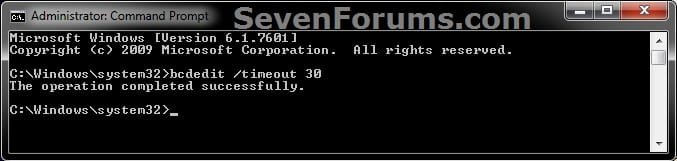
3. When operation completed successfully, you can close the elevated command prompt.
That's it,
Shawn
Related Tutorials
- How to Change the OS Name in Windows Boot Manager
- How to Change the Default Operating System to Start in Windows 7
- How to Delete an Operating System Listed in Windows Boot Manager
- How to Do a Upgrade Installation with Windows 7
- How to Do a Clean Installation with Windows 7
- How to See What Your Windows 7 Restart Time is
- How to Setup a Dual Boot Installation with Windows 7 and Vista
- How to Setup a Dual Boot Installation with Windows 7 and XP
- How to Change the AUTOCHK Initiation Countdown Time in Windows 7
- How to Add Windows 7 "Safe Mode" to Windows Boot Manager Screen
- How to Add Windows 7 "Safe Mode with Command Prompt" to Windows Boot Manager Screen
- How to Add Windows 7 "Safe Mode with Networking" to Windows Boot Manager Screen
- How to Change the Listed OS Arrangement Order in Windows Boot Manager Screen
Last edited:


