File Extension Icon - Change Default Icon

How to Change the Default Icon of a File Extension in Windows 7


   Information
This will show you how to change the default icon of any file extension to have a custom icon of your choice instead for it in Windows 7.
   Tip
By default, known file extension types are set to be hidden in Windows 7. You will need to unhide file extensions to see and know what the file extension is to make it easier to change the icon for the file extension.
   Note

  • You will need to use a 256x256 pixel icon for them to display properly at all of the available icon view sizes in Windows 7.
  • Some programs may automatically reset the default file extension icon back to the default one it uses even after you have changed it. This tutorial will not work for these programs.
  • If you change the default program for what opens the file extension, it will also change the icon of the file extension to be whatever it is for the program you selected uses.
   Warning

  • You will need to be logged on to a administrator account to do this.
  • Making changes in the registry can cause problems if you make a mistake. You should create a system restore point before proceeding in case you need to do a system restore with the restore point to undo a mistake made in the registry.

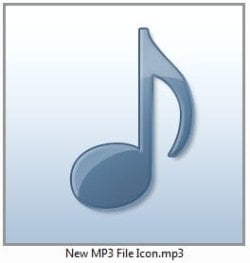
EXAMPLE: Default and New Icon for "MP3" File Extensions Default_MP3_file_Icon.jpgNew_MP3_file_Icon.jpg


OPTION ONE

To Change the Icon of a File Extension Using "FileTypesMan"

1. Click on the Download button below to go the bottom of that site to download, extract, and run the same 32-bit or 64-bit (x64) FileTypesMan as your 32-bit or 64-bit Windows 7 version.
Download


2. Double click on the file extension (ex: .mp3) that you want to change the icon of. (see screenshot below) Program-1.jpg
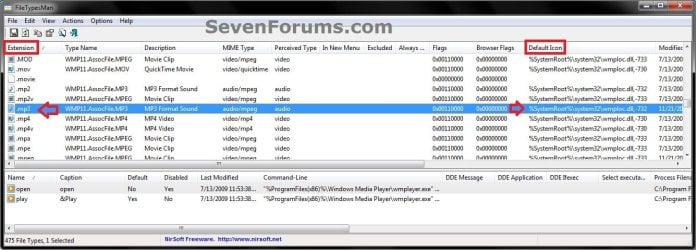
3. Click on the browse... button. (see screenshot below) Program-2.jpg
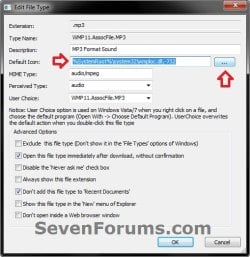
4. Browse to and select the icon you want to use, and click on OK. (see screenshot below) Program-3.jpg
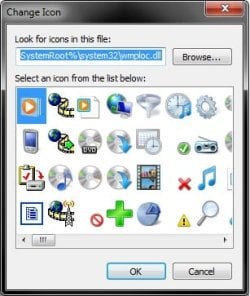
5. Click on OK. (see screenshot below step 3)

6. When finished, close FileTypesMan.


OPTION TWO

To Manually Change the Icon of a File Extension


NOTE: For an example in this option, I will be changing the default icon used for the MP3 file extension. You would just substitute the file extension that you want to change the default icon for instead. 1. Open the Start Menu, then type regedit in the search box and press enter.

2. If prompted by UAC, then click on Yes.

3. If Using the Default Program in Windows 7 to Open the File Extension With
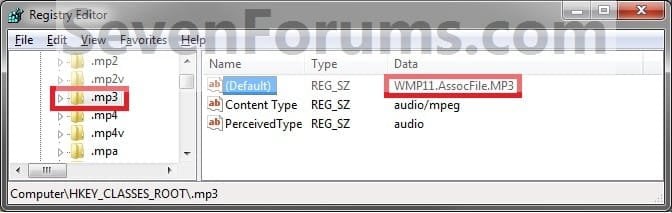
NOTE: You would use this option if you are using the default program that Windows 7 uses to open the file extension with, and not opens with a 3rd party program that you installed. A) In regedit, go to: (see screenshot below)
NOTE: Substitute .mp3 below with the file extension you want to change the icon for instead. HKEY_CLASSES_ROOT\.mp3
Step1.jpg
B) In the right pane of the file extension, make note of the Data value to the right of (Default). (see screenshot above)
NOTE: For example it is WMP11.AssocFile.MP3 for the .mp3 file extension.

C) Go to step 5.
4. If Using a 3rd Party Program as the Default Program to Open the File Extension With
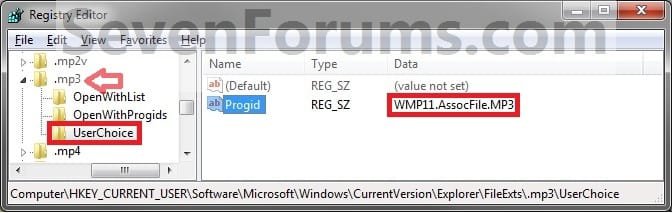
NOTE: You would do this option if you have changed the default program used by Windows 7 to open the file extension with to be opened by a installed 3rd party (not included in Windows 7) program instead. A) In regedit, go to: (see screenshot below)
NOTE: Substitute .mp3 below with the file extension you want to change the icon for instead.
Code:
HKEY_CURRENT_USER\Software\Microsoft\Windows\CurrentVersion\Explorer\FileExts\[B][COLOR=red].mp3[/COLOR][/B]\Userchoice
Step2.jpg
B) In the right pane, look at the Data value to the right of Progid. (see screenshot above)
NOTE: For example it is WMP11.AssocFile.MP3 for the .mp3 file extension type by default. Your value will vary depending on the default program you have set or installed to open this file extension with.
5. In regedit, scroll past the file extensions and go to: (see screenshot below)
NOTE: Substitute WMP11.AssocFile.MP3 with the Data value from step 3B or 4B for the file extension Data value that you want to change the icon for instead. HKEY_CLASSES_ROOT\WMP11.AssocFile.MP3
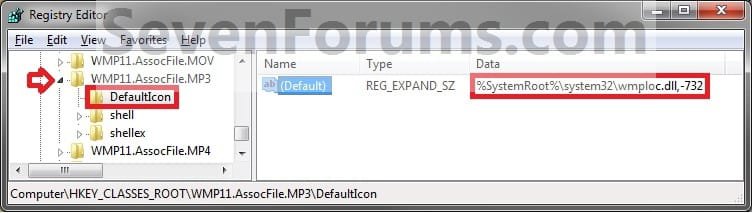
Step3.jpg
6. Click on the arrow next to for example WMP11.AssocFile.MP3 to expand the key (folder). (see screenshot above)
NOTE: Substitute WMP11.AssocFile.MP3 with the Data value from step 3B or 4B for the file extension Data value that you want to change the icon for instead.

   Tip
To Backup the Default File Extension Icon
NOTE: To restore the default file extension icon from this created backup below, right click on the .reg backup file and click on Merge. Next, approve the merge and log off and log on to apply the change to restore the default icon. A) In the left pane of regedit, right click on DefaultIcon and click on Export. (See screenshot below step 5)

B) Select a location to where you want to save the backup reg file to.

C) Type in a name and click on the Save button.
NOTE: Be sure to type in a name that is easily recognized by you for that file extension. For example, MP3 default icon.


7. In the right pane of DefaultIcon, right click on (Default) and click on Modify. (see screenshot below step 5)
NOTE: If you do not have DefaultIcon in the left pane of for example WMP11.AssocFile.MP3, then right click on WMP11.AssocFile.MP3, click on New and Key, type in DefaultIcon, and press Enter.

8. Select either Method One or Method Two below for what type of icon you want to replace the default file extension icon with.


Method One

To Use Another Icon Included in Windows 7

A. Download and install the same free 32-bit or 64-bit version of IconViewer as your 32-bit or 64-bit Windows 7 version.
NOTE: This program will add a Icons tab to files (ex: imageres.dll) that contain a icon library in them so you can see the icons available in it.

B. In Windows Explorer, navigate to C:\Windows\System32\imageres.dll and right click on imageres.dll, click on Properties, and click on the Icons tab.
NOTE: You can use any of the Windows 7 files that include icons in them that you want though. This is just the most common one.

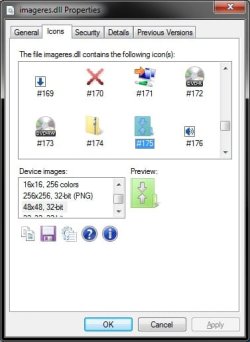
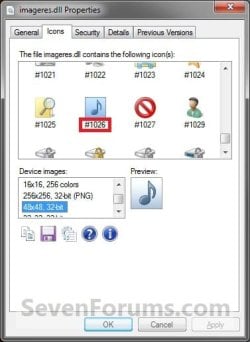
C. Scroll through the icons and make note of the icon number of the one you want to use to replace the default file extension icon with, then close the properties window. (see screenshot below)
NOTE: For example, icon number 1023. Icons.jpg
D) In the Modify window, type in (full path of the Windows 7 file with file extension),-#### and click on OK. (see screenshot below)
NOTE: For example, I would type in the location exactly as below for what I used in B and C above. C:\Windows\System32\imageres.dll,-1023
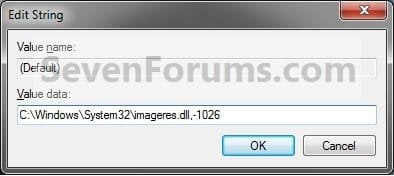
Modify.jpg
E) Go to step 9.


Method Two

To Use a Saved Custom Icon of Your Own

A) Create or download and save a icon (.ico file) of your choice to a location you wish to keep the icon stored at.
NOTE: See the Note box at the top of this tutorial for about what kind of icon to use. Be sure to save the icon at a location (ex: C:\Users\Public) that can be accessed by all users. The icon must stay at this location for as long as it is being used for the file extension.

B) In the Modify window, type in "full path of the icon file with file extension" and click on OK. (see screenshot below)
NOTE: For example, If I I had a icon store on my Desktop name New Icon Location.ico, I would type in the location exactly as below. Just substitute with your icons full path and name with file extension in quotes instead. "C:\Users\UserName\Desktop\New Icon Location.ico"
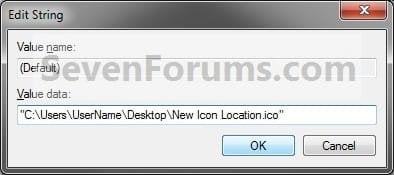
Modify_ICO_file.jpg
9. Close regedit.

10. Log off and log on, or restart the computer, to fully apply the icon change.

11. If this option did not work for you, then use OPTION ONE instead.
That's it,
Shawn


Last edited:
You know Brink your knowledge impresses me lol!


Great Tutorial!
 

My Computer

Computer Manufacturer/Model Number
Toshiba
OS
Windows 7 Home Premium x64
CPU
AMD
Memory
4 GB
Graphics Card(s)
ATI Radeon Intergrated Graphics
Sound Card
Realtek
Screen Resolution
1366 X 768
Hard Drives
223 GB HDD
Thank you for the kind words. RJ.
 

My Computer

Computer type
PC/Desktop
Computer Manufacturer/Model Number
Self built custom
OS
64-bit Windows 11 Pro for Workstations
CPU
Intel i7-8700K OC'd to 5 GHz
Motherboard
ASUS ROG Maximus XI Formula Z390
Memory
64 GB (4x16GB) G.SKILL TridentZ RGB DDR4 3600 MHz
Graphics Card(s)
ASUS ROG-STRIX-GTX1080TI-O11G-GAMING
Sound Card
Integrated
Monitor(s) Displays
2 x Samsung Odyssey G7 27"
Screen Resolution
2560x1440
Hard Drives
1TB Samsung 990 PRO M.2,
4TB Samsung 990 PRO PRO M.2,
TerraMaster F8 SSD Plus NAS
PSU
Seasonic Prime Titanium 850W
Case
Thermaltake Core P3
Cooling
Corsair Hydro H115i
Keyboard
Logitech wireless K800
Mouse
Logitech MX Master 4
Internet Speed
2 Gb/s Download and 100 Mb/s Upload
Antivirus
Malwarebyte Anti-Malware Premium
Browser
Google Chrome
Other Info
Logitech Z625 speaker system,
Logitech BRIO 4K Pro webcam,
HP Color LaserJet Pro MFP M477fdn,
APC SMART-UPS RT 1000 XL - SURT1000XLI,
Galaxy S23 Plus phone
Change Default File Type Icon

:sarc:
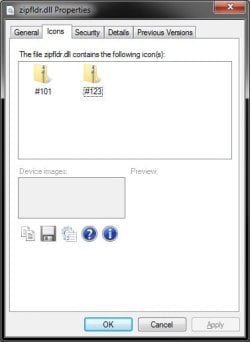
In my opinion, the default .zip folder and default folder icon look too much alike. I am trying to change the default icon for .zip files, but have been unable to do this. The last file in System32 folder is zipfldr.dll which contains two icons, the default yellow zip folder icon, and a green one. The green one is numbered #101. That is the icon I would like to see in the file manager for .zip files.

I tried enterting ",-101" at the end of the default path, but it didn't work. Perhaps you could help me out on this.

Beach

Win 7, 64-bit
 

My Computer

Computer type
PC/Desktop
Computer Manufacturer/Model Number
Custom Built
OS
Win 7 64-bit
CPU
i7-860
Motherboard
Gigabyte GA P55A-UD4P
Memory
G.Skill 6Gb
Graphics Card(s)
HIS Radeon x1950 Pro
Sound Card
Creative X-Fi Fidel1ty
Monitor(s) Displays
HP LP3065 31"
Screen Resolution
2560x1600
Hard Drives
2 WD7500AAKS (750 GB)
PSU
700 watt
Case
Thermalright mid-tower
Cooling
Thermalright Ultima 90
Keyboard
Logitech Illuminated
Mouse
Logitech MX Anywhere wireless
Internet Speed
Charter 10 Mb
Antivirus
(classified)
Browser
Firefox, of course!
Hello Beachbuoy, and welcome to Seven Forums.

Sorry. but they both show as yellow folders for me in the zipfldr.dll file. It may be that you have one selected for why it looks different.
zipfldr.jpg
You might try this one in the imageres.dll file "-175" if you like it though.
imageres.dll.jpg
Hope this helps,
Shawn
 

My Computer

Computer type
PC/Desktop
Computer Manufacturer/Model Number
Self built custom
OS
64-bit Windows 11 Pro for Workstations
CPU
Intel i7-8700K OC'd to 5 GHz
Motherboard
ASUS ROG Maximus XI Formula Z390
Memory
64 GB (4x16GB) G.SKILL TridentZ RGB DDR4 3600 MHz
Graphics Card(s)
ASUS ROG-STRIX-GTX1080TI-O11G-GAMING
Sound Card
Integrated
Monitor(s) Displays
2 x Samsung Odyssey G7 27"
Screen Resolution
2560x1440
Hard Drives
1TB Samsung 990 PRO M.2,
4TB Samsung 990 PRO PRO M.2,
TerraMaster F8 SSD Plus NAS
PSU
Seasonic Prime Titanium 850W
Case
Thermaltake Core P3
Cooling
Corsair Hydro H115i
Keyboard
Logitech wireless K800
Mouse
Logitech MX Master 4
Internet Speed
2 Gb/s Download and 100 Mb/s Upload
Antivirus
Malwarebyte Anti-Malware Premium
Browser
Google Chrome
Other Info
Logitech Z625 speaker system,
Logitech BRIO 4K Pro webcam,
HP Color LaserJet Pro MFP M477fdn,
APC SMART-UPS RT 1000 XL - SURT1000XLI,
Galaxy S23 Plus phone
Well, I managed to copy the zipfldr.dll icon and paste it into Gimp, where I rotated the graphic so the file tab was straight up and the zipper is horizontal, then changed the perspective so the folder looks like it is leaning back instead of forward. Just having the folder horizontal rather than vertical makes the icon much more distinguishable than before. Took way too long to figure this out, but I'm happy with it. :D

Your instructions in this thread were very instrumental in helping me make the change I wanted. Thanks!


Thanks, Shawn. If I decide to change the .zip icon again, that would be a good choice. I might do it anyway. It's a good icon for compressed files. It would quickly and clearly distinguish .zip files from the default folder icon. Thanks again.

What a great resource this forum is for Windows 7 users.

BB
 
Last edited by a moderator:

My Computer

Computer type
PC/Desktop
Computer Manufacturer/Model Number
Custom Built
OS
Win 7 64-bit
CPU
i7-860
Motherboard
Gigabyte GA P55A-UD4P
Memory
G.Skill 6Gb
Graphics Card(s)
HIS Radeon x1950 Pro
Sound Card
Creative X-Fi Fidel1ty
Monitor(s) Displays
HP LP3065 31"
Screen Resolution
2560x1600
Hard Drives
2 WD7500AAKS (750 GB)
PSU
700 watt
Case
Thermalright mid-tower
Cooling
Thermalright Ultima 90
Keyboard
Logitech Illuminated
Mouse
Logitech MX Anywhere wireless
Internet Speed
Charter 10 Mb
Antivirus
(classified)
Browser
Firefox, of course!
You're most welcome BB. :)
 

My Computer

Computer type
PC/Desktop
Computer Manufacturer/Model Number
Self built custom
OS
64-bit Windows 11 Pro for Workstations
CPU
Intel i7-8700K OC'd to 5 GHz
Motherboard
ASUS ROG Maximus XI Formula Z390
Memory
64 GB (4x16GB) G.SKILL TridentZ RGB DDR4 3600 MHz
Graphics Card(s)
ASUS ROG-STRIX-GTX1080TI-O11G-GAMING
Sound Card
Integrated
Monitor(s) Displays
2 x Samsung Odyssey G7 27"
Screen Resolution
2560x1440
Hard Drives
1TB Samsung 990 PRO M.2,
4TB Samsung 990 PRO PRO M.2,
TerraMaster F8 SSD Plus NAS
PSU
Seasonic Prime Titanium 850W
Case
Thermaltake Core P3
Cooling
Corsair Hydro H115i
Keyboard
Logitech wireless K800
Mouse
Logitech MX Master 4
Internet Speed
2 Gb/s Download and 100 Mb/s Upload
Antivirus
Malwarebyte Anti-Malware Premium
Browser
Google Chrome
Other Info
Logitech Z625 speaker system,
Logitech BRIO 4K Pro webcam,
HP Color LaserJet Pro MFP M477fdn,
APC SMART-UPS RT 1000 XL - SURT1000XLI,
Galaxy S23 Plus phone
question

eih brink.

when I right click on imageres.dll and go to properties and dont see any icons tab.

like in your image. i already took ownership of the dll file.

i really want to change the default winrar icon. can you help me please

and sorry for my english
 

My Computer

OS
windows 7 x64 SP1
Last edited:

My Computer

Computer type
PC/Desktop
Computer Manufacturer/Model Number
Self built custom
OS
64-bit Windows 11 Pro for Workstations
CPU
Intel i7-8700K OC'd to 5 GHz
Motherboard
ASUS ROG Maximus XI Formula Z390
Memory
64 GB (4x16GB) G.SKILL TridentZ RGB DDR4 3600 MHz
Graphics Card(s)
ASUS ROG-STRIX-GTX1080TI-O11G-GAMING
Sound Card
Integrated
Monitor(s) Displays
2 x Samsung Odyssey G7 27"
Screen Resolution
2560x1440
Hard Drives
1TB Samsung 990 PRO M.2,
4TB Samsung 990 PRO PRO M.2,
TerraMaster F8 SSD Plus NAS
PSU
Seasonic Prime Titanium 850W
Case
Thermaltake Core P3
Cooling
Corsair Hydro H115i
Keyboard
Logitech wireless K800
Mouse
Logitech MX Master 4
Internet Speed
2 Gb/s Download and 100 Mb/s Upload
Antivirus
Malwarebyte Anti-Malware Premium
Browser
Google Chrome
Other Info
Logitech Z625 speaker system,
Logitech BRIO 4K Pro webcam,
HP Color LaserJet Pro MFP M477fdn,
APC SMART-UPS RT 1000 XL - SURT1000XLI,
Galaxy S23 Plus phone
You're welcome Pajolool. :)
 

My Computer

Computer type
PC/Desktop
Computer Manufacturer/Model Number
Self built custom
OS
64-bit Windows 11 Pro for Workstations
CPU
Intel i7-8700K OC'd to 5 GHz
Motherboard
ASUS ROG Maximus XI Formula Z390
Memory
64 GB (4x16GB) G.SKILL TridentZ RGB DDR4 3600 MHz
Graphics Card(s)
ASUS ROG-STRIX-GTX1080TI-O11G-GAMING
Sound Card
Integrated
Monitor(s) Displays
2 x Samsung Odyssey G7 27"
Screen Resolution
2560x1440
Hard Drives
1TB Samsung 990 PRO M.2,
4TB Samsung 990 PRO PRO M.2,
TerraMaster F8 SSD Plus NAS
PSU
Seasonic Prime Titanium 850W
Case
Thermaltake Core P3
Cooling
Corsair Hydro H115i
Keyboard
Logitech wireless K800
Mouse
Logitech MX Master 4
Internet Speed
2 Gb/s Download and 100 Mb/s Upload
Antivirus
Malwarebyte Anti-Malware Premium
Browser
Google Chrome
Other Info
Logitech Z625 speaker system,
Logitech BRIO 4K Pro webcam,
HP Color LaserJet Pro MFP M477fdn,
APC SMART-UPS RT 1000 XL - SURT1000XLI,
Galaxy S23 Plus phone
Thx alot Brink :)
Is there a tut for .avi .mkv .wmv .mp4 .mov and other media file formats like that?
i have been searching for it but without success, coz my current one has the ugly vlc icon on em, not very fond of the icons in vlc, but i love the program itself :)
 

My Computer

Computer Manufacturer/Model Number
LG Notebook
OS
Windows 7 Ultimate x64
CPU
2.1Ghz
Motherboard
N/A
Memory
3Gb
Graphics Card(s)
nVidia 8600M GT
Sound Card
Realtek HD Audio
Monitor(s) Displays
17.1" TFT ( WSXGA+ ) - Glare
Screen Resolution
17.1"
Hard Drives
320Gig disc
PSU
N/A
Case
Laptop Case =)
Cooling
Laptop again xD
Keyboard
Builtin @ Laptop =)
Mouse
Razer Copperhead
Internet Speed
100/100Mb :) Swe Connection =D
Other Info
i eat metal :D
Hello xTL,

You can use this tutorial for them as well. Just substitute .mp3 for the other file extensions in either step 3 or 4 based on what you have as the file extension's default program. :)
 
Last edited:

My Computer

Computer type
PC/Desktop
Computer Manufacturer/Model Number
Self built custom
OS
64-bit Windows 11 Pro for Workstations
CPU
Intel i7-8700K OC'd to 5 GHz
Motherboard
ASUS ROG Maximus XI Formula Z390
Memory
64 GB (4x16GB) G.SKILL TridentZ RGB DDR4 3600 MHz
Graphics Card(s)
ASUS ROG-STRIX-GTX1080TI-O11G-GAMING
Sound Card
Integrated
Monitor(s) Displays
2 x Samsung Odyssey G7 27"
Screen Resolution
2560x1440
Hard Drives
1TB Samsung 990 PRO M.2,
4TB Samsung 990 PRO PRO M.2,
TerraMaster F8 SSD Plus NAS
PSU
Seasonic Prime Titanium 850W
Case
Thermaltake Core P3
Cooling
Corsair Hydro H115i
Keyboard
Logitech wireless K800
Mouse
Logitech MX Master 4
Internet Speed
2 Gb/s Download and 100 Mb/s Upload
Antivirus
Malwarebyte Anti-Malware Premium
Browser
Google Chrome
Other Info
Logitech Z625 speaker system,
Logitech BRIO 4K Pro webcam,
HP Color LaserJet Pro MFP M477fdn,
APC SMART-UPS RT 1000 XL - SURT1000XLI,
Galaxy S23 Plus phone
Hi Brink thanks for the reply, yea i figured that much hehe, i saw em close to the .mp3 that i changed, just wanted to check with yah if you had created another tut for em.

Thx man :)
 

My Computer

Computer Manufacturer/Model Number
LG Notebook
OS
Windows 7 Ultimate x64
CPU
2.1Ghz
Motherboard
N/A
Memory
3Gb
Graphics Card(s)
nVidia 8600M GT
Sound Card
Realtek HD Audio
Monitor(s) Displays
17.1" TFT ( WSXGA+ ) - Glare
Screen Resolution
17.1"
Hard Drives
320Gig disc
PSU
N/A
Case
Laptop Case =)
Cooling
Laptop again xD
Keyboard
Builtin @ Laptop =)
Mouse
Razer Copperhead
Internet Speed
100/100Mb :) Swe Connection =D
Other Info
i eat metal :D
hmm, im using a 3rd Party Program as the Default Program to open my movies ( VLC ) so i navigate here: HKEY_CURRENT_USER\Software\Microsoft\Windows\CurrentVersion\Explorer\FileExts\.avi\UserChoice

planing on using my own .ico ( have the location )

i don't get where i change the default location for the icon.
Advice please :/
 

My Computer

Computer Manufacturer/Model Number
LG Notebook
OS
Windows 7 Ultimate x64
CPU
2.1Ghz
Motherboard
N/A
Memory
3Gb
Graphics Card(s)
nVidia 8600M GT
Sound Card
Realtek HD Audio
Monitor(s) Displays
17.1" TFT ( WSXGA+ ) - Glare
Screen Resolution
17.1"
Hard Drives
320Gig disc
PSU
N/A
Case
Laptop Case =)
Cooling
Laptop again xD
Keyboard
Builtin @ Laptop =)
Mouse
Razer Copperhead
Internet Speed
100/100Mb :) Swe Connection =D
Other Info
i eat metal :D
In the right pane of UserChoice, what do you have as the data for Progid (step 4B)? This is were you will need to go to (steps 5 to 8) to change the icon path at.
 

My Computer

Computer type
PC/Desktop
Computer Manufacturer/Model Number
Self built custom
OS
64-bit Windows 11 Pro for Workstations
CPU
Intel i7-8700K OC'd to 5 GHz
Motherboard
ASUS ROG Maximus XI Formula Z390
Memory
64 GB (4x16GB) G.SKILL TridentZ RGB DDR4 3600 MHz
Graphics Card(s)
ASUS ROG-STRIX-GTX1080TI-O11G-GAMING
Sound Card
Integrated
Monitor(s) Displays
2 x Samsung Odyssey G7 27"
Screen Resolution
2560x1440
Hard Drives
1TB Samsung 990 PRO M.2,
4TB Samsung 990 PRO PRO M.2,
TerraMaster F8 SSD Plus NAS
PSU
Seasonic Prime Titanium 850W
Case
Thermaltake Core P3
Cooling
Corsair Hydro H115i
Keyboard
Logitech wireless K800
Mouse
Logitech MX Master 4
Internet Speed
2 Gb/s Download and 100 Mb/s Upload
Antivirus
Malwarebyte Anti-Malware Premium
Browser
Google Chrome
Other Info
Logitech Z625 speaker system,
Logitech BRIO 4K Pro webcam,
HP Color LaserJet Pro MFP M477fdn,
APC SMART-UPS RT 1000 XL - SURT1000XLI,
Galaxy S23 Plus phone
thx brink :) ill continue tomorrow :)
i have to get up early =(
 

My Computer

Computer Manufacturer/Model Number
LG Notebook
OS
Windows 7 Ultimate x64
CPU
2.1Ghz
Motherboard
N/A
Memory
3Gb
Graphics Card(s)
nVidia 8600M GT
Sound Card
Realtek HD Audio
Monitor(s) Displays
17.1" TFT ( WSXGA+ ) - Glare
Screen Resolution
17.1"
Hard Drives
320Gig disc
PSU
N/A
Case
Laptop Case =)
Cooling
Laptop again xD
Keyboard
Builtin @ Laptop =)
Mouse
Razer Copperhead
Internet Speed
100/100Mb :) Swe Connection =D
Other Info
i eat metal :D
Ok mate. I'll see you then. :)
 

My Computer

Computer type
PC/Desktop
Computer Manufacturer/Model Number
Self built custom
OS
64-bit Windows 11 Pro for Workstations
CPU
Intel i7-8700K OC'd to 5 GHz
Motherboard
ASUS ROG Maximus XI Formula Z390
Memory
64 GB (4x16GB) G.SKILL TridentZ RGB DDR4 3600 MHz
Graphics Card(s)
ASUS ROG-STRIX-GTX1080TI-O11G-GAMING
Sound Card
Integrated
Monitor(s) Displays
2 x Samsung Odyssey G7 27"
Screen Resolution
2560x1440
Hard Drives
1TB Samsung 990 PRO M.2,
4TB Samsung 990 PRO PRO M.2,
TerraMaster F8 SSD Plus NAS
PSU
Seasonic Prime Titanium 850W
Case
Thermaltake Core P3
Cooling
Corsair Hydro H115i
Keyboard
Logitech wireless K800
Mouse
Logitech MX Master 4
Internet Speed
2 Gb/s Download and 100 Mb/s Upload
Antivirus
Malwarebyte Anti-Malware Premium
Browser
Google Chrome
Other Info
Logitech Z625 speaker system,
Logitech BRIO 4K Pro webcam,
HP Color LaserJet Pro MFP M477fdn,
APC SMART-UPS RT 1000 XL - SURT1000XLI,
Galaxy S23 Plus phone
there is no icon tab

Brink, when I right click imageres.dll, and click properties, there is no icon tab. I have downloaded and installed Iconviewer program. What's wrong? I use win 7 home permium 64 bit. Thanx :D
 

My Computer

OS
windows 7 home premium 64 bit
problem solved. turns out I must install the 64 bit version. my bad
 

My Computer

OS
windows 7 home premium 64 bit
Back
Top