Note
This tutorial applies to the 4000, 5000, 8000, and 9000 series scanners as well as Windows 8/10 (will need to temporally disable Windows' Driver Signature Enforcement policy (option 1)). For those needing to use a FireWire card (IEEE 1394) see my post here. Yes! You can use one.
Lastly, Nikon is wanting people to sign into their site to get certain drivers only they provide; thus if you want the drivers you'll need to sign in or hunt for them elsewhere. Sorry.
Lastly, Nikon is wanting people to sign into their site to get certain drivers only they provide; thus if you want the drivers you'll need to sign in or hunt for them elsewhere. Sorry.
Warning
For best results insure the scanner has the latest firmware update. Please note you'll have to contact Nikon for any firmware updates for your scanner. See this post.
How to check firmware version: Firmware Updater for the SUPER COOLSCAN 4000 ED (PDF file).
How to check firmware version: Firmware Updater for the SUPER COOLSCAN 4000 ED (PDF file).
Tip
Before you get started: Remove Vuescan if installed. You can re-install it after these procedures.
Now...
1- Download the Nikon Scan 4.0.3 scan software for Windows Vista 32-bit. Yes, Vista 32-bit.
2- Download the modified scanner driver here - View attachment scanners.zip
3- Extract and save the scanners.inf file to a location or folder of your choosing...
EXAMPLE: I created a folder called Nikon Files. After I install the Nikon Scan software, I'll then place the Nikon Files folder inside the NKScan4 folder located at...
C:\Program Files (x86)\Nikon\NkScan4 - Thus the NKScan4 folder now contains the Nikon Files folder and will look like this... C:\Program Files (x86)\Nikon\NkScan4\Nikon Files
C:\Program Files (x86)\Nikon\NkScan4 - Thus the NKScan4 folder now contains the Nikon Files folder and will look like this... C:\Program Files (x86)\Nikon\NkScan4\Nikon Files
4- Now install the Nikon Scan software you downloaded and after the installation, go to....
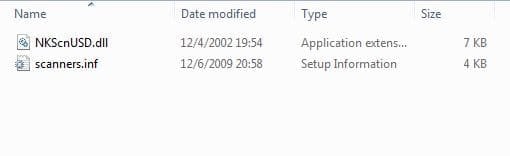
C:\Program Files (x86)\Common Files\Nikon\Driver\Scan1394 (see note) and copy this file NKScnUSD.dll to the same folder (Example: Nikon Files) that the scanners.inf file is in. The Nikon Files folder should now contain these two files... NKScnUSD.dll and scanners.inf
Warning
If your scanner is USB than the folder will be ScanUSB instead of Scan1394.
Once that’s done….
5- Power up the scanner and make sure the Firewire or USB cable is connected to the computer.
6- Cancel any dialogue boxes looking for drivers if they appear.
Warning
For Step #7 - If you're running Windows 8/10, you'll need to disable the driver signature enforcement policy (option 1) prior to steps 7-9 or the scanners.inf driver will not install. After disabling, continue through 7-9
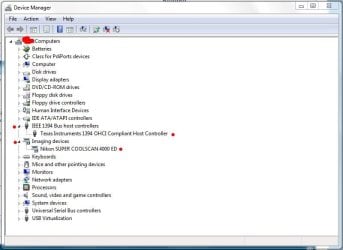
7- Go to Device Manager – Control Panel, Device Manager and look for the "Unknown Device" (your scanner) with the yellow triangle.
8- Right click on it and choose "Update Driver Software" then choose "Browse my computer for driver software"
9- Click "Browse" and find the location or folder where you put the scanners.inf file. Example: C:\Program Files (x86)\Nikon\NkScan4\Nikon Files and click "Next" This will/should install the driver (scanners.inf) you extracted from the zip file for your scanner.
10- That’s it – Your Nikon Scan software should now be fully functional.
Extra Info...
- Basic Nikon Scanner Troubleshooting – Hardware
- Basic Nikon Scanner Troubleshooting – Software
- Computer System Requirements for Nikon Scan software
- Nikon Scan 3.1 Software Manual (PDF File)

Last edited:
My Computer
- Computer type
- PC/Desktop
- Computer Manufacturer/Model Number
- Custom built by me.
- OS
- Windows 10 Pro
- CPU
- Intel Core i7-4770K (3.5Ghz)
- Motherboard
- Gigabyte G1 Sniper 5 (F10 Bios)
- Memory
- 32 gig Corsair Dominator Platinum (4x8Gig)
- Graphics Card(s)
- Sapphire Tri-X R9 Fury
- Sound Card
- Soundblaster ZXR
- Monitor(s) Displays
- NEC PA242W 24" LCD Monitor
- Screen Resolution
- 1920 x 1200
- Hard Drives
- Primary - Samsung 850 Pro (512gig), Samsung 840 Pro (256gig), 2TB WD Caviar Black.
- PSU
- EVGA Supernova 1000 G2
- Case
- Cooler Master HAF X
- Cooling
- Corsair H100i with Corsair Air Series SP120 Quiet Fans
- Keyboard
- Logitech Wireless Wave
- Mouse
- Logitech Performance MX
- Internet Speed
- High Speed Cable
- Antivirus
- Norton Security
- Browser
- IE11
- Other Info
- Memory Timings - 1866MHz @ 9-9-9-27-1T @ 1.5 volts