Visual Effects Settings - Change

How to Change the Visual Effects Settings in Windows 7


   Information
This will show you how to change the visual effect settings you want to use for the appearance and performance of Windows 7 on your computer.
   Note
If you apply any changes in the Control Panel -> Ease of Access Center, your visual effects settings will automatically get reset back to default.

You will notice that not all visual effects options are available in the Windows 7 Starter and Home Basic editions since they do not include the Aero feature.
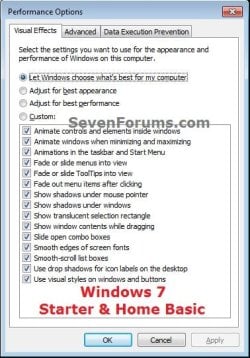
Starter_Basic.jpg
   Tip
The visual effect settings below are the most common ones to turn off (uncheck) to help improve performance.

  • Animate windows when minimizing and maximizing
  • Animations in the taskbar and Start Menu
  • Enable transparent glass
  • Fade or slide menus into view
  • Fade or slide ToolTips into view
  • Fade out menu items after clicking
  • Show shadows under windows
  • Slide open combo boxes


OPTION ONE

To Change Visual Effects Settings in System Properties


1. Do either step 2, 3, or 4 below depending on how you would like to open Visual Effects.
NOTE: Standard users will only be able to use step 4.

2. Open the Start Menu.
A) Right click on the Computer button and click on Properties.

B) Go to step 3A.
OR

3. Open the Control Panel (icons vew), and click on the System icon.
A) Click on the Advanced System settings link in the left blue pane, then close this window afterwards. (see screenshot below)
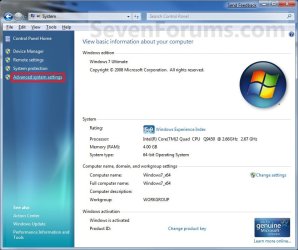
System.jpg
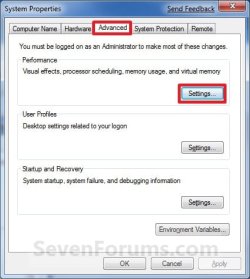
B) Under the Advanced tab and Performance section, click on the Settings button. (see screenshot below)
System_Properties.jpg
C) Go to step 5.
OR

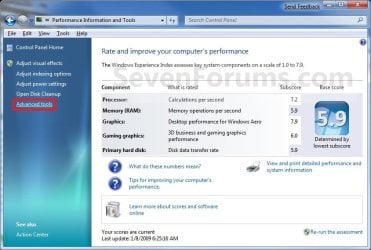
4. Open the Control Panel (icons vew), and click on the Performance Information and Tools icon.
A) Click on the Advanced tools link in the left blue pane. (see screenshot below)
Performance-Info.jpg
B) Click on the Adjust the appearance and performance of Windows link, then close this window afterwards. (see screenshot below)
Advanced_Tools.jpg
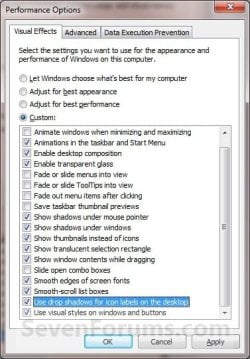
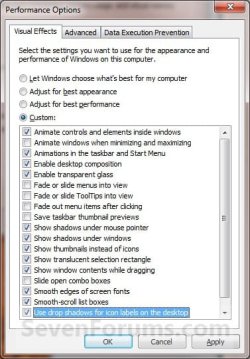
5. You will now see the Visual Effects settings to select. Do step 6, 7, 8, or 9 below for what you would like to do. (see screenshot below)

   Note
You will notice that not all visual effects options are available in the Windows 7 Starter and Home Basic editions since they do not include the Aero feature.

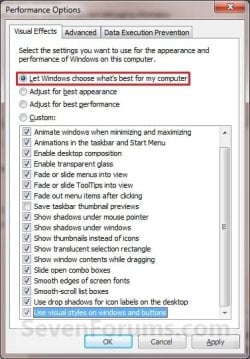
  • Let Windows choose what's best for my computer - Windows will select the settings that it determines will run fine based on your system specs.
  • Adjust for best appearance - This will select all settings.
  • Adjust for best performance - This will unselect all settings.
  • Custom - This will allow you to select and unselect the settings you would like to. This will also be selected by default if you manually select or unselect settings.
Visual_Effects-1.jpgVisual_Effects-2.jpg
6. For Custom to Manually Select or Unselect Visual Effects
A) Select (dot) the Custom option. (see screenshots above)

B) Check the settings you want, uncheck the settings you do not want, and go to step 10 below.

7. For Best Appearance
A) Select (dot) the Adjust for best appearance option, and go to step 10 below. (see screenshots below step 5)
NOTE: This will select all of the visual effect settings.

8. For Best Performance
A) Select (dot) the Adjust for best performance option, and go to step 10 below. (see screenshots below step 5)
NOTE: This will unselect all of the visual effect settings.

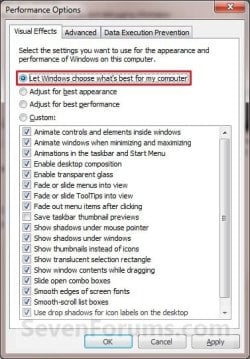
9. To Let Windows 7 Choose the Visual Effects
A) Select (dot) the Let Windows choose what's best for my computer option, and go to step 10 below. (see screenshots below)
NOTE: These screenshots are the usual items selected by Windows 7, but this will be based on what Windows 7 thinks will run best on your computer.
Windows1.jpgWindows2.jpg
10. Click on Apply and OK. (See screenshots above or below step 4)
NOTE: If you did step 2 or 3, then you will also need to click on OK in the screenshot below step 3B.


OPTION TWO

To Change Visual Effects Settings Manually in Registry Editor


   Note
If you like, you can click on a link below for these Visual Effects to see how to quickly change them in the Registry Editor instead.

You will notice that the visual effects below with a * are not available in the Windows 7 Starter and Windows 7 Home Basic editions since they do not include the Aero feature.


1. Open the Start Menu, then type regedit in the search box, and press Enter.

2. If prompted by UAC, then click on Yes.

3. In regedit, navigate to the location below. (see screenshot below)
HKEY_CURRENT_USER\Software\Microsoft\Windows\CurrentVersion\Explorer\VisualEffects


Visual_Effects_REG-A.jpg
4. In the right pane of VisualEffects, double click on the VisualFXSetting DWORD to modify it. (see screenshot above)

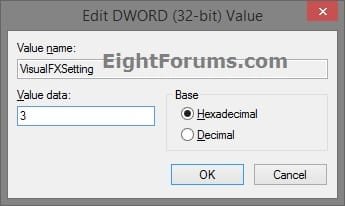
5. Type in the value number below for the setting you want below, and click/tap on OK. (see screenshot below)
Visual_Effects_REG-B.jpg


A) Type 0 (zero) for Let Windows choose what's best for my computer option, and go to step 8 below.

B) Type 1 for Adjust for best appearance option, and go to step 8 below.

C) Type 2 for Adjust for best Performance option, and go to step 8 below.

D) Type 3 for Custom option, and go to step 6 below.
6. Using the binary sets below, change the letters in them to turn on (1) or off (0) for each corresponding visual effect.
   Note
The visual effects below will require more work to change them in the Registry Editor.

We will have to use the 3 sets of binary values below for the letter(s) of the Visual Effects below that you want to turn on or off, then convert each binary set to hex for the first 3 hex entries in the registry. This will be explained in detail on how to do this in the steps below.

Binary sets (3)
1001ABC0 00D1EF10 00000GH1

0=off and 1=on


Visual Effects and their assigned letters
(A) Smooth-scroll list boxes
(B) Slide open combo boxes
(C) Fade or slide menus into view
(D) Show shadows under mouse pointer
(E) Fade or slide ToolTips into view
(F) Fade out menu items after clicking
(G) Show shadows under windows
(H) Use Visual styles on windows and buttons


For example, to turn them all off, I would change all letters in the binary sets to 0 (number zero) like below.
10010000 00010010 00000001
For example, to turn only the H visual effect on, I would change the letters in the binary sets like below.
10010000 00010010 00000011
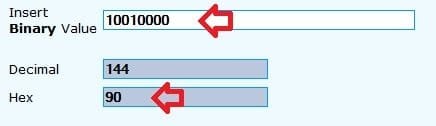
7. Use a binary to hex converter to convert each separate binary set one by one to hex.
NOTE: Make note of these hex values when converted from the adjusted binary sets. They are what you will be using in regedit at step 9 below.
Binary-to-Hex.jpg
NOTE: Press enter after entering the binary value to convert it.

For example, from the example above to turn them all off, I would convert the 3 separate binary sets one by one to hex like below.
Binary
10010000 00010010 00000001

converted to

Hex
90 12 1
For example, from the example above to turn only the H visual effect on, I would convert the 3 separate binary sets one by one to hex like below.
Binary
10010000 00010010 00000011

converted to

Hex
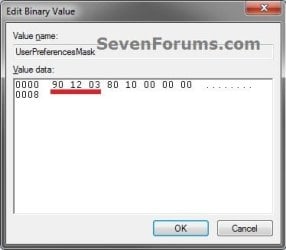
90 12 3
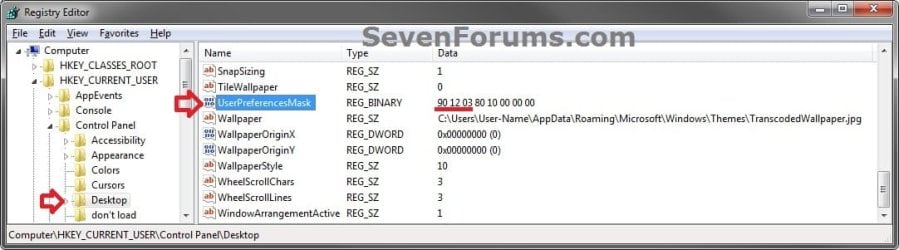
8. In regedit, navigate to the location below. (see screenshot below)
HKEY_CURRENT_USER\Control Panel\Desktop
REG-1.jpg
9. In the right pane of Desktop, double click on UserPreferencesMask to modify it, and do step 10, 11, 12, or 13 below depending on what you set in step 5 above. (see screenshot above)

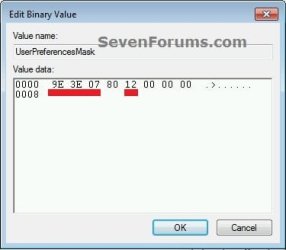
10. If you typed 0 at step 5 for the Let Windows choose what's best for my computer option, then change the values to be the same as the ones in red below, click on OK, and go to step 14 below. (see screenshot below)
9E 3E 07 80 12 00 00 00
0_and_1.jpg
11. If you typed 1 at step 5 for the Adjust for best appearance option, then change the values to be the same as the ones in red below, click on OK, and go to step 14 below. (see screenshot below step 10)
9E 3E 07 80 12 00 00 00
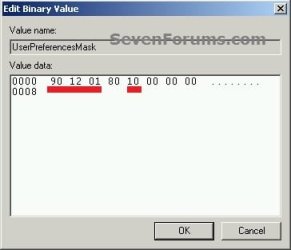
12. If you typed 2 at step 5 for the Adjust for best performance option, then change the values to be the same as the ones in red below, click on OK, and go to step 14 below. (see screenshot below)
90 12 01 80 10 00 00 00
2.jpg
13. If you typed 3 at step 5 for the Custom option, then change the first 3 values (ex: 90 12 03) underlined in red below with the hex values you got from step 7, click on OK, and go to step 14 below. (see screenshot below)
REG-2.jpg
14. Close regedit.

15. Log off and log on, or restart the computer to apply the changes.
That's it,
Shawn


Last edited:
Been there done that

All are checked. Set for all the bells and wistles.

Thanks
 
Last edited by a moderator:

My Computer

Computer Manufacturer/Model Number
Me with help from a lot of news group friends
OS
windows 7 ultimate final Office 2007,27 Quad IMAC vm 7 64 bit
CPU
Dual Opteron 275 x 2
Motherboard
Tyan Thunder 2885 Highpoint 1820 raidcard
Memory
4 gigs reg ecc corsair
Graphics Card(s)
SaphireATI 3850 agp
Sound Card
AMD-8111 AC'97 Audio Controller Driver
Monitor(s) Displays
Samsung 2333,Samsung 32 inch flat screen
Screen Resolution
1920 x 1080
Hard Drives
5 raptor 37 gig in raid 5 off Highpoint 1820 card, 3 more for photos etc plus 300 gig 2 for storage 12 total
PSU
2 power supplies about 1750 total original 750 second 1000
Case
2 theramaltake married together
Cooling
air
Keyboard
logitech wireless
Mouse
wireless logitech track ball
Internet Speed
1000 down 250 up DSL, wireless net 3500 down 2000 up
Other Info
work in progress now running windows 7,Office 2007 using kvm switch sharing key board, trackball with xp 32 machine. xp machine is 2253 and 206 BW, Sat TV on 206 . add quad core 27 inch IMAC. w fusion 3 win 7 ultimate 64 as guest
All are checked. Set for all the bells and wistles. I need help getting out of AGP mode I think. I can not install correct driver. By memory it is WDDM 1? not current video driver. Thanks


I keep everything on except for Animations, Fades and Slides. They hurt me the most in GPU.
 

My Computer

Computer Manufacturer/Model Number
HP dv7-3080us
OS
Microsoft Windows 7 x64 Ultimate
CPU
Intel Core i7 720M 1.6-2.8GHz
Motherboard
HP dv7-3080us
Memory
6GB DDR3 1066MHz RAM
Graphics Card(s)
NVIDIA GeForce 230M
Sound Card
HP dv7-3080us
Monitor(s) Displays
17.3" BrightView LED/LCD (1650x900) ViewSonic 22" LCD 1080p
Screen Resolution
17.3" BrightView LED/LCD (1650x900) ViewSonic 22" LCD 1080p
Hard Drives
500GB OS Drive
100GB OS Partition
400GB Media Partition

640GB Secondary Drive for Movies
PSU
HP dv7-3080us
Case
HP dv7-3080us
Cooling
HP dv7-3080us
Keyboard
HP dv7-3080us - Microsoft Wireless Keyboard 6000 v3.0
Mouse
Logitech G7
For anyone looking to change whether the popup / context menu animations are Fade or Slide (a dropdown that was available in XP), that tweak has been removed from the GUI in Windows 7.. another brilliant Microsoft change. This is particularly annoying since some remote desktop programs like LogMeIn change this setting.

It must now be manually changed in the registry if you wish to swap between Win98-style slide, or XP's fade. To do this, save either of the following as a .reg file using Notepad, and then double-click it to merge it into the registry.


For Win98 Slide effect:
___________________________________________
Windows Registry Editor Version 5.00

[HKEY_CURRENT_USER\Control Panel\Desktop]
"UserPreferencesMask"=hex:9e,28,07,80,12,00,00,00
____________________________________________


For the Default XP Fade effect:
____________________________________________
Windows Registry Editor Version 5.00

[HKEY_CURRENT_USER\Control Panel\Desktop]
"UserPreferencesMask"=hex:9e,3e,07,80,12,00,00,00
____________________________________________


You'll need to log off and log back on before changes will take place. If you're someone who likes the Win98-style slide (unlike myself), be aware that it wasn't really intended to be included in Windows 7. Most menus will just 'appear' since the slide animation is too fast, or the menu is too big. However, menus will show a drop shadow under them. Enjoy!
 

My Computer

OS
Windows 7 x64 | Windows XP Pro x86
CPU
intel Core2 Quad-Core Q6600
Motherboard
EVGA 780i SLI
Memory
2x 4GB Corsair Dominator XPS
Graphics Card(s)
2x EVGA GeForce 8800GTS 512's - SLi
Monitor(s) Displays
2x Gateway 2400 24"
Hard Drives
4.0TB RAID5
PSU
1000w Silverstone STRIKER
Case
Antec P280
Good Afternoon to all,

Quick question on this subject. I have a W7 Pro64 install with an admin account and a user account that I use every day.

When logged in as the user I change the preferences (giving Admin credentials to be able to open it), getting rid of animation and press save. When I restart and log back in, the visual effects are still set to Custom and some of the boxes are still unselected but minimize/maximise is re-selected as are shadows and most others.

Why are my settings not being remembered after a restart.... rather annoying to say the least

Thanks

Jody
 

My Computer

Computer Manufacturer/Model Number
Custom
OS
Windows 7 64bit
CPU
i7
Memory
6GB
Monitor(s) Displays
Dual 24"
Screen Resolution
1920*1080
Hard Drives
OS: 150GB Raptop
Data: 600GB RAID 5
PSU
850W
Case
Coolermaster HAT
Cooling
Corsair H50
j7ody,

I was having the same problem with Windows not remembering the settings. The fix is to type SystemPropertiesPerformance in the Start menu's search bar, then choose your settings. The problem seems to be related to the UAC settings. I found the fix at this site Vista refuses to remember my aero visual effects settings - [H]ard|Forum

Hope that helps!

Cody
 

My Computer

OS
Windows 7 x64 Ultimate
CPU
Core i7 920
Motherboard
Asus P6T
Memory
6 GB
Graphics Card(s)
Nvidia Geforce 260
Monitor(s) Displays
Dell E228WFP
Screen Resolution
1680 x 1050
Hard Drives
750 GB Western Digital Caviar Black
PSU
Corsair
Case
Thermaltake
  • Like
Reactions: Dom
Cody,

You are a legend..... this has been bugging me for about a month. Thank you!

Jody
 
Last edited by a moderator:

My Computer

Computer Manufacturer/Model Number
Custom
OS
Windows 7 64bit
CPU
i7
Memory
6GB
Monitor(s) Displays
Dual 24"
Screen Resolution
1920*1080
Hard Drives
OS: 150GB Raptop
Data: 600GB RAID 5
PSU
850W
Case
Coolermaster HAT
Cooling
Corsair H50
Nice tutorial/guide (if you don't use Windows Classic).
 

My Computer

Computer Manufacturer/Model Number
HP DV4-1030ee
OS
Windows 7 Pro
CPU
[email protected], 2 Core Logical Processors
Motherboard
Compal 30F8 99.74
Memory
Total Physical Memory 2.00 GB
Graphics Card(s)
NVIDIA GeForce9200M GS
Sound Card
NVIDIA HDMI Audio with IDT High Definition Audio CODEC
Monitor(s) Displays
Generic PnP Monitor (14.0"vis)
Screen Resolution
1200 X 800 recommended, but set to 1074 X 768
Hard Drives
FUJITSU MHY2160BH 160.04 GB drive 0
PSU
High Performance
Case
Stock
Cooling
Stock
Keyboard
Stock
Mouse
Logitech M-UV96
Internet Speed
down 2.89 Mb/s & up 0.73 Mb/s
Other Info
Acer Aspire One, XPH SP3, x86, 'Windows NT', 2.0 Ghz CPU, 2 Gb RAM, Mobile Intel 945 Express Chipset Family graphics
'card', RealtekHD Audio Driver v5.10.0.5628 audio 'card', and USB 2.0.
Hello Wguru,

And if you do use Windows Classic, you can use the Advanced Appearance Settings (step 7 at link) instead to change those appearance settings. Plus, some in Folder Options. Not quite the same as the ones for Aero, but.... ;)
 

My Computer

Computer type
PC/Desktop
Computer Manufacturer/Model Number
Self built custom
OS
64-bit Windows 11 Pro for Workstations
CPU
Intel i7-8700K OC'd to 5 GHz
Motherboard
ASUS ROG Maximus XI Formula Z390
Memory
64 GB (4x16GB) G.SKILL TridentZ RGB DDR4 3600 MHz
Graphics Card(s)
ASUS ROG-STRIX-GTX1080TI-O11G-GAMING
Sound Card
Integrated
Monitor(s) Displays
2 x Samsung Odyssey G7 27"
Screen Resolution
2560x1440
Hard Drives
1TB Samsung 990 PRO M.2,
4TB Samsung 990 PRO PRO M.2,
TerraMaster F8 SSD Plus NAS
PSU
Seasonic Prime Titanium 850W
Case
Thermaltake Core P3
Cooling
Corsair Hydro H115i
Keyboard
Logitech wireless K800
Mouse
Logitech MX Master 4
Internet Speed
2 Gb/s Download and 100 Mb/s Upload
Antivirus
Malwarebyte Anti-Malware Premium
Browser
Google Chrome
Other Info
Logitech Z625 speaker system,
Logitech BRIO 4K Pro webcam,
HP Color LaserJet Pro MFP M477fdn,
APC SMART-UPS RT 1000 XL - SURT1000XLI,
Galaxy S23 Plus phone
Thank you. Just mentioned it because I'm guessing if not the majority of 'us' prefer classic, quite a few do.

Again, great site. Kudos for all the efforts.
 

My Computer

Computer Manufacturer/Model Number
HP DV4-1030ee
OS
Windows 7 Pro
CPU
[email protected], 2 Core Logical Processors
Motherboard
Compal 30F8 99.74
Memory
Total Physical Memory 2.00 GB
Graphics Card(s)
NVIDIA GeForce9200M GS
Sound Card
NVIDIA HDMI Audio with IDT High Definition Audio CODEC
Monitor(s) Displays
Generic PnP Monitor (14.0"vis)
Screen Resolution
1200 X 800 recommended, but set to 1074 X 768
Hard Drives
FUJITSU MHY2160BH 160.04 GB drive 0
PSU
High Performance
Case
Stock
Cooling
Stock
Keyboard
Stock
Mouse
Logitech M-UV96
Internet Speed
down 2.89 Mb/s & up 0.73 Mb/s
Other Info
Acer Aspire One, XPH SP3, x86, 'Windows NT', 2.0 Ghz CPU, 2 Gb RAM, Mobile Intel 945 Express Chipset Family graphics
'card', RealtekHD Audio Driver v5.10.0.5628 audio 'card', and USB 2.0.
No problem Wguru. It does make it harder when using Classic, but at least you get to change the color settings for items in the Advanced Appearance settings when we can't using Aero.
 

My Computer

Computer type
PC/Desktop
Computer Manufacturer/Model Number
Self built custom
OS
64-bit Windows 11 Pro for Workstations
CPU
Intel i7-8700K OC'd to 5 GHz
Motherboard
ASUS ROG Maximus XI Formula Z390
Memory
64 GB (4x16GB) G.SKILL TridentZ RGB DDR4 3600 MHz
Graphics Card(s)
ASUS ROG-STRIX-GTX1080TI-O11G-GAMING
Sound Card
Integrated
Monitor(s) Displays
2 x Samsung Odyssey G7 27"
Screen Resolution
2560x1440
Hard Drives
1TB Samsung 990 PRO M.2,
4TB Samsung 990 PRO PRO M.2,
TerraMaster F8 SSD Plus NAS
PSU
Seasonic Prime Titanium 850W
Case
Thermaltake Core P3
Cooling
Corsair Hydro H115i
Keyboard
Logitech wireless K800
Mouse
Logitech MX Master 4
Internet Speed
2 Gb/s Download and 100 Mb/s Upload
Antivirus
Malwarebyte Anti-Malware Premium
Browser
Google Chrome
Other Info
Logitech Z625 speaker system,
Logitech BRIO 4K Pro webcam,
HP Color LaserJet Pro MFP M477fdn,
APC SMART-UPS RT 1000 XL - SURT1000XLI,
Galaxy S23 Plus phone
hi Brink

I'm having another senior moment :o

on this page:
http://www.sevenforums.com/tutorials/1884-mouse-hover-time-change.html

you mention: "If you have the Animations in the taskbar and Start Menu option checked in Visual Effects, then you may not see much or any difference. You will need to uncheck this option first before doing the tutorial below."

So, on the Visual Effects page:
http://www.sevenforums.com/tutorials/1908-visual-effects-settings-change.html

You lost me @ "Warning When you make any changes in the Ease of Access Center, the visual effects settings below get reset back to the default setting automatically."

um :o what's that mean, exactly?

I'm re-reading the two tutorials for the 3rd/4th time, still don't quite grasp it.

thanks in advance!
running: Win7Pro 32-bit Classic not Aero.


My Computer

Computer Manufacturer/Model Number
Dell Vostro 220
OS
Windows 7 Pro 64-bit
CPU
Intel Pentium III Xeon, 2600 MHz (7.5 x
Motherboard
Intel Eaglelake
Memory
3036 MB
Graphics Card(s)
Intel
Sound Card
Realtek High Definition Audio
Monitor(s) Displays
ASUS VH1920 (April 2011)
Screen Resolution
1366 x 768(recommended)
Hard Drives
WDC WD3200AAKS-75L9A0 (298 GB, IDE)
Case
Dell desktop
Cooling
unknown
Keyboard
Microsoft
Mouse
Logitech rollerball
Other Info
Classic Theme
Hello Bootsmom,

Answers inline. :)

on this page:
http://www.sevenforums.com/tutorials/1884-mouse-hover-time-change.html

you mention: "If you have the Animations in the taskbar and Start Menu option checked in Visual Effects, then you may not see much or any difference. You will need to uncheck this option first before doing the tutorial below."
This part just means that the Animations in the taskbar and Start Menu option has a delay for the animation. If you leave it checked, then you would still have a delay for the animation despite setting the mouse hover time to not have a delay.

So, on the Visual Effects page:
http://www.sevenforums.com/tutorials/1908-visual-effects-settings-change.html

You lost me @ "Warning When you make any changes in the Ease of Access Center, the visual effects settings below get reset back to the default setting automatically."
This is to just let you know that if you make any changes in the Ease of Access Center, then all visual effects setting are reset back to default.

It is unrelated to the Animations in the taskbar and Start Menu option, unless the visual effects settings got reset from the above and you needed to change this option back again.

Hope this helps,
Shawn
 

My Computer

Computer type
PC/Desktop
Computer Manufacturer/Model Number
Self built custom
OS
64-bit Windows 11 Pro for Workstations
CPU
Intel i7-8700K OC'd to 5 GHz
Motherboard
ASUS ROG Maximus XI Formula Z390
Memory
64 GB (4x16GB) G.SKILL TridentZ RGB DDR4 3600 MHz
Graphics Card(s)
ASUS ROG-STRIX-GTX1080TI-O11G-GAMING
Sound Card
Integrated
Monitor(s) Displays
2 x Samsung Odyssey G7 27"
Screen Resolution
2560x1440
Hard Drives
1TB Samsung 990 PRO M.2,
4TB Samsung 990 PRO PRO M.2,
TerraMaster F8 SSD Plus NAS
PSU
Seasonic Prime Titanium 850W
Case
Thermaltake Core P3
Cooling
Corsair Hydro H115i
Keyboard
Logitech wireless K800
Mouse
Logitech MX Master 4
Internet Speed
2 Gb/s Download and 100 Mb/s Upload
Antivirus
Malwarebyte Anti-Malware Premium
Browser
Google Chrome
Other Info
Logitech Z625 speaker system,
Logitech BRIO 4K Pro webcam,
HP Color LaserJet Pro MFP M477fdn,
APC SMART-UPS RT 1000 XL - SURT1000XLI,
Galaxy S23 Plus phone
aha ! such service (mucho appreciamento)

I "think" I've got it now :geek: ....if not, I'll be back LOL.
 

My Computer

Computer Manufacturer/Model Number
Dell Vostro 220
OS
Windows 7 Pro 64-bit
CPU
Intel Pentium III Xeon, 2600 MHz (7.5 x
Motherboard
Intel Eaglelake
Memory
3036 MB
Graphics Card(s)
Intel
Sound Card
Realtek High Definition Audio
Monitor(s) Displays
ASUS VH1920 (April 2011)
Screen Resolution
1366 x 768(recommended)
Hard Drives
WDC WD3200AAKS-75L9A0 (298 GB, IDE)
Case
Dell desktop
Cooling
unknown
Keyboard
Microsoft
Mouse
Logitech rollerball
Other Info
Classic Theme
You're most welcome. Just let me know if you have further questions on it. :)
 

My Computer

Computer type
PC/Desktop
Computer Manufacturer/Model Number
Self built custom
OS
64-bit Windows 11 Pro for Workstations
CPU
Intel i7-8700K OC'd to 5 GHz
Motherboard
ASUS ROG Maximus XI Formula Z390
Memory
64 GB (4x16GB) G.SKILL TridentZ RGB DDR4 3600 MHz
Graphics Card(s)
ASUS ROG-STRIX-GTX1080TI-O11G-GAMING
Sound Card
Integrated
Monitor(s) Displays
2 x Samsung Odyssey G7 27"
Screen Resolution
2560x1440
Hard Drives
1TB Samsung 990 PRO M.2,
4TB Samsung 990 PRO PRO M.2,
TerraMaster F8 SSD Plus NAS
PSU
Seasonic Prime Titanium 850W
Case
Thermaltake Core P3
Cooling
Corsair Hydro H115i
Keyboard
Logitech wireless K800
Mouse
Logitech MX Master 4
Internet Speed
2 Gb/s Download and 100 Mb/s Upload
Antivirus
Malwarebyte Anti-Malware Premium
Browser
Google Chrome
Other Info
Logitech Z625 speaker system,
Logitech BRIO 4K Pro webcam,
HP Color LaserJet Pro MFP M477fdn,
APC SMART-UPS RT 1000 XL - SURT1000XLI,
Galaxy S23 Plus phone
myohmy... :(

I'm running Windows Classic Theme, and SO, when I followed instructions to disable "Animations in the taskbar and Start Menu" I ended up back at an aero desktop. Needless to say, an aero theme was NOT my intention - I am a classic diehard fan thru and thru. Good thing I manually create restore points first thing every morning and last thing at night *whew*.

I am, as we speak, getting more and more confused, so I will just ask my question outright: is there any other way I can increase the mouse hover time http://www.sevenforums.com/tutorials/1884-mouse-hover-time-change.html so that I NEVER see those annoying little yellow boxes pop up? I'm pretty fast actually...sometimes I have to wait for the system to catch up to me (seriously).

Brink, I'm sorry to be such a pest but I am determined to get rid of those little yellow dialog boxes one way or another, and yes I've used TweakUI...or Tweak7 (whatever it's called). I couldn't get it to work on XP EITHER.

TIA
 

My Computer

Computer Manufacturer/Model Number
Dell Vostro 220
OS
Windows 7 Pro 64-bit
CPU
Intel Pentium III Xeon, 2600 MHz (7.5 x
Motherboard
Intel Eaglelake
Memory
3036 MB
Graphics Card(s)
Intel
Sound Card
Realtek High Definition Audio
Monitor(s) Displays
ASUS VH1920 (April 2011)
Screen Resolution
1366 x 768(recommended)
Hard Drives
WDC WD3200AAKS-75L9A0 (298 GB, IDE)
Case
Dell desktop
Cooling
unknown
Keyboard
Microsoft
Mouse
Logitech rollerball
Other Info
Classic Theme
Hello Bootsmom,

What is the location or items that you hover on for these pop-ups? For example, taskbar buttons/icons, or other.
 

My Computer

Computer type
PC/Desktop
Computer Manufacturer/Model Number
Self built custom
OS
64-bit Windows 11 Pro for Workstations
CPU
Intel i7-8700K OC'd to 5 GHz
Motherboard
ASUS ROG Maximus XI Formula Z390
Memory
64 GB (4x16GB) G.SKILL TridentZ RGB DDR4 3600 MHz
Graphics Card(s)
ASUS ROG-STRIX-GTX1080TI-O11G-GAMING
Sound Card
Integrated
Monitor(s) Displays
2 x Samsung Odyssey G7 27"
Screen Resolution
2560x1440
Hard Drives
1TB Samsung 990 PRO M.2,
4TB Samsung 990 PRO PRO M.2,
TerraMaster F8 SSD Plus NAS
PSU
Seasonic Prime Titanium 850W
Case
Thermaltake Core P3
Cooling
Corsair Hydro H115i
Keyboard
Logitech wireless K800
Mouse
Logitech MX Master 4
Internet Speed
2 Gb/s Download and 100 Mb/s Upload
Antivirus
Malwarebyte Anti-Malware Premium
Browser
Google Chrome
Other Info
Logitech Z625 speaker system,
Logitech BRIO 4K Pro webcam,
HP Color LaserJet Pro MFP M477fdn,
APC SMART-UPS RT 1000 XL - SURT1000XLI,
Galaxy S23 Plus phone
anywhere there is a yellow balloon tip, but specifically on the

taskbar - example: hovering over the AVG icon displays: AVG Anti-Virus Free.

quicklaunch - two most annoying examples:

1. hovering over my Paint Shop Pro icon displays a two-liner : PaintShopPro and on line 2: Launches Paint Shop Pro

2. hovering over IE8 displays: Finds and displays information and Web sites on the internet (DUH!)
 

My Computer

Computer Manufacturer/Model Number
Dell Vostro 220
OS
Windows 7 Pro 64-bit
CPU
Intel Pentium III Xeon, 2600 MHz (7.5 x
Motherboard
Intel Eaglelake
Memory
3036 MB
Graphics Card(s)
Intel
Sound Card
Realtek High Definition Audio
Monitor(s) Displays
ASUS VH1920 (April 2011)
Screen Resolution
1366 x 768(recommended)
Hard Drives
WDC WD3200AAKS-75L9A0 (298 GB, IDE)
Case
Dell desktop
Cooling
unknown
Keyboard
Microsoft
Mouse
Logitech rollerball
Other Info
Classic Theme
Unfortunately, I do not know of a way to stop those description type pop-ups. :(
 

My Computer

Computer type
PC/Desktop
Computer Manufacturer/Model Number
Self built custom
OS
64-bit Windows 11 Pro for Workstations
CPU
Intel i7-8700K OC'd to 5 GHz
Motherboard
ASUS ROG Maximus XI Formula Z390
Memory
64 GB (4x16GB) G.SKILL TridentZ RGB DDR4 3600 MHz
Graphics Card(s)
ASUS ROG-STRIX-GTX1080TI-O11G-GAMING
Sound Card
Integrated
Monitor(s) Displays
2 x Samsung Odyssey G7 27"
Screen Resolution
2560x1440
Hard Drives
1TB Samsung 990 PRO M.2,
4TB Samsung 990 PRO PRO M.2,
TerraMaster F8 SSD Plus NAS
PSU
Seasonic Prime Titanium 850W
Case
Thermaltake Core P3
Cooling
Corsair Hydro H115i
Keyboard
Logitech wireless K800
Mouse
Logitech MX Master 4
Internet Speed
2 Gb/s Download and 100 Mb/s Upload
Antivirus
Malwarebyte Anti-Malware Premium
Browser
Google Chrome
Other Info
Logitech Z625 speaker system,
Logitech BRIO 4K Pro webcam,
HP Color LaserJet Pro MFP M477fdn,
APC SMART-UPS RT 1000 XL - SURT1000XLI,
Galaxy S23 Plus phone

My Computer

Computer Manufacturer/Model Number
Dell Vostro 220
OS
Windows 7 Pro 64-bit
CPU
Intel Pentium III Xeon, 2600 MHz (7.5 x
Motherboard
Intel Eaglelake
Memory
3036 MB
Graphics Card(s)
Intel
Sound Card
Realtek High Definition Audio
Monitor(s) Displays
ASUS VH1920 (April 2011)
Screen Resolution
1366 x 768(recommended)
Hard Drives
WDC WD3200AAKS-75L9A0 (298 GB, IDE)
Case
Dell desktop
Cooling
unknown
Keyboard
Microsoft
Mouse
Logitech rollerball
Other Info
Classic Theme
Back
Top