Recycle Bin - Pin to Taskbar

How to Pin the Recycle Bin to the Windows 7 Taskbar


   Information
The Recycle Bin provides a safety net when deleting files or folders. When you delete any of these items from your hard disk, Windows places it in the Recycle Bin and the Recycle Bin icon changes from empty to full.

This will show you how to create a Recycle Bin shortcut with Empty Recycle Bin in the context menu, and how to pin this shortcut to the taskbar as a toolbar.

   Note
Removable drives do not use or have a Recycyle Bin. Files deleted from removable drives are permanently deleted instead.


EXAMPLE: Recycle Bin Unpinned and Pinned from the Taskbar

Taskbar-1.PNG

Taskbar-2.PNG

Taksbar_Left.jpg
Here's How:
1. Make sure the Recycle Bin is on the desktop.
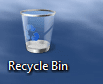
Recycle Bin on desktop.PNG
2. Right click on the desktop and select New and Folder , then rename it anything you like. (i.e. Trash Bin)
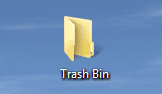
New Folder on desktop.PNG
3. Drag & drop the Recycle Bin on the new Folder to create a shortcut.
NOTE: You could also Pin to Start Menu this new Recycle Bin shortcut by pressing and holding Shift, then right click on the shortcut, and click on Pin to Start Menu.
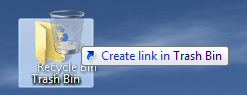
Drag & drop recycle bin.png
4. Save the new Folder (containing Recycle Bin shortcut) to the directory of your choice (i.e. C:\Trash Bin) by dragging and dropping.
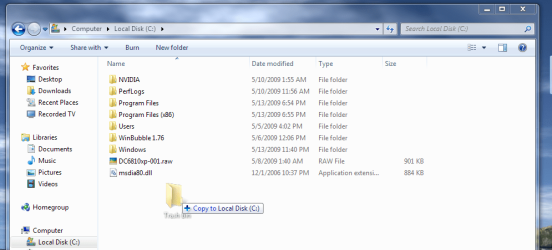
Drag & drop new Folder.png
5. UnLock the taskbar.

6. Right-click on the taskbar and select Toolbar and New toolbar...
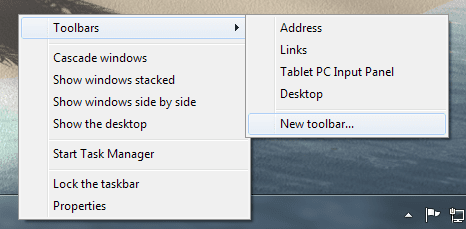
Toolbars-New toolbar.png
7. Navigate to the location you saved the New Folder (Ex: Trash Bin), select it and click on the Select Folder button.
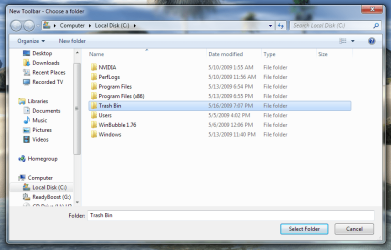
Choose a folder.png
8. This places the new Toolbar and a Separator (dotted lines) on the taskbar.
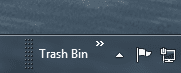
New Toolbar and Separator.PNG
9. Right click on the Separator and uncheck Show Text and Show Title.
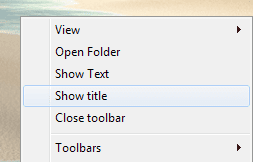
Show title.png
10. Right click on the Separator and select View and Large Icons.
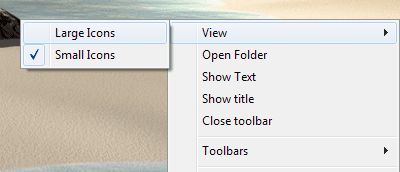
Large Icons.png
11. You now have the Recycle Bin pinned to the taskbar.
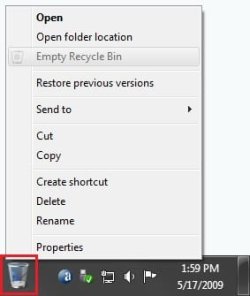
Recycle_Bin.jpg
12. To Keep the Recycle Bin on Right Side of Taskbar
A) Left click on the Separator to the left of the folder and hold, then drag it to the left and right to make any adjustments to how you want the Recycle Bin positioned on the right side of the taskbar. (See screenshot above)

B) Release the left click when done.

C) Go to step 14.
13. To Have the Recycle Bin on Left Side of Taskbar
A) Left click on the Separator of the pinned taskbar programs on the far left side and hold, then drag it to the right past the Recycle Bin and release. (See screenshot below)

Left-1.jpg
B) Left click on the Separator of the pinned taskbar programs on the now right side and hold, then drag it to the left next to the Recycle Bin and release. (See screenshot below)

Left-2.jpg
14. Lock the taskbar.

15. Remove the Recycle Bin from the desktop.

   Note
You do know that when you drag & drop copied shortcuts from the Start Menu in with the Recycle Bin shortcut, that those automatically become Quick Launch items beside the Recycle Bin. By doing it that way you can "kill two birds with one stone".(See screenshot below)

Recycle Bin - Quick Launch Combo.PNG
Enjoy,


Last edited by a moderator:
this is excellent!!

now i can get rid of the only icon i ever have on my desktop. i love the new taskbar, it's so very useful :)

great tutorial, i appreciate your time and effort.
 

My Computer

OS
7600 x86
CPU
Core 2 Duo e7200, 2.53 ghz
Motherboard
Micro-Star MS-7529
Memory
2x DDR2 PC5300 1gb, 667 mhz
Graphics Card(s)
GeForce 9500gt, 512mb
Monitor(s) Displays
22" LG Flatron w2234s
Screen Resolution
1680x1050
Hard Drives
Excelstor SATA-II 250gb 7200rpm, 8mb cache
PSU
CoolerMaster M520
Internet Speed
30/20 mbits
You can also move that toolbar to the left side and remove the text and change the icon size to large, which looks like this.

2009-05-15_203414.jpg
 

My Computer

Computer Manufacturer/Model Number
Home Brew
OS
Windows 7 Ultimate Vista Ultimate x64
CPU
Core 2 Duo E8500 3.16Ghz @ 3.8Ghz
Motherboard
eVGA 750i FTW
Memory
2x2Gigs Patriot PC2-6400 LL
Graphics Card(s)
Inno3D GeForce GTX260 216 SP
Monitor(s) Displays
ASUS VW222U 22" 2ms Response time
Screen Resolution
1680x1050
Hard Drives
SATA 150GB
SATA II 250GB
USB IDE 750GB Ext.
PSU
HYTEC 600W & Thermaltake 650W Toughpower Power Exp
Case
Thermaltake Armor LCS (Liquid Cooling System)
Cooling
Liquid Cooling System
Keyboard
Logitech G15 Gaming Keyboard
Mouse
Logitech G9 Gaming Mouse
This tutorial has been updated to have the choice of having the pinned Recycle Bin (fully functional) on the left or right side of the taskbar. :)
 

My Computer

Computer type
PC/Desktop
Computer Manufacturer/Model Number
Self built custom
OS
64-bit Windows 11 Pro for Workstations
CPU
Intel i7-8700K OC'd to 5 GHz
Motherboard
ASUS ROG Maximus XI Formula Z390
Memory
64 GB (4x16GB) G.SKILL TridentZ RGB DDR4 3600 MHz
Graphics Card(s)
ASUS ROG-STRIX-GTX1080TI-O11G-GAMING
Sound Card
Integrated
Monitor(s) Displays
2 x Samsung Odyssey G7 27"
Screen Resolution
2560x1440
Hard Drives
1TB Samsung 990 PRO M.2,
4TB Samsung 990 PRO PRO M.2,
TerraMaster F8 SSD Plus NAS
PSU
Seasonic Prime Titanium 850W
Case
Thermaltake Core P3
Cooling
Corsair Hydro H115i
Keyboard
Logitech wireless K800
Mouse
Logitech MX Master 4
Internet Speed
2 Gb/s Download and 100 Mb/s Upload
Antivirus
Malwarebyte Anti-Malware Premium
Browser
Google Chrome
Other Info
Logitech Z625 speaker system,
Logitech BRIO 4K Pro webcam,
HP Color LaserJet Pro MFP M477fdn,
APC SMART-UPS RT 1000 XL - SURT1000XLI,
Galaxy S23 Plus phone
Hello Charbroil57.


Good tutorial, I like the recycle bin on the taskbar better; in Vista you could just drag it there.

Thank you!


Later ;) Ted
 

My Computer

Computer Manufacturer/Model Number
* BFK Customs *
OS
W 7 64-bit Ultimate
CPU
Intel Q9550 Yorkfield
Motherboard
ASUS P5Q Pro
Memory
8GB Dominator 8500C5D
Graphics Card(s)
ATI : XFX 5870
Sound Card
Realtek HD Audio 7-1
Monitor(s) Displays
1x 47" LCD HDMI & 3x 26" LCD HDMI
Screen Resolution
1920x1080P & 1920x1200
Hard Drives
1x 80GB Intel X25-M G2 SSD : 1x 500GB & 1x 640GB WD Caviar Black(s)
PSU
Corsair 620HX
Case
Cooler Master RC-690
Cooling
Tuniq Tower 120, 2x 140mm and 3x 120mm case fans
Keyboard
Microsoft 500
Mouse
Razer Diamondback 3G
Internet Speed
14 Mb/s
Other Info
1x Koutech 3Gb/s SATA HDD Hot Swap Rack
Hello Charbroil57.
Good tutorial, I like the recycle bin on the taskbar better; in Vista you could just drag it there.
Thank you!
Later ;) Ted

Hello Bare Foot Kid,

Your are quite welcome, it is a lot nicer if your into a clean desktop. Retaining the characteristic features we have come to like is a plus also.
 

My Computer

Computer type
PC/Desktop
Computer Manufacturer/Model Number
Custom by Charbroil57
OS
Windows 7 Home Premium x64 (clean install 8/05/2015)
CPU
AMD Phenom II X2 550 Black Edition 3.1GHz
Motherboard
Gigabyte GA-MA790X-UD4P AM3/AM2+/AM2 AMD 790X ATX AMD
Memory
8 GB (4 x 2 GB) Corsair 6400C5 800 MHz
Graphics Card(s)
BFG 512MB GDDR3 9600GT OC
Sound Card
Realtec HD Audio 5.1
Monitor(s) Displays
DVI Viewsonic VA2231
Screen Resolution
1920 x 1080 (1080p)
Hard Drives
1 TB SATA 6G Seagate Barracuda (Boot drive, limited to 3G due to Mobo)
500 GB SATA 3G Seagate Barracuda
500 GB USB Seagate Desktop Drive
PSU
Ultra X4 750w Modular(upgraded)
Case
Antec Sonata
Cooling
Stock (80w CPU)
Keyboard
Microsoft Wireless Desktop Elite
Mouse
Wirless Intellimouse Explorer 2.0
Internet Speed
Xfinity Broadband (Home 75 MB Download)
Antivirus
Norton Internet Security
Browser
Firefox 39 (default) and IE 11
Other Info
SATA HP Lightscribe DVD RW
SATA Samsung Lightscribe DVD RW
Thanks CB57, like it so much! Great work, I think it fits nice on the left side with ql on the right.
Keep up the good input flow. lm


View attachment 11172
 
Last edited:

My Computer

Computer Manufacturer/Model Number
Gateway GT5692
OS
Windows 7 Ulti. x64
CPU
AMD Phenom 8450 triple-core 2.10 ghz
Memory
4GB
Graphics Card(s)
ATI Radion HD 3200
Monitor(s) Displays
Gateway FPD1775W
Screen Resolution
1280x720
Hard Drives
465.6613 Gibibytes
Thanks CB57, like it so much! Great work, I think it fits nice on the left side with ql on the right.
Keep up the good input flow. lm

You do know that when your on step 3 of the Recycle Bin - Pin to Taskbar Tutorial and you drag & drop copied shortcuts from the Start Menu in with the Recycle Bin shortcut, that those automatically become Quick Launch items beside the Recycle Bin. By doing it that way you can "kill two birds with one stone". That is what I finally did as you can see in the attached screenshot.

Recycle Bin - Quick Launch Combo.PNG
 
Last edited:

My Computer

Computer type
PC/Desktop
Computer Manufacturer/Model Number
Custom by Charbroil57
OS
Windows 7 Home Premium x64 (clean install 8/05/2015)
CPU
AMD Phenom II X2 550 Black Edition 3.1GHz
Motherboard
Gigabyte GA-MA790X-UD4P AM3/AM2+/AM2 AMD 790X ATX AMD
Memory
8 GB (4 x 2 GB) Corsair 6400C5 800 MHz
Graphics Card(s)
BFG 512MB GDDR3 9600GT OC
Sound Card
Realtec HD Audio 5.1
Monitor(s) Displays
DVI Viewsonic VA2231
Screen Resolution
1920 x 1080 (1080p)
Hard Drives
1 TB SATA 6G Seagate Barracuda (Boot drive, limited to 3G due to Mobo)
500 GB SATA 3G Seagate Barracuda
500 GB USB Seagate Desktop Drive
PSU
Ultra X4 750w Modular(upgraded)
Case
Antec Sonata
Cooling
Stock (80w CPU)
Keyboard
Microsoft Wireless Desktop Elite
Mouse
Wirless Intellimouse Explorer 2.0
Internet Speed
Xfinity Broadband (Home 75 MB Download)
Antivirus
Norton Internet Security
Browser
Firefox 39 (default) and IE 11
Other Info
SATA HP Lightscribe DVD RW
SATA Samsung Lightscribe DVD RW
Hello again.


This is very useful, I just used it to add a shortcut to my storage drive and a shortcut to Brinks Instant Restore Point that I couldn't get to pin to the taskbar previously.

Have some rep love on me.

Taskbar2.PNG


Later ;) Ted
 

My Computer

Computer Manufacturer/Model Number
* BFK Customs *
OS
W 7 64-bit Ultimate
CPU
Intel Q9550 Yorkfield
Motherboard
ASUS P5Q Pro
Memory
8GB Dominator 8500C5D
Graphics Card(s)
ATI : XFX 5870
Sound Card
Realtek HD Audio 7-1
Monitor(s) Displays
1x 47" LCD HDMI & 3x 26" LCD HDMI
Screen Resolution
1920x1080P & 1920x1200
Hard Drives
1x 80GB Intel X25-M G2 SSD : 1x 500GB & 1x 640GB WD Caviar Black(s)
PSU
Corsair 620HX
Case
Cooler Master RC-690
Cooling
Tuniq Tower 120, 2x 140mm and 3x 120mm case fans
Keyboard
Microsoft 500
Mouse
Razer Diamondback 3G
Internet Speed
14 Mb/s
Other Info
1x Koutech 3Gb/s SATA HDD Hot Swap Rack
You do know that when your on step 3 of the Recycle Bin - Pin to Taskbar Tutorial and you drag & drop copied shortcuts from the Start Menu in with the Recycle Bin shortcut, that those automatically become Quick Launch items beside the Recycle Bin. By doing it that way you can "kill two birds with one stone".
CB thanks again! I'm liking this more and more, however ql must remain because my better half does not like change.
View attachment 11236
 
Last edited:

My Computer

Computer Manufacturer/Model Number
Gateway GT5692
OS
Windows 7 Ulti. x64
CPU
AMD Phenom 8450 triple-core 2.10 ghz
Memory
4GB
Graphics Card(s)
ATI Radion HD 3200
Monitor(s) Displays
Gateway FPD1775W
Screen Resolution
1280x720
Hard Drives
465.6613 Gibibytes
this is fantastic! thanks for your ingenuity!
 

My Computer

OS
7600 x86
CPU
Core 2 Duo e7200, 2.53 ghz
Motherboard
Micro-Star MS-7529
Memory
2x DDR2 PC5300 1gb, 667 mhz
Graphics Card(s)
GeForce 9500gt, 512mb
Monitor(s) Displays
22" LG Flatron w2234s
Screen Resolution
1680x1050
Hard Drives
Excelstor SATA-II 250gb 7200rpm, 8mb cache
PSU
CoolerMaster M520
Internet Speed
30/20 mbits
yeah...thanks its a nice trick
 

My Computer

OS
Windows 7 RC ,Windows Vista Ultimate ,Windows XP SP3,Ubuntu 8.01
CPU
Core 2 Duo 2.4 Ghz
Motherboard
Intel 945 G
Memory
4 GB Ram
Hard Drives
WD SATA 250 GB
Hitachi SATA 80 GB
Not sure if anyone is as OCD about this as me, but anyway, here goes just in case...

I hated how the small icons aligned to the top, and the large icons pushed the taskbar icons to the top and therefore the rectangles around them didn't fit the bar properly...

So, I switched to large icons, and then moved my taskbar to the left side of the screen, and then back down again, and (magically it seems) the large icons simply fit within the usual 40px taskbar (instead of increasing it to 43px or w/e).

If anyone else had that problem, I hope I helped!

(new here just btw)

EDIT: I just moved it to try and replicate what I did to get it to work, and it reset to the horrid 43px height... If anyone has a better solution to this one, please let me know!

- AeonSlayer / Simon
 
Last edited:

My Computer

OS
Windows 7 RC
Last edited by a moderator:

My Computer

Computer Manufacturer/Model Number
Compaq Presario
OS
Windows 7 Build 7137 x64
CPU
AMD Athlon 64 X2 +4000
Motherboard
Yes
Memory
2gb
Graphics Card(s)
Nvidia Geforce 6150SE
Sound Card
Realtek
Monitor(s) Displays
Toshiba 26" LCD TV
Screen Resolution
1360x768
Hard Drives
Samsung something-or-other 250gb
Internet Speed
ADSL
Other Info
1 tb of external storage
Oh, figured it out for real this time! (Has worked 4 times so far :P)

Just unlock your taskbar (while at the bottom of the screen) and grab the top, and expand it to like 3 times the normal height. From there, just shrink it back to the standard height and it SHOULD be 40px high and all will be right in the world!

Cheers!

- AeonSlayer / Simon
 

My Computer

OS
Windows 7 RC
Oh, figured it out for real this time! (Has worked 4 times so far :P)

Just unlock your taskbar (while at the bottom of the screen) and grab the top, and expand it to like 3 times the normal height. From there, just shrink it back to the standard height and it SHOULD be 40px high and all will be right in the world!

Cheers!

- AeonSlayer / Simon

That has bugged me now that you mentioned it lol. However neither of the steps you provided worked for me :(
 

My Computer

Computer Manufacturer/Model Number
Self-built // Gateway FX P-6860
OS
Windows 7 Ultimate retail // Windows 7 build 7264 x64, Vista Home Premium SP2 x64
CPU
Intel Core i7 920 // Intel Core2Duo T-5550 1.86x1.86
Motherboard
EVGA x58 SLI LE //
Memory
12 GB Corsair XMS3 Tri-channel 1333 // 4 GB DDR2
Graphics Card(s)
EVGA GTX 295 // Nvidia GeForce 8800 GTS
Sound Card
Integrated Realtek // RealTek HD integrated sound
Monitor(s) Displays
19" Acer flatpanel // Laptop Display, Secondary CRT
Screen Resolution
1440 x 900 1152x864 // 1440x900, 1152x864
Hard Drives
750 GB WD Caviar Black 7200 RPM - in desktop
320 GB -laptop
80 GB - laptop secondary drive
PSU
Corsair HX1000w // Laptop PSU?
Case
Thermaltake Armor+
Cooling
Assload of fans, intel stock cpu cooler // GearHead Fan dock
Keyboard
Razer Lycosa // laptop keyboard
Mouse
Razer DeathAdder // Logitech Laser
Internet Speed
3.0 MB down/ 768 Kb up
Other Info
Just built my computer in 12/09
Yeah, I myself found the second method should work if you do it two or three times... but maybe I just got lucky.

I found out, sadly, that whenever explorer.exe resets, so too will the 43px height. So I just got fed up with the whole thing and made them small icons, which doesn't look quite as good, but is much easier on the whole.

Sorry I couldn't be of any more help, just move the taskbar round and resize it a lot, and it should work eventually I found.

Anyway, if anyone's got a way to change the size of "large icon" mode to 43 px (maybe through a regedit hack?) please let me know!

- AeonSlayer / Simon
 
Last edited:

My Computer

OS
Windows 7 RC
Yeah, I myself found the second method should work if you do it two or three times... but maybe I just got lucky.

I found out, sadly, that whenever explorer.exe resets, so too will the 43px height. So I just got fed up with the whole thing and made them small icons, which doesn't look quite as good, but is much easier on the whole.

Sorry I couldn't be of any more help, just move the taskbar round and resize it a lot, and it should work eventually I found.

Anyway, if anyone's got a way to change the size of "large icon" mode to 43 px (maybe through a regedit hack?) please let me know!

- Simon

I got it once, but I cant seem to do it again. The one time I got it was when i put the bar on the bottom, as I usually have it on top. But I cant even fix it when I put it on the bottom. Yeah, we need to discover a registry hack or something. Perhaps this will be fixed in the final version. we can only hope.
 

My Computer

Computer Manufacturer/Model Number
Self-built // Gateway FX P-6860
OS
Windows 7 Ultimate retail // Windows 7 build 7264 x64, Vista Home Premium SP2 x64
CPU
Intel Core i7 920 // Intel Core2Duo T-5550 1.86x1.86
Motherboard
EVGA x58 SLI LE //
Memory
12 GB Corsair XMS3 Tri-channel 1333 // 4 GB DDR2
Graphics Card(s)
EVGA GTX 295 // Nvidia GeForce 8800 GTS
Sound Card
Integrated Realtek // RealTek HD integrated sound
Monitor(s) Displays
19" Acer flatpanel // Laptop Display, Secondary CRT
Screen Resolution
1440 x 900 1152x864 // 1440x900, 1152x864
Hard Drives
750 GB WD Caviar Black 7200 RPM - in desktop
320 GB -laptop
80 GB - laptop secondary drive
PSU
Corsair HX1000w // Laptop PSU?
Case
Thermaltake Armor+
Cooling
Assload of fans, intel stock cpu cooler // GearHead Fan dock
Keyboard
Razer Lycosa // laptop keyboard
Mouse
Razer DeathAdder // Logitech Laser
Internet Speed
3.0 MB down/ 768 Kb up
Other Info
Just built my computer in 12/09
The only problem with this method is that it creates a clear space of about 5px below the actual pinned icons making the hover effect look off.
 

My Computer

OS
Windows 7
You can actually use, I've discovered, a third party program know as TrueLaunchBar to create "custom" toolbars. This allows you to make custom sized icons, and position them centered vertically if you wish (which is what I've done). I now have my Bin, then a CD Folder / Eject button, and a HDD / USB monitor on the right of the bar, next to the task tray, with white icons so it blends in. Other than this, I haven't found a good solution as of yet.

- AeonSlayer / Simon
 

My Computer

OS
Windows 7 RC
Back
Top