| Windows 7: Concerns With Windows Backup Tool |
06 Oct 2010
|
#1 | | Windows 7 Professional 64 Bit Colchester Essex |
Concerns With Windows Backup Tool Could do with some pointers on this please. Windows 7 Pro, backup facility. I was allowing it to do a scheduled backup to a NAS, but it was taking to long to do the backup, so I put another drive in the case so it could back up to that. This drive has nothing else on it, its just for the backup. The C drive in the PC is 1 TB, and the backup drive is also 1 TB. Now, I told windows to only keep the latest version of backup, so it should keep a bit of space free. My C drive has approximately 350 gig used. Following my second scheduled backup, the D drive now shows 800 gig used !! How can it be taking 350 gig and turning it into 800 gig ?? My worry is if I get up to say 500 gig on C, a 1 TB drive would no longer be large enough to back it up !! Any thoughts please. | My System Specs |
| Computer type PC/Desktop System Manufacturer/Model Number Mesh XGS I7 OS Windows 7 Professional 64 Bit CPU Intel® Core™ i7 860 Quad Core Processor (2.80GHz, 8MB Cache) Motherboard ASUS P7P55 LX Mainboard - Intel Core™ i5 / i7 - LGA 1156 / A Memory 16GB 1600MHz Dual Channel DDR3 SDRAM, Corsair XMS3 Graphics Card 1GB ATI Radeon HD5750 Sound Card 7.1 High Definition onboard sound card Monitor(s) Displays 22" LG FULL HD Monitor Screen Resolution 1920x1080 Keyboard Logitech Deluxe Keyboard Mouse Logitech MX620 Cordless mouse PSU 550W Case XGS Gaming Chassis - Midi Tower Cooling Standard fans Hard Drives 2 x 1TB Serial ATA 2 Hard Drive with 32MB Buffer Internet Speed 20 meg Antivirus MSE Browser IE9 |
06 Oct 2010
|
#2 | | Vista, Windows7, Mint Mate, Zorin, Windows 8 Florida in winter, Black Forest/Germany |
How many images do you have on your drive now - my guess would be at lest 2. With proper compression, the images should be only about 50% of the used space on C (about 180GBs in your case) - that is at least what I get with Macrium. | My System Specs | | System Manufacturer/Model Number HP, Dell, Gateway, Toshiba - 4 laptops and 2 desktops OS Vista, Windows7, Mint Mate, Zorin, Windows 8 CPU from 1.6GHz Duo to i7 Monitor(s) Displays 2x HP w2207 Keyboard with trackball - no mices Mouse Trackball mice Hard Drives 5x HDD, 7x SSD, 12x Externals Internet Speed DSL 6000 |
06 Oct 2010
|
#3 | | Windows 7 Professional 64 Bit Colchester Essex |
Thats part of my confusion 
Only appear to have one image ! | My System Specs | | Computer type PC/Desktop System Manufacturer/Model Number Mesh XGS I7 OS Windows 7 Professional 64 Bit CPU Intel® Core™ i7 860 Quad Core Processor (2.80GHz, 8MB Cache) Motherboard ASUS P7P55 LX Mainboard - Intel Core™ i5 / i7 - LGA 1156 / A Memory 16GB 1600MHz Dual Channel DDR3 SDRAM, Corsair XMS3 Graphics Card 1GB ATI Radeon HD5750 Sound Card 7.1 High Definition onboard sound card Monitor(s) Displays 22" LG FULL HD Monitor Screen Resolution 1920x1080 Keyboard Logitech Deluxe Keyboard Mouse Logitech MX620 Cordless mouse PSU 550W Case XGS Gaming Chassis - Midi Tower Cooling Standard fans Hard Drives 2 x 1TB Serial ATA 2 Hard Drive with 32MB Buffer Internet Speed 20 meg Antivirus MSE Browser IE9 |
06 Oct 2010
|
#4 | | Vista, Windows7, Mint Mate, Zorin, Windows 8 Florida in winter, Black Forest/Germany |
This is indeed bizarre. I am not really an expert with the small details of Windows imaging since I use Macrium and Norton Ghost. I have therefore asked another member who is real knowledgeable with Windows 7 imaging to have a look at your problem. | My System Specs | | System Manufacturer/Model Number HP, Dell, Gateway, Toshiba - 4 laptops and 2 desktops OS Vista, Windows7, Mint Mate, Zorin, Windows 8 CPU from 1.6GHz Duo to i7 Monitor(s) Displays 2x HP w2207 Keyboard with trackball - no mices Mouse Trackball mice Hard Drives 5x HDD, 7x SSD, 12x Externals Internet Speed DSL 6000 |
06 Oct 2010
|
#5 | | Windows 7x64 Home Premium SP1 x 2 Australia |
In the mean time.
Windows backup uses 2 separate backup mechanisms which by default can run together. These are folder/file backups (uses hidden .zip files) and images of whole partitions (uses hidden .vhd files).
In your case out 350GB, 300GB may be personal files and folders and if these are being backed up they will appear as a separate entry like "your PC name" in addition to an image [WindowsImageBackup].
Last edited by mjf; 08 Oct 2010 at 05:18 PM..
| My System Specs | | System Manufacturer/Model Number Own build (+ Recased Acer Aspire x1800) OS Windows 7x64 Home Premium SP1 x 2 CPU Intel i7 2600k Motherboard ASUS P8Z68 Deluxe Memory G.Skill Ripjaws (DDR3-1600) 2x4GB Graphics Card Nvidia GeForce GTS 450; Intel HD Graphics 3000(GT2+) Monitor(s) Displays Dell Ultrasharp IPS panel U2311H, Samsung SyncMaster P2350 Screen Resolution 1920x1080 Keyboard Logitech MK520 (wireless) Mouse Logitech MK520 PSU Seasonic M12II 520W Case Lian Li Lancool PC-K60 Cooling Case: 1x120mm, 3x140mm CPU: Hyper 212+ Hard Drives Crucial M4 128GB (000F), Seagates 1TB Barracuda ST31000528AS + Internet Speed 6-7 Mbps Antivirus Norton NIS, Malwarebytes on 2 (MSE on 3rd PC) Browser FireFox Other Info Audio: Logitech Z523 2.1 |
06 Oct 2010
|
#6 | | MS Windows 7 Ultimate SP1 64-bit Austin, Texas |

Quote: Originally Posted by Andy 01 Thats part of my confusion 
Only appear to have one image ! Ok here we go.
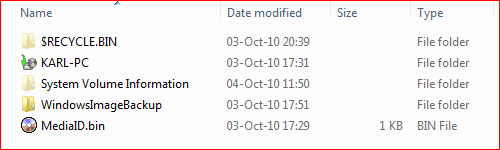
Connect your backup drive.
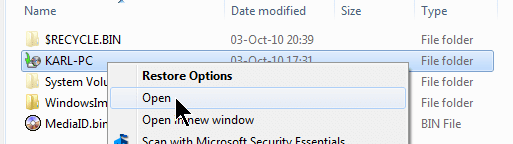
Using Wndows Explorer, rt-click on the icon for the drive. choose open.
Here's a snip of what my backup drive shows.
Now select the folder with the name of your computer and choose Open 
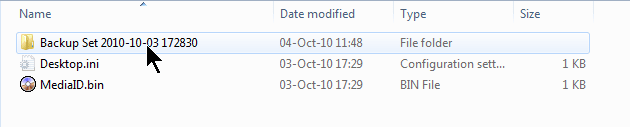
Rt-clk on the folder containing backups and choose Open 
You will see several backups listed.
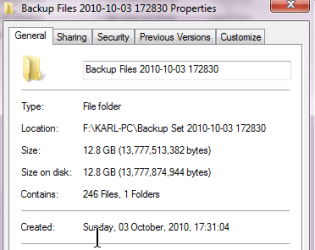
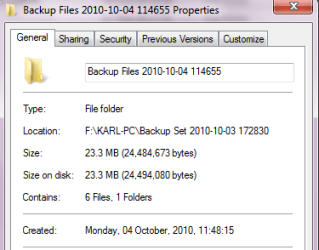
My next objective here is to indicate to you the Win 7 backup is incremental. I will show you you, via properties, the size of the first backup and then I will repeat the same sequence using the latest backup.
You will see there is a considerable size difference.
What you will do is rt-clk on a folder, and choose the properties item.
Here are the clips of my first and last.
That demonstrates the vast difference in the size of the backup of the folders and files on your computer.
Now we are going to look at the size of the image backup, a VHD file.
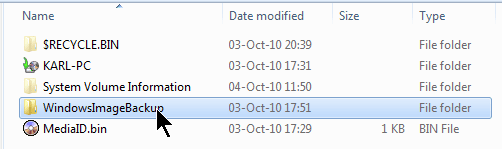
Using the Win explorer back arrow go back to that original display of folders on your backup drive. You will see a folder named WindowsImageBackup. Rt-clk, choose open.
You are going to see a folder with your computer name. Rt-clk, Open
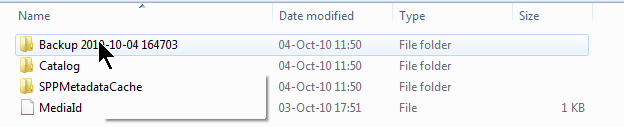
You are going to see a backup folder. Rt-clk, Open
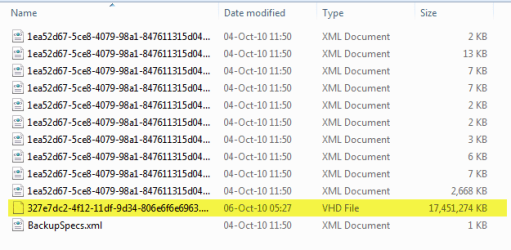
You will see a list of files, most contain info that restore operation uses, but
you will see one VHD file per partition you included in the sytem backup.
Notice the size of the image file.
This should help calm you worries about a rampart disk space chewer.
For a very excellent explanation of Win 7 Backup and Restore, I recommend Brink's tutorial: Backup Complete Computer - Create an Image Backup
You may want to look at another piece of his handiwork: Backup User and System Files - Delete Backups - Windows 7 Forums | My System Specs | | System Manufacturer/Model Number Toshiba Satellite S875D-S7239 laptop OS MS Windows 7 Ultimate SP1 64-bit CPU AMD A10-4600M Motherboard AMD Pumori (Socket FT1) Memory 6.00 GB Dual-Channel DDR3 @ 798MHz (11-11-12-28) Graphics Card AMD Radeon HD 7660G Sound Card High Definition Audio Device Monitor(s) Displays Generic PnP Monitor (1600x900@60Hz) Screen Resolution 1600x900@60Hz Keyboard Standard PS/2 Keyboard Mouse HP Wireless Optical Mobile Mouse Model FHA-3410 Hard Drives SSD 119GB Corsair CSSD-V128GB2 ATA Device Internet Speed What the local pub, local coffee shop offers. Other Info Optical Drive:MATSHITA BD-CMB UJ160B ATA Device
Also have an Asus ha1002xp netbook with Win 7 Ultimate installed. |
07 Oct 2010
|
#7 | | Windows 7 Professional 64 Bit Colchester Essex |
Thank you for such detailed responses.
I'm at work at present so will look into this tonight and report back.
Again, many thanks. | My System Specs | | Computer type PC/Desktop System Manufacturer/Model Number Mesh XGS I7 OS Windows 7 Professional 64 Bit CPU Intel® Core™ i7 860 Quad Core Processor (2.80GHz, 8MB Cache) Motherboard ASUS P7P55 LX Mainboard - Intel Core™ i5 / i7 - LGA 1156 / A Memory 16GB 1600MHz Dual Channel DDR3 SDRAM, Corsair XMS3 Graphics Card 1GB ATI Radeon HD5750 Sound Card 7.1 High Definition onboard sound card Monitor(s) Displays 22" LG FULL HD Monitor Screen Resolution 1920x1080 Keyboard Logitech Deluxe Keyboard Mouse Logitech MX620 Cordless mouse PSU 550W Case XGS Gaming Chassis - Midi Tower Cooling Standard fans Hard Drives 2 x 1TB Serial ATA 2 Hard Drive with 32MB Buffer Internet Speed 20 meg Antivirus MSE Browser IE9 |
07 Oct 2010
|
#8 | | MS Windows 7 Ultimate SP1 64-bit Austin, Texas |
Looking forward to hearing your questions. | My System Specs | | System Manufacturer/Model Number Toshiba Satellite S875D-S7239 laptop OS MS Windows 7 Ultimate SP1 64-bit CPU AMD A10-4600M Motherboard AMD Pumori (Socket FT1) Memory 6.00 GB Dual-Channel DDR3 @ 798MHz (11-11-12-28) Graphics Card AMD Radeon HD 7660G Sound Card High Definition Audio Device Monitor(s) Displays Generic PnP Monitor (1600x900@60Hz) Screen Resolution 1600x900@60Hz Keyboard Standard PS/2 Keyboard Mouse HP Wireless Optical Mobile Mouse Model FHA-3410 Hard Drives SSD 119GB Corsair CSSD-V128GB2 ATA Device Internet Speed What the local pub, local coffee shop offers. Other Info Optical Drive:MATSHITA BD-CMB UJ160B ATA Device
Also have an Asus ha1002xp netbook with Win 7 Ultimate installed. |
07 Oct 2010
|
#9 | | Windows 7 Professional 64 Bit Colchester Essex |
Hmm, Still struggle with the maths
OK, with the folder with my logon name, it shows two sets. 26/08/2010 (294 gig)and 03/10/2010 (193 gig).
Why two when I selected the option to only keep the latest backup ??
I then have the windows image folder, at 311 gig.
My total C drive usage is 334 gig.
So, how I see this is windows actually stores two backups !
One complete drive image, and another with personal files and folders.
As the bulk of my C drive usage is personal files, I guess thats why the user name folders are so large.
But if my assumption is correct, why does it need two backup types, effectivly doubling the required space needed on the target backup drive.
Does it re-do the drive image, or once taken its just safely stored ??
If I'm correct, my original worry still stands. I installed a 1TB drive to allow backup of the 1TB C drive.
If my usage of the C drive gets to say 500 GIG, the 1 TB available on the backup drive will no longer be enough ??
Looking like I may be needing a third party application to handle the backups. | My System Specs | | Computer type PC/Desktop System Manufacturer/Model Number Mesh XGS I7 OS Windows 7 Professional 64 Bit CPU Intel® Core™ i7 860 Quad Core Processor (2.80GHz, 8MB Cache) Motherboard ASUS P7P55 LX Mainboard - Intel Core™ i5 / i7 - LGA 1156 / A Memory 16GB 1600MHz Dual Channel DDR3 SDRAM, Corsair XMS3 Graphics Card 1GB ATI Radeon HD5750 Sound Card 7.1 High Definition onboard sound card Monitor(s) Displays 22" LG FULL HD Monitor Screen Resolution 1920x1080 Keyboard Logitech Deluxe Keyboard Mouse Logitech MX620 Cordless mouse PSU 550W Case XGS Gaming Chassis - Midi Tower Cooling Standard fans Hard Drives 2 x 1TB Serial ATA 2 Hard Drive with 32MB Buffer Internet Speed 20 meg Antivirus MSE Browser IE9 |
07 Oct 2010
|
#10 | | MS Windows 7 Ultimate SP1 64-bit Austin, Texas |
Andy,
If you investigate those two backups, you will find the first has zipped up about every folder and file. The 2nd backup will only have zipped up the files and folders you add/changed since the 1st backup.
Evidently you have some rather large files.
Futhermore, you have you system, your programs AND all of your data in one partition, C:
What the Win 7 Backup and Restore does, if you just go with the defaults, is generate a system image backup (the VHD file) AND zips up all of your folders and files. This approach is very powerful and flexible.
To reduce the size of your backups, you can:
1. create a new partition and put all of your libraries there OR
2. choose the custom backup option and only backup the folders of your choice. The system image will still be generated, but you will probably have far fewer folders being zipped OR
3. Use an approach which I personally use (except when generating examples for people who want to understand why the backups take so much space).
Approach 3 is: ONLY make a system image backup. With a system image you can always recover any individual folders/files by mounting the VHD file.
Since I use a notebook and a netbook and like to have all of my folders and files with me and to have both the notebook and the netbook in sync, then I use SyncToy to backup and to synchronize the data folders and files.
Approach 3 then gives me an image file which I make once every blue moon and allows me to have a fast backup and sync of folders/files between the two computer. I run synctoy about once a week. | My System Specs | | System Manufacturer/Model Number Toshiba Satellite S875D-S7239 laptop OS MS Windows 7 Ultimate SP1 64-bit CPU AMD A10-4600M Motherboard AMD Pumori (Socket FT1) Memory 6.00 GB Dual-Channel DDR3 @ 798MHz (11-11-12-28) Graphics Card AMD Radeon HD 7660G Sound Card High Definition Audio Device Monitor(s) Displays Generic PnP Monitor (1600x900@60Hz) Screen Resolution 1600x900@60Hz Keyboard Standard PS/2 Keyboard Mouse HP Wireless Optical Mobile Mouse Model FHA-3410 Hard Drives SSD 119GB Corsair CSSD-V128GB2 ATA Device Internet Speed What the local pub, local coffee shop offers. Other Info Optical Drive:MATSHITA BD-CMB UJ160B ATA Device
Also have an Asus ha1002xp netbook with Win 7 Ultimate installed. Concerns With Windows Backup Tool problems? All times are GMT -5. The time now is 08:22 PM. | |