| Windows 7: How do I check Windows 7 Image Backup |
20 Dec 2011
|
#1 | | |
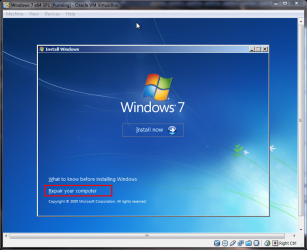
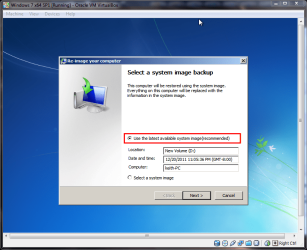
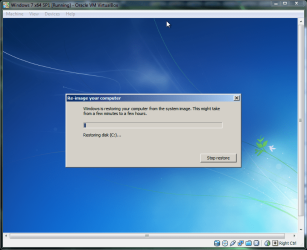
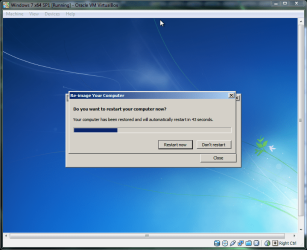
How do I check Windows 7 Image Backup I have a new hard drive and I want to use my windows image backup that I created previously. It was a whole system backup. When I select the restore my computer using a system image that I created earlier, it did not do anything, but going around and around in circle. Could it be the image backup itself? If not, why didn't it perform what it is supposed to do? BTW, it is windows 7 home edition, 64 bits. | My System Specs |
| |
20 Dec 2011
|
#2 | | |
I assume a "whole system backup" was using the CREATE SYSTEM IMAGE function via the Backup and restore GUI panel??
Click on Start ORB, search on "cmd", when it comes up, right-click and "run as administrator".
Issue this command:
wbadmin get versions
It will list information each "known to Windows" System Image that you took.
Did you move or rename your WindowImageBackup folder?
See this thread for examples of wbadmin get versions output: System Image info, shadow/system restore storage - internal workings | My System Specs | | System Manufacturer/Model Number Custom OS Windows 7 CPU AMD Phenom II X2 (dual-core) Motherboard GA-MA785GM-US2H Memory 4G Graphics Card integrated ATI HD 4200 Sound Card integrated Monitor(s) Displays Samsung 24" Screen Resolution 1920x1080 Keyboard Microsoft Digital Media Pro Mouse Logitech WIRED! PSU Ultra X4 500W Case Ultra X-blaster Hard Drives 1 SATA (750GB, 32MB cache, 7200 RPM)
1 IDE (80GB, 8MB cache, 7200 RPM)
1 SSD (Intel 320, 120GB, installed but not activated) Internet Speed 15 Mbps FIOS |
20 Dec 2011
|
#3 | | Vista, Windows7, Mint Mate, Zorin, Windows 8 Florida in winter, Black Forest/Germany |
With Windows imaging and on the high seas you never know what is going to happen.
But seriously, do you kow to where the image was written. Could it be to some partition on the old drive which you removed.
PS: Next time use a better imaging option - e.g. free Macrium or free Paragon. | My System Specs | | System Manufacturer/Model Number HP, Dell, Gateway, Toshiba - 4 laptops and 2 desktops OS Vista, Windows7, Mint Mate, Zorin, Windows 8 CPU from 1.6GHz Duo to i7 Monitor(s) Displays 2x HP w2207 Keyboard with trackball - no mices Mouse Trackball mice Hard Drives 5x HDD, 7x SSD, 12x Externals Internet Speed DSL 6000 |
20 Dec 2011
|
#4 | | |

Quote: Originally Posted by whs With Windows imaging and on the high seas you never know what is going to happen.
But seriously, do you kow to where the image was written. Could it be to some partition on the old drive which you removed.
PS: Next time use a better imaging option - e.g. free Macrium or free Paragon. Good point.
OP says a new drive is involved. We assume he still does have the old drive hooked up!
The "going around in a circle" I assume is the mouse pointer wait. That's the confusing part of this. Whether backups are found or not, it still comes back quickly. | My System Specs | | System Manufacturer/Model Number Custom OS Windows 7 CPU AMD Phenom II X2 (dual-core) Motherboard GA-MA785GM-US2H Memory 4G Graphics Card integrated ATI HD 4200 Sound Card integrated Monitor(s) Displays Samsung 24" Screen Resolution 1920x1080 Keyboard Microsoft Digital Media Pro Mouse Logitech WIRED! PSU Ultra X4 500W Case Ultra X-blaster Hard Drives 1 SATA (750GB, 32MB cache, 7200 RPM)
1 IDE (80GB, 8MB cache, 7200 RPM)
1 SSD (Intel 320, 120GB, installed but not activated) Internet Speed 15 Mbps FIOS |
20 Dec 2011
|
#5 | | |
@Jim, It detects where the location of the image file correctly, except it sees as a local drive. The problem is when I click it, it would display same steps again. It did not execute the imaging process. I wonder what is wrong with it.
Yes, I use the CREATE SYSTEM IMAGE function via the Backup and restore GUI panel. Should it work as it is supposed to? | My System Specs | | |
20 Dec 2011
|
#6 | | Win 7 Pro 64-bit South Central Texas |
Hello wealth14 and welcome to Seven Forums.
As the other members have said, it would help if you gave us some more information.
1. Where was the System Image created? On an external hard drive? A separate partition on the internal C: drive? How long did it take for the Image to be created and how many gigbytes of data was imaged?
2. Is the new hard drive already installed in your machine? Is it a laptop or desktop? More info about your system specs?
3. Is it a "bare" HDD that needed to be partitioned and then formatted before use? Is it larger or smaller than the original HDD?
4. An SSD?
The more info you can provide the better we can help. | My System Specs | | Computer type Laptop System Manufacturer/Model Number Sony Vaio VPCEB47GM Laptop OS Win 7 Pro 64-bit CPU Intel i5 2.4 Ghz Memory 8GB DDR3 Graphics Card Intel HD 3000 Sound Card IDT High Definition Monitor(s) Displays 15.6 WGXA Anti-Glare LED Screen Resolution 1280x800 Hard Drives 640Gb 7200rpm Antivirus MSE Browser Opera (primary) with IE9 backup |
20 Dec 2011
|
#7 | | |

Quote: Originally Posted by wealth14 @Jim, It detects where the location of the image file correctly, except it sees as a local drive. The problem is when I click it, it would display same steps again. It did not execute the imaging process. I wonder what is wrong with it.
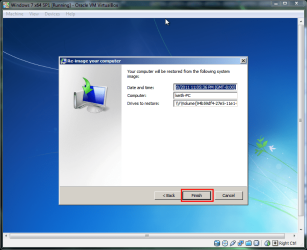
Yes, I use the CREATE SYSTEM IMAGE function via the Backup and restore GUI panel. Should it work as it is supposed to? You mean on the Windows Recovery Environment "repair computer" -> Restore using system image you created earlier, when you click on NEXT to actually START the system image RESTORE process, the GUI loops back to a prior screen rather than actually performing the restore?
Has the hard drive that contains the System Image been moved from its original motherboard port?
How/where have you connected the new hard drive?
For what it's worth, when System Repair SHOWS you the system images he was able to find, those come from the actual, physical WindowsImageBackup folder itself rather than the Volume Shadow copy/Restore point System Volume Information internal/hidden folder. (i.e. wbadmin GET VERSIONS). | My System Specs | | System Manufacturer/Model Number Custom OS Windows 7 CPU AMD Phenom II X2 (dual-core) Motherboard GA-MA785GM-US2H Memory 4G Graphics Card integrated ATI HD 4200 Sound Card integrated Monitor(s) Displays Samsung 24" Screen Resolution 1920x1080 Keyboard Microsoft Digital Media Pro Mouse Logitech WIRED! PSU Ultra X4 500W Case Ultra X-blaster Hard Drives 1 SATA (750GB, 32MB cache, 7200 RPM)
1 IDE (80GB, 8MB cache, 7200 RPM)
1 SSD (Intel 320, 120GB, installed but not activated) Internet Speed 15 Mbps FIOS |
20 Dec 2011
|
#8 | | |

Quote: Originally Posted by marsmimar Hello wealth14 and welcome to Seven Forums.
As the other members have said, it would help if you gave us some more information.
1. Where was the System Image created? On an external hard drive? A separate partition on the internal C: drive? How long did it take for the Image to be created and how many gigbytes of data was imaged?
2. Is the new hard drive already installed in your machine? Is it a laptop or desktop? More info about your system specs?
3. Is it a "bare" HDD that needed to be partitioned and then formatted before use? Is it larger or smaller than the original HDD?
4. An SSD?
The more info you can provide the better we can help.  marsmimar, here is detail information:
1- The system image was created on an external hard drive. It is a big file. It takes about 4 hours to create the file. It is about 114 gigs.
2- Yes, the new hard drive is already install in my laptop.
3- I reformatted once already. It is the same size as the original one, but the system image file is on a smaller external drive.
4- It is not SSD, but USB drive.
Thanks for your support and let me know if you need more info. | My System Specs | | |
21 Dec 2011
|
#9 | | Windows 7x64 Home Premium SP1 x 2 Australia |
I'm still unsure the exact nature of the problem.
As I understand it, when you go through the process of restoring an image stored of an external HDD the image is detected ok. You are in some sort of loop and cannot proceed???
1) Is your new HDD the only HDD connected? It should be.
2) Are you booting from a system repair CD/DVD? You should be.
3) When an image is detected and displayed you may need to highlight it (click on it) in order to proceed using "next". Are you doing this?
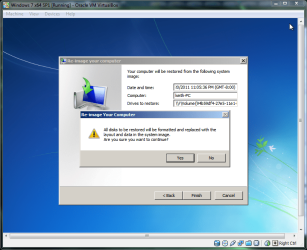
Windows should automatically format and partition the new HDD without you doing anything. | My System Specs | | System Manufacturer/Model Number Own build (+ Recased Acer Aspire x1800) OS Windows 7x64 Home Premium SP1 x 2 CPU Intel i7 2600k Motherboard ASUS P8Z68 Deluxe Memory G.Skill Ripjaws (DDR3-1600) 2x4GB Graphics Card Nvidia GeForce GTS 450; Intel HD Graphics 3000(GT2+) Monitor(s) Displays Dell Ultrasharp IPS panel U2311H, Samsung SyncMaster P2350 Screen Resolution 1920x1080 Keyboard Logitech MK520 (wireless) Mouse Logitech MK520 PSU Seasonic M12II 520W Case Lian Li Lancool PC-K60 Cooling Case: 1x120mm, 3x140mm CPU: Hyper 212+ Hard Drives Crucial M4 128GB (000F), Seagates 1TB Barracuda ST31000528AS + Internet Speed 6-7 Mbps Antivirus Norton NIS, Malwarebytes on 2 (MSE on 3rd PC) Browser FireFox Other Info Audio: Logitech Z523 2.1 |
21 Dec 2011
|
#10 | | |
@mjf,
1-Yes, it is the only HDD connected.
2- Yes, I can boot from a system repair CD/DVD when I tried to use the windows image backup.
3- Yes, when I highlight it and click the "Next" button, it would should show the steps on how to image backup, instead of automatically formatting etc.. without me doing anything. That is the problem I'm having. Would it be because it is too big file to handle (>114GB). Is there a way around this? | My System Specs | | How do I check Windows 7 Image Backup problems? All times are GMT -5. The time now is 07:13 AM. | |