| Windows 7: How to Clone a Windows 7 Partition to a new Hard Drive? |
19 Apr 2012
|
| | Windows 7 SP1, Home Premium, 64-bit 7,566 posts |

Quote: Originally Posted by chobo2 
Quote: Originally Posted by whs I would do that a bit differently.
1. Move the bootmgr from your 100MB Work system to the C partition of the Work system on the 1TB drive. Bootmgr - Move to C:\ with EasyBCD. With the 100MB partition out of the way, things will be easier.
2. Image the C partition of your Work system. Acronis is as good as any for that job.
3. Create an active primary partition on the SSD for the C partition of the Work system.
4. Restore your image into that partition. I am not certain if Acronis will adjust the partition size. If not, you will have to shrink the Work C partition on the 1TB drive to the size of the partition you created on the SSD before you image that C partition.
5. Create a second partition on the SSD. That can be a logical or primary but must not be marked active.
6. Install your private Windows 7 into that partition. The installer will pickup the active partition of the Work system and place the BCD there. Disconnect the 1TB drive and all other possible drives during that installation process.
Hopefully you have enough space on the SSD for 2 OS partitions. If you need further details on the above steps, post back. 1. Move the bootmgr from your 100MB Work system to the C partition of the Work system on the 1TB drive. Bootmgr - Move to C:\ with EasyBCD. With the 100MB partition out of the way, things will be easier.
Hi
I am confused with step 1. You want me to load into my work partition on my 1TB drive. Copy the bootmgr and where should I copy it too my SSD drive? WHS wants you to move the contents of the System Reserved partition on the Work system to C of the work system, using the tool at the link he gave. The goal being to get rid of the System Reserved partition. If the boot files are on C, then System Reserved is unnecesary.
DON'T copy it to your SSD.
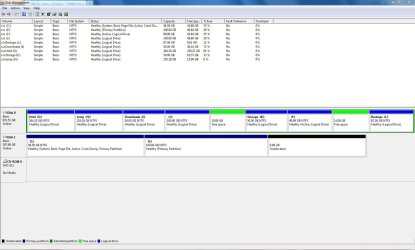
As far as screenshots of Disk Management goes, the more complete the better. Ideally, show all partitions on all drives. | My System Specs |
| System Manufacturer/Model Number Ignatz Special; 4 speed manual gearbox; factory air conditioning; one of one OS Windows 7 SP1, Home Premium, 64-bit CPU Intel Sandy Bridge i5-2500, not overclocked Motherboard Gigabyte H67A-UD3H-B3, full ATX Memory 4 GB Crucial DDR3-1333 Graphics Card none; graphics are integrated on CPU Sound Card onboard: Realtek ALC892; external: USB Behringer UF0-202 Monitor(s) Displays NEC 90GX2-BK 19" LCD Screen Resolution 800 x 640 Keyboard Leopold Tenkeyless with Cherry Blue switches, USB Mouse Logitech or Microsoft optical wired; either USB or PS 2 PSU Seasonic SS-560KM, modular Case Antec Solo II Cooling CPU: Scythe Big Shuriken; Case: Scythe Slipstream 800 & 500 Hard Drives System: Intel 320 Series SSD, 80 GB;
Data: Samsung Spinpoint 103SJ, 1 TB;
Backup: WD Caviar Green WD15EADS-00P8B0, 1.5TB Other Info Power consumption of this system, including monitor: 68 watts at idle; 144 watts at full load |
19 Apr 2012
|
| | Microsoft Windows 7 Home Premium 64-bits 7601 Multiprocessor Free Service Pack 1 6,925 posts SecretCity |

Quote: Originally Posted by chobo2 
Quote: Originally Posted by Kaktussoft Post screenshot of disk management When I am able to access the computer. HDD one or SDD? Preferable SSD but HDD is good as well | My System Specs | | Computer type Laptop System Manufacturer/Model Number ACER ASPIRE 5742G OS Microsoft Windows 7 Home Premium 64-bits 7601 Multiprocessor Free Service Pack 1 CPU Intel(R) Core(TM) i3 CPU M 370 @ 2.40GHz Motherboard Acer Aspire 5742G Memory 4,00 GB Graphics Card ATI Mobility Radeon HD 5400 Series Sound Card (1) AMD High Definition Audio Device (2) Realtek High Defi Screen Resolution 1366 x 768 x 32 bits (4294967296 colors) @ 60 Hz Hard Drives WDC WD5000BEVT-22ZAT0 |
19 Apr 2012
|
| | Vista, Windows7, Mint Mate, Zorin, Windows 8 17,868 posts Florida in winter, Black Forest/Germany |
Once you moved the bootmgr in your 1TB instalklation from the 100MB partition to C, then you do not need the 100MB partition any more. When you image/restore the C partition to SSD, the bootmgr will be on C. No further action required. That system alone should boot. At least it always did when I moved my OS to SSDs. | My System Specs | | System Manufacturer/Model Number HP, Dell, Gateway, Toshiba - 4 laptops and 2 desktops OS Vista, Windows7, Mint Mate, Zorin, Windows 8 CPU from 1.6GHz Duo to i7 Monitor(s) Displays 2x HP w2207 Keyboard with trackball - no mices Mouse Trackball mice Hard Drives 5x HDD, 7x SSD, 12x Externals Internet Speed DSL 6000 |
19 Apr 2012
|
| | Microsoft Windows 7 Home Premium 64-bits 7601 Multiprocessor Free Service Pack 1 6,925 posts SecretCity |

Quote: Originally Posted by whs Once you moved the bootmgr in your 1TB instalklation from the 100MB partition to C, then you do not need the 100MB partition any more. When you image/restore the C partition to SSD, the bootmgr will be on C. No further action required. That system alone should boot. At least it always did when I moved my OS to SSDs. Almost correct. 100MB system reserved only needed if bootmgr is there. but also if you use bitlocker. This is not the case I assume. So you're right.
If you do it the way you say the bootmenu will be on SSD ... but still pointing to old HDD.
We still don't know if he has a system reserved btw (didn't read it in post). Also don't know what partition is flagged active (so has bootmenu) | My System Specs | | Computer type Laptop System Manufacturer/Model Number ACER ASPIRE 5742G OS Microsoft Windows 7 Home Premium 64-bits 7601 Multiprocessor Free Service Pack 1 CPU Intel(R) Core(TM) i3 CPU M 370 @ 2.40GHz Motherboard Acer Aspire 5742G Memory 4,00 GB Graphics Card ATI Mobility Radeon HD 5400 Series Sound Card (1) AMD High Definition Audio Device (2) Realtek High Defi Screen Resolution 1366 x 768 x 32 bits (4294967296 colors) @ 60 Hz Hard Drives WDC WD5000BEVT-22ZAT0 |
19 Apr 2012
|
| | Windos 7 Pro 32 bit, Windows 7 Ultimate 32 bit 46 posts |

Quote: Originally Posted by Kaktussoft 
Quote: Originally Posted by whs Once you moved the bootmgr in your 1TB instalklation from the 100MB partition to C, then you do not need the 100MB partition any more. When you image/restore the C partition to SSD, the bootmgr will be on C. No further action required. That system alone should boot. At least it always did when I moved my OS to SSDs. Almost correct. 100MB system reserved only needed if bootmgr is there. but also if you use bitlocker. This is not the case I assume. So you're right.
If you do it the way you say the bootmenu will be on SSD ... but still pointing to old HDD.
We still don't know if he has a system reserved btw (didn't read it in post). Also don't know what partition is flagged active (so has bootmenu) Sorry I am still quite confused. First I think we should put some names to all these partitions
HDD-P = 1Tb hard drive with windows 7 ultimate - personal
HDD-W = 1Tb hard drive with windows 7 pro - work
SSD-P = 180 GB solid state drive - personal
SSD-W = 180 GB solid state drive - work HDD-P
-100 GB of usable space ~40 to 50gb used.
- On boot this one the default choice. HDD-W
100 GB of usuable space ~40 to 50gb used. SSD-P - 60 GB of usable space - Probably less than 5gb uses (fresh install)
- This should be the active partition on the drive. SSD-W
- 100 GB of usable space - When I tired to copy HHD-W to SSD-W through acronis I had to make the partition the same size and was not marked "active"
- When this failed I tried driveImage XML and cloned the HDD-W over top the SSD-W what overrode the partition. This gave me the same failed result as Acronis.
If I have both HDD and SSD plugged in my HDD boot manager seems to win and will be choosen.
Right now I SSD only plugged in so it boots into that. When it boots up I see in the boot manager the same choices as the HDD one.
Personal
Work
If I choose personal everything works as it was a fresh install.
If I choose work it loads up to the login screen and when I try to log in I never get past the ""setting up personalized settings for: web platform customizations".
I can load into my work machine through safe mode however I don't see any my files what should be on the desktop. Windows also warns that the account I logged into is corrupt or something like that(the message is long and don't remember).
It seems like the partition is sort of there but not 100%. | My System Specs | | System Manufacturer/Model Number Custom Built Desktop OS Windos 7 Pro 32 bit, Windows 7 Ultimate 32 bit CPU Intel(R) Pentium(R) Dual CPU E2180 @ 2.00GHZ 2.80Ghz Motherboard Gigabyte Technology Co., Ltd. P35-DS3L Memory 4GB Graphics Card ATI Radeon HD 3850 (Microsoft Corporation WDDM 1.1) Sound Card Inboard Keyboard Logitech Wave Keyboard Mouse Logitech LX8 Cordless Laser Mouse Case Antec Sonata III Black ATX 16IN Mid Tower Hard Drives Seagate Barracuda LP ST31000520AS 1TB 5900 RPM
Mushkin Enhanced Chronos MKNSSDCR180GB 2.5" 180GB SATA III MLC Internal Solid State Drive Internet Speed 5.10Mbps |
19 Apr 2012
|
| | Vista, Windows7, Mint Mate, Zorin, Windows 8 17,868 posts Florida in winter, Black Forest/Germany |
Quote:
If you do it the way you say the bootmenu will be on SSD ... but still
pointing to old HDD It will not be pointing to the HDD. If e.g. you disconnect the HDD, the SSD will boot. But you are right in that there will still be a copy of the bootmgr on the HDD in the 100MB partition because with the procedure outlined in my tutorial you do not really move the bootmgr, you only copy it.
And you are right. He never mentioned the 100MB partition. But from the context of his troubles I assume that this is the cause of his problem. He just did not image and restore that partition.
PS> Your previous posting is useful, but a Disk Management picture would be better. In your list you do not mention the 100MB active partition. But that you can only see in Disk Management because it is hidden (no drive letter). | My System Specs | | System Manufacturer/Model Number HP, Dell, Gateway, Toshiba - 4 laptops and 2 desktops OS Vista, Windows7, Mint Mate, Zorin, Windows 8 CPU from 1.6GHz Duo to i7 Monitor(s) Displays 2x HP w2207 Keyboard with trackball - no mices Mouse Trackball mice Hard Drives 5x HDD, 7x SSD, 12x Externals Internet Speed DSL 6000 |
19 Apr 2012
|
| | Windows 7 SP1, Home Premium, 64-bit 7,566 posts |

Quote: Originally Posted by chobo2 
Quote: Originally Posted by Kaktussoft 
Quote: Originally Posted by whs Once you moved the bootmgr in your 1TB instalklation from the 100MB partition to C, then you do not need the 100MB partition any more. When you image/restore the C partition to SSD, the bootmgr will be on C. No further action required. That system alone should boot. At least it always did when I moved my OS to SSDs. Almost correct. 100MB system reserved only needed if bootmgr is there. but also if you use bitlocker. This is not the case I assume. So you're right.
If you do it the way you say the bootmenu will be on SSD ... but still pointing to old HDD.
We still don't know if he has a system reserved btw (didn't read it in post). Also don't know what partition is flagged active (so has bootmenu) Sorry I am still quite confused. First I think we should put some names to all these partitions
HDD-P = 1Tb hard drive with windows 7 ultimate - personal
HDD-W = 1Tb hard drive with windows 7 pro - work
SSD-P = 180 GB solid state drive - personal
SSD-W = 180 GB solid state drive - work HDD-P
-100 GB of usable space ~40 to 50gb used.
- On boot this one the default choice. HDD-W
100 GB of usuable space ~40 to 50gb used. SSD-P - 60 GB of usable space - Probably less than 5gb uses (fresh install)
- This should be the active partition on the drive. SSD-W
- 100 GB of usable space - When I tired to copy HHD-W to SSD-W through acronis I had to make the partition the same size and was not marked "active"
- When this failed I tried driveImage XML and cloned the HDD-W over top the SSD-W what overrode the partition. This gave me the same failed result as Acronis.
If I have both HDD and SSD plugged in my HDD boot manager seems to win and will be choosen.
Right now I SSD only plugged in so it boots into that. When it boots up I see in the boot manager the same choices as the HDD one.
Personal
Work
If I choose personal everything works as it was a fresh install.
If I choose work it loads up to the login screen and when I try to log in I never get past the ""setting up personalized settings for: web platform customizations".
I can load into my work machine through safe mode however I don't see any my files what should be on the desktop. Windows also warns that the account I logged into is corrupt or something like that(the message is long and don't remember).
It seems like the partition is sort of there but not 100%. Where is the screen shot we have been asking for many times over?
We don't just need to know about hard drives and operating systems.
We need to know about partitions, thus the repeated request for screen shots. | My System Specs | | System Manufacturer/Model Number Ignatz Special; 4 speed manual gearbox; factory air conditioning; one of one OS Windows 7 SP1, Home Premium, 64-bit CPU Intel Sandy Bridge i5-2500, not overclocked Motherboard Gigabyte H67A-UD3H-B3, full ATX Memory 4 GB Crucial DDR3-1333 Graphics Card none; graphics are integrated on CPU Sound Card onboard: Realtek ALC892; external: USB Behringer UF0-202 Monitor(s) Displays NEC 90GX2-BK 19" LCD Screen Resolution 800 x 640 Keyboard Leopold Tenkeyless with Cherry Blue switches, USB Mouse Logitech or Microsoft optical wired; either USB or PS 2 PSU Seasonic SS-560KM, modular Case Antec Solo II Cooling CPU: Scythe Big Shuriken; Case: Scythe Slipstream 800 & 500 Hard Drives System: Intel 320 Series SSD, 80 GB;
Data: Samsung Spinpoint 103SJ, 1 TB;
Backup: WD Caviar Green WD15EADS-00P8B0, 1.5TB Other Info Power consumption of this system, including monitor: 68 watts at idle; 144 watts at full load |
19 Apr 2012
|
| | Microsoft Windows 7 Home Premium 64-bits 7601 Multiprocessor Free Service Pack 1 6,925 posts SecretCity |

Quote: Originally Posted by whs Quote:
If you do it the way you say the bootmenu will be on SSD ... but still
pointing to old HDD It will not be pointing to the HDD. If e.g. you disconnect the HDD, the SSD will boot. But you are right in that there will still be a copy of the bootmgr on the HDD in the 100MB partition because with the procedure outlined in my tutorial you do not really move the bootmgr, you only copy it.
And you are right. He never mentioned the 100MB partition. But from the context of his troubles I assume that this is the cause of his problem. He just did not image and restore that partition.
PS> Your previous posting is useful, but a Disk Management picture would be better. In your list you do not mention the 100MB active partition. But that you can only see in Disk Management because it is hidden (no drive letter). What happens if you change the "disk signature"? What happens if you move the OS-partition (starting sector of partition)? you have to do a startup repair!
same bcdedit ouput:
Windows-opstartlaadprogramma
----------------------------
id {current}
device partition= C:
path \Windows\system32\winload.exe
description Windows 7 Home Premium
locale nl-NL
inherit {bootloadersettings}
recoverysequence {56fa818f-89ee-11e1-be91-e9fb9a7089cc}
recoveryenabled Yes
osdevice partition= C:
systemroot \Windows
resumeobject {fa1a7f9d-ab26-11df-bc4f-ce7145d50d35}
nx OptIn
It looks like system boots to OS on C: but actually it only displays C:
In bcdmenu-file it's actually saved as \disksignature\startsector_of_partition
It's translated to C on-the-fly. | My System Specs | | Computer type Laptop System Manufacturer/Model Number ACER ASPIRE 5742G OS Microsoft Windows 7 Home Premium 64-bits 7601 Multiprocessor Free Service Pack 1 CPU Intel(R) Core(TM) i3 CPU M 370 @ 2.40GHz Motherboard Acer Aspire 5742G Memory 4,00 GB Graphics Card ATI Mobility Radeon HD 5400 Series Sound Card (1) AMD High Definition Audio Device (2) Realtek High Defi Screen Resolution 1366 x 768 x 32 bits (4294967296 colors) @ 60 Hz Hard Drives WDC WD5000BEVT-22ZAT0 |
19 Apr 2012
|
| | Microsoft Windows 7 Home Premium 64-bits 7601 Multiprocessor Free Service Pack 1 6,925 posts SecretCity |
Please post screenshot of disk management with all fields visible (especially status)
We asked for that about 6 times! | My System Specs | | Computer type Laptop System Manufacturer/Model Number ACER ASPIRE 5742G OS Microsoft Windows 7 Home Premium 64-bits 7601 Multiprocessor Free Service Pack 1 CPU Intel(R) Core(TM) i3 CPU M 370 @ 2.40GHz Motherboard Acer Aspire 5742G Memory 4,00 GB Graphics Card ATI Mobility Radeon HD 5400 Series Sound Card (1) AMD High Definition Audio Device (2) Realtek High Defi Screen Resolution 1366 x 768 x 32 bits (4294967296 colors) @ 60 Hz Hard Drives WDC WD5000BEVT-22ZAT0 |
19 Apr 2012
|
| | Windos 7 Pro 32 bit, Windows 7 Ultimate 32 bit 46 posts |

Quote: Originally Posted by Kaktussoft Please post screenshot of disk management with all fields visible (especially status)
We asked for that about 6 times! And I said that when I am able to access the computer (ie when I physically can touch it). I will but right now I can't as I am no where near it. | My System Specs | | System Manufacturer/Model Number Custom Built Desktop OS Windos 7 Pro 32 bit, Windows 7 Ultimate 32 bit CPU Intel(R) Pentium(R) Dual CPU E2180 @ 2.00GHZ 2.80Ghz Motherboard Gigabyte Technology Co., Ltd. P35-DS3L Memory 4GB Graphics Card ATI Radeon HD 3850 (Microsoft Corporation WDDM 1.1) Sound Card Inboard Keyboard Logitech Wave Keyboard Mouse Logitech LX8 Cordless Laser Mouse Case Antec Sonata III Black ATX 16IN Mid Tower Hard Drives Seagate Barracuda LP ST31000520AS 1TB 5900 RPM
Mushkin Enhanced Chronos MKNSSDCR180GB 2.5" 180GB SATA III MLC Internal Solid State Drive Internet Speed 5.10Mbps How to Clone a Windows 7 Partition to a new Hard Drive? problems? All times are GMT -5. The time now is 12:45 AM. | |