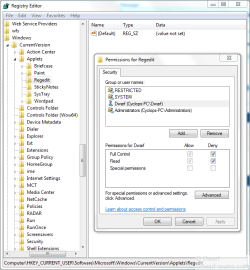
If you mean that you want the editor to open in its original state, just as though you had opened it for the first time, then this can be achieved by editing
Permissions.
Open the
Registry Editor and browse to the following key.
HKEY_CURRENT_USER\Software\Microsoft\Windows\CurrenVersion\Applets\Regedit
In the left-hand panel, right click on
Regedit and click
Permissions...
In the dialogue panel that appears, click on the user that you require. There will be a box that has the title
Permissions for <UserName> with a list of options together with
Allow and
Deny checkboxes. Click on the top two
Deny checkboxes (
Full Control and
Read) to put a tick in them as shown in the image below.
View attachment 70096
Click
OK and then close the
Registry Editor. When you next re-open it, it will no longer remember the last key that you had opened and will open as shown below.
View attachment 70099
Note
If you want this for all users, then you will have to log into each user in turn and set the permissions as detailed above.
You can reverse this procedure by following the above instructions, this time click on the checkboxes to remove the ticks.
This also applies to Vista as well as Windows 7.
Warning
Only do this for users. Do not change permissions for RESTRICTED, SYSTEM, or Administrators.