Location of Windows 7 Backup Images

elmo2006

New member
Local time
2:55 AM
Messages
18
Hello...

I am very curious as to where the Windows 7 Backup Utility stores the backup images. Currently I have all my Windows 7 Backups stored to an external HDD, however if I were to peruse the external HDD, all I can see are two files:

The name of the computer in my case SPENCER-PC 0 bytes and MediaID.bin 588 bytes however Windows Explorer shows the HDD has over 650GB of used space.
I have also changed the attributes for hidden/system files so that I can view to no avail.

If I were to double click on SPENCER-PC, all it does is launch the Windows 7 Backup Utility. I've searched the inter-tubes with no luck and as such I hope that someone here can point me in the right direction.

Much appreciated...
 

My Computer My Computer

At a glance

Windows 7 x64 UltimateIntel Quad Core Q6600OCZ Platinum 2x4GB 1066Asus EAH 3450
Computer Manufacturer/Model Number
Home Built
OS
Windows 7 x64 Ultimate
CPU
Intel Quad Core Q6600
Motherboard
Asus P5Q
Memory
OCZ Platinum 2x4GB 1066
Graphics Card(s)
Asus EAH 3450
Sound Card
On board
Monitor(s) Displays
Dell 17'
Hard Drives
1xsata 320GB OS
1xsata 500GB VM
1xsata 640GB Dynamic mirrored with 1.0TB
1xsata 1.0TB Dynamic mirrored with 640GB
1xsata 1.5TB External via E-sata Docking Station
PSU
OCZ 700MXSP
Case
Thermaltake full-tower
Cooling
Air
Hello...

I am very curious as to where the Windows 7 Backup Utility stores the backup images. Currently I have all my Windows 7 Backups stored to an external HDD, however if I were to peruse the external HDD, all I can see are two files:

The name of the computer in my case SPENCER-PC 0 bytes and MediaID.bin 588 bytes however Windows Explorer shows the HDD has over 650GB of used space.
I have also changed the attributes for hidden/system files so that I can view to no avail.

If I were to double click on SPENCER-PC, all it does is launch the Windows 7 Backup Utility. I've searched the inter-tubes with no luck and as such I hope that someone here can point me in the right direction.

Much appreciated...

Windows can store its backups in system volume information. Since it is a locked folder that is not going to help you much.

Are you trying to delete the files or what? why do you want to "see" them?

Ken
 

My Computer My Computer

At a glance

Win 8 Release candidate 8400[email protected]4 gigsNvidia 9600M
Computer Manufacturer/Model Number
HP Pavillion dv-7 1005 Tx
OS
Win 8 Release candidate 8400
CPU
[email protected]
Memory
4 gigs
Graphics Card(s)
Nvidia 9600M
Sound Card
HD built-in
Monitor(s) Displays
17" Wxga
Screen Resolution
1440x900
Cooling
none
Internet Speed
45Mb down 5Mb up
Hello...

I am very curious as to where the Windows 7 Backup Utility stores the backup images. Currently I have all my Windows 7 Backups stored to an external HDD, however if I were to peruse the external HDD, all I can see are two files:

The name of the computer in my case SPENCER-PC 0 bytes and MediaID.bin 588 bytes however Windows Explorer shows the HDD has over 650GB of used space.
I have also changed the attributes for hidden/system files so that I can view to no avail.

If I were to double click on SPENCER-PC, all it does is launch the Windows 7 Backup Utility. I've searched the inter-tubes with no luck and as such I hope that someone here can point me in the right direction.

Much appreciated...

Windows can store its backups in system volume information. Since it is a locked folder that is not going to help you much.

Are you trying to delete the files or what? why do you want to "see" them?

Ken

Would you happen to know exactly where? Curiousity has peaked my interest. I would like to know where and how if possible.

Thanks for the response.
 

My Computer My Computer

At a glance

Windows 7 x64 UltimateIntel Quad Core Q6600OCZ Platinum 2x4GB 1066Asus EAH 3450
Computer Manufacturer/Model Number
Home Built
OS
Windows 7 x64 Ultimate
CPU
Intel Quad Core Q6600
Motherboard
Asus P5Q
Memory
OCZ Platinum 2x4GB 1066
Graphics Card(s)
Asus EAH 3450
Sound Card
On board
Monitor(s) Displays
Dell 17'
Hard Drives
1xsata 320GB OS
1xsata 500GB VM
1xsata 640GB Dynamic mirrored with 1.0TB
1xsata 1.0TB Dynamic mirrored with 640GB
1xsata 1.5TB External via E-sata Docking Station
PSU
OCZ 700MXSP
Case
Thermaltake full-tower
Cooling
Air
???
For Backups
You go into Backup & restore > Restore my files
then browse folders or files
You can then copy a file from your backup if needed.

For images
Attach a vhd under Disk management. The vhd should look (via explorer) like the disk the image was taken from.
 

My Computer My Computer

At a glance

Windows 7x64 Home Premium SP1Intel i7 2600kG.Skill Ripjaws (DDR3-1600) 2x4GBNvidia GeForce GTS 450; Intel HD Graphics 300...
Computer type
PC/Desktop
Computer Manufacturer/Model Number
Own build
OS
Windows 7x64 Home Premium SP1
CPU
Intel i7 2600k
Motherboard
ASUS P8Z68 Deluxe
Memory
G.Skill Ripjaws (DDR3-1600) 2x4GB
Graphics Card(s)
Nvidia GeForce GTS 450; Intel HD Graphics 3000(GT2+)
Monitor(s) Displays
Dell Ultrasharp IPS panel U2311H, Samsung SyncMaster P2350
Screen Resolution
1920x1080
Hard Drives
Samsung 850 Pro SSD 256GB, Samsung SSD 840 120GB, Seagates 1TB Barracuda ST31000528AS x2
PSU
Seasonic M12II 520W
Case
Lian Li Lancool PC-K60
Cooling
Case: 1x120mm, 3x140mm CPU: Hyper 212+
Keyboard
Logitech MK520 (wireless)
Mouse
Logitech MK520
Internet Speed
6-7 Mbps
Antivirus
Norton Security Premium, Malwarebytes on 2 (MSE on 3rd PC)
Browser
FireFox
Other Info
Audio: Logitech Z523 2.1
Hello...

I am very curious as to where the Windows 7 Backup Utility stores the backup images. Currently I have all my Windows 7 Backups stored to an external HDD, however if I were to peruse the external HDD, all I can see are two files:

The name of the computer in my case SPENCER-PC 0 bytes and MediaID.bin 588 bytes however Windows Explorer shows the HDD has over 650GB of used space.
I have also changed the attributes for hidden/system files so that I can view to no avail.

If I were to double click on SPENCER-PC, all it does is launch the Windows 7 Backup Utility. I've searched the inter-tubes with no luck and as such I hope that someone here can point me in the right direction.

Much appreciated...

go to external harddrive, right click spencer-pc, and click open
 

My Computer My Computer

At a glance

windows 7 64 bitIntel i7 860 @ 2.8ghz8GB crucial ballistix 1,333MHz DDR32GB amd HD 6950 (unlocked shaders)
Computer Manufacturer/Model Number
Dell studio xps sx8100
OS
windows 7 64 bit
CPU
Intel i7 860 @ 2.8ghz
Motherboard
Intel H57
Memory
8GB crucial ballistix 1,333MHz DDR3
Graphics Card(s)
2GB amd HD 6950 (unlocked shaders)
Monitor(s) Displays
Sony BRAVIA 32" 1080p hdtv
Screen Resolution
1920x1080
Hard Drives
1tb SATA 7200 rpm/western digital external 1 tb @7200/western digital external 2 tb @ 7200 rpm
PSU
corsair tx650w
Keyboard
logitech illumated keyboard
Mouse
logitech vx nano cordless laser mouse
Internet Speed
fast
Hello...

I am very curious as to where the Windows 7 Backup Utility stores the backup images. Currently I have all my Windows 7 Backups stored to an external HDD, however if I were to peruse the external HDD, all I can see are two files:

The name of the computer in my case SPENCER-PC 0 bytes and MediaID.bin 588 bytes however Windows Explorer shows the HDD has over 650GB of used space.
I have also changed the attributes for hidden/system files so that I can view to no avail.

If I were to double click on SPENCER-PC, all it does is launch the Windows 7 Backup Utility. I've searched the inter-tubes with no luck and as such I hope that someone here can point me in the right direction.

Much appreciated...
excellent question.
Just keep expanded that Spencer-PC folder.
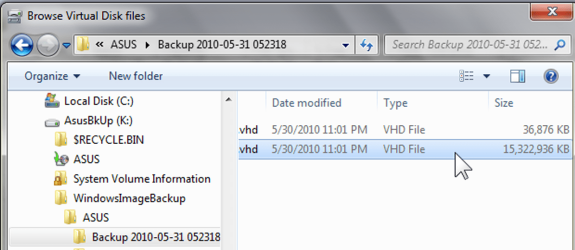
You are looking for .VHD file
That's if you did a system image baciup. In fact, if in your systemimage backup you backed up three drives, then you will find 3 .VHD drives.

If you simply backed up files, for example your libraries, then you will find .ZIP files.

the zip files can be unzipped.

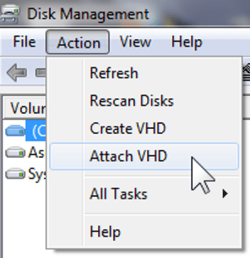
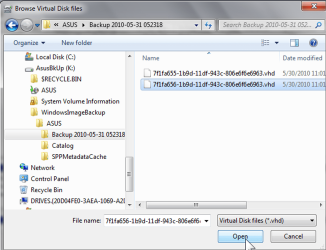
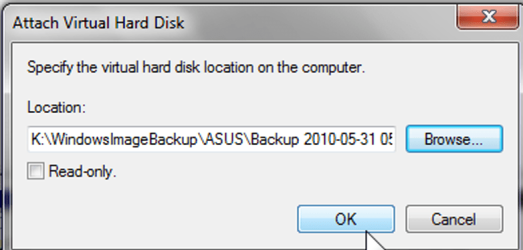
You can "attach" the .vhd files using DISK MANAGEMENT. Once a vhd is attached, then you can explore and extract any file/folder you would like. In fact, you could edit it.

I don't have my external drive with me right now, but in about an hour I'll include a snapshot of the step to attach a vhd from the backup drive.
 

My Computer My Computer

At a glance

MS Windows 7 Ultimate SP1 64-bitAMD A10-4600M6.00 GB Dual-Channel DDR3 @ 798MHz (11-11-12-28)AMD Radeon HD 7660G
Computer Manufacturer/Model Number
Toshiba Satellite S875D-S7239 laptop
OS
MS Windows 7 Ultimate SP1 64-bit
CPU
AMD A10-4600M
Motherboard
AMD Pumori (Socket FT1)
Memory
6.00 GB Dual-Channel DDR3 @ 798MHz (11-11-12-28)
Graphics Card(s)
AMD Radeon HD 7660G
Sound Card
High Definition Audio Device
Monitor(s) Displays
Generic PnP Monitor (1600x900@60Hz)
Screen Resolution
1600x900@60Hz
Hard Drives
SSD 119GB Corsair CSSD-V128GB2 ATA Device
Keyboard
Standard PS/2 Keyboard
Mouse
HP Wireless Optical Mobile Mouse Model FHA-3410
Internet Speed
What the local pub, local coffee shop offers.
Other Info
Optical Drive:MATSHITA BD-CMB UJ160B ATA Device


Also have an Asus ha1002xp netbook with Win 7 Ultimate installed.
elmo,
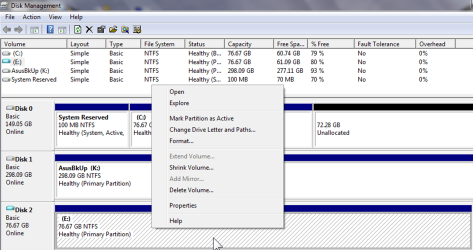
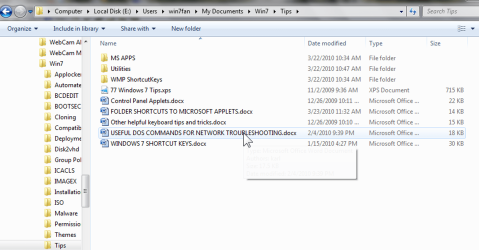
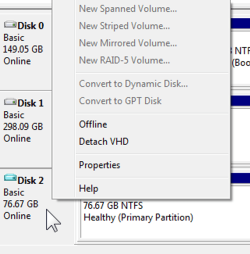
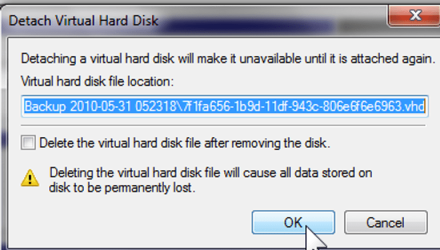
Here's a series of screen snapshots. On my Asus netbook I have two partitions-the 100 meg system reserved and a 76.67GB C partition.

This shows the files on the backup drive, the vhd attached, and so forth.
 

Attachments

  • SelectAttachVHD.png
    SelectAttachVHD.png
    26.1 KB · Views: 30
  • Browsetovhdfiles.png
    Browsetovhdfiles.png
    26.6 KB · Views: 13
  • SelectingtheVHDforCdrive.png
    SelectingtheVHDforCdrive.png
    124.7 KB · Views: 33
  • 100MegSystemResevedMuchSmaller.png
    100MegSystemResevedMuchSmaller.png
    88.6 KB · Views: 13
  • ConfirmSelection.png
    ConfirmSelection.png
    30.9 KB · Views: 11
  • RtClkonnewdriveChooseOpenorExplore.png
    RtClkonnewdriveChooseOpenorExplore.png
    121.2 KB · Views: 24
  • exampleOfDrillingtoSpecificFile.png
    exampleOfDrillingtoSpecificFile.png
    162.7 KB · Views: 27
  • RtClkChooseDetachVHD.png
    RtClkChooseDetachVHD.png
    31.4 KB · Views: 29
  • ConfirmDetach.png
    ConfirmDetach.png
    39.6 KB · Views: 12
  • AfterDetachment.png
    AfterDetachment.png
    78.4 KB · Views: 14

My Computer My Computer

At a glance

MS Windows 7 Ultimate SP1 64-bitAMD A10-4600M6.00 GB Dual-Channel DDR3 @ 798MHz (11-11-12-28)AMD Radeon HD 7660G
Computer Manufacturer/Model Number
Toshiba Satellite S875D-S7239 laptop
OS
MS Windows 7 Ultimate SP1 64-bit
CPU
AMD A10-4600M
Motherboard
AMD Pumori (Socket FT1)
Memory
6.00 GB Dual-Channel DDR3 @ 798MHz (11-11-12-28)
Graphics Card(s)
AMD Radeon HD 7660G
Sound Card
High Definition Audio Device
Monitor(s) Displays
Generic PnP Monitor (1600x900@60Hz)
Screen Resolution
1600x900@60Hz
Hard Drives
SSD 119GB Corsair CSSD-V128GB2 ATA Device
Keyboard
Standard PS/2 Keyboard
Mouse
HP Wireless Optical Mobile Mouse Model FHA-3410
Internet Speed
What the local pub, local coffee shop offers.
Other Info
Optical Drive:MATSHITA BD-CMB UJ160B ATA Device


Also have an Asus ha1002xp netbook with Win 7 Ultimate installed.
Hello...

I am very curious as to where the Windows 7 Backup Utility stores the backup images. Currently I have all my Windows 7 Backups stored to an external HDD, however if I were to peruse the external HDD, all I can see are two files:

The name of the computer in my case SPENCER-PC 0 bytes and MediaID.bin 588 bytes however Windows Explorer shows the HDD has over 650GB of used space.
I have also changed the attributes for hidden/system files so that I can view to no avail.

If I were to double click on SPENCER-PC, all it does is launch the Windows 7 Backup Utility. I've searched the inter-tubes with no luck and as such I hope that someone here can point me in the right direction.

Much appreciated...
excellent question.
Just keep expanded that Spencer-PC folder.
You are looking for .VHD file
That's if you did a system image baciup. In fact, if in your systemimage backup you backed up three drives, then you will find 3 .VHD drives.

If you simply backed up files, for example your libraries, then you will find .ZIP files.

the zip files can be unzipped.

You can "attach" the .vhd files using DISK MANAGEMENT. Once a vhd is attached, then you can explore and extract any file/folder you would like. In fact, you could edit it.

I don't have my external drive with me right now, but in about an hour I'll include a snapshot of the step to attach a vhd from the backup drive.

Awesome, followed your directions and *BANG* there they are. I never realized that the Spencer-PC icon was an actual folder, everytime I clicked open, the Windows 7 Backup utility would launch, I guess I was doing something wrong, thanks for the information.

As for everyone else, I did not know that the system images were saved as VHD files. I currently use a third party utility for drive images, but this information will be very useful and beneficial for future knowledge.

Thank you everyone for all your quick responses, simply awesome and proves I came to the right place for the right answers...

Thank you,
 

My Computer My Computer

At a glance

Windows 7 x64 UltimateIntel Quad Core Q6600OCZ Platinum 2x4GB 1066Asus EAH 3450
Computer Manufacturer/Model Number
Home Built
OS
Windows 7 x64 Ultimate
CPU
Intel Quad Core Q6600
Motherboard
Asus P5Q
Memory
OCZ Platinum 2x4GB 1066
Graphics Card(s)
Asus EAH 3450
Sound Card
On board
Monitor(s) Displays
Dell 17'
Hard Drives
1xsata 320GB OS
1xsata 500GB VM
1xsata 640GB Dynamic mirrored with 1.0TB
1xsata 1.0TB Dynamic mirrored with 640GB
1xsata 1.5TB External via E-sata Docking Station
PSU
OCZ 700MXSP
Case
Thermaltake full-tower
Cooling
Air
elmo,
Your welcome and I'm glad that we could be of assistance. It's nice to "win one".
Karl
 

My Computer My Computer

At a glance

MS Windows 7 Ultimate SP1 64-bitAMD A10-4600M6.00 GB Dual-Channel DDR3 @ 798MHz (11-11-12-28)AMD Radeon HD 7660G
Computer Manufacturer/Model Number
Toshiba Satellite S875D-S7239 laptop
OS
MS Windows 7 Ultimate SP1 64-bit
CPU
AMD A10-4600M
Motherboard
AMD Pumori (Socket FT1)
Memory
6.00 GB Dual-Channel DDR3 @ 798MHz (11-11-12-28)
Graphics Card(s)
AMD Radeon HD 7660G
Sound Card
High Definition Audio Device
Monitor(s) Displays
Generic PnP Monitor (1600x900@60Hz)
Screen Resolution
1600x900@60Hz
Hard Drives
SSD 119GB Corsair CSSD-V128GB2 ATA Device
Keyboard
Standard PS/2 Keyboard
Mouse
HP Wireless Optical Mobile Mouse Model FHA-3410
Internet Speed
What the local pub, local coffee shop offers.
Other Info
Optical Drive:MATSHITA BD-CMB UJ160B ATA Device


Also have an Asus ha1002xp netbook with Win 7 Ultimate installed.
Back
Top