Win 7 tries to image reformatted drive

rzn6jw

New member
I first installed Win 7 Pro 32-bit on one SATA drive to see how I'd like it. After running good for some time, I installed Win 7 Pro 64-bit on another SATA drive in dual-boot mode. I ran in 64-bit mode for several months making sure all my games and applications would work and then re-formatted the old 32-bit drive to use as a page file.

All during this time, Win 7 backup would backup my user files on 64-bit and also system images of both the 64-bit and 32-bit OSs. Now that I've essentially got rid of the 32-bit OS, I reformatted and renamed the drive. However, backup still wants to do a system image of the 64-bit OS and, now, my storage drive.

How can I get 64-bit to recognize that there's only one OS to make a system image of?

I tried resetting the backup options, regedit, task scheduler, so that I would have to start from 'No Backup Configured'. However, when I choose to decide what to back up, the panel still shows that an image will be made of my 64-bit drive and my storage drive.

There must still be something in the registry that I'm missing. Any ideas?
 

My Computer

Computer type
PC/Desktop
Computer Manufacturer/Model Number
DIY
OS
Windows 7 Pro 64-bit Service Pack 1
CPU
AMD FX 8370 BE 8-core
Motherboard
Gigabyte 990FXA-UD3
Memory
32G Corsair DDR3 1600
Graphics Card(s)
2 GTX660 SC in SLI
Sound Card
Reaktek
Monitor(s) Displays
Samsung 23" LCD
Screen Resolution
1920x1080
Hard Drives
5 SATA HDD
1 eSATA HDD
PSU
Corsair 850w
Case
AZZA Hurricane
Cooling
Case fans
Keyboard
Microsoft
Mouse
Logitech
Internet Speed
T3
Antivirus
Norton Internet Security
Browser
IE, Firefox
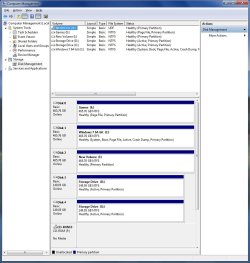
Can you please post back a screenshot of your full DIsk Management drive map and listings. Use Snipping Tool in Start Menu, attach file using paper clip in Reply Box.

It's possible that backup imaging wants to save your storage drive because it still contains the System MBR which needs to be recovered into the 64 bit HD. But we need to see the screenshot to be sure.
 
You're right. The storage drive used to be the first Win 7 (32-bit) drive so it must still have the MBR on it (even though I reformatted the drive, when I try to set up a backup, the drive shows that 50G is still in use).

So how do I (re)create the MBR on my 64-bit drive and get rid of it on the old drive?
 

My Computer

Computer type
PC/Desktop
Computer Manufacturer/Model Number
DIY
OS
Windows 7 Pro 64-bit Service Pack 1
CPU
AMD FX 8370 BE 8-core
Motherboard
Gigabyte 990FXA-UD3
Memory
32G Corsair DDR3 1600
Graphics Card(s)
2 GTX660 SC in SLI
Sound Card
Reaktek
Monitor(s) Displays
Samsung 23" LCD
Screen Resolution
1920x1080
Hard Drives
5 SATA HDD
1 eSATA HDD
PSU
Corsair 850w
Case
AZZA Hurricane
Cooling
Case fans
Keyboard
Microsoft
Mouse
Logitech
Internet Speed
T3
Antivirus
Norton Internet Security
Browser
IE, Firefox
Looked at all three. Didn't seem that any addressed the issue I have. Do you think the MBR on my 64-bit drive still has the Win 7 32-bit information from the old drive even though that drive has been reformatted (something's still on that drive because backup shows 50g still allocated even though I can't see any files).
 

My Computer

Computer type
PC/Desktop
Computer Manufacturer/Model Number
DIY
OS
Windows 7 Pro 64-bit Service Pack 1
CPU
AMD FX 8370 BE 8-core
Motherboard
Gigabyte 990FXA-UD3
Memory
32G Corsair DDR3 1600
Graphics Card(s)
2 GTX660 SC in SLI
Sound Card
Reaktek
Monitor(s) Displays
Samsung 23" LCD
Screen Resolution
1920x1080
Hard Drives
5 SATA HDD
1 eSATA HDD
PSU
Corsair 850w
Case
AZZA Hurricane
Cooling
Case fans
Keyboard
Microsoft
Mouse
Logitech
Internet Speed
T3
Antivirus
Norton Internet Security
Browser
IE, Firefox

My Computers

System One System Two

  • Computer type
    PC/Desktop
    OS
    7 X64
    CPU
    i5 8400
    Motherboard
    gigabyte b365m ds3h
    Memory
    2x8gb 3200mhz
    Hard Drives
    various
    PSU
    pure power 11 400w cm
    Case
    Coolermaster
    Cooling
    cryorig m9i
  • Computer type
    PC/Desktop
    OS
    7x64
    CPU
    g5400
    Motherboard
    ga b365m ds3h
    Memory
    8gb ddr4 2400
    PSU
    xfx pro 450w
We cannot advise you with certainty until we see the Disk Management screenshot requested earlier.

Use the Snipping Tool in Start Menu. Attach file using Paper Clip in Reply Box.
 
Is this what you're looking for? Drive G: is the one in question. I moved the pagefile off this drive but any display of the drive shows 1g still in use.

Disk Management.jpg
 

My Computer

Computer type
PC/Desktop
Computer Manufacturer/Model Number
DIY
OS
Windows 7 Pro 64-bit Service Pack 1
CPU
AMD FX 8370 BE 8-core
Motherboard
Gigabyte 990FXA-UD3
Memory
32G Corsair DDR3 1600
Graphics Card(s)
2 GTX660 SC in SLI
Sound Card
Reaktek
Monitor(s) Displays
Samsung 23" LCD
Screen Resolution
1920x1080
Hard Drives
5 SATA HDD
1 eSATA HDD
PSU
Corsair 850w
Case
AZZA Hurricane
Cooling
Case fans
Keyboard
Microsoft
Mouse
Logitech
Internet Speed
T3
Antivirus
Norton Internet Security
Browser
IE, Firefox
The page file is on E which is why Win7 backup imaging likely wants to include it in image.

There are performance benefits to having the page file on another HD. THese issues and how to move it if you want are discussed further here: http://www.sevenforums.com/performa...ve-paging-file-another-physical-hdd-win7.html

Two of the other data drives D & G are incorrectly marked active so you might want to mark them Inactive so they can't cause any problems down the road. This tutorial shows how to mark a Partition active using DISKPART from the Command Line - just modify the command to "Inactive" for partitions D & G: http://www.sevenforums.com/tutorials/71432-partition-mark-active.html
 
  • Like
Reactions: mjb
Hi gregrocker

As E: is Disk0, the boot files may be on that drive.
 

My Computer

OS
ME/XP/Vista/Win7
7 is booting thru Disk 1 .

Windows indicates pagefile on Disk 0.
 

My Computers

System One System Two

  • Computer type
    PC/Desktop
    OS
    7 X64
    CPU
    i5 8400
    Motherboard
    gigabyte b365m ds3h
    Memory
    2x8gb 3200mhz
    Hard Drives
    various
    PSU
    pure power 11 400w cm
    Case
    Coolermaster
    Cooling
    cryorig m9i
  • Computer type
    PC/Desktop
    OS
    7x64
    CPU
    g5400
    Motherboard
    ga b365m ds3h
    Memory
    8gb ddr4 2400
    PSU
    xfx pro 450w
Regarding the page files: I have a small page file on C: and a 50g page file on E: so that's what's appearing.

As far as inactivating D: and G: as in the previous reply, when I inactivated G: and rebooted, my system would not boot. When I reactivated G: my system booted. So it appears that a MBR is still on G: (maybe explaining why there is 1g allocated).

So how do I get the MBR off G: and onto C: (remembering that the now drive G: used to be the original drive C: with Win 7 32-bit which I 1st used)?
 

My Computer

Computer type
PC/Desktop
Computer Manufacturer/Model Number
DIY
OS
Windows 7 Pro 64-bit Service Pack 1
CPU
AMD FX 8370 BE 8-core
Motherboard
Gigabyte 990FXA-UD3
Memory
32G Corsair DDR3 1600
Graphics Card(s)
2 GTX660 SC in SLI
Sound Card
Reaktek
Monitor(s) Displays
Samsung 23" LCD
Screen Resolution
1920x1080
Hard Drives
5 SATA HDD
1 eSATA HDD
PSU
Corsair 850w
Case
AZZA Hurricane
Cooling
Case fans
Keyboard
Microsoft
Mouse
Logitech
Internet Speed
T3
Antivirus
Norton Internet Security
Browser
IE, Firefox
Your screenshot shows no evidence of (System Active) MBR being on any drive except DISK1 Windows 7. And it only shows a page file on Disk0. However if Win7 won't boot when G is marked inactive, then the labeling might be incorrect.

If you want to be absolutely sure the MBR is on DISK1 alone: mark Inactive all drives except Win7, then Boot Win7 DVD Repair console or Repair CD, click through to Recovery Tools list to run Startup Repair up to 3 separate times with reboots to repair or re-write the MBR to the sole active partition.
 
Last edited:
I'll give that a try but it'll take me some time to get back to you.

By the way, after using the 64-bit install disk to do the diskpart inactivate and activate, when I booted back into Windows, I got the message that the copy running wasn't Genuine. Any problem here?
 

My Computer

Computer type
PC/Desktop
Computer Manufacturer/Model Number
DIY
OS
Windows 7 Pro 64-bit Service Pack 1
CPU
AMD FX 8370 BE 8-core
Motherboard
Gigabyte 990FXA-UD3
Memory
32G Corsair DDR3 1600
Graphics Card(s)
2 GTX660 SC in SLI
Sound Card
Reaktek
Monitor(s) Displays
Samsung 23" LCD
Screen Resolution
1920x1080
Hard Drives
5 SATA HDD
1 eSATA HDD
PSU
Corsair 850w
Case
AZZA Hurricane
Cooling
Case fans
Keyboard
Microsoft
Mouse
Logitech
Internet Speed
T3
Antivirus
Norton Internet Security
Browser
IE, Firefox
Did you activate 64 bit after you deleted 32 bit Win7? It may be detecting two installations since the hardware signature will be slightly different with another HD being used.

What does it say at activation link at Computer>Properties?

Where did you get WIn7?
 
Everything points to C:. However, even after reformatting, backup still shows doing a system image from G:.

I ran an automated backup this weekend and I got the error message:

Backup encountered a problem while backing up file G:\Users\Bob\Music\Amazon MP3. Error:(The system cannot find the path specified. (0x80070003))
Backup encountered a problem while backing up file G:\Users\Bob\Music\Rhapsody. Error:(The system cannot find the path specified. (0x80070003))

so something still thinks that there are files still on G: even though it was a blank HDD (50g still allocated but not visible).

I've got a problem ticket ope at Western Digital, supplier of Acronis the image transfer program. I've asked them if Acronis would leave a MBR on a 'copied from' drive after formatting that drive.
 

My Computer

Computer type
PC/Desktop
Computer Manufacturer/Model Number
DIY
OS
Windows 7 Pro 64-bit Service Pack 1
CPU
AMD FX 8370 BE 8-core
Motherboard
Gigabyte 990FXA-UD3
Memory
32G Corsair DDR3 1600
Graphics Card(s)
2 GTX660 SC in SLI
Sound Card
Reaktek
Monitor(s) Displays
Samsung 23" LCD
Screen Resolution
1920x1080
Hard Drives
5 SATA HDD
1 eSATA HDD
PSU
Corsair 850w
Case
AZZA Hurricane
Cooling
Case fans
Keyboard
Microsoft
Mouse
Logitech
Internet Speed
T3
Antivirus
Norton Internet Security
Browser
IE, Firefox
I just received this reply from Western Digital:

Dear Robert,

Thank you for contacting Western Digital Customer Service and Support. My name is Noe

I apologize for the inconvenience. Acronis performs a drive to drive copy, the MBR is left intact on the original drive, if reformatting did not remove it I suggest that you write zeros on the drive, also, many backup software make system images instead of copy only the data so this will depend of what kind of backup utility you are using.

If you have any further questions, please reply to this email and we will be happy to assist you further.

Sincerely,
Noe
Western Digital Service and Support

so it appears that the MBR is still on G: and the PC is booting from it and marking the drive inactive prevents the PC from booting.

Do I use FDISK /MBR on C: to recreate the MBR there or do I use some other program that's on the installation disk?
 

My Computer

Computer type
PC/Desktop
Computer Manufacturer/Model Number
DIY
OS
Windows 7 Pro 64-bit Service Pack 1
CPU
AMD FX 8370 BE 8-core
Motherboard
Gigabyte 990FXA-UD3
Memory
32G Corsair DDR3 1600
Graphics Card(s)
2 GTX660 SC in SLI
Sound Card
Reaktek
Monitor(s) Displays
Samsung 23" LCD
Screen Resolution
1920x1080
Hard Drives
5 SATA HDD
1 eSATA HDD
PSU
Corsair 850w
Case
AZZA Hurricane
Cooling
Case fans
Keyboard
Microsoft
Mouse
Logitech
Internet Speed
T3
Antivirus
Norton Internet Security
Browser
IE, Firefox
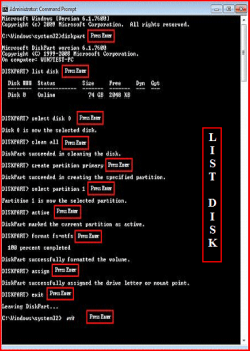
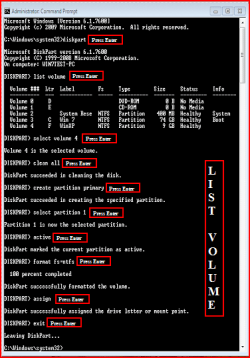
Try a full clean & full format.
http://www.sevenforums.com/tutorials/52129-disk-clean-clean-all-diskpart-command.html
http://www.sevenforums.com/tutorials/2668-partition-volume-delete.html?ltr=P
http://www.sevenforums.com/tutorials/2674-partition-volume-create-new.html?ltr=P
1) Boot DVD.
2) Press Shift+F10 (for command prompt)

Type in command line
DISKPART
LIST DISK OR List Volume (If you have partitions)
SELECT DISK # (win HD)
CLEAN ALL
CREATE PARTITION PRIMARY
SELECT PARTITION 1
ACTIVE
FORMAT=NTFS
ASSIGN
EXIT
EXIT

List Disk.PNG List Volume.PNG

http://www.sevenforums.com/tutorials/91339-ssd-optimize-windows-re-installation.html
 

My Computer

OS
ME/XP/Vista/Win7
Here's some additional info. Apparently I've got two boot manager/loaders, one on C: and one on G: and apparently the PC is booting from G:. How do I make the boot manager/loader on C: the primary?

I actually don't want to zero out or completely clean G: until I can be assured that I can boot from C: and right now G: is the primary. There must be a way to make the boot pointer point to C: rather than G:.
 

Attachments

  • Boot mgr-ldr.jpg
    Boot mgr-ldr.jpg
    146.5 KB · Views: 0

My Computer

Computer type
PC/Desktop
Computer Manufacturer/Model Number
DIY
OS
Windows 7 Pro 64-bit Service Pack 1
CPU
AMD FX 8370 BE 8-core
Motherboard
Gigabyte 990FXA-UD3
Memory
32G Corsair DDR3 1600
Graphics Card(s)
2 GTX660 SC in SLI
Sound Card
Reaktek
Monitor(s) Displays
Samsung 23" LCD
Screen Resolution
1920x1080
Hard Drives
5 SATA HDD
1 eSATA HDD
PSU
Corsair 850w
Case
AZZA Hurricane
Cooling
Case fans
Keyboard
Microsoft
Mouse
Logitech
Internet Speed
T3
Antivirus
Norton Internet Security
Browser
IE, Firefox
As stated earlier, the way to make certain the MBR is on Win7 HD is to mark Win7 active, mark all other HD's inactive, then boot the Win7 DVD Repair Console or Repair CD, click through to Recovery Tools list to run Startup Repair up to 3 separate times with reboots until Win7 starts up on its own.

If you unplug G during this operation then it will be cut out completely. Make sure Win7 HD is set to boot first in BIOS setup, after DVD drive.

You can then plug G back in, boot into DVD or CD Command Line and zero out G drive using steps given in theog's post.
 
Back
Top