System Manufacturer/Model Number HP Pavilion Elite 495UK OS Windows 7 Ultimate SP1 64-Bit CPU Intel Core i7 870 @ 2.93GHz Motherboard MSI 2A9C (CPU1) Memory 8Gb Dual-Channel DDR3 @ 664MHz Graphics Card nVidia GeForce GTX 460 1024MB dedicated RAM Sound Card Realtek HD Audio Monitor(s) Displays HP2310i Screen Resolution 1920 x 1080
Keyboard Logitech K750 solar-powered keyboard Mouse Logitech Wireless M180 mouse PSU 460W Case HP Elite Cooling Air cooled Hard Drives 1x1954GB Hitachi HDS22020ALA 330 (RAID), 1x1954GB Hitachi External for backup and storage Internet Speed 2Mb Other Info Pure Avanti Flow Internet Radio with iPod Dock, 64Gb iPod, HP USB Speakers, Sony MDR-V500 Headphones, Sony Vaio F-Series Laptop
Thanks.
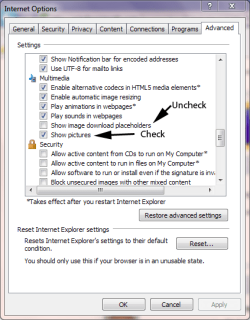
I looked, and Show Pictures is checked. Adobe Flash Player is up to date. Java probably is not. I'll look into that. IE9? too many horror stories.
The red X may indicate that your Java applets are not loading where the images should be. Here is an article from Java that describes the problem and the solution. This particular article is old, (and refers to IE6), but it describes the problem well, and once you've diagnosed the problem on your system, you can check for the most recent solution: " Red X image displayed where the applet should be, applets won't run": http://www.java.com/en/download/help/redximage.xml (You can find a plethora of additional help on Google if you research the key words in quotes.)
Even though you have Java, it may not be up to date or working correctly on your system. The Java (Sun) website offers a lot of help and suggestions. Here are some links that you might explore to see if the Java download is the problem:
First, to see if you have a Java app currently working within your system, go to: Java + You. Under the big red /Free Java Download’ button in smaller print is a link to a Java scan called: "Do I have Java?" Let Java scan your machine and see what the results are. If the scan says your machine doesn't have Java installed click the option to install the latest Java version. If the scan says you already have a previous version of Java installed, you can go to Control Panel, Programs and Features and Uninstall it.
Then, to find out if Java is working properly on your system visit: Test your Java Virtual Machine (JVM), and you can go to the Java website for the most recent Java downloads.
To check which version of Java you have, go to: Verify Java Version and Java Help. There are several different Java apps, and you may not have downloaded the correct one for your system (and for your needs). One common problem is that if you use 32-bit and 64-bit browsers interchangeably, you will need to install both 32-bit and 64-bit Java in order to have the Java plug-in for both browsers.
Also, the last Java app you installed may have corrupted. If you need to remove your current Java app, you can run this tool called JavaRA (from Major Geeks – a very reliable forum) to remove old Java versions.
After installing Java, restart your browser and verify Java has been installed correctly. You can verify that it has been installed correctly by clicking this link.
System Manufacturer/Model Number HP Pavillion dv5t (generation 1) OS Vista 64 bit and 32 bit (SP2) CPU Intel(R) Core(TM)2 Duo Processor T9400 (2.53 GHz Memory 4GB DDR2 System Memory (2 Dimm) Graphics Card 512 MB NVIDIA GeForce 9600M GT Monitor(s) Displays 15.4" diagonal WSXGA+ High-Definition HP BrightView Widescre Screen Resolution 1680 x 1050
Keyboard Built-in HP Mouse Built in - Synaptics TouchPad V6.5 on PS/2 Port Hard Drives 320GB 5400RPM SATA Hard Drive with HP ProtectSmart Hard Drive Protection Internet Speed Max Other Info ~ Intel Next-Gen Wireless-N Mini-card w/Bluetooth ~ Blu-Ray ROM DVD+/-R/RW ~ Integ. HDTV Hybrid Tuner ~ 12 Cell Battery ~ MS Office (Home Premium) 2007 ~