1) Make the new account (CoxSSL) as I described in
post# 18.
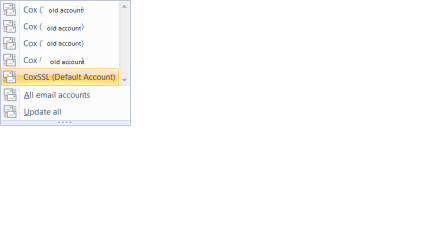
2) in ALL other accounts -
untick "include this account when sending and receiving" on all accounts (general tab of the account property page), except the new one (CoxSSL). This will prevent any new mail being sent or attempts to retrieve mail from the server.
3) Try sending eMail to yourself, this should eventually round trip back to you and you've tested send and receive with the CoxSSL account.
Note
All of your eMail on the Server should download to the new CoxSSL account you created because you had "Leave eMail on Server" ticked. I don't know how much mail is there or how long you were using that option. anyway - there might be a lot of email coming down.
4) if you still see multiple accounts sending / receiving, go back to step 2
when you get to the point where only CoxSSL is sending and receiving, you can move forward. I can't help you much if the old accounts are active. And they must be inactive to complete the next steps.
Warning
If the old accounts are still sending/receiving, there is a chance that new mail will not be backed up. This isn't much of an issue in your case because you have "Leave on server" ticked. This is a caution for others who might read these instructions and who do NOT leave their mail on the server.
The next thing you'll want to do is move any mail from the other old accounts into a new folder. The easiest and perhaps safest way to collect items in the other accounts is to create a new folder in Storage, call it CoxStore
do the following for the
old accounts only, not the new account.
Move all items that you want to save into Storage -> CoxStore1. WLM might complain about duplicates when you do the same for subsequent accounts, or WLM will move the items and keep the association to the old account. I'm not sure. If WLM complains about dups, create a new folder in Storage called CoxStore2 and move the items into it. Continue moving old eMail items from the old account inbox until there are no more items to move.
Finally, create a new folder in Storage called OldOutbox and move any eMail from the real Outbox to Storage -> OldOutbox
At the end of this you could have one folder in Storage with ALL of your old Email, or you might have CoxStore1 through CoxStore5 folders, each containing eMail from the respective old folders.
You might want to check if there's anything in the drafts folders and move them to Storage (create a drafts folder under each CoxStoreX and move the old drafts to the respective Storage drafts.
Don't worry about junk mail or deleted items.
When you're satisfied that you have "backed up" your old eMail, delete All of the old accounts. But keep the new account CoxSSL
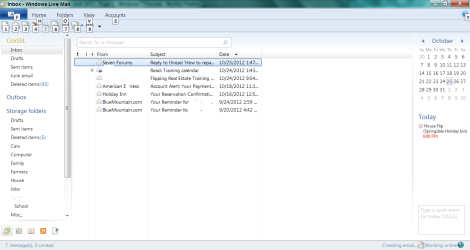
Your WLM folder should look like this (I used abbreviated folder names for CoxSSL account)
CoxSLL
---Inbox
---Sent
---Deleted
---Drafts
---Junk
Outbox
Storage
---CoxStore1
---OldOutbox
or
Storage
---CoxStore1
---CoxStore2
---CoxStore3
---CoxStore4
---CoxStore5
---OldOutbox
At this point you have a very clean WLM structure, albeit a bunch of old eMail to sort through. That's fairly easy to do, but let's get the ship righted first.