Windows 7 Forums


Windows 7: Add icon to imageres.dll

09 Aug 2011   #1

Windows 7 Home Premium x64 SP 1
Florida
 
 
Add icon to imageres.dll

How do I add an icon to imageres.dll? I assume that is where system icons are stored. Thanks.

My System SpecsSystem Spec

09 Aug 2011   #2

Windows 7 Ultimate x64


My System SpecsSystem Spec
09 Aug 2011   #3

Win 7 Pro x64
Council Bluffs, Iowa


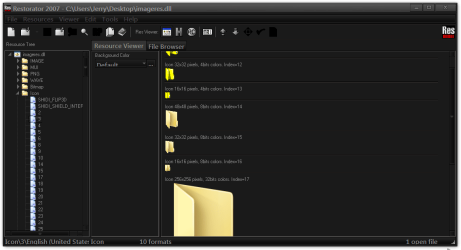
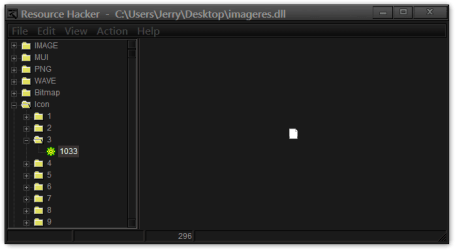
You should work with copies of it on your desktop you are using 64-bit you will find them in both C:\Windows\System32 and C:\Windows\SysWOW64 keep them separate so you know which one came from where, then you need a resource hacker of some kind so you can replace the icon that you want. It will need to be a true icon which are layered. Look at post #6 and it will show you how to replace that .dll Basic Networking Information
Jerry
Add icon to imageres.dll-restorator-2007-cusersjerrydesktopimageres.dll.pngAdd icon to imageres.dll-resource-hacker-cusersjerrydesktopimageres.dll.png
My System SpecsSystem Spec
.


09 Aug 2011   #4

Windows 7 Home Premium x64 SP 1
Florida


Thanks, guys. I decided not to mess with trying to get into the system file icons folder--too easy to make a big mess of things! So I placed my new icons in a different location.
My System SpecsSystem Spec
Reply

 Add icon to imageres.dll problems?


Thread Tools


Similar help and support threads for: Add icon to imageres.dll
Thread Forum
Solved imageres.dll/shell32.dll Modification For Global Icon Change Customization
Icon #16 missing from imageres.dll even after replacing with new General Discussion
Replacing default folder icon in imageres.dll Customization
Solved imageres.dll Customization
imageres.dll icon list/specifications Customization


All times are GMT -5. The time now is 09:29 AM.


Seven Forums Android App Seven Forums IOS App Follow us on Facebook

Windows 7 Forums is an independent web site and has not been authorized,
sponsored, or otherwise approved by Microsoft Corporation.
"Windows 7" and related materials are trademarks of Microsoft Corp.
© Designer Media Ltd
  

1 2 3 4 5 6 7 8 9 10 11 12 13 14 15 16 17 18 19 20 21 22 23 24 25 26 27 28 29 30 31 32