

Hello 7,
I have been using the "Take Ownership" context menu shortcut for quite a while now and I absolutely love it. It saves immense amounts of time when editing system files. My question is:
Would it be possible to create a context menu item that does the following:
- Set file permissions to:
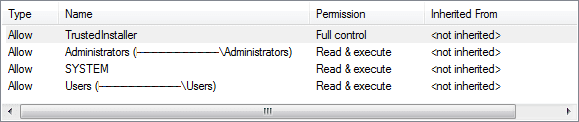
- Sets ownership to TrustedInstaller
Any help would be very appreciated!
Thanks,
Tim
UPDATE:
A batch file that does the same thing would be perfect also. I have successfully created my own context menu items that point to batch files saved elsewhere on my system. THANKS!
I have been using the "Take Ownership" context menu shortcut for quite a while now and I absolutely love it. It saves immense amounts of time when editing system files. My question is:
Would it be possible to create a context menu item that does the following:
- Set file permissions to:
- Sets ownership to TrustedInstaller
Any help would be very appreciated!
Thanks,
Tim
UPDATE:
A batch file that does the same thing would be perfect also. I have successfully created my own context menu items that point to batch files saved elsewhere on my system. THANKS!
Last edited:
My Computer
At a glance
Windows 7 Ultimate 64biti34GbIntel(R) HD Graphics
- Computer Manufacturer/Model Number
- Dell
- OS
- Windows 7 Ultimate 64bit
- CPU
- i3
- Memory
- 4Gb
- Graphics Card(s)
- Intel(R) HD Graphics
- Hard Drives
- 350G built-in, 1T Seagate External, 2T Buffalo External
- Case
- I prefer upper, but I will settle for lower
- Internet Speed
- Yes, I would like some please...
- Other Info
- Ham & Eggs - A days work for a chicken, but a lifetime of commitment for a pig.


