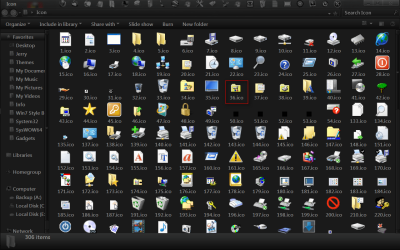
I created a new folder on desktop then right click->Property->Customize
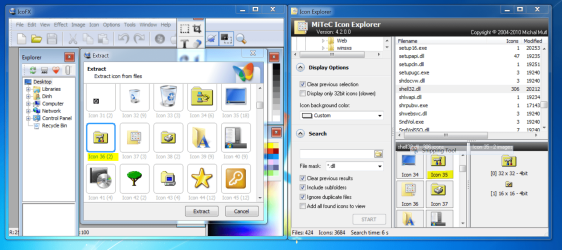
and try to change Icon to icon#35 of shell32.dll according to IconExplorer4.2 which is a folder with
a tool picture on it. When I click on Apply the Folder Icon changed to a Control Panel icon which is icon #21 in shell32.dll. Can somebody try this out for me if it's the same on your system. I have 2 PC's both running Windows 7 Ultimate X64 and both behave the same way.
Thanks.
Please look at the picture of the Icon I want to change.
Thank you. For most of the icons in shell32.dll, they'll display correctly but quite a few icons that will display incorrectly, another example is the "Hand" icon, it will display a picture of the icon when you share a drive (2 heads).
When you customize an icon for a folder, a hidden file called "desktop.ini" is created in that folder with the icon ID in it, I double checked it and it is consistent with the ID shown in IconExplorer program. I am surprised that very few people have noticed this.
Just checked this myself and you are right that is very strange not that it makes much of a difference but it is actually icon #36.
As a workaround you could put that icon in a folder store that folder is a safe place and when you go to change the folder icon navigate to it and apply it and it will work that way I just tried it.
Here is the icon and a zip folder below if you want it.
Jerry
Attachments
36.zip
458 bytes
· Views: 41
My Computer
At a glance
Win 7 Pro x64 / Win 10 ProIntel(R) Core(TM) i7-3630QM CPU @ 2.40GHz12 GB(1) Intel(R) HD Graphics 4000 (2) NVIDIA GeFo...
Computer type
Laptop
Computer Manufacturer/Model Number
Sager NP9170
OS
Win 7 Pro x64 / Win 10 Pro
CPU
Intel(R) Core(TM) i7-3630QM CPU @ 2.40GHz
Motherboard
CLEVO P170EM
Memory
12 GB
Graphics Card(s)
(1) Intel(R) HD Graphics 4000 (2) NVIDIA GeForce GTX 675M
Sound Card
(1) Realtek High Definition Audio (2) Intel(R) Display Aud
Monitor(s) Displays
17.3
Screen Resolution
1920x1080
Hard Drives
(1) Samsung 860 EVO 500GB(OS) (1) Samsung 860 EVO 500GB(Data)
Keyboard
Backlite
Antivirus
MSE, Malwarebytes Pro
Browser
Firefox
Other Info
DESKTOP: Custom-built.
OS: Win 10 Pro x64.
CASE: Rosewill R5.
CPU: Intel I5 4670K CPU @ 3.40GHz.
CPU COOLER: Cool Master Hyper 212 EVO.
MOTHERBOARD: Asus Z87-A.
MEMORY: Kingston HyperX 2x4 GB.
GPU: Nvidia Geforce 650 TI.
PSU: Corsair TX750.
DRIVES: (1) Samsung 840 120 GB SSD (2) Western Digital blue 500 GB 7200 RPM.
Thank you Bongo and that's exactly what I have been doing. I extracted all the Icons from shell32.dll and Imageres.dll and put in a folder and use whenever I need but it seems odd that we have to do the workaround. FYI, the icon# is actually 35 (icon index started at 0), I verified it by opening the hidden file "desktop.ini" created for that folder. If you use icoFX to extract it then icon# is 36 and if you use iconExplorer then the # is 35.
Another thing that I don't understand is by looking in the registry, sometimes the icon index is set to a negative number. I google it and nowhere that I can get an explanation for it.