Now that you have access to the registry keys you can add, remove and reorder toolbar buttons. Some background info before we get started.
There are different folder templates represented in the registry. Everything from Pictures to Videos and even search results. For this reason you'll need to edit several registry keys so that your buttons will be visible regardless of which folder your browsing.
I'll start with one folder type as an example and list the other reg keys you'll want to edit. Its a good idea to export the FolderTypes key in case you need to restore it.
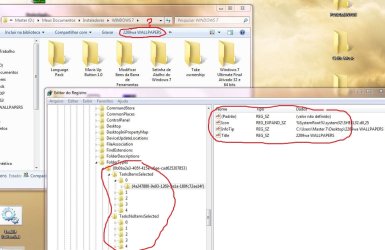
Goto: HKEY_LOCAL_MACHINE\SOFTWARE\Microsoft\Windows\CurrentVersion\Explorer\FolderTypes\{0b2baaeb-0042-4dca-aa4d-3ee8648d03e5}
Underneath that key create the following keys if they do not exist:
TasksItemsSelected
TasksNoItemsSelected
Most of the folder types you'll be editing will have these keys, but some do not.
The toolbar buttons are defined in the default value of both the keys mentioned above. To modify double click the default value in the right hand pane.
The Buttons
All buttons are prefixed with Windows. and are separated by a semicolon ;
There are no spaces.
Available Buttons
Possible toolbar buttons can be found in the registry under the key:
HKLM\SOFTWARE\Microsoft\Windows\CurrentVersion\Explorer\CommandStore\shell
I have not tested all the avail buttons, so I will list the ones I know that do work.
Windows.Copy
Windows.Paste
Windows.Delete
Windows.Rename
Windows.Selectall
So here is a sample of what the default value might look like:
Windows.slideshow;Windows.print;Windows.email
You can re-order these buttons as you like. Or add/remove buttons. Example:
Windows.Burn;Windows.email;Windows.slideshow;Windows.print;Windows.Delete
Tip: Use Notepad to work with the value. It will allow you to have a good overview of the entire string of text.
After editing a value and your done changing buttons, you only need to restart the Explorer shell to see the effects. So let me name the folder types you'll want to edit...
{0b2baaeb-0042-4dca-aa4d-3ee8648d03e5} Pictures Library
{36011842-dccc-40fe-aa3d-6177ea401788} Documents Search Results
{3f2a72a7-99fa-4ddb-a5a8-c604edf61d6b} Music Library
{4dcafe13-e6a7-4c28-be02-ca8c2126280d} Pictures Search Results
{5c4f28b5-f869-4e84-8e60-f11db97c5cc7} Generic (All folder items)
{5f4eab9a-6833-4f61-899d-31cf46979d49} Generic Library
{5fa96407-7e77-483c-ac93-691d05850de8} Videos
{631958a6-ad0f-4035-a745-28ac066dc6ed} Videos Library
{71689ac1-cc88-45d0-8a22-2943c3e7dfb3} Music Search Results
{7d49d726-3c21-4f05-99aa-fdc2c9474656} Documents
{7fde1a1e-8b31-49a5-93b8-6be14cfa4943} Generic Search Results
{80213e82-bcfd-4c4f-8817-bb27601267a9} Compressed Folder (zip folder)
{94d6ddcc-4a68-4175-a374-bd584a510b78} Music
{b3690e58-e961-423b-b687-386ebfd83239} Pictures
{ea25fbd7-3bf7-409e-b97f-3352240903f4} Videos Search Results
{fbb3477e-c9e4-4b3b-a2ba-d3f5d3cd46f9} Documents Library
I know its a long list. After your done editing your buttons, you should export the foldertypes registry branch so you can restore it in the event of a OS reload.
Hopefully this will get you started. Sorry for the long post.