ANN: Classic Shell - start menu and other features

I installed Classic Shell, logged in as administrator, and then right-clicked folders/apps to hide programs that I do not want users to access. Just for fun, I uninstalled classic shell, logged in as a new standard user, and the folders/programs in the original Windows 7 start menu remained hidden (and therefore inaccessible)! Your program enabled me to sneak a custom default Windows 7 start menu for my users. Thanks! :D

I don't understand - are you saying that you deleted some shortcuts in the classic start menu, and then they were gone in the Windows 7 menu? How is that surprising? Both programs show the contents of the same "start menu" folders. You don't need classic menu to delete stuff, just open the Windows 7 menu, find the shortcut and delete it. Or delete it from Explorer.

Am I missing something?

Sorry, I went into too much unnecessary detail. My point is that the classic menu made it very easy to find out the paths of various programs/folders (something the new Windows 7 start menu tries to hide - with limited success). And I thank you for that.
 

My Computer My Computer

At a glance

Windows 7 Enterprise
OS
Windows 7 Enterprise
Hello

I have installed Classic Shell 1.9.0 its cool !!! :D:D:D
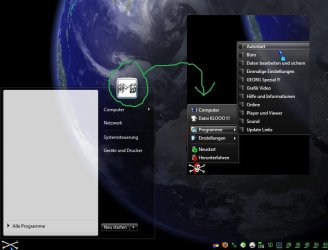
I will the user picture for Win7 start menu in the classic start menu we maked it see screenshot ??? :p:p:p

000.jpg

Here is my StartMenuItems.ini settings:

; MAIN_MENU.Items - the structure of the main menu. You can add or remove items here
; REMOVE THE SEMICOLON FROM THE BEGINNING OF THE NEXT LINE TO ENABLE THE CUSTOM MENU STRUCTURE
MAIN_MENU.Items=PROGRAMS, SettingsMenu, SEPARATOR, DisconnectItem, RestartItem, ShutdownItem

; SettingsMenu - the name, icon and structure of the Settings menu
SettingsMenu.Items=CONTROL_PANEL, SEPARATOR, PRINTERS, TaskbarSettingsItem, SEPARATOR, ClassicSettingsItem
SettingsMenu.Name=$Menu.Settings
SettingsMenu.Icon=shell32.dll,330

; And so on. You get the idea.
RestartItem.Command=restart
RestartItem.Name=Neustart
RestartItem.Icon=C:\KOPIER.PRG\XP EXIT + REBOOT\ICON085.ICO

ShutdownItem.Command=shutdown
ShutdownItem.Name=Herunterfahren
ShutdownItem.Icon=C:\KOPIER.PRG\XP EXIT + REBOOT\ICON086.ICO

TaskbarSettingsItem.Command=taskbar_settings
TaskbarSettingsItem.Name=$Menu.Taskbar
TaskbarSettingsItem.Icon=shell32.dll,40
TaskbarSettingsItem.Tip=$Menu.TaskbarTip

ClassicSettingsItem.Command=menu_settings
ClassicSettingsItem.Name=$Menu.ClassicSettings
ClassicSettingsItem.Icon=ClassicStartMenuDLL.dll,103
ClassicSettingsItem.Tip=$Menu.SettingsTip
 

My Computer My Computer

At a glance

Windows 7 64 Bit
OS
Windows 7 64 Bit
I will the user picture for Win7 start menu in the classic start menu we maked it see screenshot ??? :p:p:p
I'm sorry, I don't understand. Can you please rephrase that?
 

My Computer My Computer

At a glance

Windows 7 Home 64, Vista Ultimate 64
Computer Manufacturer/Model Number
Me :) I build all my PCs
OS
Windows 7 Home 64, Vista Ultimate 64
OK, so you want to place the user picture at the top of the main menu.
This is not possible at the moment. However you can modify the skin file to and add a specific image (logo, user picture, whatever) as part of the background.
The downside is that if you change your user image you will have to edit the skin again.

The process takes a bit of patience and requires some skills with Photoshop and Resoure Hacker. Take a look at the skin tutorial first: Classic Start Menu Skinning Tutorial
If you can't figure something out I can help you with it.
 

My Computer My Computer

At a glance

Windows 7 Home 64, Vista Ultimate 64
Computer Manufacturer/Model Number
Me :) I build all my PCs
OS
Windows 7 Home 64, Vista Ultimate 64
Thanks Ivo i have Restorator, Resoure Hacker and Gimp the making is not problem !!! :p:p:p
The Problem is the code in the Smoked Glass.skin file can you help me please ??? :geek::geek::geek:
 

My Computer My Computer

At a glance

Windows 7 64 Bit
OS
Windows 7 64 Bit
OK, let's get started.
1) Extract bitmap #2. It is a 32-bit bitmap with alpha channel. Hopefully GIMP can handle those.
2) Make the bitmal wider. Let's say your image is 48x50 pixels. You have to increase the width of the bitmap by about 48 pixels. You can't just stretch it. You have to preserve the left-most 5 columns and the right-most 5 columns.
3) Place your image near the top-right corner of the bitmap. You may want to make the alpha behind your image more opaque.
4) Add the edited bitmap to the skin file as a new bitmap resource #9. You can't just replace bitmap #2 because it is also used by the sub-menus.
5) Locate the portion of the SKIN resource that says:
[NOT CAPTION]
Main_bitmap=2
Main_bitmap_slices_X=0,0,0,13,2,13
Main_padding=8,6,6,4

Change it to:
[NOT CAPTION]
Main_bitmap=9
Main_bitmap_slices_X=0,0,0,13,2,61
Main_bitmap_slices_Y=63,314,8
Main_padding=8,54,6,4

9 is the ID of the new bitmap
61 is the original 13 plus the 48 new pixels added to the width
63 is the original 13 plus the height of the image (50)
314 is the original 364 minus the height of the image
56 is the original 6 plus the the extra 50 pixels where the image is

Horizontally the background will preserve the first 13 and the last 61 columns, and stretch the middle 2 to fill the space.
Vertically the background will preserve the first 63 and the last 8 rows, and stretch the middle 314.
There will be 54 pixels from the top of the menu to the first item, leaving enough space for your image.

Important:
* If your image is not 48x50, you should adjust the rest of the numbers accordingly
* If you have UAC enabled, make sure you are actually overwriting the .skin file (it is usually in Program Files, which is a UAC-protected folder)
* You may have to tweak the numbers a bit to achieve the desired effect
 

My Computer My Computer

At a glance

Windows 7 Home 64, Vista Ultimate 64
Computer Manufacturer/Model Number
Me :) I build all my PCs
OS
Windows 7 Home 64, Vista Ultimate 64
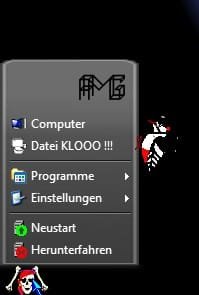
Thanks Thanks Thanks you ar the best perfect see !!! :D:D:D
000.jpgyes_text2.gif
Im sooo happy you are the king 111.gif !!!
 

My Computer My Computer

At a glance

Windows 7 64 Bit
OS
Windows 7 64 Bit
Excellent! I'm glad it worked for you.
 

My Computer My Computer

At a glance

Windows 7 Home 64, Vista Ultimate 64
Computer Manufacturer/Model Number
Me :) I build all my PCs
OS
Windows 7 Home 64, Vista Ultimate 64
Hi Ivo

Next problem I have customize my start button and i see not all whent Classic Shell Start Menu started see screen shot can you maked a update ??? :cry::cry::cry:
Unbenannt1.jpg
Thanks :p:p:p
 

My Computer My Computer

At a glance

Windows 7 64 Bit
OS
Windows 7 64 Bit
No, sorry. I tried for a long time but was unable to get the button to press when my menu is up and release when my menu closes (at lest not without some unwanted side effects).
 

My Computer My Computer

At a glance

Windows 7 Home 64, Vista Ultimate 64
Computer Manufacturer/Model Number
Me :) I build all my PCs
OS
Windows 7 Home 64, Vista Ultimate 64
No, sorry. I tried for a long time but was unable to get the button to press when my menu is up and release when my menu closes (at lest not without some unwanted side effects).
Ok thanks for info !!! :geek::geek::geek:
 

My Computer My Computer

At a glance

Windows 7 64 Bit
OS
Windows 7 64 Bit
Woot I've been waiting for smoke/transparency for the sub-menus, this is perfect! I have a couple of comments and a newb question.

Newb question: how do I get rid of the "Help and Support" from the start menu? You can see it in my pic below:

startmenu.jpg


Possible 1.9 beta bugs/issues:
- When I replaced the bitmap 1 with an identical bitmap 2 (for Smoked Glass.skin), the bitmap got really light. Instead of being dark grey it turned nearly white. It's applying the bitmap, but for some reason, it's almost white and hard to see. If I just set the main menu to bitmap 2 (which is what I did above) it looks fine.
- As you can see from the pic above, the sub-menu drops below the taskbar--I wasn't sure if that was a normal function of whether that's a minor bug.

Either way, I love how it's working now, love the mod!
 

My Computer My Computer

At a glance

Windows 7
OS
Windows 7
There are 2 ways to remove Help and Support:
One is to disable it from the group policy. Look for "gpedit.msc" in the start menu help for details. This won't work for Windows 7 Home.
The second way is to edit StartMenuItems.ini. Find the line that says ";MAIN_MENU.Items=...". Remove the semicolon from the start. Remove the "HelpItem" from the list of items.

When replacing the bitmap you probably messed up the alpha channel. You need an image editor like Photoshop that understands alpha channels.

The sub-menus are supposed to do that. They do for every version of the classic start menu since Windows 95. Even the Windows7 menu does this if you open a larger sub-folder like the Control Panel.
 

My Computer My Computer

At a glance

Windows 7 Home 64, Vista Ultimate 64
Computer Manufacturer/Model Number
Me :) I build all my PCs
OS
Windows 7 Home 64, Vista Ultimate 64
Hi Ivo

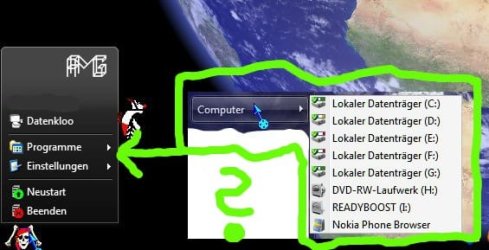
I will making the Windows 7 Computer menu in the StartMenuItems.ini we maked see scrennshot ??? :geek::geek::geek:
001.jpg
SettingsMenu.Items=CONTROL_PANEL, SEPARATOR, PRINTERS, TaskbarSettingsItem, ?????, SEPARATOR, ClassicSettingsItem
SettingsMenu.Name=$Menu.Settings
SettingsMenu.Icon=shell32.dll,330

?????Item.Command=?????
?????Item.Name=?????
?????Item.Icon=C:\KOPIER.PRG\XP EXIT + REBOOT\ICON085.ICO
 
Last edited:

My Computer My Computer

At a glance

Windows 7 64 Bit
OS
Windows 7 64 Bit
Are you using Babelfish to translate German into English? I really can't understand what is your question :)
 

My Computer My Computer

At a glance

Windows 7 Home 64, Vista Ultimate 64
Computer Manufacturer/Model Number
Me :) I build all my PCs
OS
Windows 7 Home 64, Vista Ultimate 64
No Babelfish !!! I want to have computers the Windows 7 menu into the Classic Shel menu. Is this better ??? :geek::geek::geek:
 

My Computer My Computer

At a glance

Windows 7 64 Bit
OS
Windows 7 64 Bit
But you showed the solution in your previous post. Does it not work for you?
If your only problem is that you want the Computer menu to be expandable, just change ".Command" to ".Link". You can also remove the ".Name" and ".Icon" if you want the name and icon from your computer to be used.
 

My Computer My Computer

At a glance

Windows 7 Home 64, Vista Ultimate 64
Computer Manufacturer/Model Number
Me :) I build all my PCs
OS
Windows 7 Home 64, Vista Ultimate 64
Back
Top