
jackbarnard
New member
Hi everyone, this post is an attempt to condense the installation method for FF7 on Windows 7 64 to a single thread post, as when I recently did this I had to use several websites and download files from multiple locations, so hopefully this will provide a nice concise tutorial on how to enjoy one of the best RPGs of all time on your W7 PC!
Important things to note:
A couple of points I would like to make before starting this tutorial:
- You DO NOT need to diasble UAC in order to get this game to work, we will be modifying the permission for a couple of specific folders only.
- You DO NOT need to use compatability mode to get this game to work, if anything it makes matters worse. We will be using custom graphics drivers to bring the game up to date with modern technology so no worries there.
- Below I detail methods for using disc images to boot the game, this I did with images of MY OWN discs which I paid for. I do not condone the illegal downloading of disc images, and as long as you don't distribute the images of your own discs then your conscience is clean.
Optional Preparation Step
Create Disc Images:
This step is not necessary but it will make your life easier, not to mention reducing wear and tear on your FF7 discs (which are definitely getting more valuable these days...). It will also reduce loading times, eliminate drive noise and make FMVs play more smoothly. What you want to do is make images of your original game discs:
Download and install a program called ImgBurn (HERE). Its a great tool and will allow you to make images of your discs, and it's completely free!
Pop your installation disc into your computer, open ImgBurn and select 'Create Image File from Disc', then select a directory for the image file to be placed in (completely up to you) and save the file in .bin/.cue format. Give it a minute and you'll have an image of that disc in the directory you selected, repeat this for the other three discs.
Next, you'll want to download and install Daemon Tools Lite (HERE) which is also free to non-commercial users (i.e. you), you'll need to restart to complete installation. The program should automatically set up a virtual drive for you - now, if you don't have a clue what I'm talking about then I suggest you google it and do a bit of research because I don't have the time to explain it all here. So go ahead and mount the installation disc once Daemon Tools has installed and move onto step 1.
Step 1
Initial Installation:
Get all your discs together, and insert the Installation disc into your DVD drive (or mount your image of the installation disc onto your virtual drive if you have ripped your discs to images - see optional step above).
Run the setup program. This is all pretty self-explanatory, but:
PLEASE NOTE - you must choose maximum installation when prompted as this will install all the game files to your computer which is necessary fpr patching later. Don't worry, the game's not that big by today's standards.
Furthermore, DO NOT install any of the graphics drivers that come on the disc (i.e. DX5 and DirectShow), these will likely bugger your existing graphics drivers and we will be patching the game later with new ones anyway to allow it to play on modern systems.
Step 2
Folder Permissions:
The next step is to change the permissions for the FF7 installation folder to allow the game to write its own files. The path for the installation (assuming you didn't change it in the installer) is:
"C:\Program Files(x86)\Square Soft, Inc\Final Fantasy VII"
Right click this folder and select properties. Switch to the security tab and select "Advanced". Click on "Change Permissions", then click on Users(Name of your computer/Users) which says "Read and Execute" and then "Edit", click on the full control box and ticks should appear in all the boxes below, like this:
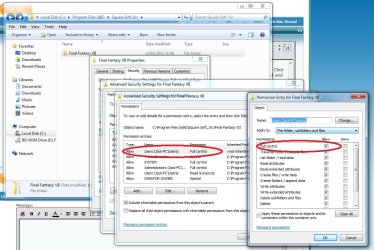
There should now be a line which says Users have Full Control!
Step 3
Official Patch v1.02:
Next on the agenda is to patch the game to v1.02 with the official patch which can be found HERE. Installation is very easy, simply extract all the files in the archive into your FF7 installation folder, selecting to overwrite any files as necessary.
Step 4
Custom Graphics Drivers:
This is the big one, we're going to install a user-made patch which allows modern systems to render the game using OpenGL. Download THIS file, and extract all the contents into your FF7 installation directory, again, overwriting any files. Note - this file is version 0.7.11b of the driver, and at the time of writing is the most recent. It's unlikely there'll be any more revisions as I don't believe there are any issues with this one.
Next, run the FF7Config.exe file. You will be presented with a congifuration utility for the game, select Graphics at the top. In the 'Renderer' drop-box, select Custom Driver (if this option isn't present then you haven't changed the security settings for the folder properly). You should get a pop-up box saying you've passed some test, you can now click OK to close.
Next, open the file ff7_opengl.cfg file using Notepad. You'll see the following lines:
# set the window size (and fullscreen resolution) of FF7
# 0 means use original resolution (whatever ff7.exe provides)
# preserve_aspect adds black borders as needed to preserve a 4:3 aspect ratio
window_size_x = 0
window_size_y = 0
preserve_aspect = yes
fullscreen = yes
Change window_size x and y to the resolution of your monitor, so if you're running (like me) in 1920x1080, it will look like this:
# set the window size (and fullscreen resolution) of FF7
# 0 means use original resolution (whatever ff7.exe provides)
# preserve_aspect adds black borders as needed to preserve a 4:3 aspect ratio
window_size_x = 1920
window_size_y = 1080
preserve_aspect = yes
fullscreen = yes
This will render the game at the native resolution of your monitor rather than the original 640x480, keeping preserve_aspect at 'yes' will keep the game in 4:3 mode, meaning it doesn't get stretched beyond all recognition.
Step 5 (Optional but you'll definitely want to do this!)
Original PSX Music:
Now, if you didn't know already, the music in the PC version of FF7 is absolutely atrocious. It sounds nothing like the original PSX music, mainly because it's now in MIDI format and that sucks. Luckily someone has created a patch which will play the remastered OST tracks in the game and mute the awful MIDI sounds. Trust me this makes the game a million times more enjoyable so please take the time to make this modification.
The installer for this patch can be found HERE (in the first post of the thread), it's quite a big file but be patient. To install the patch:
Run the executable file, the installer will default to the root directory of the game, leave it there. Choose either PSF or Remastered music, and click Install.
You can now open FF7Music using the FF7Music executable in its installation directory, ensure that the option to mute the original MIDI sound is checked under Configure --> Playback Options.
This mod ONLY works if FF7Music is opened first, then the game. Thankfully the new shortcut on your desktop does this for you, so if you are using another shortcut (in a docking program for example) to load the game then be sure to point it to this file (the file is the launchff7.exe in the FF7Music folder).
Step 6 (Only applicable if you did the optional step at the beginning)
Registry Edit:
If you are planning on using disc images to run the game rather than the physical discs, but you installed the game from the physical installation disc, then you'll find that the game will ask for the disc to be inserted when you try to run it even if you have Disc 1, 2 or 3 mounted on your virtual drive at the time. This is because of a registry entry which tells the game to expect the discs to be in the drive the game was installed from.
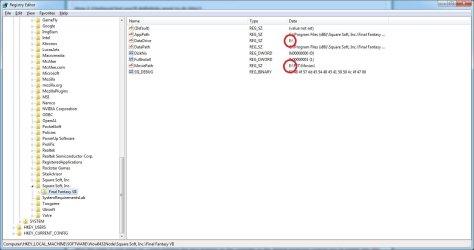
To change this registry entry, open RegEdit (by typing that into the start menu search bar and hitting enter) and browse to:
HKEY_LOCAL_MACHINE\SOFTWARE\Wow6432Node\Square Soft, Inc.\Final Fantasy VII
Change the following letters to the letter of your virtual drive:
Controller Setup:
The default controls for this game use the NumPad on your keyboard, and to be honest, who on earth wants to play an RPG with their NumPad? It really kills the game playing it that way and I highly recommend you use a gamepad if you have one.
This controller set-up guide will cover the use of an Xbox 360 controller and the Pinnacle Profiler software, this is not freeware so I don't expect everyone to have it. I believe you can use other software suites, like xPadder but I have not tested them.
The main problem I encountered when trying to use my Xbox controller in the game, is that you can't map the whole controller using the in-game configuration utility as it doesn't pick up the d-pad or the triggers even with the Microsoft drivers for the controller installed. To solve this I used Pinnacle profiler to map the triggers and the d-pad to the default keyboard keys that control the relevant commands to allow the game to pick them up. The face buttons on the controller can simply be mapped using the in-game utility.
I'll assume that if you're still reading this section then you have Pinnacle and an Xbox controller so I won't patronise you and go into fiddly detail. Open Pinnacle, and create a new profile for the game (using the launchFF7.exe file in the FF7Music folder as the game executable file), and create a new configuration for the buttons.
The ones we are modifying first are the d-pad directions and the triggers, so firstly map the left, right, up and down directions to numbers 4, 6, 8 and 2 on the numpad respectively. Next map the left and right triggers to 7 and 1 on the numpad respectively.
Save the configuration, but before you exit Pinnacle click Edit in the Game Profiles Window (with your FF7 profile selected) and go to the settings tab. Un-tick the option for automatically booting the game when the profile is started, the reason for this is expained in the Known Issues section below. You will also need to activate the option for Persistant Profile.
Once all this is done, start up the game. You may have to temporarily use the keyboard controls until you have done this next step:
Wait until you have control of Cloud and go the Menu, and choose Config. Go to the customise controls screen and systematically go through the controls changing them to the button on the Xbox controller which corresponds to the button on the original PSX version. For example, make sure that OK is mapped to B (O on the PSX). This is assuming you want the original PSX controls, feel free to change them to whatever you like! Obviously you don't need to remap the triggers or d-pad as they are now mapped to the keyboard controls.
LAPTOP USERS - Unfortunately you may struggle initially with the controls as obviously laptops don't really have a NumPad. There is a patch available from HERE which supposedly fixes this. I have never used this patch as I don't use a laptop so I can't provide any guidance, I suggest using the Readme that comes with it (if there's one), I won't take any responsibility for the content of that download.
Known Problems:
The main problem I have encountered is that whenever I booted the game, all the textures were white, including the EIDOS intro animation. If you are having this problem then please do not fear as there is a simple solution!
Open up the ff7_opengl.cfg file again, and scroll down to use_shaders in the Advanced Options catagory. Change the value from yes to no, this problem should now be fixed.
(FYI I understand that this issue is down to newer nVidia drivers so it's nothing wrong with your system if you get this problem it's just poor compatibility with old games.)
Don't try and run the game by using the 'Run as Administrator' option in Windows, it stops the custom graphics drivers from working. Note that trying to boot the game from Pinnacle Profiler trys to run it as admin, this is why you must untick the option that boots the game whenever the profile starts. You will have to start your game profile fro Pinnacle then use your desktop shortcut (or any other shortcut you've made) to begin the game.
Another niggle is I found sometimes the installer wouldn't run, I'd insert the installation disc and click Install......nothing. A setup process would appear in Task Manager but no installer in sight. I found that simply restarting my machine solved this issue.
Conclusion:
A big thank you to all the people who have created the tools necessary to run this game on modern computers, it's a real shame such a massively popular game can't receive updates from the likes of SquareSoft, so cheers guys.
I really hope this guide helps someone, as I spent some time getting this fantastic game working on my computer and I wouldn't want anyone else to suffer as I did! Please leave a comment if you are having issues with this method of installation and I'll do my best to help you.
Happy RPGing!
Important things to note:
A couple of points I would like to make before starting this tutorial:
- You DO NOT need to diasble UAC in order to get this game to work, we will be modifying the permission for a couple of specific folders only.
- You DO NOT need to use compatability mode to get this game to work, if anything it makes matters worse. We will be using custom graphics drivers to bring the game up to date with modern technology so no worries there.
- Below I detail methods for using disc images to boot the game, this I did with images of MY OWN discs which I paid for. I do not condone the illegal downloading of disc images, and as long as you don't distribute the images of your own discs then your conscience is clean.
Optional Preparation Step
Create Disc Images:
This step is not necessary but it will make your life easier, not to mention reducing wear and tear on your FF7 discs (which are definitely getting more valuable these days...). It will also reduce loading times, eliminate drive noise and make FMVs play more smoothly. What you want to do is make images of your original game discs:
Download and install a program called ImgBurn (HERE). Its a great tool and will allow you to make images of your discs, and it's completely free!
Pop your installation disc into your computer, open ImgBurn and select 'Create Image File from Disc', then select a directory for the image file to be placed in (completely up to you) and save the file in .bin/.cue format. Give it a minute and you'll have an image of that disc in the directory you selected, repeat this for the other three discs.
Next, you'll want to download and install Daemon Tools Lite (HERE) which is also free to non-commercial users (i.e. you), you'll need to restart to complete installation. The program should automatically set up a virtual drive for you - now, if you don't have a clue what I'm talking about then I suggest you google it and do a bit of research because I don't have the time to explain it all here. So go ahead and mount the installation disc once Daemon Tools has installed and move onto step 1.
Step 1
Initial Installation:
Get all your discs together, and insert the Installation disc into your DVD drive (or mount your image of the installation disc onto your virtual drive if you have ripped your discs to images - see optional step above).
Run the setup program. This is all pretty self-explanatory, but:
PLEASE NOTE - you must choose maximum installation when prompted as this will install all the game files to your computer which is necessary fpr patching later. Don't worry, the game's not that big by today's standards.
Furthermore, DO NOT install any of the graphics drivers that come on the disc (i.e. DX5 and DirectShow), these will likely bugger your existing graphics drivers and we will be patching the game later with new ones anyway to allow it to play on modern systems.
Step 2
Folder Permissions:
The next step is to change the permissions for the FF7 installation folder to allow the game to write its own files. The path for the installation (assuming you didn't change it in the installer) is:
"C:\Program Files(x86)\Square Soft, Inc\Final Fantasy VII"
Right click this folder and select properties. Switch to the security tab and select "Advanced". Click on "Change Permissions", then click on Users(Name of your computer/Users) which says "Read and Execute" and then "Edit", click on the full control box and ticks should appear in all the boxes below, like this:
There should now be a line which says Users have Full Control!
Step 3
Official Patch v1.02:
Next on the agenda is to patch the game to v1.02 with the official patch which can be found HERE. Installation is very easy, simply extract all the files in the archive into your FF7 installation folder, selecting to overwrite any files as necessary.
Step 4
Custom Graphics Drivers:
This is the big one, we're going to install a user-made patch which allows modern systems to render the game using OpenGL. Download THIS file, and extract all the contents into your FF7 installation directory, again, overwriting any files. Note - this file is version 0.7.11b of the driver, and at the time of writing is the most recent. It's unlikely there'll be any more revisions as I don't believe there are any issues with this one.
Next, run the FF7Config.exe file. You will be presented with a congifuration utility for the game, select Graphics at the top. In the 'Renderer' drop-box, select Custom Driver (if this option isn't present then you haven't changed the security settings for the folder properly). You should get a pop-up box saying you've passed some test, you can now click OK to close.
Next, open the file ff7_opengl.cfg file using Notepad. You'll see the following lines:
# set the window size (and fullscreen resolution) of FF7
# 0 means use original resolution (whatever ff7.exe provides)
# preserve_aspect adds black borders as needed to preserve a 4:3 aspect ratio
window_size_x = 0
window_size_y = 0
preserve_aspect = yes
fullscreen = yes
Change window_size x and y to the resolution of your monitor, so if you're running (like me) in 1920x1080, it will look like this:
# set the window size (and fullscreen resolution) of FF7
# 0 means use original resolution (whatever ff7.exe provides)
# preserve_aspect adds black borders as needed to preserve a 4:3 aspect ratio
window_size_x = 1920
window_size_y = 1080
preserve_aspect = yes
fullscreen = yes
This will render the game at the native resolution of your monitor rather than the original 640x480, keeping preserve_aspect at 'yes' will keep the game in 4:3 mode, meaning it doesn't get stretched beyond all recognition.
Step 5 (Optional but you'll definitely want to do this!)
Original PSX Music:
Now, if you didn't know already, the music in the PC version of FF7 is absolutely atrocious. It sounds nothing like the original PSX music, mainly because it's now in MIDI format and that sucks. Luckily someone has created a patch which will play the remastered OST tracks in the game and mute the awful MIDI sounds. Trust me this makes the game a million times more enjoyable so please take the time to make this modification.
The installer for this patch can be found HERE (in the first post of the thread), it's quite a big file but be patient. To install the patch:
Run the executable file, the installer will default to the root directory of the game, leave it there. Choose either PSF or Remastered music, and click Install.
You can now open FF7Music using the FF7Music executable in its installation directory, ensure that the option to mute the original MIDI sound is checked under Configure --> Playback Options.
This mod ONLY works if FF7Music is opened first, then the game. Thankfully the new shortcut on your desktop does this for you, so if you are using another shortcut (in a docking program for example) to load the game then be sure to point it to this file (the file is the launchff7.exe in the FF7Music folder).
Step 6 (Only applicable if you did the optional step at the beginning)
Registry Edit:
If you are planning on using disc images to run the game rather than the physical discs, but you installed the game from the physical installation disc, then you'll find that the game will ask for the disc to be inserted when you try to run it even if you have Disc 1, 2 or 3 mounted on your virtual drive at the time. This is because of a registry entry which tells the game to expect the discs to be in the drive the game was installed from.
To change this registry entry, open RegEdit (by typing that into the start menu search bar and hitting enter) and browse to:
HKEY_LOCAL_MACHINE\SOFTWARE\Wow6432Node\Square Soft, Inc.\Final Fantasy VII
Change the following letters to the letter of your virtual drive:
Controller Setup:
The default controls for this game use the NumPad on your keyboard, and to be honest, who on earth wants to play an RPG with their NumPad? It really kills the game playing it that way and I highly recommend you use a gamepad if you have one.
This controller set-up guide will cover the use of an Xbox 360 controller and the Pinnacle Profiler software, this is not freeware so I don't expect everyone to have it. I believe you can use other software suites, like xPadder but I have not tested them.
The main problem I encountered when trying to use my Xbox controller in the game, is that you can't map the whole controller using the in-game configuration utility as it doesn't pick up the d-pad or the triggers even with the Microsoft drivers for the controller installed. To solve this I used Pinnacle profiler to map the triggers and the d-pad to the default keyboard keys that control the relevant commands to allow the game to pick them up. The face buttons on the controller can simply be mapped using the in-game utility.
I'll assume that if you're still reading this section then you have Pinnacle and an Xbox controller so I won't patronise you and go into fiddly detail. Open Pinnacle, and create a new profile for the game (using the launchFF7.exe file in the FF7Music folder as the game executable file), and create a new configuration for the buttons.
The ones we are modifying first are the d-pad directions and the triggers, so firstly map the left, right, up and down directions to numbers 4, 6, 8 and 2 on the numpad respectively. Next map the left and right triggers to 7 and 1 on the numpad respectively.
Save the configuration, but before you exit Pinnacle click Edit in the Game Profiles Window (with your FF7 profile selected) and go to the settings tab. Un-tick the option for automatically booting the game when the profile is started, the reason for this is expained in the Known Issues section below. You will also need to activate the option for Persistant Profile.
Once all this is done, start up the game. You may have to temporarily use the keyboard controls until you have done this next step:
Wait until you have control of Cloud and go the Menu, and choose Config. Go to the customise controls screen and systematically go through the controls changing them to the button on the Xbox controller which corresponds to the button on the original PSX version. For example, make sure that OK is mapped to B (O on the PSX). This is assuming you want the original PSX controls, feel free to change them to whatever you like! Obviously you don't need to remap the triggers or d-pad as they are now mapped to the keyboard controls.
LAPTOP USERS - Unfortunately you may struggle initially with the controls as obviously laptops don't really have a NumPad. There is a patch available from HERE which supposedly fixes this. I have never used this patch as I don't use a laptop so I can't provide any guidance, I suggest using the Readme that comes with it (if there's one), I won't take any responsibility for the content of that download.
Known Problems:
The main problem I have encountered is that whenever I booted the game, all the textures were white, including the EIDOS intro animation. If you are having this problem then please do not fear as there is a simple solution!
Open up the ff7_opengl.cfg file again, and scroll down to use_shaders in the Advanced Options catagory. Change the value from yes to no, this problem should now be fixed.
(FYI I understand that this issue is down to newer nVidia drivers so it's nothing wrong with your system if you get this problem it's just poor compatibility with old games.)
Don't try and run the game by using the 'Run as Administrator' option in Windows, it stops the custom graphics drivers from working. Note that trying to boot the game from Pinnacle Profiler trys to run it as admin, this is why you must untick the option that boots the game whenever the profile starts. You will have to start your game profile fro Pinnacle then use your desktop shortcut (or any other shortcut you've made) to begin the game.
Another niggle is I found sometimes the installer wouldn't run, I'd insert the installation disc and click Install......nothing. A setup process would appear in Task Manager but no installer in sight. I found that simply restarting my machine solved this issue.
Conclusion:
A big thank you to all the people who have created the tools necessary to run this game on modern computers, it's a real shame such a massively popular game can't receive updates from the likes of SquareSoft, so cheers guys.
I really hope this guide helps someone, as I spent some time getting this fantastic game working on my computer and I wouldn't want anyone else to suffer as I did! Please leave a comment if you are having issues with this method of installation and I'll do my best to help you.
Happy RPGing!
Last edited:
My Computer
- Computer Manufacturer/Model Number
- Home-Built
- OS
- Windows 7 Professional x64
- CPU
- Intel 2500K
- Motherboard
- MSI P67A-GD53 (B3), Intel P67
- Memory
- 4GB (2x2GB) Corsair Vengeance DDR3
- Graphics Card(s)
- 1280MB Gainward GTX 570 Phantom
- Sound Card
- Asus Xonar DS
- Monitor(s) Displays
- 27" LG LCD
- Screen Resolution
- 1920x1080
- Hard Drives
- 1TB Samsung Spinpoint F3
- PSU
- Antec TruePower 650w
- Case
- Xigmatek Utgard
- Cooling
- Air
- Keyboard
- Microsoft Sidewinder X4
- Mouse
- CoolerMaster Inferno


