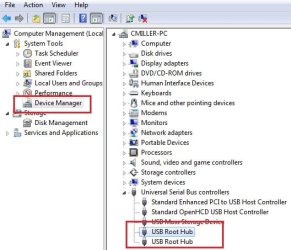
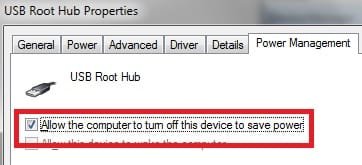
After About 3 hrs i finally found a fix to this issue by creating a batch file that uninstalls the device from the computer prior to it being put on hibernate/standby. Then after the computer starts back up the device is reinstalled automatically. To do this i used 3 programs all free and available
USBDeview,
NIRcmd and
AutoHotKey.
1: Download
USBDeview and extract the main .exe to a folder. I made a folder called standby in my windows directory. Make sure you download the 32 bit version and not the 64 bit version because the feature that uninstalls the device was not available in the 64 bit version. This program will do what we need it to do if you have a 64 bit operating system in my case Windows7 Ultimate x64.
2: Open USBDeview.exe and locate Nostromo n52 HID Speedpad
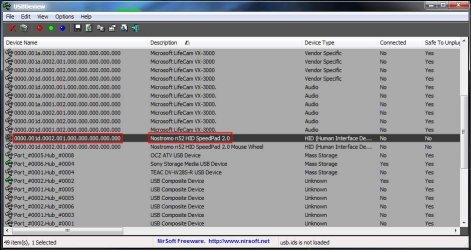
3: Copy the device number which in my case was 0000.001d.0002.001.000.000.000.000.000 to a text document that will be turned into a batch file later
4: download
NIRcmd and place the .exe in the same folder as USBDeview. i used this program to start a hibernate via the command line in my batch file. This should work for both 32 and 64 bit versions.
5: Open the txt document that has your device number and create a batch file like so. I added the ping command as a wait command to make sure the nostromo is successfully uninstalled correctly. After 6 seconds your computer will enter into standby, and when you wake it up the device should reinstall automatically. Make sure after you have saved the txt file to rename it into a .bat so it can be executed. You may have to go into folder properties and enable extensions so you can rename it.
(Note. If you want to hibernate instead of standby just type hibernate instead of standby and the NIRcmd will trigger a hibernate instead)
(Note. You may have to reopen a nostromo profile after resuming windows. So far ive only had to do this once in my case crysis.ldt on my desktop)
usbdeview /remove 0000.001d.0002.001.000.000.000.000.000
PING 1.1.1.1 -n 1 -w 6000 >NUL
nircmd.exe standby
6: Now you can either make a shortcut to the batch file on your desktop whenever you want to standby or you can use
AutoHotKey and make a key combination that will run the batch file.
After i installed autohotkey i made a simple script that executed the batch file. Make a text document and enter this. (change the path if you placed it in a different folder) This will execute the batch file when Ctrl+Alt+a is pressed.
^!a::
Run, standby.bat, C:\Windows\standby, max
Save the file and rename it to standby.ahk if you have autohotkey installed it should automatically associate .ahk files so if you place the .ahk file in your windows startup folder it should be ready whenever you computer starts.