Windows 7 Forums


Windows 7: Moving Desktop Icons to the Taskbar

25 Nov 2010   #1

Windows 7 Ultimate x64
 
 
Moving Desktop Icons to the Taskbar

I just got a Dell XPS laptop, x64, and, so far, I have no real issues with Windows 7. I like a clean desktop and, on my XP machines, moved the desktop icons with ease. With the new operating system, I've done that, too, but some icon cannot be moved in the traditional way. Is there a way to move My Document, My Pictures, My Computer, etc., to the taskbar?

I apologize if this has been discussed. Many thanks for any assistance.

Mike

My System SpecsSystem Spec

25 Nov 2010   #2

Win 7 Home Premium 64bit Ver 6.1.7600 Build 7601 - SP1
Central Pa.


Hi! mikegc, welcome to W7F

Would this be what your looking for?
http://www.sevenforums.com/tutorials...ram-links.html

If you go to the bottom of the tutorial there are variations on the theme of pinning to the taskbar.

Happy Thanksgiving!
My System SpecsSystem Spec
25 Nov 2010   #3

Windows 7 Ultimate x64
England


right click on taskbar and select toolbars -> my documents

repeat to get my computer on taskbar and then right click on desktop and select hide icons

hope that will help
My System SpecsSystem Spec
.


25 Nov 2010   #4

Windows 7 Home Premium x64 SP1
Bay Area Peninsula


Quote   Quote: Originally Posted by Devilz View Post
right click on taskbar and select toolbars -> my documents

repeat to get my computer on taskbar and then right click on desktop and select hide icons

hope that will help
I'd agree, except rather than hiding desktop icons as a whole (unless you'd rather no icons ever show on the desktop), just remove the My Document, My Pictures, My Computer, etc. shortcuts. A Guy
My System SpecsSystem Spec
27 Nov 2010   #5

Windows 7 Ultimate x64
 
 
Moving Desktop Icons to the Taskbar

Thanks, everyone! I managed to get My Computer moved but still can't budge My Documents and My Pictures. I'll learn to live with it.

Mike
My System SpecsSystem Spec
28 Nov 2010   #6

Windows 7


Right click taskbar. Click toolbars. Select desktop. This will appear next to notification items. Right click empty desktop. Select view. Uncheck "show desktop icons. To see desktop icons click arrow to right of desktop
My System SpecsSystem Spec
28 Nov 2010   #7

Windows 7 Ultimate x64


Quote   Quote: Originally Posted by mikegc View Post
I just got a Dell XPS laptop, x64, and, so far, I have no real issues with Windows 7. I like a clean desktop and, on my XP machines, moved the desktop icons with ease. With the new operating system, I've done that, too, but some icon cannot be moved in the traditional way. Is there a way to move My Document, My Pictures, My Computer, etc., to the taskbar?

I apologize if this has been discussed. Many thanks for any assistance.

Mike
Quote   Quote: Originally Posted by mikegc View Post
Thanks, everyone! I managed to get My Computer moved but still can't budge My Documents and My Pictures. I'll learn to live with it.

Mike
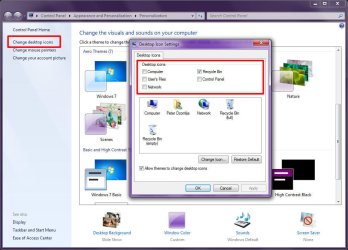
Do you want to remove them from the desktop? Try this:
  1. Right-click an unused part of the desktop, then click "Personalize"
  2. Click "Change desktop icons"
  3. Remove the check marks from the items in "Desktop Icons"
  4. Click OK
  5. Close the Personalization window
But as far as pinning individual icons for Computer, Documents and Pictures to t he taskbar, I don't think you can, not unless you're willing to enable the old-fashioned and antiquated Quick Launch Bar.

This is because Computer, Documents, Pictures, and indeed all the other personal User Folders are all controlled by Windows Explorer. Basically, if I pin "Computer" to the taskbar, then clicking that icon will activate the Explorer window (or open Explorer at Computer if it is not already open). If no Explorer windows are open, and I click "Pictures" on the start menu, then Windows Explorer will open to Pictures, and the pinned icon on the taskbar will activate.

Pinning happens on a per-application basis. Only one icon at at time perapplication is allowed to be pinned.
Attached Thumbnails
Moving Desktop Icons to the Taskbar-image1.jpg  
My System SpecsSystem Spec
28 Nov 2010   #8

Windows 7 Ultimate x64


Quote   Quote: Originally Posted by placidarc View Post
Right click taskbar. Click toolbars. Select desktop. This will appear next to notification items. Right click empty desktop. Select view. Uncheck "show desktop icons. To see desktop icons click arrow to right of desktop

Yup, you're right. I found that and that's what I'm using now. Thanks for your help!

Mike
My System SpecsSystem Spec
28 Nov 2010   #9

Windows 7 Ultimate x64


"But as far as pinning individual icons for Computer, Documents and Pictures to t he taskbar, I don't think you can, not unless you're willing to enable the old-fashioned and antiquated Quick Launch Bar.

This is because Computer, Documents, Pictures, and indeed all the other personal User Folders are all controlled by Windows Explorer. Basically, if I pin "Computer" to the taskbar, then clicking that icon will activate the Explorer window (or open Explorer at Computer if it is not already open). If no Explorer windows are open, and I click "Pictures" on the start menu, then Windows Explorer will open to Pictures, and the pinned icon on the taskbar will activate."
- Dzomlija


I can't believe this: I found a Windows article that told me how to my "Computer" to the toolbar and it works fine. My Pictures and My Document, though, are a different matter. Thank you for your assistance!!!!!

Mike
My System SpecsSystem Spec
28 Nov 2010   #10

Windows 7 Ultimate x64


Quote   Quote: Originally Posted by mikegc View Post
I can't believe this: I found a Windows article that told me how to my "Computer" to the toolbar and it works fine. My Pictures and My Document, though, are a different matter. Thank you for your assistance!!!!!

Mike
Try this:
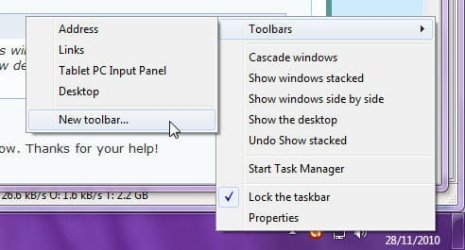
1) Right click the taskbar, click "Toolbars", click "New toolbar...":
Moving Desktop Icons to the Taskbar-image1.jpg

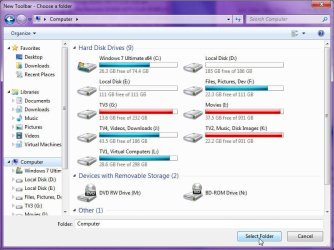
2) In the "New Toolbar - Choose a folder" window, click "Computer", then click "Select Folder":
Moving Desktop Icons to the Taskbar-image2.jpg

3) Bingo, you have a "Computer" toolbar on your taskbar:
Moving Desktop Icons to the Taskbar-image3.jpg

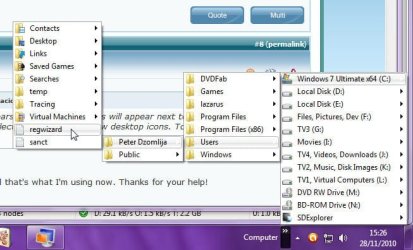
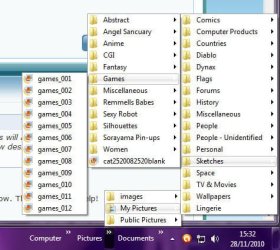
4) It work for Documents and Pictures also (and any other folder you may want). Here is the toolbar I created for my Pictures library:
Moving Desktop Icons to the Taskbar-image4.jpg


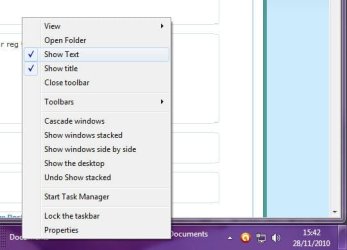
I'm not entirely sure though if this is what you want, but it's the best solution there is without requiring the use of the quick launch bar. If you right-click on the taskbar, then uncheck "Lock the taskbar", you can then drag the toolbar title to make it more visible:
Moving Desktop Icons to the Taskbar-image5.jpg

Right-click the toolbar title to get additional options, such as "Show Text" or "Show Title":
Moving Desktop Icons to the Taskbar-image6.jpg
My System SpecsSystem Spec
Reply

 Moving Desktop Icons to the Taskbar problems?


Thread Tools


Similar help and support threads for: Moving Desktop Icons to the Taskbar
Thread Forum
Desktop Icons Moving General Discussion
Desktop icons moving around by themselves? General Discussion
desktop icons keep moving.... General Discussion
icons moving on desktop General Discussion
IE8 Desktop Icons Moving Browsers & Mail


All times are GMT -5. The time now is 12:39 AM.


Windows 7 Forums is an independent web site and has not been authorized,
sponsored, or otherwise approved by Microsoft Corporation.
"Windows 7" and related materials are trademarks of Microsoft Corp.
© Designer Media Ltd