Hi all,
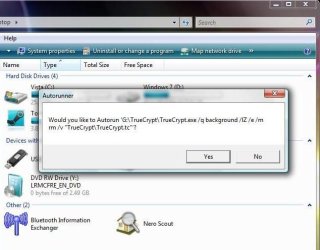
It appears that Microsoft has disabled the Autorun feature for USB devices in Windows 7. If you create an appropriate Autorun.inf file on your USB drive, Vista (and XP?) will happily run the program it points to when you plug the device in, but in Windows 7 that is no longer the case. I've read a few news articles explaining that this is by design, out of security concerns.
While I understand and even agree with the reasoning, I was wondering whether there was a way (perhaps in the Group Policy editor, or some Registry hack) to override or bypass this?
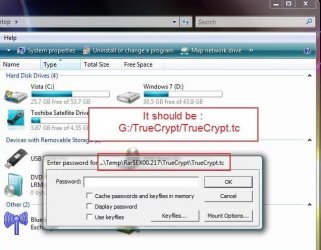
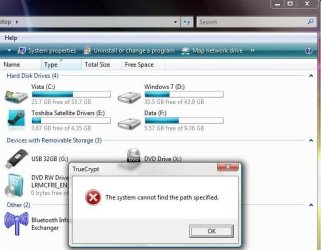
I have just created a nice autorun feature to enable me to mount a TrueCrypt-encrypted container on my USB stick, but that no longer works in Win7. (Can't use BitLocker as I still need uncrypted access to the root of the drive in order for BitLocker to allow Win7 to start on my fully encrypted C:-drive).
Any hints?
Lucien.
It appears that Microsoft has disabled the Autorun feature for USB devices in Windows 7. If you create an appropriate Autorun.inf file on your USB drive, Vista (and XP?) will happily run the program it points to when you plug the device in, but in Windows 7 that is no longer the case. I've read a few news articles explaining that this is by design, out of security concerns.
While I understand and even agree with the reasoning, I was wondering whether there was a way (perhaps in the Group Policy editor, or some Registry hack) to override or bypass this?
I have just created a nice autorun feature to enable me to mount a TrueCrypt-encrypted container on my USB stick, but that no longer works in Win7. (Can't use BitLocker as I still need uncrypted access to the root of the drive in order for BitLocker to allow Win7 to start on my fully encrypted C:-drive).
Any hints?
Lucien.
Last edited:
My Computer
At a glance
Windows 7 RC 64-bit Build 7100
- OS
- Windows 7 RC 64-bit Build 7100


 ....oh well carry on then
 Anyway i have multiboot and now i`m using my Vista Ultimate again