Searching apparently non-indexed files

Schmich

New member
I've never liked Windows 7 search, not because it has a new different index search, but because it removed the simple linear one. I also dislike how the average Joe is supposed to know the syntax for refined search queries, not mentioning only having a set amount of size options (unless that can be changed manually?). All this, not mentioning how little space the "Search filter" has gotten...I wish there was a Search window like we used to have on at least Windows XP (Start -> Search) where you could fill in Advanced Search forms. Today if the start search field (no idea what it's called) is not enough you have to open a folder first. That part seems a little regressive.

Anyways, now I turned on an external HD because I need a file that is there but when I search for it I get nothing. Does the file exist? I'm pretty damn sure. I even ran some searches for files I saw and therefore know they exist. Results: 0.

For all I know, if I had to do it under XP it would take longer than an index search to find my PSD file but hey at least it's simple and I would have gotten it by now >_<

So what's the deal with the search feature? Am I doing something wrong or is it not working properply? Any help on understanding this would be grateful!
 

My Computer

OS
7137
I thought that Windows 7 first searched the index, but then started searching the old way right after.

Try it. explore from C: (or whatever drive) then type in the box.

It first checks the index, then plows thru your drive like XP/2000 use to.
 

My Computer

Computer Manufacturer/Model Number
Built Myself
OS
Windows 7 7600.16384 x64
CPU
Intel Core i7 OC'd to 3.20 GHz
Motherboard
Gigabyte
Memory
6GB GSkillz Triple Channel DDR3 OC'd to 1600 MHz
Graphics Card(s)
Nvidia GTX 280
Sound Card
X-Fi Platinum
Monitor(s) Displays
Dual 2001FWP
Screen Resolution
1680x1050 x 2
Hard Drives
System - Dual 150GB Raptors Raid0
Doc Storage - 1TB SATA 32MB cache Samsung
TV Recordings - 1TB SATA 32MB cache Samsung
PSU
Gigawatt Antec
Case
Antec 900
Keyboard
Saitek
Mouse
logitech MX 10000
Internet Speed
30 mb/s
Windows 7 search sucks alright.

try this freeware for 4 times faster searching, plus enables some hidden features in Windows 7, such as CopyAsPath.

PowerDesk 6.0

When you right-click on a file that you have searched, it gives you the entire hidden Send To menu that was only available by a keyboard combination.

Awesome:D
 

My Computer

Computer Manufacturer/Model Number
Cheap $399.00 E-Machine
OS
Windows 7 Pro & Vista Home Premium
CPU
Athlon 64 3800+ (Orleans) 2.40GHz
Motherboard
Winfast
Memory
2GB DDR2 RAM DIMM
Graphics Card(s)
NVIDIA GeForce 8500 GT 512 MB memory HDMI out
Sound Card
creative X-Fi Exteme 7..1 channel
Monitor(s) Displays
Acer V223W 22" widescreen DVI
Screen Resolution
1680x1050
Hard Drives
WDC WD5 500GB
WDC WD25 250GB
PSU
OCZ 550 watt
Case
Gateway
Cooling
2 fans
Keyboard
Dell
Mouse
Sony Vaio
Internet Speed
18MB/s down - .72MB /s up
I thought so too but nope. Maybe it thinks my external HD is fully indexed when it isn't?

As soon as I search, instantly, it says "No items match your search" the search doesn't keep on going.

edit: Thanks reghakr, I'll take a look at it.
 

My Computer

OS
7137
Did you try to set up the drive for indexing or add it to a library? (adding it to a library would get it indexed automatically)

Is the drive NTFS or FAT formatted? What build are you on? If you go to the Indexing Options control panel, does that drive appear in the list of indexed locations?


As for the filters, there is a rich set of filters available in the drop-down that shows up under the search box. Depending on which library you're in, it will show you relevant filters, and once you select a filter it will show you the possible values that would return matches given the rest of your query. You didn't have anything like that in XP.

In Details view you can also filter using the column headers, just as in Vista.

Also, you don't need to open a folder window before searching. You can just press the Windows key, type your search terms, and press Enter.
 

My Computer

OS
Windows 7
I never included it in any library however it is listed in the Indexing Options. Its format is NTFS and the build is 7137.

According to my drop down all there is is a (nice) Date modified and a (very simple, can't choose my own sizes) size option. For other things I will need to know the syntax.

The intial start/windows key search bar is great and quick but I meant for advanced searching.

Unless the searching is just broken on my machine I'd say the search can sometimes be quite incomplete. Back when I was on Windows XP I thought there were things lacking as well. An example would be being able to tick what folders you want to search instead of searching just one "branch" (if I can call it that way) at a time. Less useful with index searching of course but more useful as storage increases. I guess being able to add many different search queries would be nice.
Eg. 1. find a file with name XXXXX or YYYYYY
Eg. 2. find a file XXXXX that was created between date A and B and/or date D and E.

Other than that I've been very pleased with Windows 7.
edit: oh I also wish we could pin the taskbar previews =)
 

My Computer

OS
7137
Copy As Path has been included since vista, hold down Shift and Right Click, you get more options, CMD here, Run As, .....
 

My Computer

Computer Manufacturer/Model Number
Built Myself
OS
Windows 7 7600.16384 x64
CPU
Intel Core i7 OC'd to 3.20 GHz
Motherboard
Gigabyte
Memory
6GB GSkillz Triple Channel DDR3 OC'd to 1600 MHz
Graphics Card(s)
Nvidia GTX 280
Sound Card
X-Fi Platinum
Monitor(s) Displays
Dual 2001FWP
Screen Resolution
1680x1050 x 2
Hard Drives
System - Dual 150GB Raptors Raid0
Doc Storage - 1TB SATA 32MB cache Samsung
TV Recordings - 1TB SATA 32MB cache Samsung
PSU
Gigawatt Antec
Case
Antec 900
Keyboard
Saitek
Mouse
logitech MX 10000
Internet Speed
30 mb/s
Yea, like i said with Key combos, but not in the GUI itself.:)
 

My Computer

Computer Manufacturer/Model Number
Cheap $399.00 E-Machine
OS
Windows 7 Pro & Vista Home Premium
CPU
Athlon 64 3800+ (Orleans) 2.40GHz
Motherboard
Winfast
Memory
2GB DDR2 RAM DIMM
Graphics Card(s)
NVIDIA GeForce 8500 GT 512 MB memory HDMI out
Sound Card
creative X-Fi Exteme 7..1 channel
Monitor(s) Displays
Acer V223W 22" widescreen DVI
Screen Resolution
1680x1050
Hard Drives
WDC WD5 500GB
WDC WD25 250GB
PSU
OCZ 550 watt
Case
Gateway
Cooling
2 fans
Keyboard
Dell
Mouse
Sony Vaio
Internet Speed
18MB/s down - .72MB /s up
For the size property, the valid values are pretty intuitive and flexible. You can just type size:<5MB or whatever. Or you can use KB, GB, etc.

If you're in the Documents library you should see Author and Type, and in Music you should see Album, Artist, Genre, etc. The filters are based on the type of the library you're in. For non-library locations the filters are a fixed list though. If you make the search box wider, you'll fit more filter suggestions like folder path and such.

Part of the idea behind the filter suggestions is that they'll teach you what you could have typed. You can also type other properties, like type folder: or ext: and it'll even turn the text blue to indicate it recognized a property filter.

Not sure why you aren't getting results from your drive. If you just query for "*" does anything come back?
 

My Computer

OS
Windows 7
I never included it in any library however it is listed in the Indexing Options. Its format is NTFS and the build is 7137.

According to my drop down all there is is a (nice) Date modified and a (very simple, can't choose my own sizes) size option. For other things I will need to know the syntax.

The intial start/windows key search bar is great and quick but I meant for advanced searching.

Unless the searching is just broken on my machine I'd say the search can sometimes be quite incomplete. Back when I was on Windows XP I thought there were things lacking as well. An example would be being able to tick what folders you want to search instead of searching just one "branch" (if I can call it that way) at a time. Less useful with index searching of course but more useful as storage increases. I guess being able to add many different search queries would be nice.
Eg. 1. find a file with name XXXXX or YYYYYY
Eg. 2. find a file XXXXX that was created between date A and B and/or date D and E.

Other than that I've been very pleased with Windows 7.
edit: oh I also wish we could pin the taskbar previews =)

Actually, you already have what you want, you just haven't given yourself the opportunity to see it:

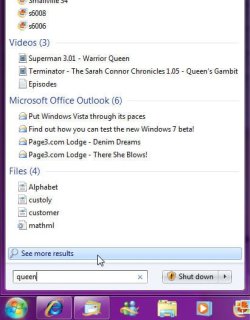
1) Click the "Start Orb", and enter your search query in the Search field, then when you have a set of results, click the "See more results" link:
Image1.jpg

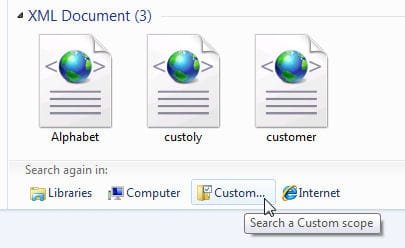
2) A normal Windows Explorer Search window will open. Scroll all the way down, then click "Custom...":
Image2.jpg

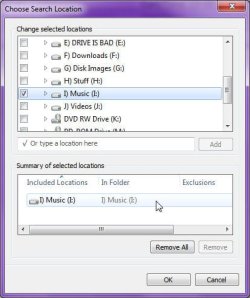
3) Filter your search down to specific folders by selecting specific drives/folders:
Image3.jpg

But then again, I've found that if I already know in which folder (or set of folders) a particular file exists, then I don't need to use search at all, so it's kind of a moot point.

You can also use Windows Help:

1) Click the Start Orb
2) Click "Help and Support"
3) In the Help window, search for "search"
4) Click on the second result "Searching in Windows: Frequently Asked Questions". Result 6 is also handy: "Improve Windows searches using the search index: Frequently Asked Questions"
 

My Computer

Computer type
PC/Desktop
Computer Manufacturer/Model Number
Virtual Machine
OS
Windows 7 Professional 32-bit SP1
CPU
AMD A4/A6
Motherboard
Intel Corporation 440BX Desktop Reference Platform
Memory
3.00GB EDO
Graphics Card(s)
VMware SVGA 3D
Sound Card
High Definition Audio Device
Monitor(s) Displays
Generic Non-PnP Monitor on VMware SVGA 3D
Screen Resolution
1440x900
Hard Drives
1 x 60GB VMware Virtual SATA Hard Drive ATA Device
Antivirus
Kaspersky Total Security
Wow nice I'll stand corrected, however I still think there should be some GUI for the average Joe or blind person like me =)

Searching for * only gives 10 files >_< Should I assume the Windows thinks the whole drive is indexed when it in fact isn't (and therefore doesn't continue with a linear search)? I'll rebuild the index to see in the mean time.

edit: well it seems the indexing was a bad one as I rebuild it and now it finally works.
 
Last edited:

My Computer

OS
7137
Wow nice I'll stand corrected, however I still think there should be some GUI for the average Joe or blind person like me =)

Searching for * only gives 10 files >_< Should I assume the Windows thinks the whole drive is indexed when it in fact isn't (and therefore doesn't continue with a linear search)? I'll rebuild the index to see in the mean time.

edit: well it seems the indexing was a bad one as I rebuild it and now it finally works.

Great, I'm glad it worked out for you. But here also is another tip that I use regularly when searching for files:

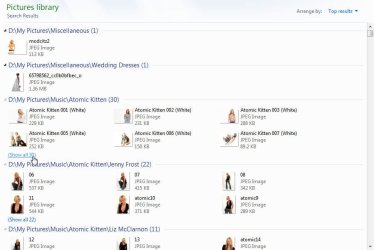
windowssearch.jpg

In the above screenshot, I opened my Pictures library and started a search using "tag:white" (look for all files with the word "White" in the tags). By the results returned, I could easily assume that is it. But if you look closely, at the bottom of each particular group (i group my results by location) there is a link that says "Show All XXX", where XXX is the number of results in that group.

Works like a treat!
 

My Computer

Computer type
PC/Desktop
Computer Manufacturer/Model Number
Virtual Machine
OS
Windows 7 Professional 32-bit SP1
CPU
AMD A4/A6
Motherboard
Intel Corporation 440BX Desktop Reference Platform
Memory
3.00GB EDO
Graphics Card(s)
VMware SVGA 3D
Sound Card
High Definition Audio Device
Monitor(s) Displays
Generic Non-PnP Monitor on VMware SVGA 3D
Screen Resolution
1440x900
Hard Drives
1 x 60GB VMware Virtual SATA Hard Drive ATA Device
Antivirus
Kaspersky Total Security
  • Like
Reactions: OEM
Note that the behavior noted above only applies if you change the grouping of the results, and you can't even do that for Libraries in more recent builds. At least I'm pretty sure you can't produce the screenshot you're showing there.
 

My Computer

OS
Windows 7
No drag on the system to install and run Everything. Just a file indexer, super fast, realtime updating, plenty of complex search options, very lightweight.

Then if you are just searching for a file - no menus to dig through - you'll have it in a couple of seconds.

Everything
 

My Computer

Computer Manufacturer/Model Number
AMD Athlon 64 3200+, Lenovo G560 i3
OS
Windows 7 Ultimate, Ubuntu
Motherboard
Gigabyte K8T8000
Memory
DDR 2Gb (!)
Graphics Card(s)
6600GT
Monitor(s) Displays
MultiMonitor (2) LCD
Hard Drives
Old Seagate 75
Big Western Digital
Samsung 500Gb pulled out of an external drive and installed
Ext: Maxtor (Firewire), 1Gb Lacie (Samsung)
Mouse
Logitech MX620 Cordless
Well it's a very nice explanation - and I appreciate the step by step images too. However, if you are in the process of going through old DL DVD backups as I am, and looking for specific file types, you might as well be attempting to use the Jedi Mind Trick -unless of course you ARE a Jedi.

I don't want to abandon W7 Search - but it does not seem able to do what the older and more simple search could. I want to be able to plug in a disk, and search for an extension listed on that disk. Then copy that list (regardless of path), to a new folder on a HDD.

Redhakr - I will certainly take your alternative and hold it in reserve. It is not freeware - but shareware however. i am sure there ARE freeware utilities out there that can and will work tho.

What I'd really like is for W7 to be able to do this all by itself. Does anyone else have any ideas? I can explore these DVD's just find- even enter each and every one of the folders and subfolders and copy manually. But I have yet to find a search string that will yield results on a newly inserted disk.

Are you saying that I have to add each newly inserted disk to the library before I can search it? I just got a message saying you can't add removable storage to a library...
 

My Computer

Computer Manufacturer/Model Number
Home Built
OS
Windows 7 Ultimate x64 OEM
CPU
i7 940 @4.55
Motherboard
ASUS Rampage II Extreme X58 BIOS Version 1802 1/28/2010
Memory
Corsair XMS3 12GB DDR3 1333 (PC3 10666) CAS 9 9-9-9-24
Graphics Card(s)
EVGA GeForce GTX 295
Sound Card
X-Fi Xtreme
Monitor(s) Displays
Gateway FPD2275W
Screen Resolution
1680X1050
Hard Drives
Crucial RealSSD 256MB, VelociRaptor 300(x2), Western Digital Caviar Black 1TB (x3)
PSU
Silverstone Decathlon DA850
Case
Antec 1200
Cooling
XIGMATEK Dark Knight - S1283
Keyboard
Deck Legend
Mouse
Logitech G5
Other Info
ASUS Model U3S6 USB 3.0 & SATA 6Gb/s Add-on card
Why can't you do this in Windows 7?

Open the drive, type *.mp3 - and wait while it greps your unindexed drive. I'm really confused why you think a previous version of Windows had a better option than this?

(note you can put it in quotes, like "*.mp3" if you don't want it to find files like "Something.mp3blah")

Other options that work are ext:mp3 or fileextension:mp3
 

My Computer

OS
Windows 7
No drag on the system to install and run Everything. Just a file indexer, super fast, realtime updating, plenty of complex search options, very lightweight.

Then if you are just searching for a file - no menus to dig through - you'll have it in a couple of seconds.

Everything

Why would you use that over just searching through Explorer or using dir /s? I mean it's only searching against the file names, and you already have an index of that (the filesystem itself). Seems kind of odd to pay for a tool that does what the OS already does.
 

My Computer

OS
Windows 7
Why can't you do this in Windows 7?

Open the drive, type *.mp3 - and wait while it greps your unindexed drive. I'm really confused why you think a previous version of Windows had a better option than this?

(note you can put it in quotes, like "*.mp3" if you don't want it to find files like "Something.mp3blah")

Other options that work are ext:mp3 or fileextension:mp3


I have done that - and the results that I get are "NO ITEMS MATCH YOUR SEARCH"

With 8GB worth of data on the backup DL DVD I have - which I know there are plenty of MP3's mixed among them - I get that kinda of result.

Do I have something turned off somewhere?

If you put a mixed DL DVD in your drive, and search this way do you get results??

Keeping in mind that I CAN use the explorer to manually navigate through the folders directly to whatever files are on the DVD...
 

My Computer

Computer Manufacturer/Model Number
Home Built
OS
Windows 7 Ultimate x64 OEM
CPU
i7 940 @4.55
Motherboard
ASUS Rampage II Extreme X58 BIOS Version 1802 1/28/2010
Memory
Corsair XMS3 12GB DDR3 1333 (PC3 10666) CAS 9 9-9-9-24
Graphics Card(s)
EVGA GeForce GTX 295
Sound Card
X-Fi Xtreme
Monitor(s) Displays
Gateway FPD2275W
Screen Resolution
1680X1050
Hard Drives
Crucial RealSSD 256MB, VelociRaptor 300(x2), Western Digital Caviar Black 1TB (x3)
PSU
Silverstone Decathlon DA850
Case
Antec 1200
Cooling
XIGMATEK Dark Knight - S1283
Keyboard
Deck Legend
Mouse
Logitech G5
Other Info
ASUS Model U3S6 USB 3.0 & SATA 6Gb/s Add-on card
Tang - What build are you on?

I'm not aware of any bugs affecting simple grep searches... if you type * into the search box, what happens? Are you sure that disc has .mp3 files on it?

Did you alter any of the settings in the Explorer Folder and Search Options? (like "include subfolders" or "include partial matches" perhaps?)
 

My Computer

OS
Windows 7
Windows Search service (indexation) is turned off here and search always went fine for me. I also regret that an advanced search windows is missing in 7 though. I use Agent Ransack for my advanced search needs, it have a "Specifies NOT expression" search option that I sometimes need and include hidden files by default.

Agent Ransack - home
 

My Computer

OS
Windows 7 build 7127 x64
CPU
Intel Core-i7 2600k 3.4 GHz
Motherboard
Onboard audio (Realtek ALC662 codec)
Memory
Patriot Extreme Performance 4GB PC2-6400 4-4-4-12
Graphics Card(s)
Intel G31
Sound Card
Creative Sound Blaster Audigy 2
Monitor(s) Displays
Viewsonic Professional Series P95f+
Screen Resolution
1280x1024 @ 85Hz
Hard Drives
Western Digital Raptor, 74GB 10000RPM (system drive)
Maxtor DiamondMax 10, 200GB 7200RPM
Seagate Barracuda 7200.10, 500GB 7200RPM
PSU
Antec Truepower 430watt
Case
Cooler Master TAC-T01 WaveMaster
Cooling
Intel & Nvidia stock cooller + 3 80mm case fans
Keyboard
Logitech Internet Navigator
Mouse
Logitech MX-518
Internet Speed
8/1MBPS
Back
Top