

Hi there,
I know it has been discussed, i followed everything I could, but maybe I missed something?
The search feature in windows 7 is not working properly. It seems like there is NO search functionality in windows 7 (x64).
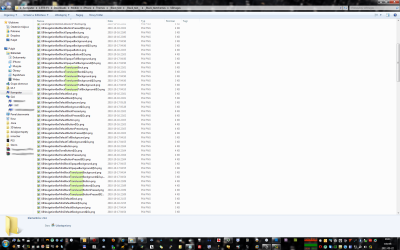
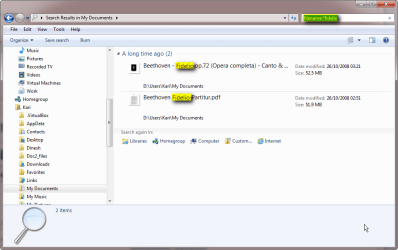
Just take a look at the screenshots below. The first screenshot on the left just shows few files with a Translucent word in it. On the screenshot there is 8 visible, but there is more of them inside this folder.
So I want to see all files with Translucent word only. You would expect that by typing Translucent word in the search box would do the job, but no, not this time.
I don't want to be rude, but since vista was released the search functionality is just pathetic. Yes I have all indexing options correct, I've been studying it since the day one, but then gave up until last night when I couldn't perform a very simple task. This is very frustrating.
I really don't understand this indexing thing. In win xp I could find EVERYTHING. Literally. I'm not bothered about searching through my emails and contents of the files since it doesn't even find what I want.
Summarizing, the search feature works, but only when it wants too. In this particular folder it doesn't and in my opinion "you're as strong as you weakest link" which in this case makes my search features useless. I know I can turn the indexing off, but that didn't fix it. I still can't find files with a "Translucent" word in it.
What's that about?
Or am I missing something?
Kind regards,
M.
I know it has been discussed, i followed everything I could, but maybe I missed something?
The search feature in windows 7 is not working properly. It seems like there is NO search functionality in windows 7 (x64).
Just take a look at the screenshots below. The first screenshot on the left just shows few files with a Translucent word in it. On the screenshot there is 8 visible, but there is more of them inside this folder.
So I want to see all files with Translucent word only. You would expect that by typing Translucent word in the search box would do the job, but no, not this time.
I don't want to be rude, but since vista was released the search functionality is just pathetic. Yes I have all indexing options correct, I've been studying it since the day one, but then gave up until last night when I couldn't perform a very simple task. This is very frustrating.
I really don't understand this indexing thing. In win xp I could find EVERYTHING. Literally. I'm not bothered about searching through my emails and contents of the files since it doesn't even find what I want.
Summarizing, the search feature works, but only when it wants too. In this particular folder it doesn't and in my opinion "you're as strong as you weakest link" which in this case makes my search features useless. I know I can turn the indexing off, but that didn't fix it. I still can't find files with a "Translucent" word in it.
What's that about?
Or am I missing something?
Kind regards,
M.
Attachments

Last edited:
My Computer
At a glance
7 64-bit Ultimatei7-2600KCorsair 1866MHz 8GBSapphire ATI HD6990
- Computer Manufacturer/Model Number
- zYxMa Computers, Inc. iFixYourPC.co
- OS
- 7 64-bit Ultimate
- CPU
- i7-2600K
- Motherboard
- ASUS Maximus IV Extreme
- Memory
- Corsair 1866MHz 8GB
- Graphics Card(s)
- Sapphire ATI HD6990
- Sound Card
- HD6990 + Yamaha RX-V467
- Monitor(s) Displays
- Dell U3011 | Panasonic P50VT20 3D
- Screen Resolution
- 30" 2560x1600 | 50" 1920x1080 3D
- Hard Drives
- OCZ HybridDrive 1TB | OCZ Agility 3 - OS | Hitachi 250GB - Random | WD 1TB - Files | Seagate 1TB - Files | WD 1.5TB - Files
- PSU
- Cooler Master Silent Pro Gold 1200W
- Case
- CoolerMaster Cosmos-II
- Cooling
- Liquid-cooled
- Keyboard
- Logitech Illuminated K800 + diNovo Mini
- Mouse
- RAT9 + MX Revolution + MX Air + Harmony One
- Internet Speed
- 18mbps
- Other Info
- iPhone 4S 64GB




 due to heavy CPU load.


