Windows 7 Forums Search
Welcome to Windows 7 Forums. Our forum is dedicated to helping you find solutions with any problems, errors or issues you are experiencing with Windows 7. The Windows 7 forum also covers news and updates and has an extensive Windows 7 tutorial section that covers a wide range of tips and tricks.


Windows 7 - Details View too Tight

 
05-20-2011   #1


Windows 7 Ultimate x64 SP1 Build 7601


Details View too Tight

This happens after I try DreamScene Activator from here:
DreamScene Activator: Activate DreamScene In All Editions Of Windows 7 & Vista | door2windows

My folder view is resetted for all folder types to default details view, auto-folder discovery is likely turned off too, and some view modes is too tight including list, details view modes. But view modes in Library doesn't affected. Well, I can't explain it clearly but focus on the blue selection color where at library is wider than in any other mode
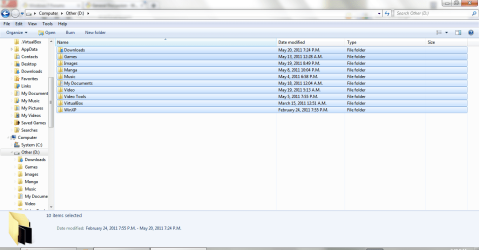
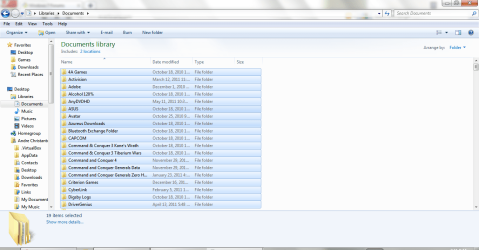
Details View too Tight-expl1.png

Details View too Tight-expl2.png

I've tried to remove DreamScene Activator and sfc with no luck
Thanks

EDIT: Auto-Refresh is disabled too. So I have to click Refresh to view file I copied, moved, or extracted. And I don't have any idea to enable it

My System SpecsSystem Spec
05-20-2011   #2


Seven ultimate 32bit


Can't you just move the column header to the size you need it to be.?
My System SpecsSystem Spec
05-20-2011   #3


ultimate 64 sp1


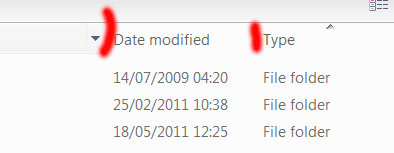
i'm not quite sure what your problem is, if you want to make the columns wider or narrower, move your mouse pointer to the top of the column where i've put the red lines.

Details View too Tight-column.png

your mouse cursor should then change, and you will be able to resize the width. i tried to get a screenshot of this, but it was difficult.

==========================================

the auto-refresh thing is an annoying bug that only a few people experience. i've had it from time to time (even with sp1) and would love to know what the fix is. do you have any system restore points? that was the only way i could get rid of the very annoying problem.
My System SpecsSystem Spec
.


05-20-2011   #4


Windows 7 Ultimate x64 SP1 Build 7601


No. I don't mean the Left-Right wide but the up-down wide of file selection (the row width I guess)
And please tell me how to enable auto-refresh
My System SpecsSystem Spec
05-20-2011   #5


ultimate 64 sp1


do you mean the height of each blue bar?

or the whole width of it? it seems wider in your library view because there is an empty and wide 'size' column on the right.
My System SpecsSystem Spec
05-20-2011   #6


Windows 7 Ultimate x64 SP1 Build 7601


Yes I mean the height of each blue bar
My System SpecsSystem Spec
05-20-2011   #7


ultimate 64 sp1


i'm sorry, but i can't help you with that - but now we know exactly what your problem is, maybe others can.

good luck!
My System SpecsSystem Spec
05-20-2011   #8


Windows 7 Ultimate x64 SP1 Build 7601


OK. Thanks for trying to help
My System SpecsSystem Spec
05-20-2011   #9


Windows 7 Ultimate x64 SP1 Build 7601


Update:

If I change the folder type to something other than "General Items", the row width is back to normal. So I guess the problem is with "General Items" folder types
My System SpecsSystem Spec
05-20-2011   #10


ultimate 64 sp1


thanks for reporting back
My System SpecsSystem Spec
Reply

 Details View too Tight problems?


Thread Tools


Similar Threads for: Details View too Tight
Thread Forum
want details view, not icon view, for "save as" General Discussion
View More Details Always Customization
Details view everywhere Customization
Always with the Details view? General Discussion
Set folder view globally to details General Discussion


All times are GMT -5. The time now is 12:02 AM.


Windows 7 Forums is an independent web site and has not been authorized,
sponsored, or otherwise approved by Microsoft Corporation.
"Windows 7" and related materials are trademarks of Microsoft Corp.
© Designer Media Ltd
  

1 2 3 4 5 6 7 8 9 10 11 12 13 14 15 16 17 18 19 20 21 22 23 24 25 26 27 28 29 30