
Hi All,
I have a problem with extending my primay hard disk dirve meomory space for window 7 and hope that I can resolve without losing any of my file.
Here is my situation:
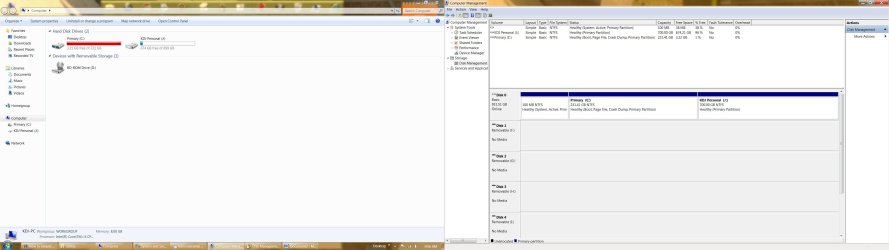
I have 2 hard disk drives C: (Primary- 231GB- 3.21free ) and J: (699GB -674GB free. After installing window 7, I'm using this dirve to save all my works). Now my primary Hard drive is almost full (only 3.21GB free) and I wanted to extend the memory space. Now I have two questions
1. How can I extend some more memory space into C: drive without deleting/formation J: drive?
2. I’m saving all my works in my J: drive I don’t know how did this primary C: drive memory got used. Is there any way I can see what is in this C: so that I can delete/move unnecessary things and make more space or
Advance thanks!
Cheers.
I have a problem with extending my primay hard disk dirve meomory space for window 7 and hope that I can resolve without losing any of my file.
Here is my situation:
I have 2 hard disk drives C: (Primary- 231GB- 3.21free ) and J: (699GB -674GB free. After installing window 7, I'm using this dirve to save all my works). Now my primary Hard drive is almost full (only 3.21GB free) and I wanted to extend the memory space. Now I have two questions
1. How can I extend some more memory space into C: drive without deleting/formation J: drive?
2. I’m saving all my works in my J: drive I don’t know how did this primary C: drive memory got used. Is there any way I can see what is in this C: so that I can delete/move unnecessary things and make more space or
Advance thanks!
Cheers.
Attachments
Last edited:
My Computer
At a glance
windows 7 Home 64bit
- OS
- windows 7 Home 64bit


