|
Welcome to Windows 7 Forums. Our forum is dedicated to helping you find solutions with any problems, errors or issues you are experiencing with Windows 7. The Windows 7 forum also covers news and updates and has an extensive Windows 7 tutorial section that covers a wide range of tips and tricks.
Windows 7 - "Consider Replacing Your Battery" |
02-04-2010
|
#21 | | |

Quote: Originally Posted by thefabe 
Quote: Originally Posted by TheTeZ i doubt windows 7 is the cause.... i think people started checking..... people use their laptops as regular computers, and leave them plugged in the entire time they are in use. that is HORRIBLE for the battery! i think the incorrect usage type is more to blame. i doubt after a full charge most people take out the battery (if they are going to leave it plugged in) like they are supposed to. i would love to hear winodws come out and "comment on this" with something along the lines of, "dont be stupid" "read your manual" "its a rechargeable battery, learn to use it"
but we shall see... i guess its possible that it COULD be a windows issue... but i personally do not believe it/ I agree with having it plugged in all the time wish i could get my Mom to understand it still even after Gateway told her it would shorten the battery life still plugged in. Fabe There is no real problem with leaving the battery plugged in if the laptop is designed to disperse heat well. Many of the newer laptops are designed to keep the battery at/near room temperature, which is fine for them.
Older laptops were less well-designed, and so caused the batteries to heat up, which is the killer. | My System Specs | | System Manufacturer/Model Number Dell Inspiron 1545 OS Windows 7 build 7100 x86 CPU Intel Core 2 Duo 2.1GHz Motherboard GM45 chipset Memory 3GB Graphics Card Intel(TM) Graphics Media Accelerator X4500HD Sound Card Realtek HD Monitor(s) Displays 15.6" WLED 720p Screen Resolution 1366x768 Hard Drives 320GB 5400rpm hard drive |
02-05-2010
|
#22 | | |

Quote: Originally Posted by raydabruce I tried that workaround and it didn't work for me. And I doubt it worked for him either (he doesn't say what happened after it finished charging or what the capacity percentage change (if any) was. If the EEPROM in the battery has been written with bad data by Win 7, (the cause of the problem) there doesn't seem to be any remedy. The "workaround" seem only to have stopped the error msg (while charging). If it were as easy as the "workaround" says, I doubt this issue would still be in the news. Another poster in another thread installed Linux after Windows 7 damaged his battery by reducing the capacity of a new battery to only 62% in just a few days usage. In Linux, he drained the battery totally and then re-charged it while the laptop was off for several hours. In his case, he gained back about 20% more capacity (to 81%). So there may be something to this method. This is the real issue here: Windows 7 writing inaccurate data to the battery's EEPROM saying it's capacity is reduced when, if fact, it is not. But, because the battery reports reduced capacity, Windows will shut down the machine prematurely and there appears to be no fix as of yet. An update to Windows ACPI and battery management driver is probably the fix that is needed.
I hope Microsoft finds a solution soon so I can go back to Windows 7.
so then just download some linux iso, and pop in the live CD every now and then, let it charge, then be on your way ;=] | My System Specs | | System Manufacturer/Model Number Custom Built - TheTeZ OS Windows 7 -x6 CPU Intel Core 2 Extreme QX9650 Processor- (Quad) Motherboard Asus P5N-D Motherboard Memory OCZ Platnum 8gb(2gbx4) PC 6400 DDR2 800MHz Graphics Card EVGA 01G-P3-1145-TR GeForce GTS 250 Video Card Sound Card Realtek ALC883 Monitor(s) Displays 19" WideScreen Mag Innovision & Acer X203H Vertical Mount Screen Resolution 1440x900 & 1600x900 PSU Kingwin Mach 1 Modular Power Supply Case NZXT Tempest ATX Mid-Tower Case -- AKA Flow Master Cooling Thermaltake SpinQ CPU Cooler - Aerocool Touch 1000 LCD Panel Hard Drives Western Digital WD7500AADS Caviar Green Hard Drive - 750GB
Western Digital WD500
Hitachi 1TB Serial ATA HD |
02-05-2010
|
#23 | | |
Guys for my lappy, it was the Microsoft ACPI-Compliant Control Method Battery PnP device, as soon as i disabled this is Device Manager, the icons message just went away. My XP dualboot is fine so i disabled it on my Windows 7. | My System Specs | | System Manufacturer/Model Number Lenovo ThinkPad T60 OS Windows 7 Ultimate 64Bit CPU GenuineIntel Intel(R) Core(TM) DuoCore T2400 @ 1.83GHz Motherboard Intel(R) 82801G (ICH7 Family) Memory 2.00 GB Graphics Card Mobile Intel(R) 945 Express Chipset Sound Card SoundMAX Integrated Digital HD Audio Monitor(s) Displays ThinkPad Display Screen Resolution 1400x1050 Keyboard Standard Keyboard Mouse HID-compliant Mouse Hard Drives 100Gb SATA Internet Speed Cable Broadband - 54Mbps Other Info Intel(R) PRO/1000 PL Network Connection
11a/b/g Wireless LAN Mini PCI Express Adapter |
02-07-2010
|
#24 | | Windows 7 Ultimate x86 and Ubuntu Linux 9.10 |

Quote: Originally Posted by aem Guys for my lappy, it was the Microsoft ACPI-Compliant Control Method Battery PnP device, as soon as i disabled this is Device Manager, the icons message just went away. My XP dualboot is fine so i disabled it on my Windows 7. That's fine for getting rid of the message but it won't correct the wrong values for battery capacity that Windows 7 has written to your battery's EEPROM chip. | My System Specs | | System Manufacturer/Model Number Acer Aspire One 532h OS Windows 7 Ultimate x86 and Ubuntu Linux 9.10 CPU Intel Atom N450 Memory 2GB Graphics Card GMA3150 Hard Drives Western Digital Scorpio Blue 250GB |
02-07-2010
|
#25 | | |

Quote: Originally Posted by raydabruce 
Quote: Originally Posted by aem Guys for my lappy, it was the Microsoft ACPI-Compliant Control Method Battery PnP device, as soon as i disabled this is Device Manager, the icons message just went away. My XP dualboot is fine so i disabled it on my Windows 7. That's fine for getting rid of the message but it won't correct the wrong values for battery capacity that Windows 7 has written to your battery's EEPROM chip. Can you explain more on this value and where i can check it? | My System Specs | | System Manufacturer/Model Number Lenovo ThinkPad T60 OS Windows 7 Ultimate 64Bit CPU GenuineIntel Intel(R) Core(TM) DuoCore T2400 @ 1.83GHz Motherboard Intel(R) 82801G (ICH7 Family) Memory 2.00 GB Graphics Card Mobile Intel(R) 945 Express Chipset Sound Card SoundMAX Integrated Digital HD Audio Monitor(s) Displays ThinkPad Display Screen Resolution 1400x1050 Keyboard Standard Keyboard Mouse HID-compliant Mouse Hard Drives 100Gb SATA Internet Speed Cable Broadband - 54Mbps Other Info Intel(R) PRO/1000 PL Network Connection
11a/b/g Wireless LAN Mini PCI Express Adapter |
02-07-2010
|
#26 | | |
How I fixed my "consider replacing your battery".
1) Adjust all setting in your power scheme to minimize actions when the battery is low. (turn off all sleep or hibernate commands and reduce all warnings to 0 or 1 minute).
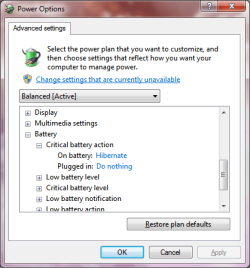
2) Run the following command: To change the 'Battery->Critical battery action->'On battery' setting to "Do nothing" using powercfg.exe- activate the power scheme you want to modify.
- open an elevated command console (windows key, type 'cmd' in start menu, press "ctrl+shift+enter", click 'continue')
- execute "powercfg -setdcvalueindex SCHEME_CURRENT SUB_BATTERY BATACTIONCRIT 0"
- your current power scheme will show "Battery->Critical battery action->On battery: Do nothing" despite the option being unavailable in the drop box.
3) Run your laptop until it dies...your pc will fully crash. Then fully recharge and run until it dies again.
This will recalibrate your battery. Because Windows 7 automatically shuts down your PC when it thinks the battery is low, it never recalibrates. You have to stop if from sleeping or hibernating all together to get the battery to recalibrate. I went from 66% battery wear to 0.0% overnight. | My System Specs | | |
02-08-2010
|
#27 | | |

Quote: Originally Posted by snlu178 How I fixed my "consider replacing your battery".
1) Adjust all setting in your power scheme to minimize actions when the battery is low. (turn off all sleep or hibernate commands and reduce all warnings to 0 or 1 minute).
2) Run the following command: To change the 'Battery->Critical battery action->'On battery' setting to "Do nothing" using powercfg.exe- activate the power scheme you want to modify.
- open an elevated command console (windows key, type 'cmd' in start menu, press "ctrl+shift+enter", click 'continue')
- execute "powercfg -setdcvalueindex SCHEME_CURRENT SUB_BATTERY BATACTIONCRIT 0"
- your current power scheme will show "Battery->Critical battery action->On battery: Do nothing" despite the option being unavailable in the drop box.
3) Run your laptop until it dies...your pc will fully crash. Then fully recharge and run until it dies again.
This will recalibrate your battery. Because Windows 7 automatically shuts down your PC when it thinks the battery is low, it never recalibrates. You have to stop if from sleeping or hibernating all together to get the battery to recalibrate. I went from 66% battery wear to 0.0% overnight. how do i remove this changed setting when i have finished? | My System Specs | | System Manufacturer/Model Number HP dv6519tx OS Windows 7 Ultimate x64 CPU 1.80 GHz Intel Core 2 Duo processor T7100 Memory 3 gig ddr2 Graphics Card NVIDIA GeForce 8400M GS Sound Card Realtek High Definition Audio Monitor(s) Displays 15.4” WXGA High Definition BrightView Widescreen Screen Resolution 1280 x 800 Keyboard 101 key compatible Mouse Touch Pad with On/Off button and dedicated vertical Scroll PSU 90 W AC Power Adapter Cooling Kitchen plate under the lappy Hard Drives Hitachi 320 GB (5400 rpm) Internet Speed Three Wireless internet prepaid using E160G USB dongle |
02-08-2010
|
#28 | | Windows 7 Ultimate x86 and Ubuntu Linux 9.10 |

Quote: Originally Posted by aem 
Quote: Originally Posted by raydabruce 
Quote: Originally Posted by aem Guys for my lappy, it was the Microsoft ACPI-Compliant Control Method Battery PnP device, as soon as i disabled this is Device Manager, the icons message just went away. My XP dualboot is fine so i disabled it on my Windows 7. That's fine for getting rid of the message but it won't correct the wrong values for battery capacity that Windows 7 has written to your battery's EEPROM chip. Can you explain more on this value and where i can check it? I don't know of any way to check it other than the usual way within Windows. It will report your charge capacity (original and current) with "powercfg.exe -energy -output [filename]." If your charge capacity is dropping fast, then you have a problem. Batteries should last anywhere from 1 to 5 years, depending on usage patterns, in my experience. | My System Specs | | System Manufacturer/Model Number Acer Aspire One 532h OS Windows 7 Ultimate x86 and Ubuntu Linux 9.10 CPU Intel Atom N450 Memory 2GB Graphics Card GMA3150 Hard Drives Western Digital Scorpio Blue 250GB |
02-08-2010
|
#29 | | |
Pusspa
Go back into the power scheme and change the "critical battery" setting. That should correct it. I have left it alone with the "PC dying" feature for now to stop Win 7 from once again killing the battery.
FYI if you set setting back to normal Win 7 will just redo the "consider replacing your battery". If you leave the setting alone as I detailed, you get hours of battery life back...just dont let it put your PC to sleep when it thinks you are out of juice. | My System Specs | | |
02-08-2010
|
#30 | | |

Quote: Originally Posted by raydabruce 
Quote: Originally Posted by aem 
Quote: Originally Posted by raydabruce
That's fine for getting rid of the message but it won't correct the wrong values for battery capacity that Windows 7 has written to your battery's EEPROM chip. Can you explain more on this value and where i can check it? I don't know of any way to check it other than the usual way within Windows. It will report your charge capacity (original and current) with "powercfg.exe -energy -output [filename]." If your charge capacity is dropping fast, then you have a problem. Batteries should last anywhere from 1 to 5 years, depending on usage patterns, in my experience. The problem is not dropping fast, not that i time my battery life, it's the message of replacing battery.
My report came back with: Both with power mains and battery only. Battery:Analysis Success Analysis was successful. No energy efficiency problems were found. No information was returned. | My System Specs | | System Manufacturer/Model Number Lenovo ThinkPad T60 OS Windows 7 Ultimate 64Bit CPU GenuineIntel Intel(R) Core(TM) DuoCore T2400 @ 1.83GHz Motherboard Intel(R) 82801G (ICH7 Family) Memory 2.00 GB Graphics Card Mobile Intel(R) 945 Express Chipset Sound Card SoundMAX Integrated Digital HD Audio Monitor(s) Displays ThinkPad Display Screen Resolution 1400x1050 Keyboard Standard Keyboard Mouse HID-compliant Mouse Hard Drives 100Gb SATA Internet Speed Cable Broadband - 54Mbps Other Info Intel(R) PRO/1000 PL Network Connection
11a/b/g Wireless LAN Mini PCI Express Adapter "Consider Replacing Your Battery" problems? All times are GMT -5. The time now is 12:51 AM. |  |