User account corrupt? Docs read only, can't open Firefox & Live Mail
I have searched the forums and can find similar issues but none seem to be the same.
I can't remember the exact sequence of events but it went something like:
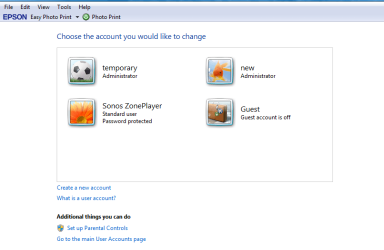
Interestingly I am getting the HP security warning in the other admin account telling me the guest account is enabled - it is not!
It looks like I have overcome the firefox problem by setting up an additional profile in firefox but it doesn't have any of my favourites etc.
Rather than copying everything over to a new user account I wondered if there was a fix. It smacks of a problem in the profile but am not sure where to look.
Thanks in advance and sorry if there is a solution already posted - I have looked and looked.
I have searched the forums and can find similar issues but none seem to be the same.
I can't remember the exact sequence of events but it went something like:
- I had been having problems with Sonos desktop controller and updated / reinstalled (this didn't resolve the problem by the way and am seeking resolution through the Sonos forum)
- At about the same time I started getting a security message from my HP Assistant telling me the guest account was enabled but as far as I can see it wasn't.
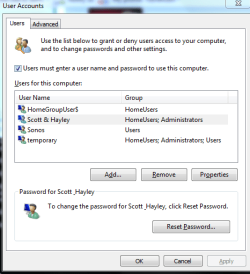
- I now only have read access to my documents and they crash when opened
- Firefox thought for a while another instance was open and asked me to close it but it wasn't open
- Firefox now won't open and is telling me "Could not initialize the browser's security component. The most likely cause is problems with files in your browser's profile directory. Please check that this directory has no read/write restrictions and your hard disk is not full or close to full. It is recommended that you exit the browser and fix the problem. If you continue to use this browser session, you might see incorrect browser behavior when accessing security features"
- Windows LiveMail will not open due to corrupt calendar entry
- I get a Catalyst Control Centre error also
Interestingly I am getting the HP security warning in the other admin account telling me the guest account is enabled - it is not!
It looks like I have overcome the firefox problem by setting up an additional profile in firefox but it doesn't have any of my favourites etc.
Rather than copying everything over to a new user account I wondered if there was a fix. It smacks of a problem in the profile but am not sure where to look.
Thanks in advance and sorry if there is a solution already posted - I have looked and looked.
My Computer
At a glance
Microsoft Windows 7 Home Premium 64-bit 7601 ...AMD Turion(tm) II P540 Dual-Core Processor6.00 GB(1) ATI Mobility Radeon HD 5470 (2) AMD M880G...
- Computer Manufacturer/Model Number
- HP Pavilion dv6 laptop
- OS
- Microsoft Windows 7 Home Premium 64-bit 7601 Multiprocessor Free Service Pack 1
- CPU
- AMD Turion(tm) II P540 Dual-Core Processor
- Motherboard
- Hewlett-Packard 1441
- Memory
- 6.00 GB
- Graphics Card(s)
- (1) ATI Mobility Radeon HD 5470 (2) AMD M880G with ATI Mob
- Sound Card
- (1) Bluetooth Hands-free Audio (2) ATI High Definition Aud
- Hard Drives
- ST9500420AS ATA Device
- Other Info
- Touchpad