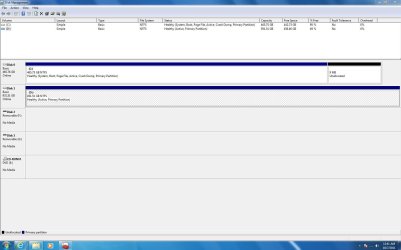
Had Win7 on my system before, but did a fresh re-install due to some glitches. I have two hard drives. The first is for software and the OS. The second is strictly for files like documents, pictures, etc.
The install of Win7 came off without a hitch except for one major problem. When I go to access my D drive, I can see all of the folders, but I cannot access any of the files. How can I get permission to access my files without going through each file one-by-one and changing permissions?
Thanks.
The install of Win7 came off without a hitch except for one major problem. When I go to access my D drive, I can see all of the folders, but I cannot access any of the files. How can I get permission to access my files without going through each file one-by-one and changing permissions?
Thanks.
My Computer
At a glance
Windows 7 64 ProIntel E6850 Core 2 Duo @ 3.00GHz4GB DDR2-800 OCZGeForce 9600GT
- Computer Manufacturer/Model Number
- Home Grown Desktop
- OS
- Windows 7 64 Pro
- CPU
- Intel E6850 Core 2 Duo @ 3.00GHz
- Motherboard
- Asus P5K-E Wifi AP
- Memory
- 4GB DDR2-800 OCZ
- Graphics Card(s)
- GeForce 9600GT
- Monitor(s) Displays
- Samsung SyncMaster 226BW
- Screen Resolution
- 1600x1050
- Hard Drives
- WD 500GB Caviar Black
WD 1TB Caviar Black
- PSU
- 450 Watt
- Keyboard
- Logitech MK300
- Mouse
- Logitech MK300
- Other Info
- HP Deskjet Pro 8500, Asus 802.11n WLAN card; Klipsch ProMedia 2.1 speakers

 )
)