Join Forum
|
Login
|
Today's Posts
|
Tutorials
|
Vista Forum
|
Windows 8 Forum
Windows 7 Help Forums
>
Windows 7 help and support
>
General Discussion
»
Windows 7: How do i change the preview of minimized folders ?
06 Jan 2012
#
1
dimitrisioa
Windows 7 Ultimate x32
2 posts
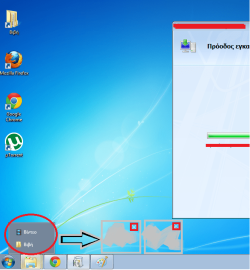
How do i change the preview of minimized folders ?
I want to know how i can change that , when i minimize them and i click on them i want to be appeared one side by side , not up from the other. Can someone explain me how to do this?
My System Specs
OS
Windows 7 Ultimate x32
06 Jan 2012
#
2
Solidwave
Win7Ultimate x64 + x32, Win7Pro x64, XP x32, Win 2003, Ubuntu and OpenIndiana
121 posts
I think the only way to do what you want is to enable an Aero theme. Basic themes (without transparency) don't support minimized window previews.
My System Specs
OS
Win7Ultimate x64 + x32, Win7Pro x64, XP x32, Win 2003, Ubuntu and OpenIndiana
06 Jan 2012
#
3
dimitrisioa
Windows 7 Ultimate x32
2 posts
Thank you so much Solidwave it worked , i am happy that i found this forum i will need it , i am new at windows 7
My System Specs
OS
Windows 7 Ultimate x32
.
How do i change the preview of minimized folders ? problems?
«
Can not open .exe files.
|
BSOD playing Guild Wars error 0x000000D1
»
Thread Tools
Printable Version
Email this Page
Similar help and support threads for: How do i change the preview of minimized folders ?
Thread
Forum
Change the width of minimized windows?
Customization
ATI Eyfinity: minimized window preview on mouse over help
Graphic Cards
realtime mini-preview of minimized Window
General Discussion
The taskbar Preview of Minimized Windows
Customization
Most folders show a mini preview file, but some dont?
General Discussion
All times are GMT -5. The time now is
01:43 AM
.
Contact Us
-
Windows 8 Support
-
Windows Vista Support
-
Legal
-
Privacy and cookies
-
Top
Windows 7 Forums is an independent web site and has not been authorized,
sponsored, or otherwise approved by Microsoft Corporation.
"Windows 7" and related materials are trademarks of Microsoft Corp.
©
Designer Media Ltd
1
2
3
4
5
6
7
8
9
10
11
12
13
14
15
16
17
18
19
20
21
22
23
24
25
26
27
28
29
30
31
32