| Windows 7: how to lose a partition on new HP laptop? |
03 Feb 2012
|
#1 | | |
how to lose a partition on new HP laptop? Hi
I bought an HP Envy with Windows 7 a couple of weeks ago. So far I have been happy, but something is preventing me from really getting started with this machine:
It has a very large drive (750 gb)
My idea was to make a couple of extra partitions with
a) programs
b) files (music and vids)
the whole point being that in case of virus or OS reinstalling I would safe much time, as programs and files would stay untouched.
The unpleasant surprise is that HP (and others) ship new laptops with
4 primary partitions.
In this case:
SYSTEM
C (OS)
D (Recovery)
HP TOOLS
I tried to make a fifth partition, but it's not possible (four primary partitions limitation)
I then burned recovery to 5 dvd's.
So now my options are:
1) delete recovery partition. Some say it's ok and safe, others advice against it (something with having to send pc to HP for authorisation in case of reinstall)
2) leave recovery partition alone and maybe try to make it bigger, put stuff here (programs and files). But I'd rather not to. Also I read that the recovery partition has to be unaltered.
3) delete HP Tools (but it contains Bios recovery software, so maybe make a bootable cd? is it possible?)
4) forget everything about my original plan, use Windows 7 imaging option and save images of my system on an external drive
which option would you recommend? Do I have other options?
This is really annoying, I am stuck so far.
Thanks in advance | My System Specs |
| |
03 Feb 2012
|
#2 | | Windows 7 SP1, Home Premium, 64-bit |
If I knew that my recovery disks worked, I'd be sorely tempted to hose all 4 partitions, download a legit ISO, burn it to a DVD, and reinstall with partitions of my own choice.
I suspect that might affect your warranty, but maybe you don't care---particularly if you can use your recovery disks to go back to a factory setup if you ever have to beg HP for anything.
I wouldn't put stuff in the recovery partition.
The system partition is presumably that little 100 or 200 mb thing that has your boot files. If so, you should be able to move those boot files to C and then get rid of that system partition.
I'd probably try to talk you out of putting programs anywhere but C, unless you are knee deep in games and they won't fit.
As far as the Tools partition, goes, I'd be suspicious of how necessary it is. I'm not sure what "BIOS recovery software" might be and I don't know what HP might stick in there. | My System Specs | | System Manufacturer/Model Number Ignatz Special; 4 speed manual gearbox; factory air conditioning; one of one OS Windows 7 SP1, Home Premium, 64-bit CPU Intel Sandy Bridge i5-2500, not overclocked Motherboard Gigabyte H67A-UD3H-B3, full ATX Memory 4 GB Crucial DDR3-1333 Graphics Card none; graphics are integrated on CPU Sound Card onboard: Realtek ALC892; external: USB Behringer UF0-202 Monitor(s) Displays NEC 90GX2-BK 19" LCD Screen Resolution 800 x 640 Keyboard Leopold Tenkeyless with Cherry Blue switches, USB Mouse Logitech or Microsoft optical wired; either USB or PS 2 PSU Seasonic SS-560KM, modular Case Antec Solo II Cooling CPU: Scythe Big Shuriken; Case: Scythe Slipstream 800 & 500 Hard Drives System: Intel 320 Series SSD, 80 GB;
Data: Samsung Spinpoint 103SJ, 1 TB;
Backup: WD Caviar Green WD15EADS-00P8B0, 1.5TB Other Info Power consumption of this system, including monitor: 68 watts at idle; 144 watts at full load |
03 Feb 2012
|
#3 | | |
Unless you do not do much installing and customising your software then these factory recovery partitions are often useless. It might be best to ditch it and choose another method although as pointed out if you have to return the computer under warranty then you will get it back as bought and thus lose all that you have added.
One option, as mentioned and probably the safest is to lose the 100 Mb or so partition as in - Bootmgr - Move to C:\ with EasyBCD
Doing this will enable you to have further partitions but this will probably stop the recovery partition from working so another method will be required for back-ups.
Many here, including myself use Macrium Reflect free edition to make images of the system partition with other free software (I use SyncBack) to back-up data. The main problem with resizing the C: partition is that often files are stored at the end of the partition and these probably will not be moved using the Windows defrag - a necessary process before repartitioning if using the inbuilt system disk management options. Defraggler or the free trial version of PerfectDisk should be able to move these files. The free partition software from EASEUS will enable partitions to be resized also. I would suggest a C: partition of 60 - 100 GB ( I make do with 60 GB) and as pointed out it probably isn't worth it to separate the Programs out to another partition. I store all my data on another partition and also all data associated with programs that will tend to take up quite some space - e.g. Spotify or BBC iPlayer.
With only having one HDD this means that images of the OS must either be made to DVDs or to a USB drive or to the Network although the images can also be stored on another partition of the Laptop drive but hardware failure will lose all. The normal method for restoring images is to use a CD to boot from but it may be possible to boot from a USB stick if your system allows this.
It is quite possible to have a decent system and not use any of the supplied options but it is a bit of a leap of faith unless you do have experience with some of the necessary software and also have experience with restoring system images.
Hope that is of some help. | My System Specs | | System Manufacturer/Model Number Compaq desktop OS Windows 7 x64 SP1 CPU Athlon II x2 215 Memory 4.0 GB Graphics Card Onboard Sound Card Creative SB X-Fi Titanium HD (nice) Monitor(s) Displays 24" Dell LCD Screen Resolution 1900 x 1200 Keyboard USB Mouse USB PSU 430w Hard Drives 320 GB, 500 GB and 750 GB 7200 rpm Internet Speed approx 10 Mbps |
03 Feb 2012
|
#4 | | |
Thank you both!
well, I consider myself an experienced (non techy) pc user. Never the less, I prefer not to take chances.
I think I will keep the recovery partition
The system partition, pincushion, if moving it will impact the recovery partition, I think I will leave it alone
Putting programs on C drive, yes, I will do that.
I have downloaded Easeus , so maybe I will expand C to maximum place and put EVERYTHING there, giving up the media partition idea.
Or...maybe it is safe to delete HP tools partition?
I have an external usb hard drive, I will take an image of the whole system after I have installed all the extra software I need (a few progs),
Is the Windows 7 built in imaging good enough? Alternatives? I do have an old Ghost (2003), maybe an option?
Also: can you recommend a software (free or shareware) to sync data between different pc and drives? I now have 2 laptops, one backup drive, to pen drives for small files....keeping everthing in sync will be a challenge. I could use a program that just does that, help me sync , user friendly and intuitive would be a plus
thanks a bunch! | My System Specs | | |
03 Feb 2012
|
#5 | | Windows 7 SP1, Home Premium, 64-bit |
See comments in bold 
Quote: Originally Posted by arty69
The system partition, pincushion, if moving it will impact the recovery partition, I think I will leave it alone. I never have heard of any connection at all between the system reserved partition and recovery partition, but I'll let others comment. I think the system reserved partition is a prime candidate for removal, but you need to confirm that is all that partition is in your case. You would certainly have to transfer its system files to C.
I have downloaded Easeus , so maybe I will expand C to maximum place and put EVERYTHING there, giving up the media partition idea. Hold your fire temporarily on that till you know exactly what your partitioning plans are. I think EaseUS is OK. Another recommended app for that is Partition Wizard bootable disk.
Or...maybe it is safe to delete HP tools partition? You need to know what is on it first. You may need EaseUS or Partition Wizard or your manual to figure that out.
Is the Windows 7 built in imaging good enough? Alternatives? It works, but is not the simplest thing to understand and is finicky. The common alternatives are Macrium Reflect, Acronis, and an EaseUS product.
Also: can you recommend a software (free or shareware) to sync data between different pc and drives? The most common choice is probably SyncToy, but there are at least a half dozen others. | My System Specs | | System Manufacturer/Model Number Ignatz Special; 4 speed manual gearbox; factory air conditioning; one of one OS Windows 7 SP1, Home Premium, 64-bit CPU Intel Sandy Bridge i5-2500, not overclocked Motherboard Gigabyte H67A-UD3H-B3, full ATX Memory 4 GB Crucial DDR3-1333 Graphics Card none; graphics are integrated on CPU Sound Card onboard: Realtek ALC892; external: USB Behringer UF0-202 Monitor(s) Displays NEC 90GX2-BK 19" LCD Screen Resolution 800 x 640 Keyboard Leopold Tenkeyless with Cherry Blue switches, USB Mouse Logitech or Microsoft optical wired; either USB or PS 2 PSU Seasonic SS-560KM, modular Case Antec Solo II Cooling CPU: Scythe Big Shuriken; Case: Scythe Slipstream 800 & 500 Hard Drives System: Intel 320 Series SSD, 80 GB;
Data: Samsung Spinpoint 103SJ, 1 TB;
Backup: WD Caviar Green WD15EADS-00P8B0, 1.5TB Other Info Power consumption of this system, including monitor: 68 watts at idle; 144 watts at full load |
03 Feb 2012
|
#6 | | |
I can recommend Syncback which does syncing as well as straight back-ups but as pointed out there are several free alternatives. Having used system imaging quite successfully on my previous XP system (Acronis) I just deleted the Recovery partition on my system to make new partitions but I would have deleted the 100 MB partition if I had known it might be quite easy. I don't actually know if the Recovery partition depends upon having the small partition but sod's law says it will! I made a copy (image) of the Recovery partition but it will never be used.
As I have a desktop I have added further HDDs and I image quite frequently and have restored used Macrium many times without any problems. Since I tend to tweak and customise quite a bit I have gone the route of having an up-to-date image (every 1-2 weeks) and I don't believe in OS reinstalls if you keep the system clean and lean. This philosophy has worked for many years on this and other systems. Although System Restore might work for many I find that a full system image is the safest approach as it tends to cater for most problems whether they are self-induced (as many of mine are) or malware issues. A full system image for my system only takes about 10 minutes. | My System Specs | | System Manufacturer/Model Number Compaq desktop OS Windows 7 x64 SP1 CPU Athlon II x2 215 Memory 4.0 GB Graphics Card Onboard Sound Card Creative SB X-Fi Titanium HD (nice) Monitor(s) Displays 24" Dell LCD Screen Resolution 1900 x 1200 Keyboard USB Mouse USB PSU 430w Hard Drives 320 GB, 500 GB and 750 GB 7200 rpm Internet Speed approx 10 Mbps |
03 Feb 2012
|
#7 | | Windows 7 Ultimate x64 SP1 Philadelphia, PA |
You can burn your recovery discs, and then burn a copy of the swsetup folder to a disc as well. This way, any apps you want can be reinstalled, even with a clean install. You can safely then delete the recovery partition and the HP Tools partition.
I just wiped out my wife's new laptop and did a clean install for her. I have two total partitions on the drive, both primary. One is for the system volume and her programs. The second is D, for Data and her user files. I have a personal rule that I never create more than two partitions on a drive. | My System Specs | | OS Windows 7 Ultimate x64 SP1 CPU Intel Core i7-2600 Motherboard Gigabyte GA-P67A-UD3P-B3 Memory 12 GB Patriot Extreme DDR3-1333 Graphics Card Nvidia GTX 470 Monitor(s) Displays Dell UltraSharp 2209WA PSU OCZ ModStream 700W Case CoolerMaster HAF 912 Advanced Cooling CoolerMaster Hyper 212 Plus Hard Drives OCZ Agility3 240 GB, WD5001AALS, WD7501AALS |
04 Feb 2012
|
#8 | | |
As DeaconFrost has mentioned - backing up the swsetup folder - I did this too and fortunately have not needed to reinstall any of the original software - uninstalled a lot of it actually. | My System Specs | | System Manufacturer/Model Number Compaq desktop OS Windows 7 x64 SP1 CPU Athlon II x2 215 Memory 4.0 GB Graphics Card Onboard Sound Card Creative SB X-Fi Titanium HD (nice) Monitor(s) Displays 24" Dell LCD Screen Resolution 1900 x 1200 Keyboard USB Mouse USB PSU 430w Hard Drives 320 GB, 500 GB and 750 GB 7200 rpm Internet Speed approx 10 Mbps |
04 Feb 2012
|
#9 | | |
Guys
what is the swsetup partition you are referring to?
Is it the SYSTEM partition?
I am not sure, I dare make changes. I guess I could erase the recovery partition now I have burned the recovery discs. But many people advice against. I guess worst case scenario (system failure and faulty recovery disks) I could get the HP people to send me one, right?
Actually I am asking myself (and you): is it that great an idea in the first place making partitions for files and programs? I guess if you have the patience to manually reinstall progs in case of system failure, the partitions are not that needed.
And, in case I put EVERYTHING on the same (C) partition: will it result in HUGE image files? I will have 200+ gigs of video files.
Thank you a lot for the great advice | My System Specs | | |
04 Feb 2012
|
#10 | | Windows 7 x64 Ultimate A Finnish immigrant in Leipzig, Germany |
I have two Envy17's, have had two more plus quite a few HP Pavilions, Probooks etc. This is how I prepare a HP laptop for my use. Notice that this is only my opinion, how I as a long time HP user do it, opinions of other users may be different. However, this is IMO the best way to get Windows plus drivers installed without none whatsoever bloatware or third party applications.
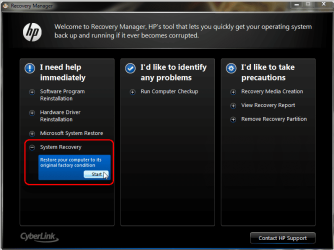
After first boot I always burn recovery disk set. That done, I run HP recovery manager once selecting the option "Restore the minimized image" like this: - Launch Recovery manager:
. 
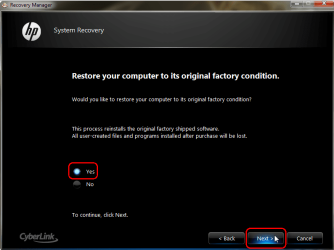
. - Select System Recovery:
. 
. - Select Yes, click Next:
. 
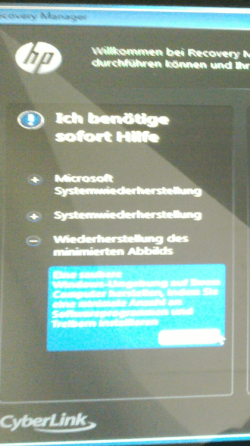
. - After reboot, select Restore the minimized image (Envy used in this example bought in Germany, selection freely translated, it is the bottom most selection on left pane):
. 
This restores a Windows image but just Windows and factory drivers, nothing else. If you want to do a complete factory recovery including all third party applications and trialware, select the option in the middle (Factory Recovery).
Now you have a barebone Windows installed and you can start playing with disk management as told before in this thread
Kari | My System Specs | | Computer type Laptop System Manufacturer/Model Number HP ENVY 17-1150eg OS Windows 7 x64 Ultimate CPU 1.6 GHz Intel Core i7-720QM Processor Memory 6 GB Graphics Card ATI Mobility Radeon HD 5850 Graphics Sound Card Beats sound system with integrated subwoofer Monitor(s) Displays 17" laptop display, 22" LCD and 32" Full HD TV through HDMI Screen Resolution 1600*900, 1680*1050 and 1920*1080 Keyboard Logitech diNovo Media Desktop Laser (bluetooth) Mouse Logitech MX1000 Laser (Bluetooth) Hard Drives Internal: 2 x 500 GB SATA Hard Disk Drive 7200 rpm
External: 2TB for backups, 3TB USB3 network drive for media Internet Speed 50/10 Mbps VDSL Antivirus MSE, Windows Defender Browser Maxthon 3.5.2. Other Info Windows 7 Ultimate Retail Full in English, additional Guest-user accounts in Finnish, German and Swedish (Working languages English & Swedish, Family language German, my own language, mother tongue, Finnish. I really need Ultimate to get to use Language Packs!) how to lose a partition on new HP laptop? problems? All times are GMT -5. The time now is 04:12 AM. | |