| Windows 7: Extending my Windows 7 Partition |
18 Aug 2009
|
#1 | | 7 x64/ Back-Track 4 Illinois...India? |
Extending my Windows 7 Partition Okay :P Lets see how i can do this  I have Vista Home Prem. x64 on my C: drive. That was my original OS. I shrank(shrunk?) that by 40 GB. My Windows 7 Ultimate x64 is now on my 40 GB partition X:. I now wanna give my X: drive more space from my C: drive. I have 37.2 GB free on my C: drive. How can i give 20 of those 37.2 free GB into my X: drive(Which is my Windows 7 one)
:P Thansk ^^ | My System Specs |
| System Manufacturer/Model Number HP dv6000t CTO Entertainment Lappy |My Desktop @ Bottom OS 7 x64/ Back-Track 4 CPU Intel Core 2 Duo CPU 8300@ 2.4 Ghz Motherboard HP's Own Memory 4096 MB DDR2 Graphics Card Nvidia 8400M GS Sound Card Altec Lansing (The usual on Laptops ) Monitor(s) Displays Laptop Screen. 17' Wide. Screen Resolution 1280 x 800 Keyboard Norm. Cheap Random Keyboard Mouse Norm. Cheap Random Mouse Cooling 2 External Fans, Undervolted, Coolant Hard Drives 150 GB HDD. Other Info This is my Homemade Desktop :)
HDD: Western Digital Caviar Blue 320GB 16MB 7200RPM SATA2
And more to come in a bit! :D |
18 Aug 2009
|
#2 | | |

Quote: Originally Posted by DarkDavil Okay :P Lets see how i can do this  I have Vista Home Prem. x64 on my C: drive. That was my original OS. I shrank(shrunk?) that by 40 GB. My Windows 7 Ultimate x64 is now on my 40 GB partition X:. I now wanna give my X: drive more space from my C: drive. I have 37.2 GB free on my C: drive. How can i give 20 of those 37.2 free GB into my X: drive(Which is my Windows 7 one)
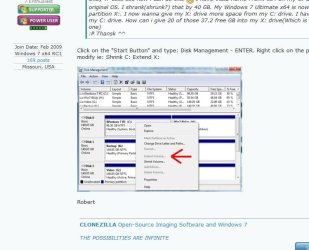
:P Thansk ^^ Click on the "Start Button" and type: Disk Management - ENTER. Right click on the partition you want to modify ie: Shrink C: Extend X:
Robert | My System Specs | | |
18 Aug 2009
|
#3 | | |
it may take a long time though, particularly if the partitions are badly defragmented - defrag them first.
(although i have often wondered whether it's worth defragging before doing this sort of thing - it seems a good idea, the partitions will be resized faster if defragged, but as it takes a long time to defrag in the first place....how much time (if any) do you gain?)
(sorry if i'm rambling, it's 1.42 am and i've had most of a bottle of red  ) | My System Specs | | System Manufacturer/Model Number mickey megabyte 1234 OS ultimate 64 sp1 CPU i5 2500K 3.3@4.2GHz Motherboard MSI P67A-GD53 Memory 8 gigs GSkill Ripjaws 1600 Graphics Card amd hd6950 Sound Card creative x-fi gamer Monitor(s) Displays samsung 24" Screen Resolution 1920x1080 Keyboard saitek eclipse ii Mouse logitech g3 PSU antec 550 Case antec three hundred Cooling i'm a cooling fan Hard Drives ocz vertex 2e 60 gig, samsung f3 1tb, buffalo 2tb ext Internet Speed about 4 Mbps Other Info i love win7 |
18 Aug 2009
|
#4 | | Windows 7 Ultimate x64, XP Mode, W8 RP VM, Linux Mint Debian 2nd OS HD- 7 Pro x64 second case New England |
You'll run right into problems attempting to shrink the Vista primary any further especially if booted in the Vista installation when trying to start off. First you may run into the lack of memory error when booting into the Vista installation later simply from possibly not having enough free drive space if you should add anything further as far as programs, files.
The second would be the obvious recommendation to back everything up from the drive since the resizing if that should go bad will effect the entire drive. If you manage to shrink the Vista C primary while booted in 7 to use the Disk Management tool there you will still need to move the 7 primary forward afterwards where that will not only take some time but usually need the use of a 3rd party drive tool to start with.
While the 17+gb should still leave enough drive space for Vista a 3rd party tool for seeing this done would allow one operation to follow the other instead of booting into one to do something with the other. If you need a free drive tool for this GParted live for cd can shrink the Vista primary, move the 7 primary forward to fill in the then empty drive space(gap between primaries), and later expand the 7 primary to fill in the space it was moved back from at the rear of the drive.
GParted information and instructions, GPARTED DOCUMENTATION - GENERALITIES
Latest release in iso disk image form, Browse GParted Files on SourceForge.net
Some additional screenshots can be looked over at GParted -- Screenshots
For multibooting on multiple drives and resizing, moving partitions GParted has been quite reliable here. | My System Specs | | OS Windows 7 Ultimate x64, XP Mode, W8 RP VM, Linux Mint Debian 2nd OS HD- 7 Pro x64 second case CPU AMD Phenom II X4 975 Deneb 3.6ghz - 965 on new mini tower Motherboard Gigabyte GA-790XTA-UD4 Memory Kingston Hyper X DDR3 1600 1.5v 16gb - Mushkin on 2nd build Graphics Card MSI HD Radeon 5750 1gb - MSI HD Radeon 6450 on mini tower Sound Card Creative Labs X-Fi XtremeGamer - Realtek onooard 2nd case Monitor(s) Displays 2 x Acer P191W 19" widesscreen - HP 20" widescreen mini towe Screen Resolution 1440x900 native - 1600x1024 on 7 Pro x64 build Keyboard Microsoft Recusa Razor - MS Comfort 3000 on second build Mouse MS Trackball Explorer - A4TECH dual scroll wheel trackball PSU Corsair 750TX - primary / Corsair CX600 - second Case Antec 900-2 - SSD compatible / NZXT Vulcan mini tower Cooling Zalman CNPS9900A Hard Drives Primary Ultimate x64 build-
WD Black Edition 1tb Sata 6.0 = 2
WD Black Edition 1tb Sata 3.0 = 2 (OS drives)
WD 1tb Green Power sata = 2 1 external
usb flash drives = 18
Second 7 Pro x64 mini tower-
WD Caviar SE 500gb sata II single drive presen Internet Speed 30mbps upgrade - primary hard wired - mini tower usb WiFi |
18 Aug 2009
|
#5 | | 7 x64/ Back-Track 4 Illinois...India? |
Hmmmm. Im not sure about using that Gparted stuff. But I will resort to that if worst comes to worst  Here are the(my) facts.
1. My C: drive and also my X: drive are fully defragged, courtesy of Auslogics :P
2. WHen i went in to shrink my C: drive, it would only let me shrink my C: drive (Size of 37.2 GB) by 9113 MB so thats only like.. 8.899 or 8.9 GB. (1024 MB = 1 GB yea? :P)
3. Now i have created a new partition. How can i expand my X: drive into that space of 8.9 GB? Help would all be appreciated :0
But anyway, rep for you all ^^
massive :P | My System Specs | | System Manufacturer/Model Number HP dv6000t CTO Entertainment Lappy |My Desktop @ Bottom OS 7 x64/ Back-Track 4 CPU Intel Core 2 Duo CPU 8300@ 2.4 Ghz Motherboard HP's Own Memory 4096 MB DDR2 Graphics Card Nvidia 8400M GS Sound Card Altec Lansing (The usual on Laptops ) Monitor(s) Displays Laptop Screen. 17' Wide. Screen Resolution 1280 x 800 Keyboard Norm. Cheap Random Keyboard Mouse Norm. Cheap Random Mouse Cooling 2 External Fans, Undervolted, Coolant Hard Drives 150 GB HDD. Other Info This is my Homemade Desktop :)
HDD: Western Digital Caviar Blue 320GB 16MB 7200RPM SATA2
And more to come in a bit! :D |
18 Aug 2009
|
#6 | | Windows 7 Ultimate x64, XP Mode, W8 RP VM, Linux Mint Debian 2nd OS HD- 7 Pro x64 second case New England |
GParted works without Windows being loaded and won't run into any unmovable system file problems if you are trying to shrink the Vista primary while booted in Vista. Once you have worked with it a few times you won't be going back to the disk management except for taking some screenshots. That's the difference seen there.
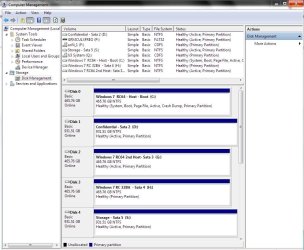
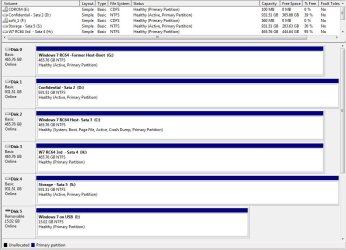
For what you are trying to see done there you will likely end up needing a 3rd party drive partitioning program. When first running the 7 beta builds you can see how the hard drives here looked where XP and Vista were still seen in a "quadruple boot" setup at the time.
From there once the RCs first became available XP was the first to go followed by Vista when installed on a virtual machine. That was followed by the present when focusing on custom setups seeing the 32bit RC on another virual machine with the eventual two main 64bit installations and one temp to be removed to restore Vista there.
That amounted to quite a bit of repartitioning and even resizing the former XP/Vista dual boot to allow for the 32bit and 64bit beta builds initially. | My System Specs | | OS Windows 7 Ultimate x64, XP Mode, W8 RP VM, Linux Mint Debian 2nd OS HD- 7 Pro x64 second case CPU AMD Phenom II X4 975 Deneb 3.6ghz - 965 on new mini tower Motherboard Gigabyte GA-790XTA-UD4 Memory Kingston Hyper X DDR3 1600 1.5v 16gb - Mushkin on 2nd build Graphics Card MSI HD Radeon 5750 1gb - MSI HD Radeon 6450 on mini tower Sound Card Creative Labs X-Fi XtremeGamer - Realtek onooard 2nd case Monitor(s) Displays 2 x Acer P191W 19" widesscreen - HP 20" widescreen mini towe Screen Resolution 1440x900 native - 1600x1024 on 7 Pro x64 build Keyboard Microsoft Recusa Razor - MS Comfort 3000 on second build Mouse MS Trackball Explorer - A4TECH dual scroll wheel trackball PSU Corsair 750TX - primary / Corsair CX600 - second Case Antec 900-2 - SSD compatible / NZXT Vulcan mini tower Cooling Zalman CNPS9900A Hard Drives Primary Ultimate x64 build-
WD Black Edition 1tb Sata 6.0 = 2
WD Black Edition 1tb Sata 3.0 = 2 (OS drives)
WD 1tb Green Power sata = 2 1 external
usb flash drives = 18
Second 7 Pro x64 mini tower-
WD Caviar SE 500gb sata II single drive presen Internet Speed 30mbps upgrade - primary hard wired - mini tower usb WiFi |
18 Aug 2009
|
#7 | | |

Quote: Originally Posted by DarkDavil Hmmmm. Im not sure about using that Gparted stuff. But I will resort to that if worst comes to worst  Here are the(my) facts.
1. My C: drive and also my X: drive are fully defragged, courtesy of Auslogics :P
2. WHen i went in to shrink my C: drive, it would only let me shrink my C: drive (Size of 37.2 GB) by 9113 MB so thats only like.. 8.899 or 8.9 GB. (1024 MB = 1 GB yea? :P)
3. Now i have created a new partition. How can i expand my X: drive into that space of 8.9 GB? Help would all be appreciated :0
But anyway, rep for you all ^^
massive :P Yes, when you use the Windows 7 Disk Management utility to shrink a partition, it will not allow you to shrink it too much and cause problems. It only allowed you to shrink C: by less than 10GB. When you did that, you did not create a new partition, you created empty space, or unallocated space. Now, right click on the X: partition and "Extend" it and it will absorb the empty space you just created.
You are doing good!
Robert | My System Specs | | |
19 Aug 2009
|
#8 | | 7 x64/ Back-Track 4 Illinois...India? |
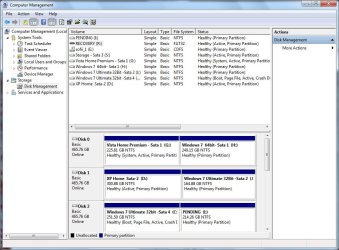
Well... It wont let me extend my X: drive, Only will let me extend my C: drive.. I'll show screen's. Im on my Vista when taking this :P I dont kno how to take the screen shot of me right-clicking my X: drive, using the sniping tool. Maybe this lil' issue will show it?
See how my C: drive says System Boot and Pagefile.. etc. etc.
my X: Drive says none of that, it only says Healthy Partition. Any Idea wuts up? | My System Specs | | System Manufacturer/Model Number HP dv6000t CTO Entertainment Lappy |My Desktop @ Bottom OS 7 x64/ Back-Track 4 CPU Intel Core 2 Duo CPU 8300@ 2.4 Ghz Motherboard HP's Own Memory 4096 MB DDR2 Graphics Card Nvidia 8400M GS Sound Card Altec Lansing (The usual on Laptops ) Monitor(s) Displays Laptop Screen. 17' Wide. Screen Resolution 1280 x 800 Keyboard Norm. Cheap Random Keyboard Mouse Norm. Cheap Random Mouse Cooling 2 External Fans, Undervolted, Coolant Hard Drives 150 GB HDD. Other Info This is my Homemade Desktop :)
HDD: Western Digital Caviar Blue 320GB 16MB 7200RPM SATA2
And more to come in a bit! :D |
19 Aug 2009
|
#9 | | Windows 7 Ultimate x64, XP Mode, W8 RP VM, Linux Mint Debian 2nd OS HD- 7 Pro x64 second case New England |
That's because once you shrink the Vista primary down you have to "move" the 7 primary towards the front of the drive in order to first fill in that space. Once that is done you now see vacant drive space at the back end of the drive you fill in by expanding the 7 primary at that time.
To simplify things here when having to shrink the former XP primary down a bit while still running the 32bit beta on the second primary initially created for that the same thing had to be done in order to grow the 7 beta primary into the empty space seen once the primary was moved forward on the drive. And that's what takes the real time moving partitions! | My System Specs | | OS Windows 7 Ultimate x64, XP Mode, W8 RP VM, Linux Mint Debian 2nd OS HD- 7 Pro x64 second case CPU AMD Phenom II X4 975 Deneb 3.6ghz - 965 on new mini tower Motherboard Gigabyte GA-790XTA-UD4 Memory Kingston Hyper X DDR3 1600 1.5v 16gb - Mushkin on 2nd build Graphics Card MSI HD Radeon 5750 1gb - MSI HD Radeon 6450 on mini tower Sound Card Creative Labs X-Fi XtremeGamer - Realtek onooard 2nd case Monitor(s) Displays 2 x Acer P191W 19" widesscreen - HP 20" widescreen mini towe Screen Resolution 1440x900 native - 1600x1024 on 7 Pro x64 build Keyboard Microsoft Recusa Razor - MS Comfort 3000 on second build Mouse MS Trackball Explorer - A4TECH dual scroll wheel trackball PSU Corsair 750TX - primary / Corsair CX600 - second Case Antec 900-2 - SSD compatible / NZXT Vulcan mini tower Cooling Zalman CNPS9900A Hard Drives Primary Ultimate x64 build-
WD Black Edition 1tb Sata 6.0 = 2
WD Black Edition 1tb Sata 3.0 = 2 (OS drives)
WD 1tb Green Power sata = 2 1 external
usb flash drives = 18
Second 7 Pro x64 mini tower-
WD Caviar SE 500gb sata II single drive presen Internet Speed 30mbps upgrade - primary hard wired - mini tower usb WiFi |
19 Aug 2009
|
#10 | | W7 X-64 RTM,SUSE 11.1, XP PRO SP3 as a VM, VMware ESXi Hafnarfjörður IS |
Hi all
I'd attempt this another way.
1)
Use Acronis True Image to backup your partitions (don't forget that sometimes there's a small "hidden" system one as well).
2) create the bootable acronis backup media so you can boot from a CD / DVD / USB stick.
3) run the restore from the CD.
In this you can delete existing partitions when you restore and can change sizes.
NOTE - if you have the small hidden partition this must be restored as type ACTIVE whilst the others are PRIMARY.
If there isn't a "hidden" partition then your Windows partition should be set to ACTIVE.
It's all quite easy in the Acronis restore program.
Whilst the program is not free its a good robust backup and recovery program -- and you should be taking backups shouldn't you anyway.
A typical 30 GB Windows 7 partition on reasonable hardware only takes around 15 mins to backup / restore so it doesn't take a lot of time.
Cheers
jimbo | My System Specs | | System Manufacturer/Model Number Custom built OS W7 X-64 RTM,SUSE 11.1, XP PRO SP3 as a VM, VMware ESXi CPU Q9400 QUAD Motherboard P5QL-CM Memory 8GB Graphics Card On Motherborad Sound Card Realtek HD audio Monitor(s) Displays Apple Cinema display Mouse Toshiba wireless laser Hard Drives 4 X 1TB SATA Internet Speed > 20MB up Extending my Windows 7 Partition problems? All times are GMT -5. The time now is 06:26 AM. | |